Audience: event organisers and client administrators.
Applies to: paid tickets and products sold through the Delekit registration site.
Delekit uses Stripe to take card payments for priced tickets and products. You connect your own Stripe account once, at client (organisation) level, and every event under that client can then sell paid tickets. Money goes straight into your Stripe account; Delekit never holds your funds.
How the integration works
- Your Stripe account, your money. Delekit connects to a Stripe account that you own using Stripe Connect. Every payment a buyer makes is settled into that account and paid out to your bank on your normal Stripe payout schedule.
- One connection per client. The Stripe connection is made in your client settings, not per event. All events under the client share it.
- One payment per order. Each checkout produces one order and one payment in Stripe, whatever the number of tickets and add-ons in it. Free and complimentary orders skip payment entirely and are confirmed straight away.
- Confirmation follows payment. A priced order is held as "Pending payment" until Stripe confirms the payment succeeded. Only then are the tickets allocated, the registration confirmed and the confirmation email sent.
Before you start
You will need:
- A Stripe account, or you can create one during the connection step. The account must have completed Stripe's own onboarding (identity, business and bank details) before it can take live payments.
- Client administrator access in Delekit. The Stripe page is in client settings, which only client administrators can open.
Connecting your Stripe account
- Open Client management. Click the gear icon next to your client name at the top of the left-hand sidebar (it opens in a new t
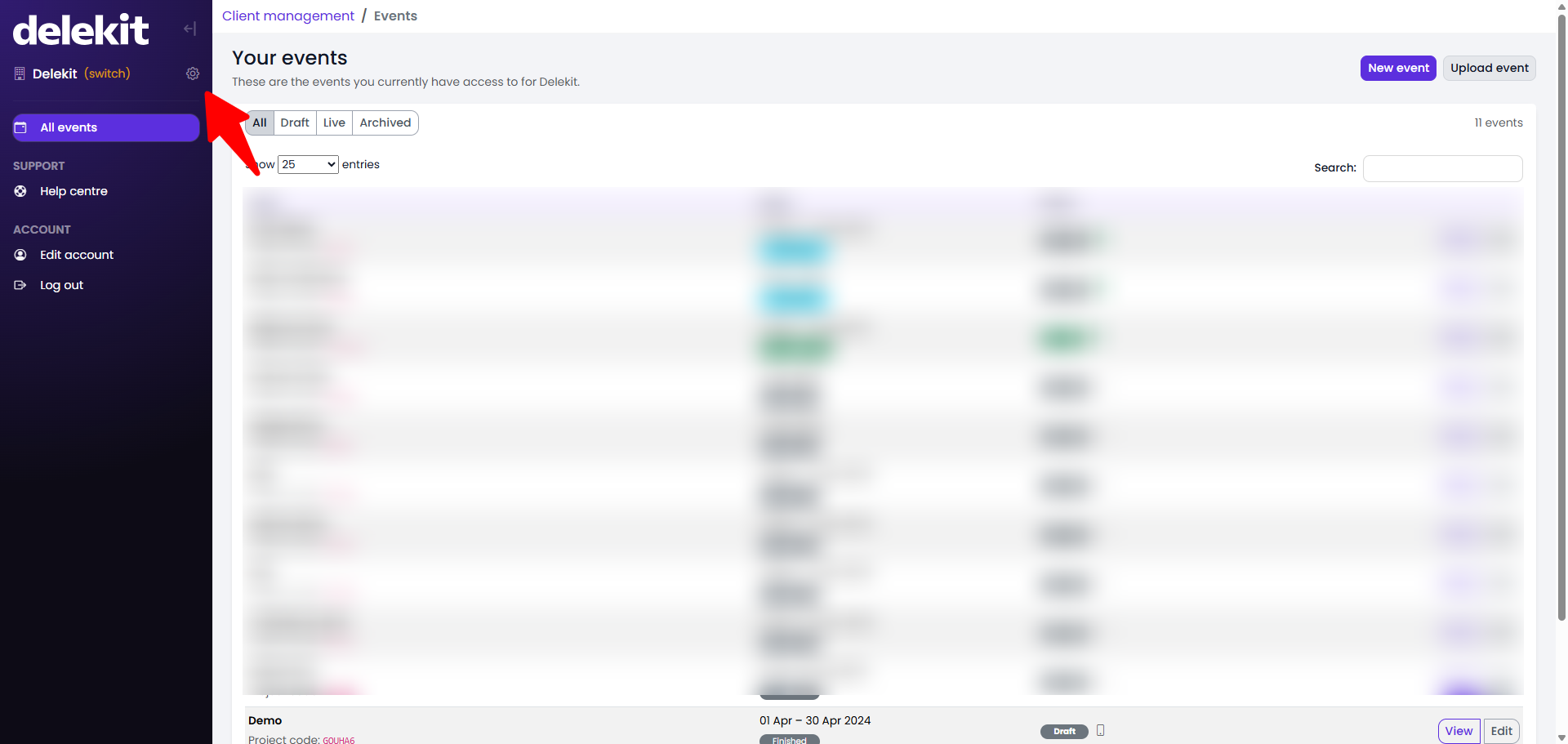 ab).
ab). - In the Integrations panel click Manage integrations,
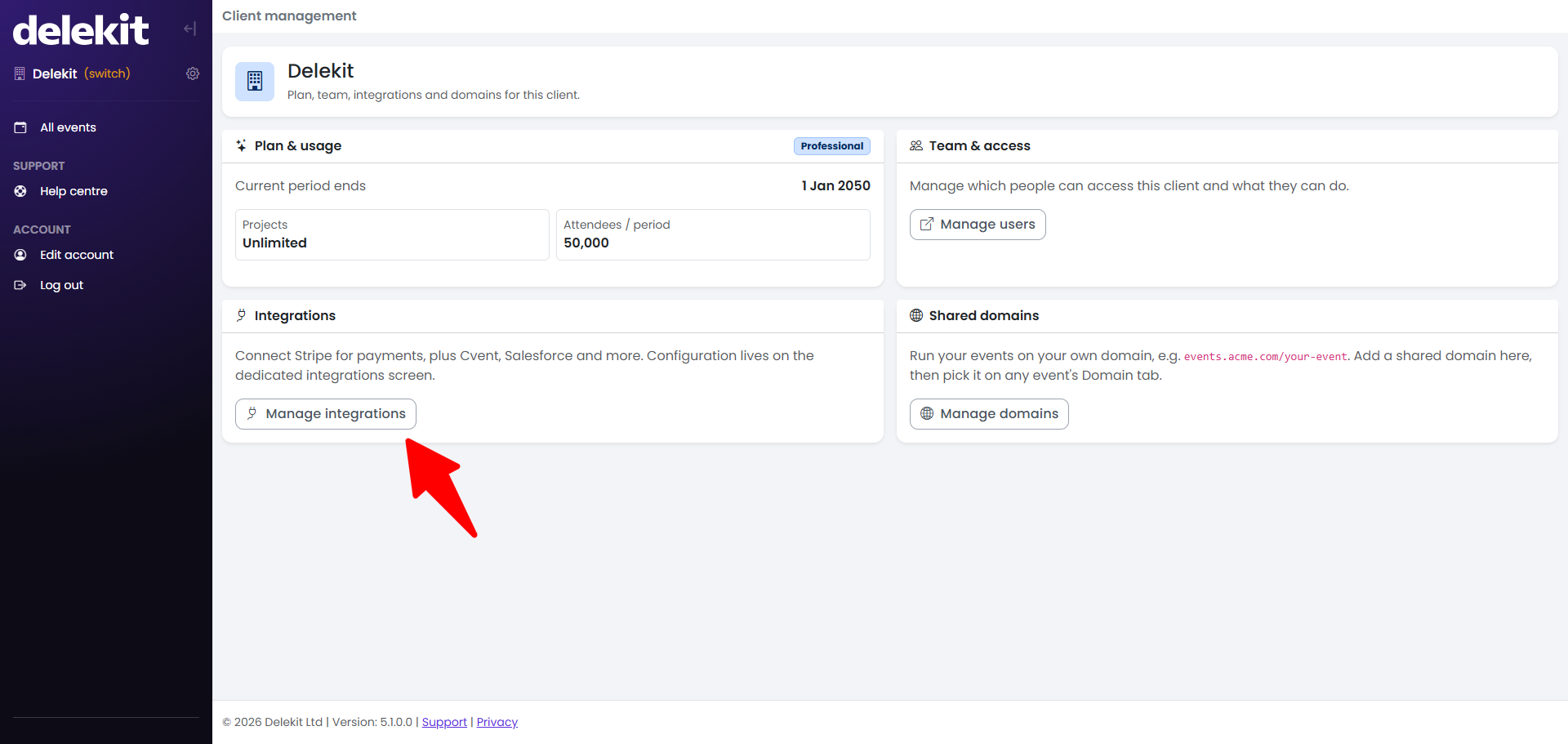
- Then on the Stripe card click Configure (or Manage if a connection already exists).
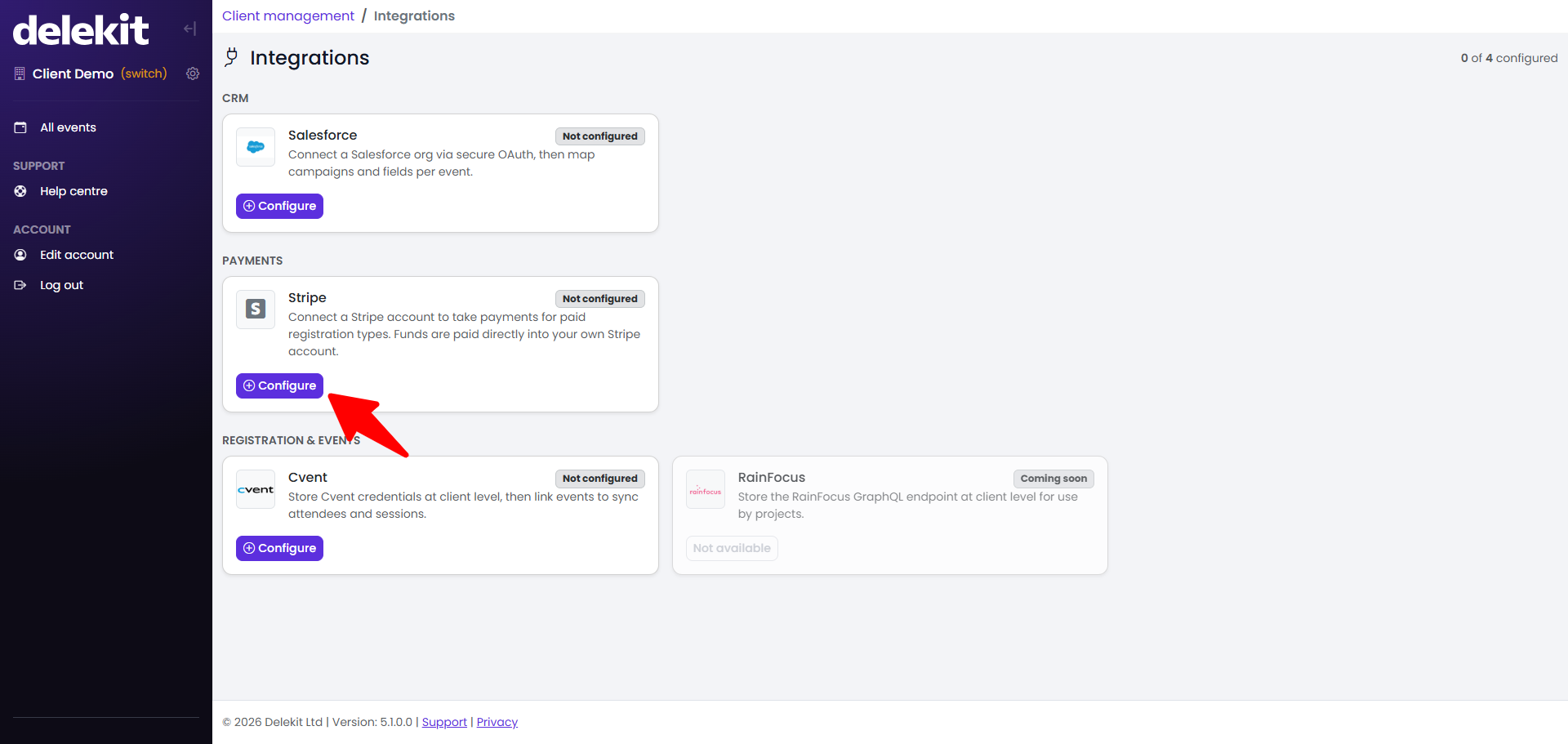
- Click Connect Live Stripe to connect your live Stripe account, or Connect Test Stripeto connect your Stripe sandbox for testing.
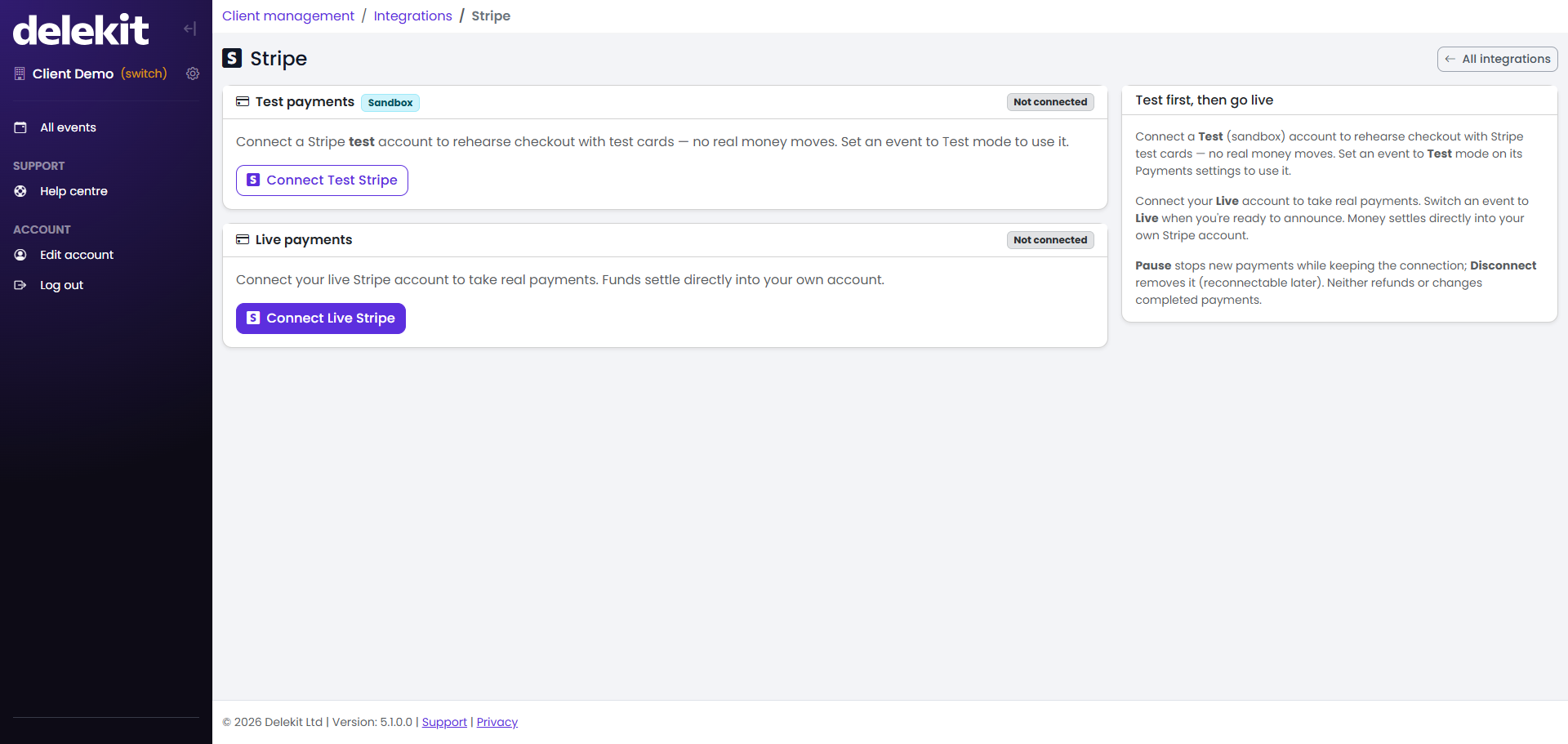
If you have a Stripe sandbox available, we recommend connecting both your Test and Live accounts. This allows you to test your complete registration, ticketing and payment flow before accepting real payments from attendees.
- On Stripe, sign in to your existing Stripe account, or create a new one, and authorise Delekit to take payments on your behalf.
- Stripe returns you to Delekit and you will see Stripe account connected.
- To switch between Live and Test payments, go to All Events from the menu, then click Edit on the event you want to configure. Scroll down to the Payment Mode section and select the required mode.
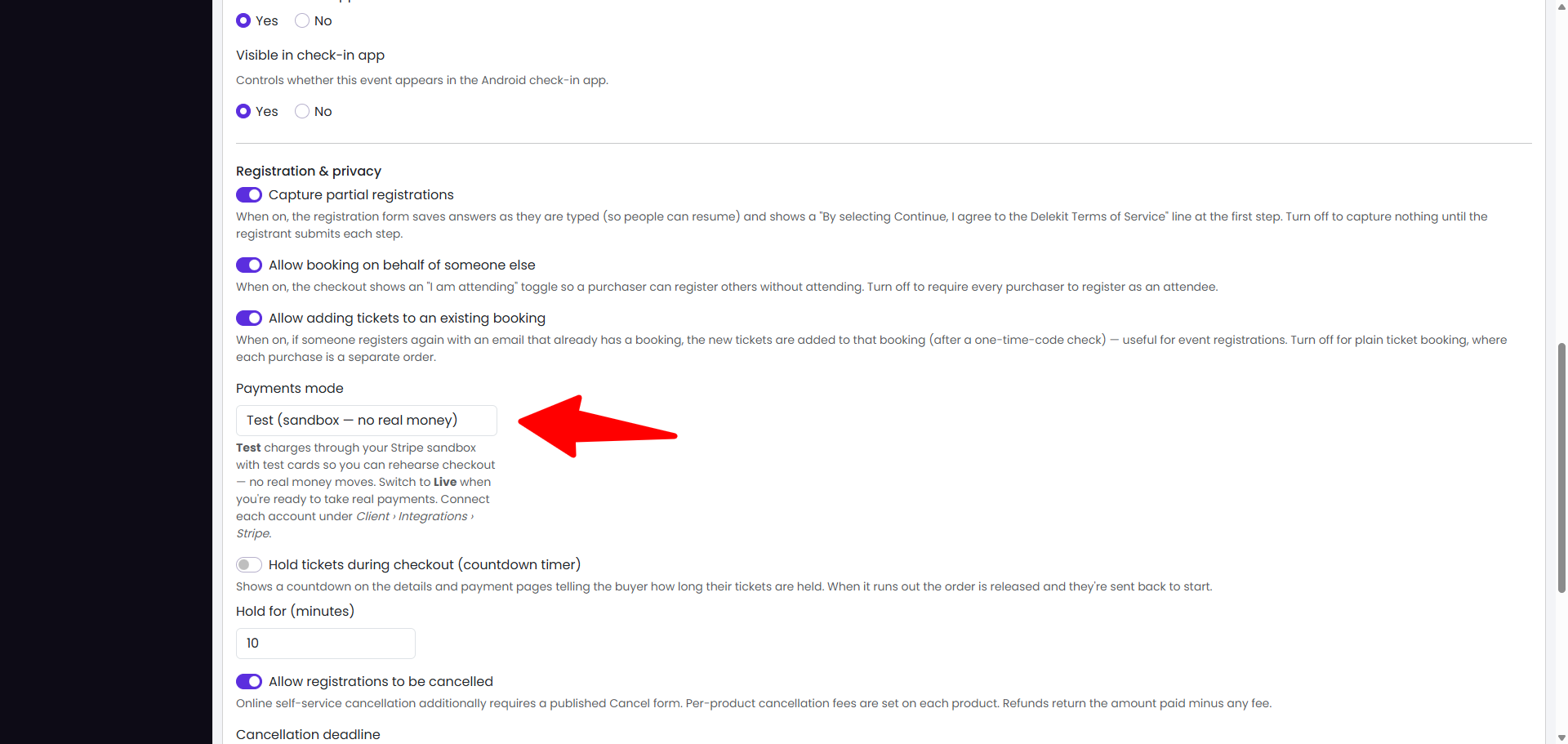
Reading the Stripe status
The Stripe page shows a status badge and, once connected, two indicators for Charges and Payouts pulled from your Stripe account.
| Status | Meaning | What to do |
|---|---|---|
| Not connected | No Stripe account is linked. | Click Connect with Stripe. |
| Incomplete | Connected, but Stripe still needs details before the account can take payments. | Click Complete setup in Stripe, finish the outstanding steps, then come back and click Re-check status. |
| Action required | Stripe has restricted the account, for example because of missing verification. Payments may be refused until it is resolved. | Click Resolve in Stripe, clear the requirements, then Re-check status. |
| Active | The account is verified and charges are enabled. | Nothing. You can take payments. |
| Paused | You have paused payments in Delekit. The connection is kept but no new payments are taken. | Click Resume payments when you are ready. |
Delekit updates this status automatically when Stripe notifies it of a change. If the page looks out of date, Re-check status pulls the latest state from Stripe immediately.
View Stripe dashboard opens the standard Stripe dashboard, where you sign in with your own Stripe login to see payments, payouts and reports.
Was this article helpful?
That’s Great!
Thank you for your feedback
Sorry! We couldn't be helpful
Thank you for your feedback
Feedback sent
We appreciate your effort and will try to fix the article