Audience: client administrators. Applies to: plans that include custom domains. Not sure whether yours does? Speak to your account manager or raise a ticket before you start.
Every event website works straight away on a Delekit address. You can run it on your own
domain instead, such as events.yourcompany.com/summer-summit or
register.yourcompany.com. You add the domain in Delekit, point it at Delekit in your
domain's DNS settings, and check it from the same screen.
Before you start
- Check your plan includes custom domains. Speak to your account manager or raise a ticket. In the same request, ask for the DNS records to add, and say if you'd like emails to come from your domain too.
- Have someone who can change your domain's DNS settings, usually your IT team.
- Choose how you'll use it:
- A shared domain runs many events, each under its own address:
events.yourcompany.com/summer-summit. You add it once, in Client settings. - A domain for one event runs a single event:
register.yourcompany.com. You add it in that event's website settings.
- A shared domain runs many events, each under its own address:
Add a shared domain
In the menu, select Admin, then Client settings. In Shared domains, select Manage domains.
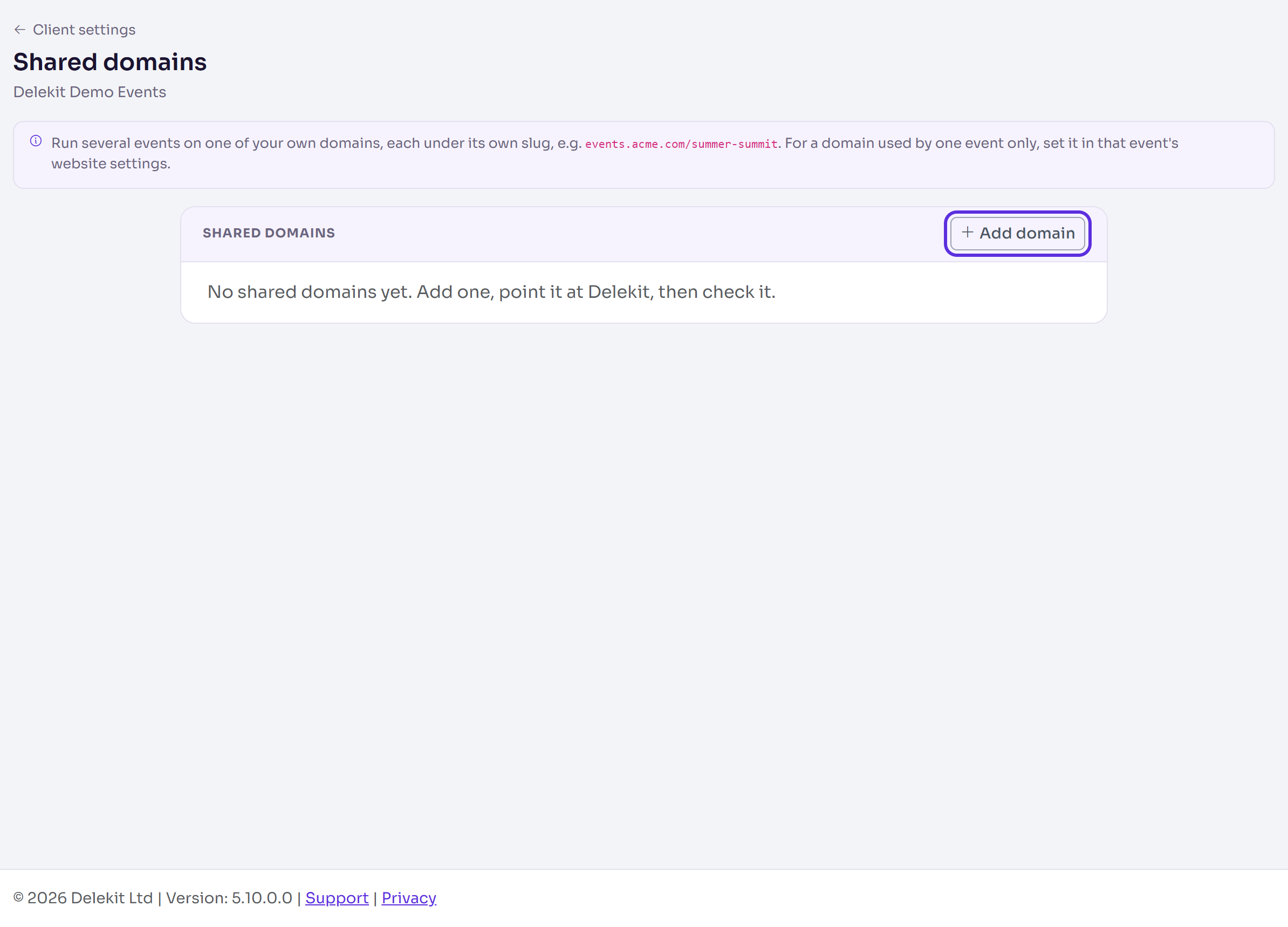
Select Add domain.
Enter the Domain, for example
events.yourcompany.com, and select Add domain.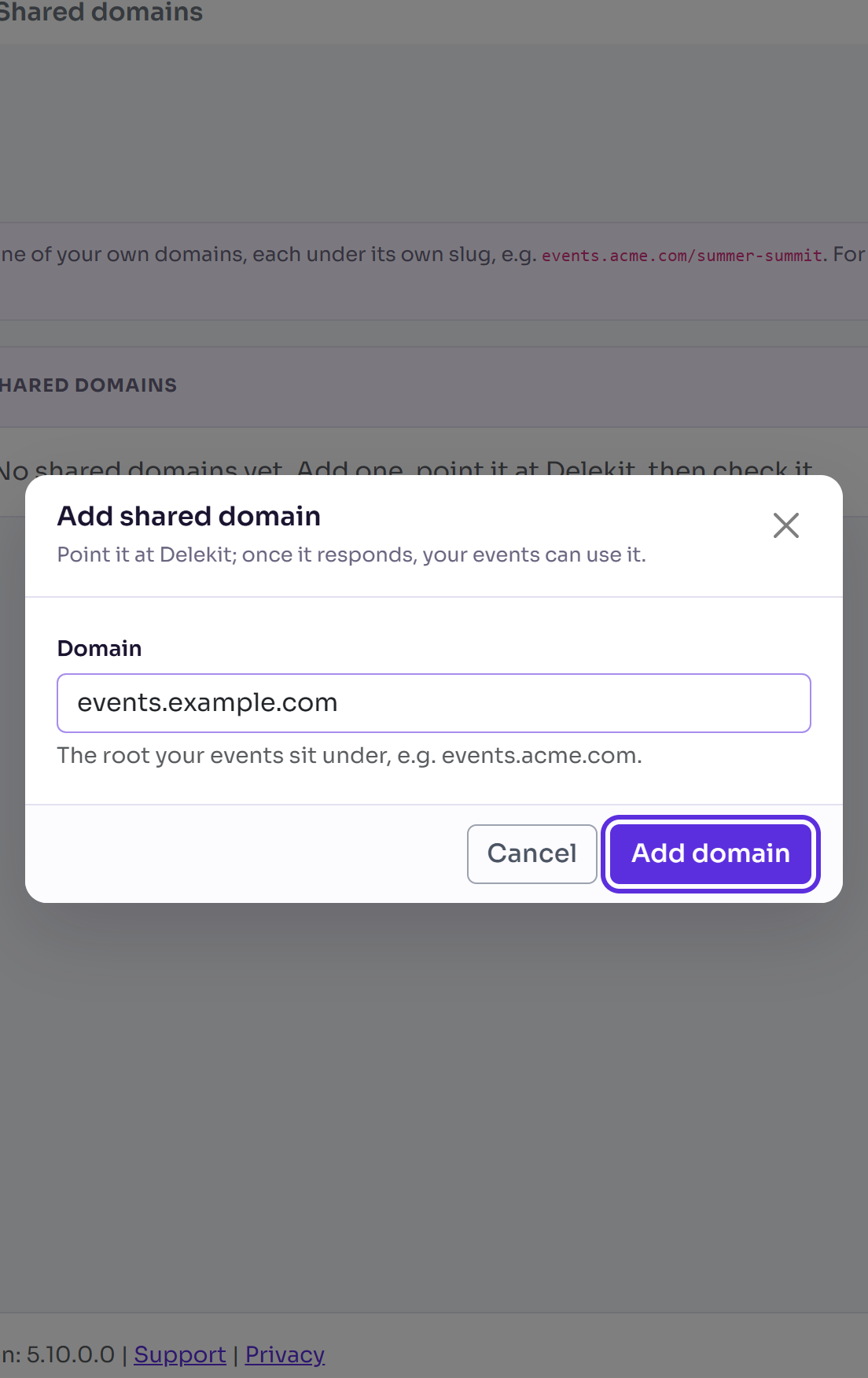
Add the DNS records Delekit gave you at your DNS provider. Changes can take from a few minutes to a few hours to take effect.
Select Check next to the domain. When it's ready it says Live (responding with 200). Events can now use this domain.
In each event that should use it, open Website › Settings. Under Domain, choose Your domain, shared across events, choose the domain, and select Use this domain.
Add a domain for one event
- Open the event, then Website › Settings.
- Under Domain, choose Your domain, dedicated to this event.
- Enter the domain, for example
register.yourcompany.com, and select Add domain. - Add the DNS records Delekit gave you at your DNS provider.
- Select Check. When it's ready it says Your domain is live (responding with 200).
What happens next
- A Delekit admin makes your domain the primary address once it checks out. You don't need to do anything. Until then, your site keeps using its Delekit address.
- The Delekit address always keeps working, so links you've already shared never break.
- Email from your domain, if you asked for it, is set up by Delekit with extra DNS records. Once it's verified, choose the address as the event's From address in Edit event › Email.
If something isn't right
- "Not reachable yet" or "Not ready yet" when you select Check: the DNS records haven't been added yet or are still taking effect. Check them against the ones Delekit sent you, then try again later.
- "That domain is already registered to another client." Raise a ticket and tell us the domain.
- You can't remove a shared domain: events still use it. Change those events to another address first.
- You don't see Make primary: a Delekit admin does that step.
Related articles
Still stuck? Contact Delekit support.
Was this article helpful?
That’s Great!
Thank you for your feedback
Sorry! We couldn't be helpful
Thank you for your feedback
Feedback sent
We appreciate your effort and will try to fix the article