Audience: event administrators and client administrators. Applies to: all plans.
A custom field is a question you keep an answer to for each attendee, such as a job title or dietary requirements. Add your event's custom fields in Edit event › Custom fields: give each one a name, a code and a field type, and its choices if it has any. Then put them on your registration form.
Before you start
- You need to be able to edit the event. If you can't see Edit event in the menu, ask a client administrator for access.
- A field isn't asked anywhere yet when you add it here. Attendees see it once it's on your registration form and the form is published: see Build your registration form.
- Your organisation may already have the fields you need. If Add our standard fields was on when the event was created, your field library's standard fields are already in the list.
Add a custom field
In the menu, select Event, then Edit event, then select Custom fields on the page.
Select Add custom field. A side panel opens.
Enter a Name, such as Dietary requirements. This is how the field is named in the form builder, reports and exports.
Check the Code. It's filled in from the name: lower-case words joined by underscores, such as
dietary_requirements. Common words such as "details" are left out, so Dietary details becomesdietary. Type a clearer code, such asdietary_details, if you want one.Choose the Field type: for example Text (single line), Text area (multi line), Dropdown (list), Radio buttons, Checkbox list (multi-select), Date, File upload or Signature (attendees sign in a box with a mouse, finger or pen). They're the same types, under the same names, as in the form builder.
For a Dropdown (list), Radio buttons or Checkbox list (multi-select), select Add option and type each choice. Drag an option by its handle to change the order.
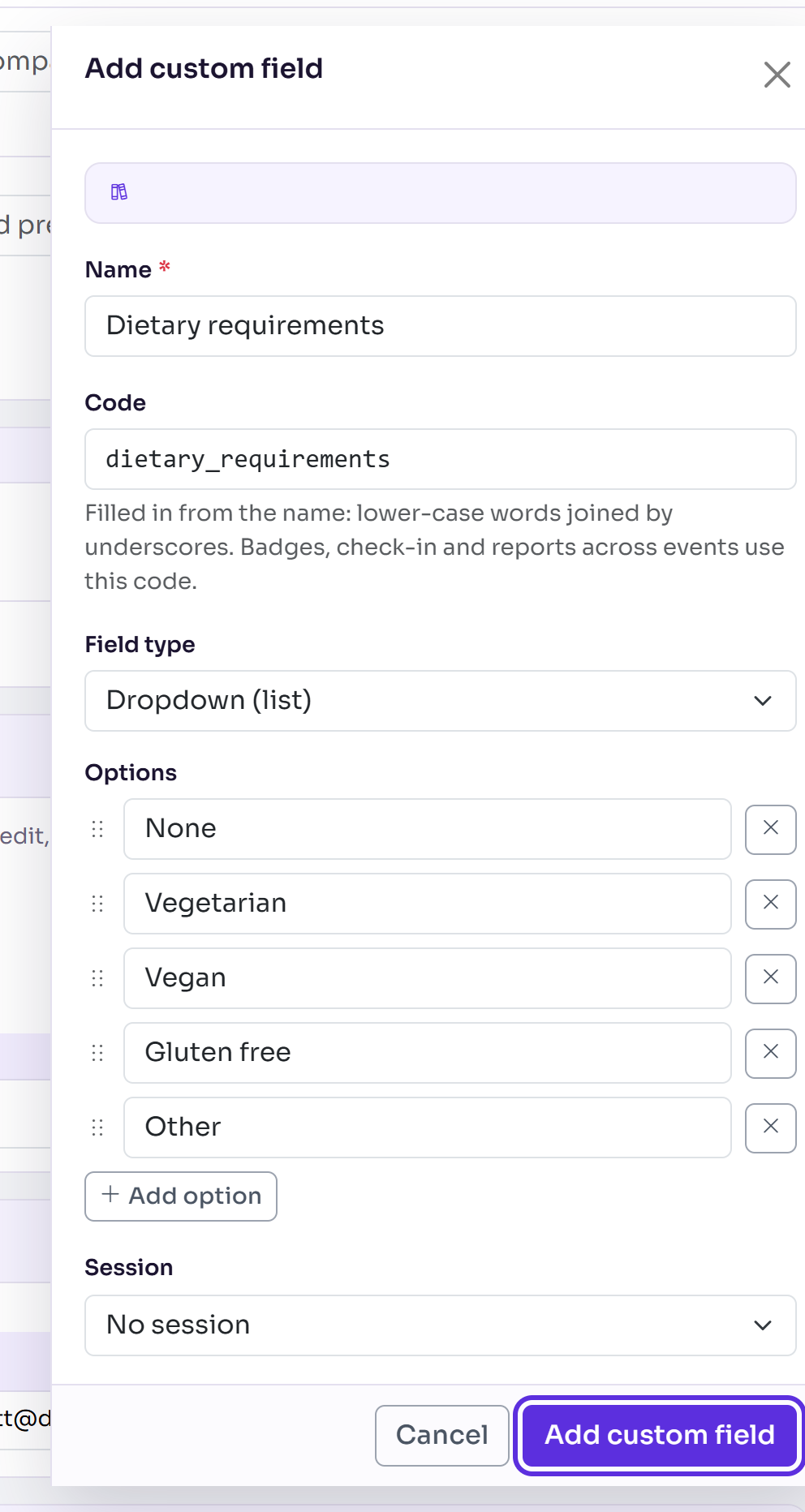
Select Add custom field.
You'll see Custom field added, and the field joins the list with its code and type.
To show the answer in the check-in app, open the field and turn on Visible on app.
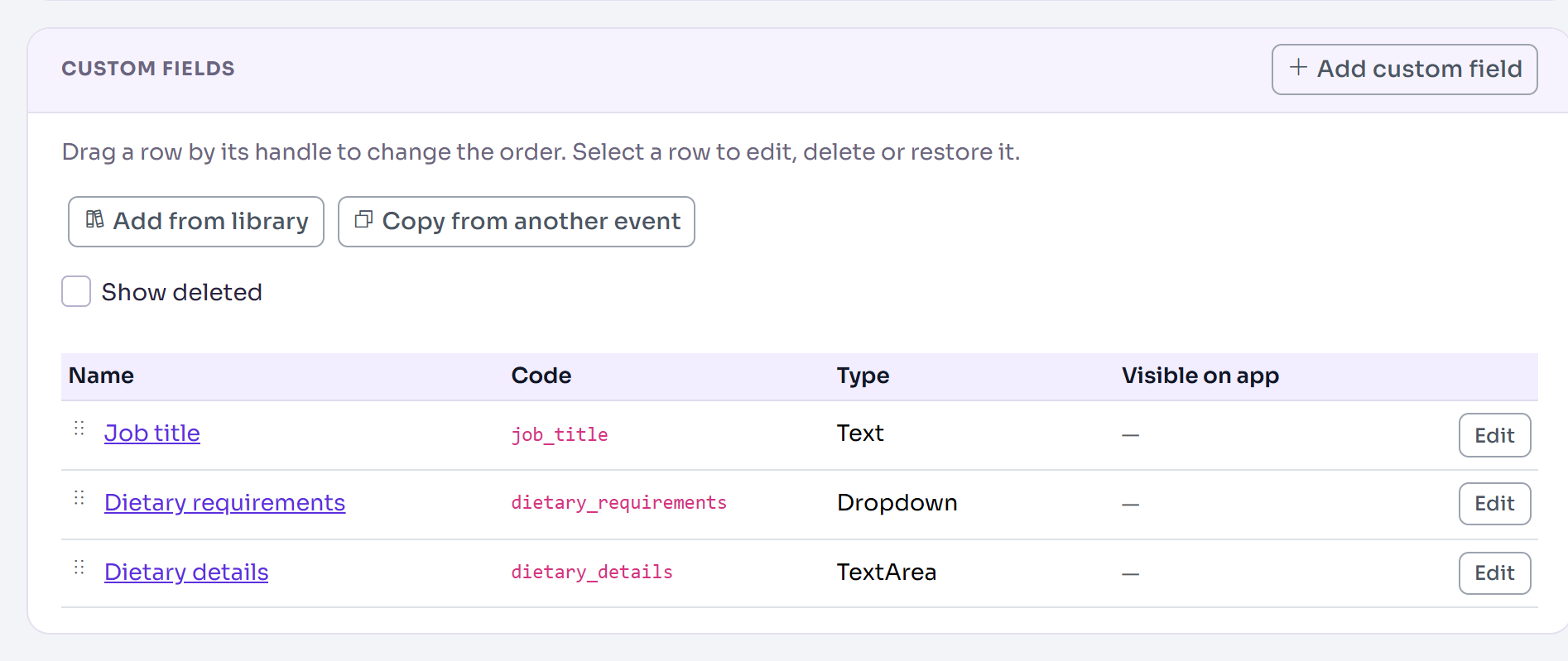
Add fields from your library or another event
- Add from library lists the fields in your organisation's field library that this event doesn't have yet. Each one comes in as this event's own field, with the library's code and choices.
- Copy from another event asks for the event first, then its fields. Fields this event already has (with the same code) are left out.
Client administrators also see Add to field library on a saved field. Your other events can then add it with the same code and choices.
Change or delete a field
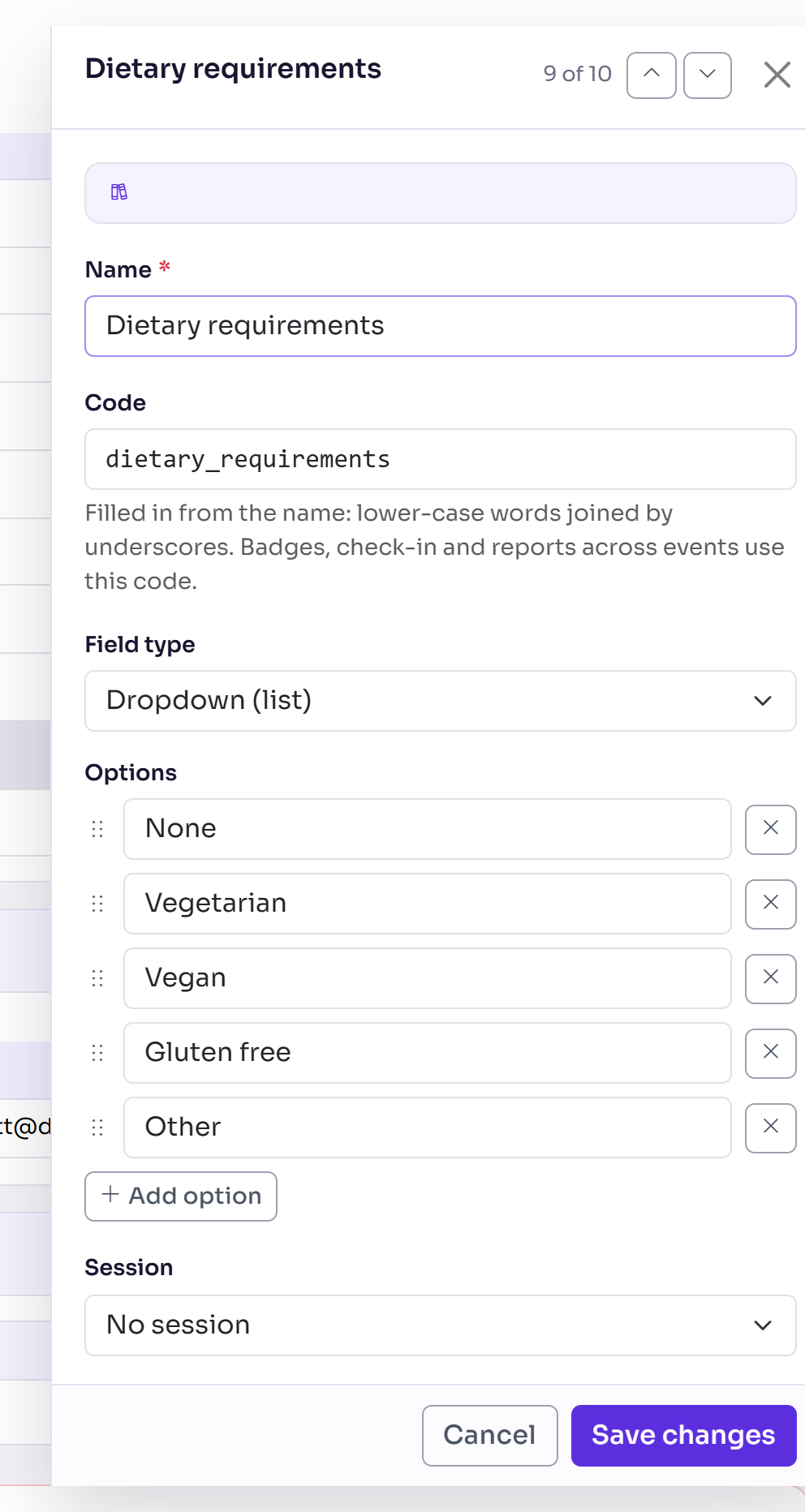
Select a field in the list to open it. Make your changes and select Save changes. Drag a row by its handle to change the order of the list.
Changing a saved code asks first, because badges and check-in profiles use it. Select Change the code to update them too, or Keep the old code.
Delete custom field hides the field from this event's forms and attendee pages. Answers already given are kept, and you can restore it from Show deleted.
A field on a live form can't be deleted. The panel names the form. Remove the field in the form builder and publish the form, then delete it here.
What happens next
The field belongs to this event only. Changing it here never changes another event or your field library. Add it to your registration form next; until then, nobody is asked it.
If something isn't right
- "Give the custom field a name." The Name is empty.
- "Use lower-case letters, numbers and underscores for the code, starting with a letter (40 characters at most)." Fix the Code, or clear it to have it made from the name.
- "Another field in this event already uses the code …" Every code in an event is different. Choose another.
- "Use a name that already exists?" Another field has this name, and two fields with one name are hard to tell apart in reports. Select Rename it, or Save anyway.
- A show / hide rule uses the field: change the rule in the form builder first, then delete the field. See Show or hide a question based on an answer.
Related articles
Still stuck? Contact Delekit support.
Was this article helpful?
That’s Great!
Thank you for your feedback
Sorry! We couldn't be helpful
Thank you for your feedback
Feedback sent
We appreciate your effort and will try to fix the article