Audience: client administrators. Applies to: all plans.
Choose how long Delekit keeps people's personal data: how long you have to cancel an erasure, how long deleted attendees and deleted events can be restored, and, if you want, how long after each event attendees' details are kept. Delekit doesn't choose these for you. Until you set them, nobody in your organisation can delete an event or use Erase personal data.
Before you start
- You need to be a client administrator.
- Agree the periods first with whoever looks after data protection in your organisation. They should match your privacy notice and your agreement with Delekit.
- Erasing removes what identifies a person and keeps the numbers: counts, tickets and revenue stay in your reports.
Set the periods
In the menu, select Admin, then Data retention.

Under Settings, enter the Wait before Erase personal data: from 0 to 30 days. During the wait you can cancel an erasure, and nothing more is emailed to the person. 0 erases within minutes, with no chance to cancel.
Enter Keep deleted events: from 0 to 30 days. A deleted event can be restored until then; after that its attendees' and bookers' personal data is erased.
To erase deleted attendees after a while, turn on Erase deleted attendees and enter the Months after they were deleted (1 to 120). Leave it off to keep deleted attendees until someone erases them.
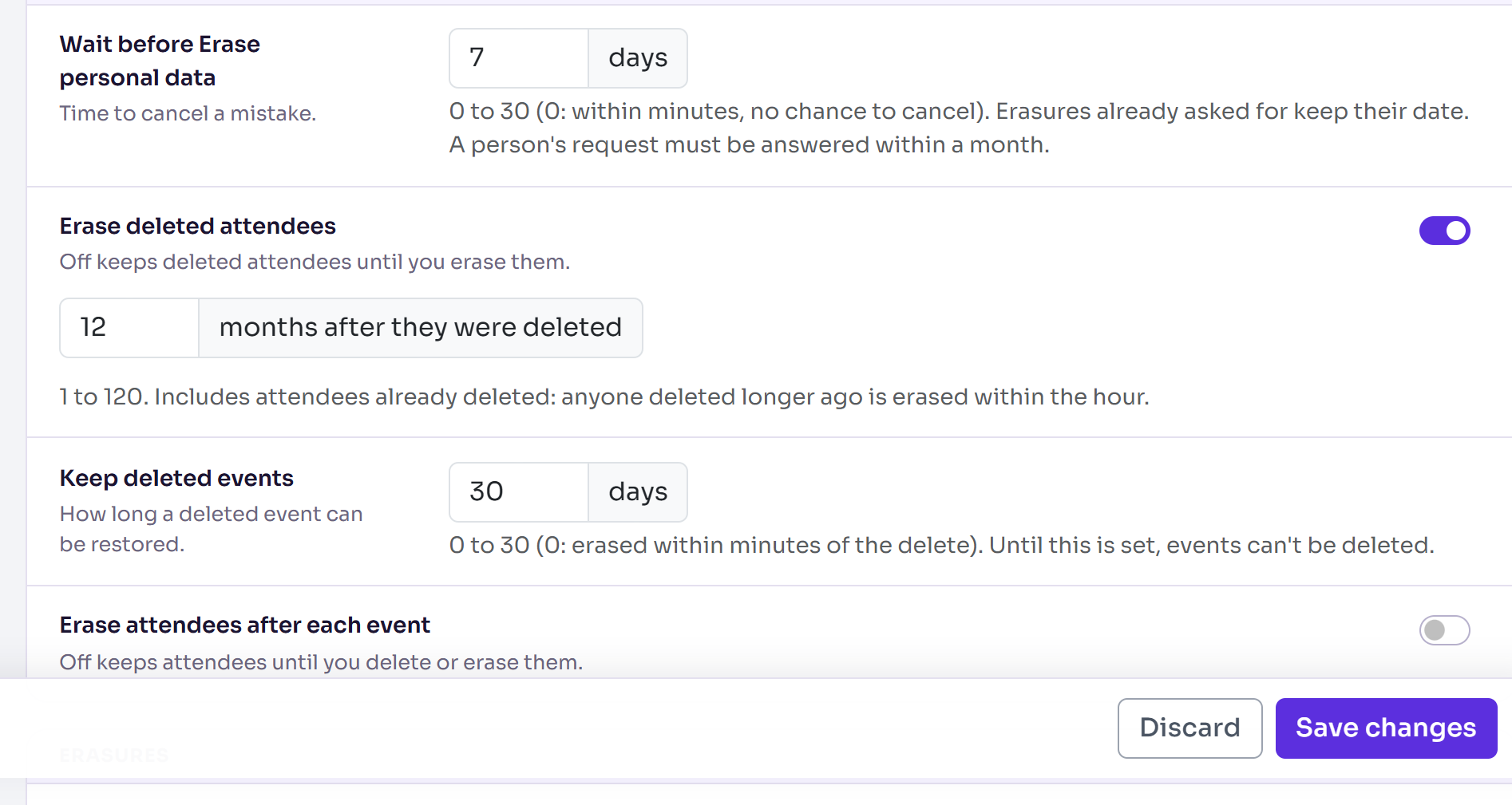
To erase every attendee's details a set time after their event, turn on Erase attendees after each event and enter the Months after the event ends (1 to 120). Check this before you save: it applies to past events too, and those that ended longer ago are erased within the hour.
Select Save changes.
You'll see Data retention saved.
Check it works
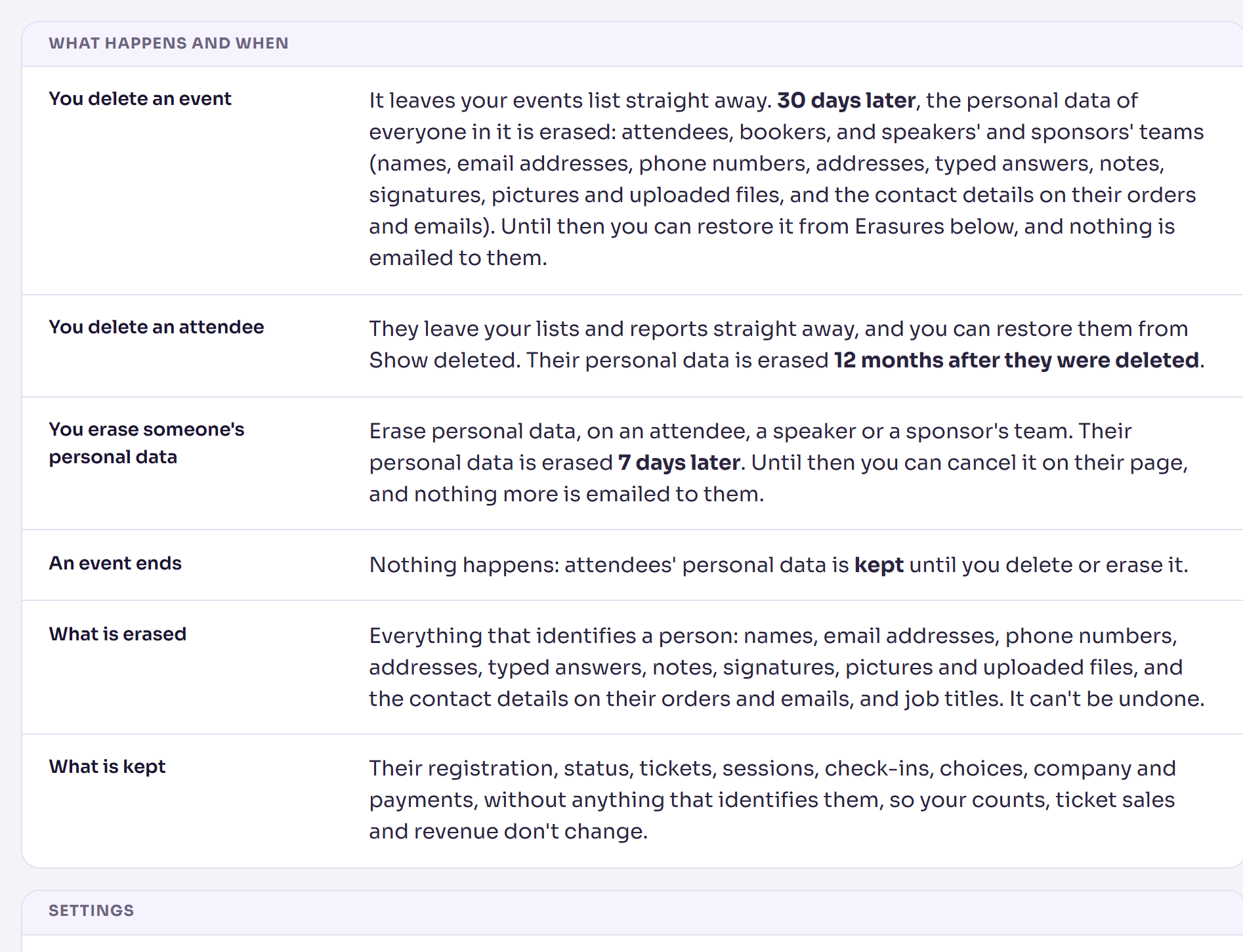
What happens and when, at the top of the page, now describes your periods in plain words: for example, a deleted event's personal data is erased 30 days later. Read it through before you leave the page.
What happens next
- Delete event and Erase personal data work from now on, using your periods.
- Every erasure, and every deleted event you can still restore, is listed under Erasures on the same page. A deleted event has a Restore event button there until its period ends.
- You can change the periods at any time. Erasures already scheduled keep their date.
If something isn't right
- "Not available yet: set … in Data retention first" on an event or attendee: one of the two periods in steps 2 and 3 isn't set yet.
- A number is refused: days must be from 0 to 30, and months from 1 to 120.
Related articles
Still stuck? Contact Delekit support.
Was this article helpful?
That’s Great!
Thank you for your feedback
Sorry! We couldn't be helpful
Thank you for your feedback
Feedback sent
We appreciate your effort and will try to fix the article