Audience: client administrators. Applies to: plans that include the registration form builder. If Client defaults shows a padlock in the menu, it isn't in your plan.
Your default email templates are your organisation's own wording for the emails Delekit sends: invitations, registration confirmations, cancellations, e-tickets and the rest. Set them up once, and every new event can start from them instead of from Delekit's standard text.
Before you start
- You need to be a client administrator.
- Do this before you create events. Defaults are copied into an event when it's created; events that already exist keep their own templates.
- If you want your emails wrapped in your logo and colours, create an Email layout first (select Add template and choose Email layout as the Type), so you can choose it in step 3.
Add the templates
In the menu, select Admin, then Client defaults.
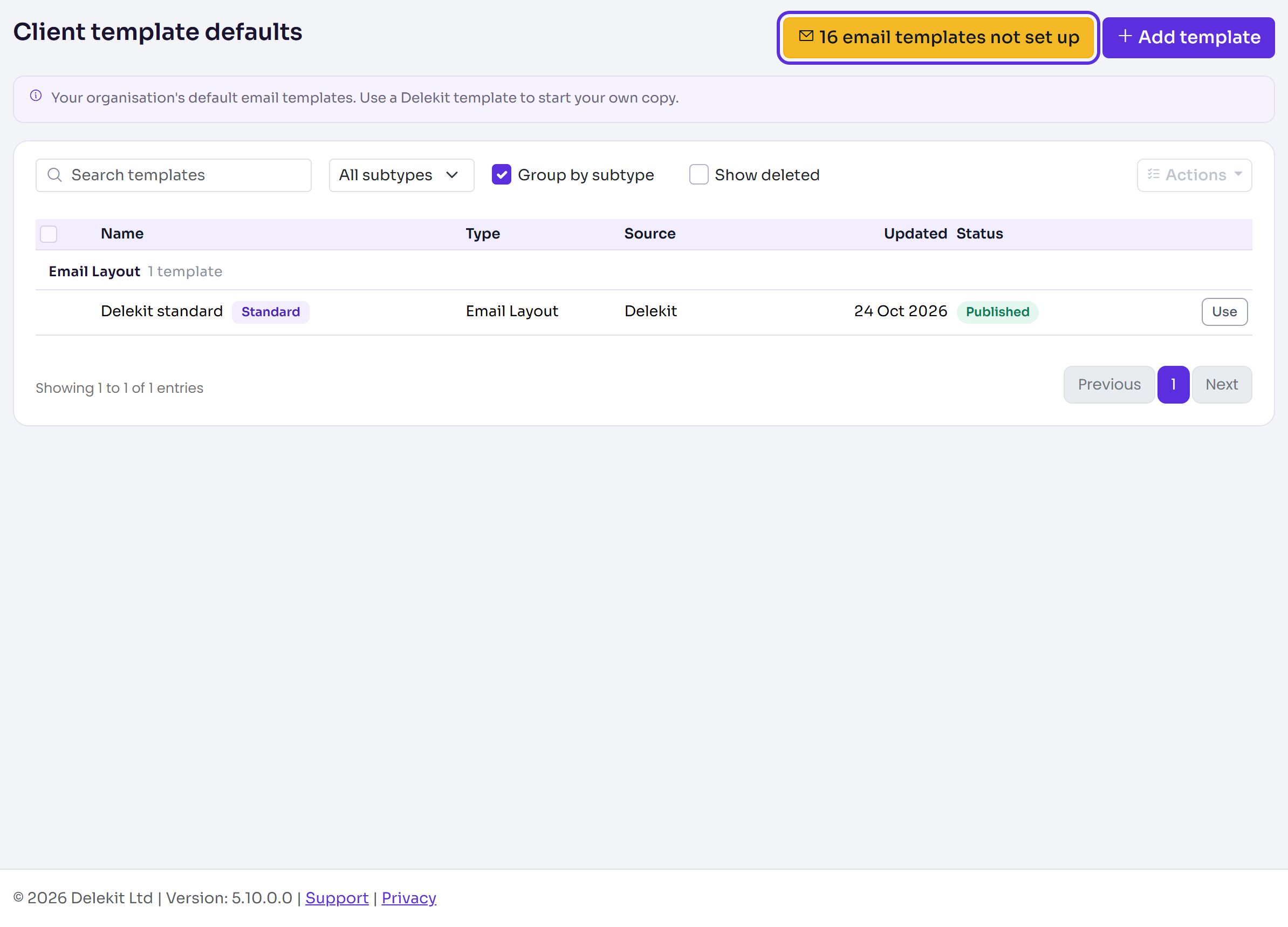
Select the email templates not set up button. It shows how many are missing, for example 11 email templates not set up.
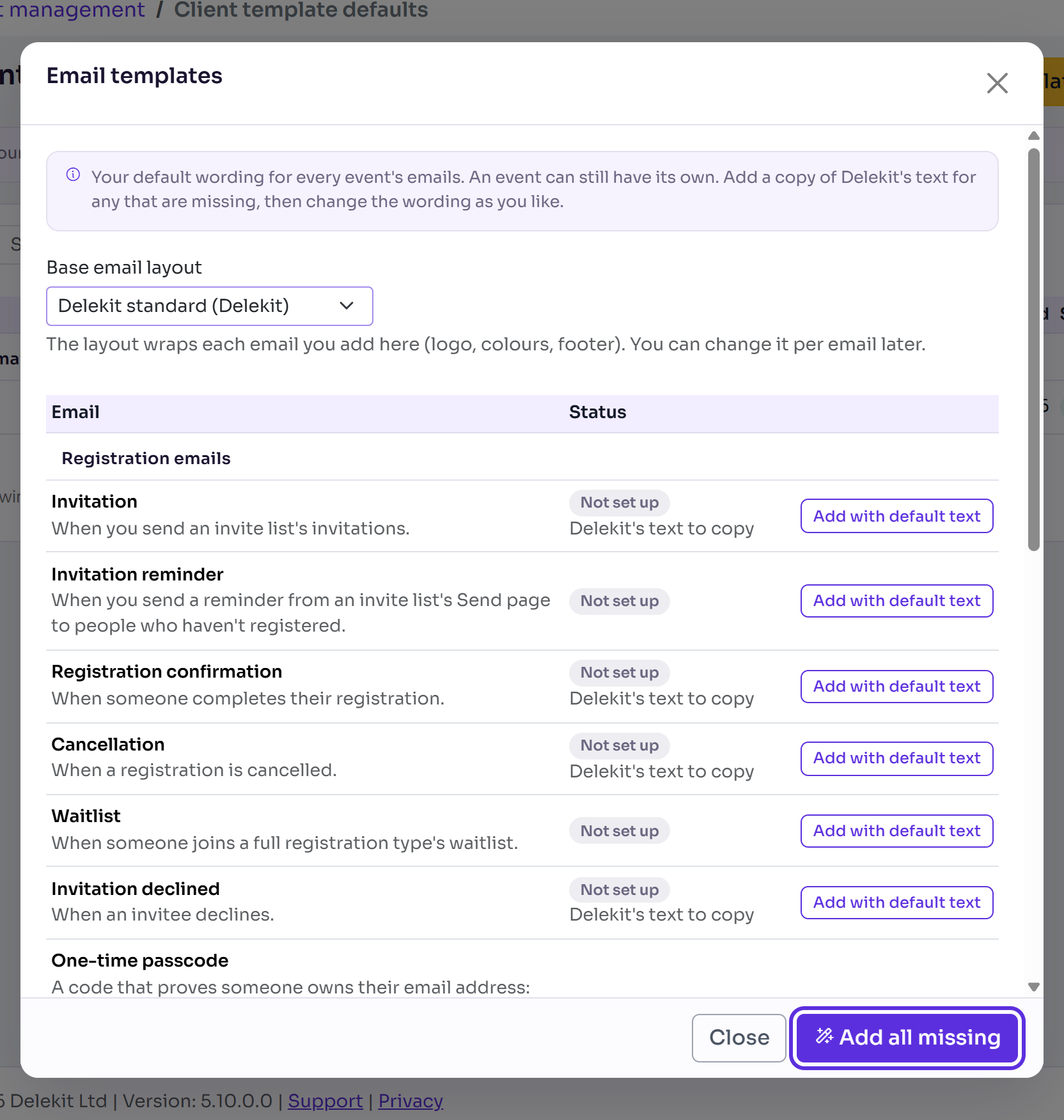
In Email templates, choose a Base email layout if you have one. The layout wraps every email you add here, and you can change it per email later.
Select Add all missing. To add just one, select Copy Delekit's text (or Add with default text) on its row.
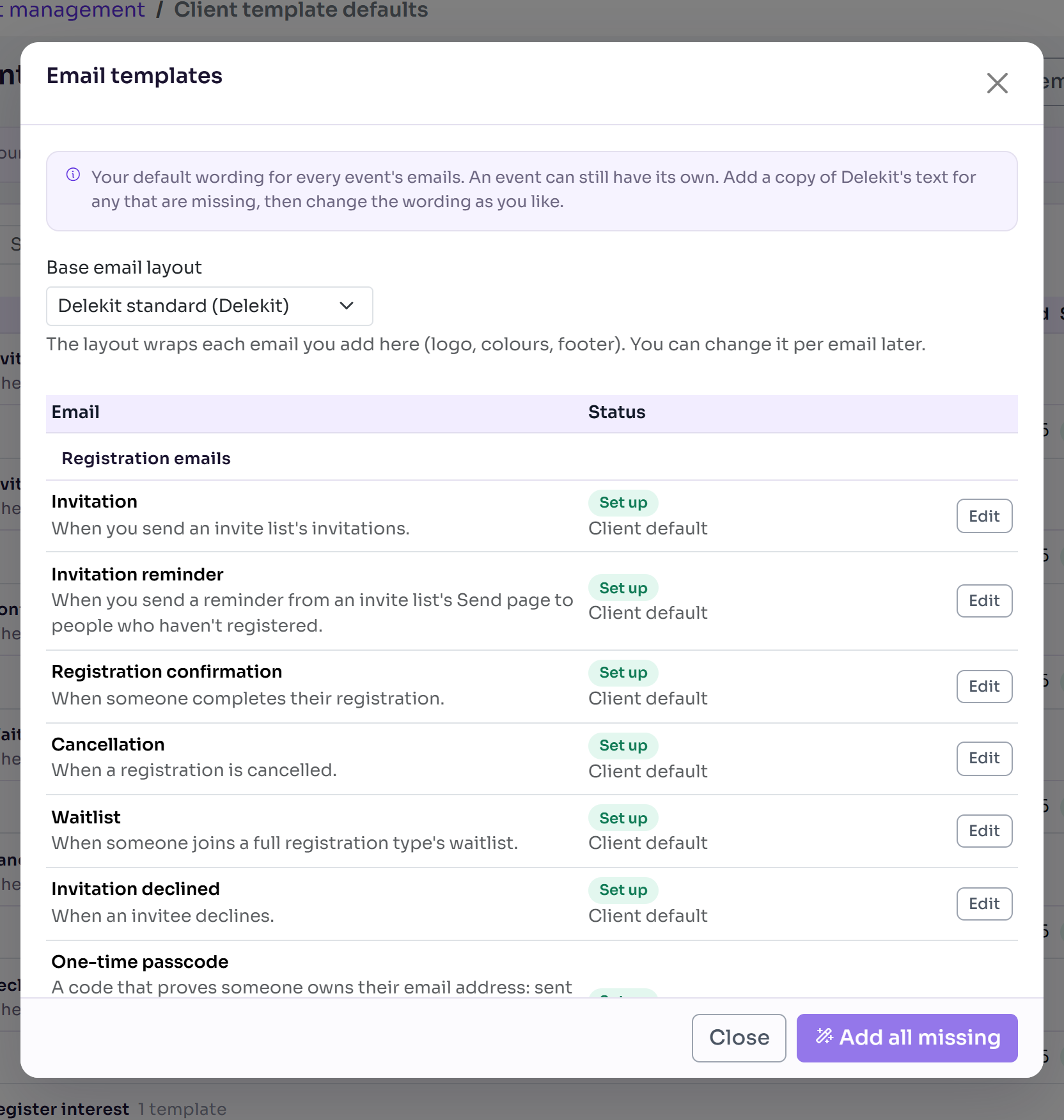
You'll see how many were added, for example 11 templates added. Each email is a copy of Delekit's standard template, or Delekit's built-in text where there isn't one, and is ready to use straight away. Every row now shows Set up.
Change the wording
Select a template in the list to open it, change the Subject and the text, then select Publish changes. Save draft keeps your changes without using them yet: only the published version is ever sent.
What happens next
- New events: turn on Start from our default templates on the Defaults step of the New event wizard. Your templates are copied into the event as drafts for you to review and publish there. See Create an event.
- Invite lists can choose your published default templates directly.
- Changing a default later doesn't change events that already have their own copy.
If something isn't right
- An event's emails still use Delekit's text: the event was created before your defaults, or without Start from our default templates. Change its templates in the event's Email templates.
Related articles
Still stuck? Contact Delekit support.
Was this article helpful?
That’s Great!
Thank you for your feedback
Sorry! We couldn't be helpful
Thank you for your feedback
Feedback sent
We appreciate your effort and will try to fix the article