Audience: event administrators and client administrators. Applies to: plans that include the registration form builder. If Email templates shows a padlock in the menu, it isn't in your plan.
An email layout is the header and footer your emails sit in. Start from Delekit's starter layout, add your logo, publish it, and choose it for your emails. An email with no layout of its own goes out in Delekit's standard layout.
Before you start
- Only a published layout is used. An email whose layout isn't published goes out in Delekit's standard layout instead, so publish the layout before you rely on it.
- One layout works for every language. The starter's footer is Delekit's standard footer, written in each email's own language.
- To use one layout in every event, create it in your organisation's defaults instead: in the menu, select Admin, then Client defaults, then Add template. Your events can then choose it too.
Create the layout
In the menu, select Registration, then Email templates, then select Add template.
In Type, choose Email Layout (under Layouts), and enter a Name.
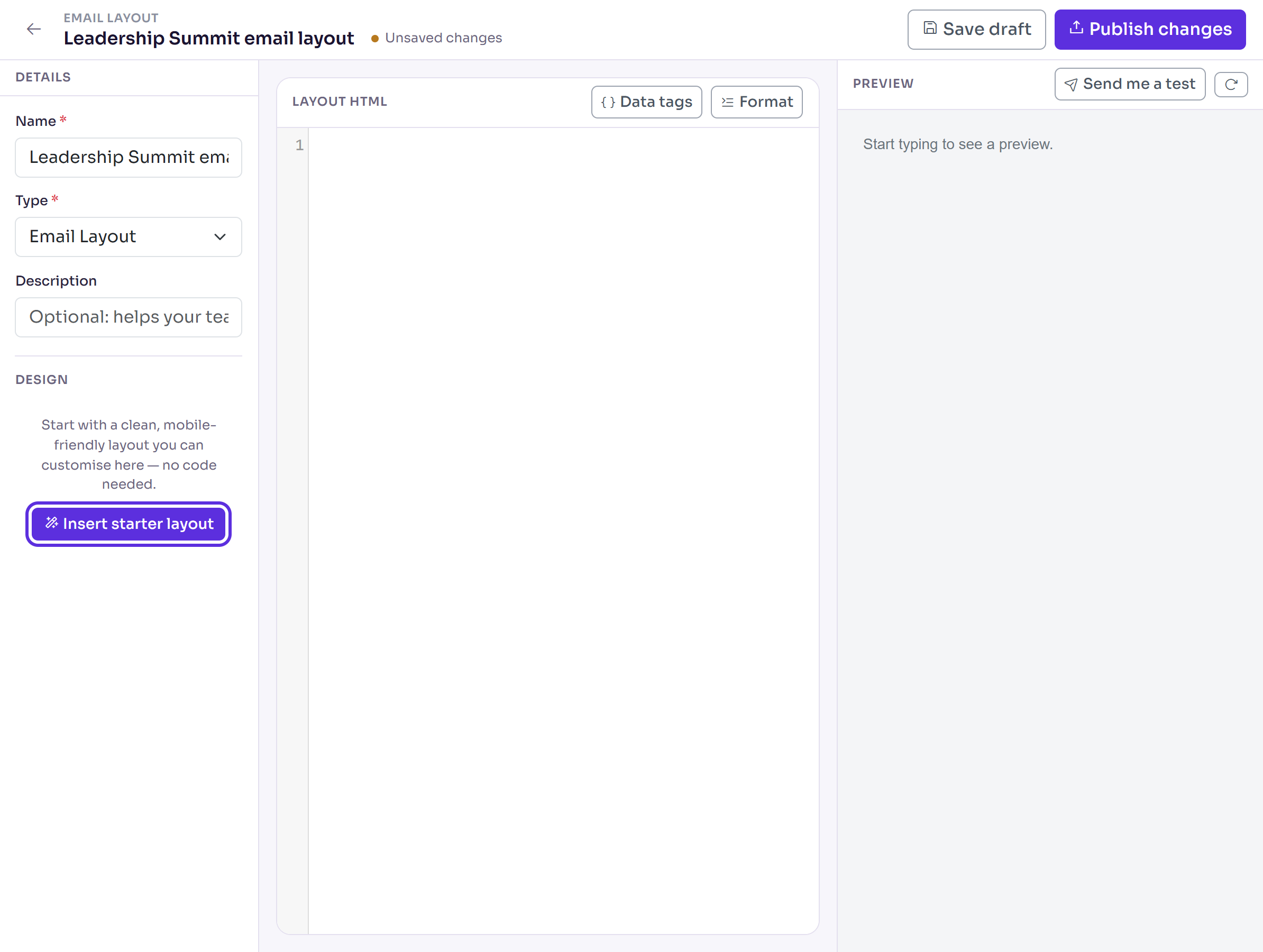
In Design, select Insert starter layout.
In Header logo, leave the box empty to show each event's own logo (from its event site's theme), or the event's name when it has none. To use one logo in every email, select Browse… or enter the image's web address.
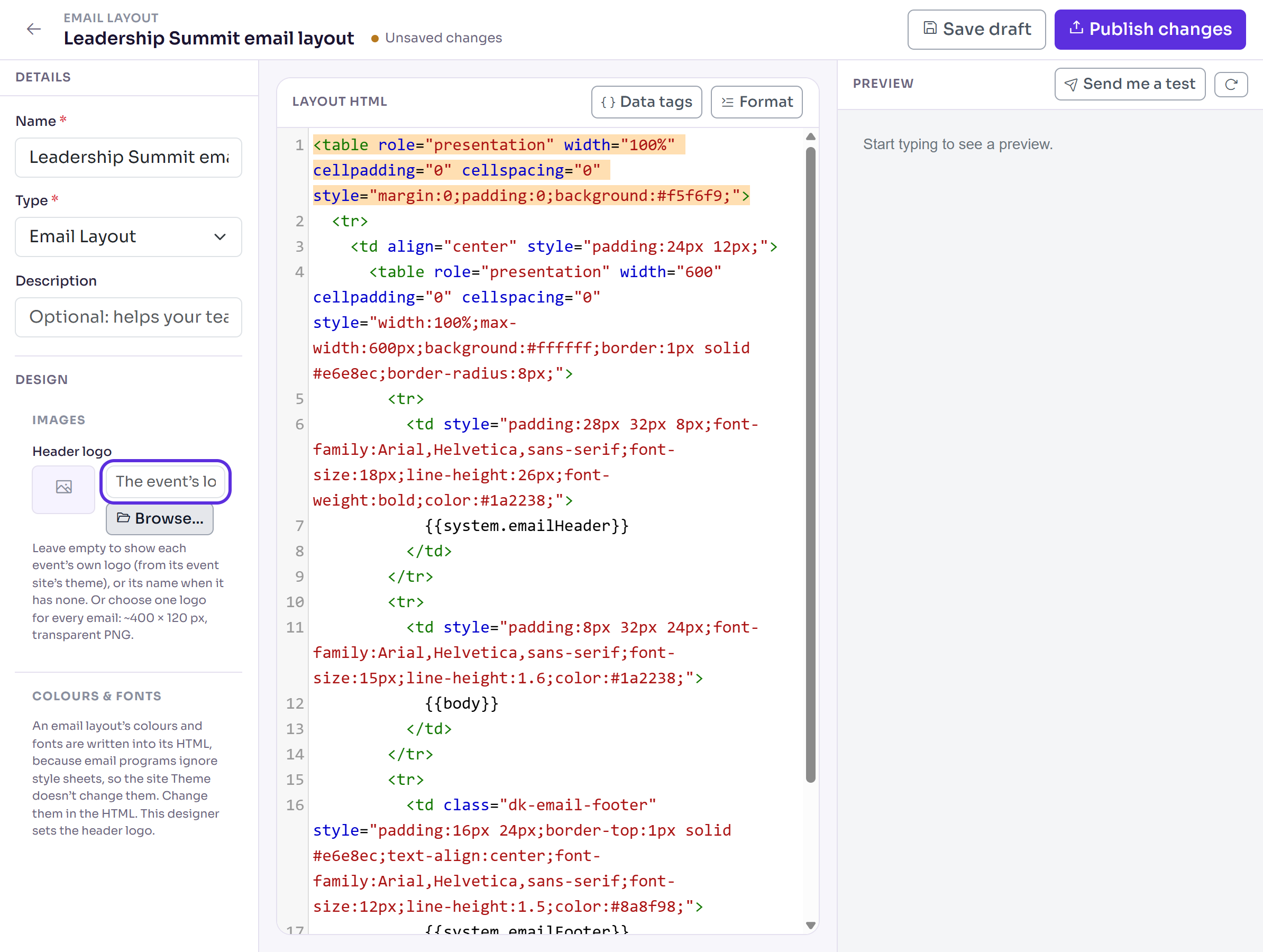
Check the layout in Preview. To change its colours or wording, edit the Layout HTML, and keep the
{{body}}tag: it's where each email goes.Select Publish changes, then Publish changes again in the pop-up.
You'll see Template published., and the layout shows Published.
Use it for your emails
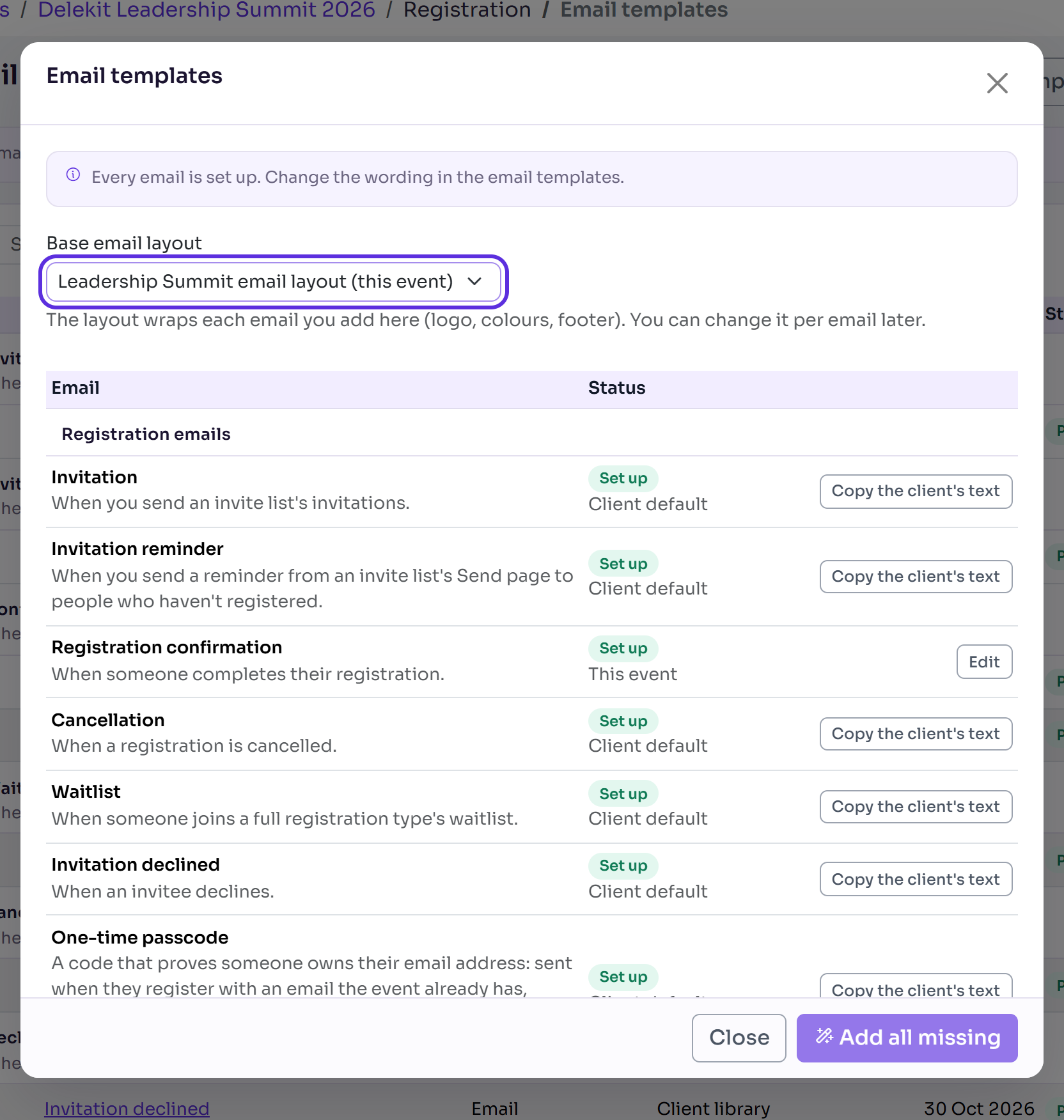
Emails you add from now on: on Email templates, open the email templates button and choose your layout as the Base email layout before adding emails.
Emails you already have: open each one, choose your layout in Layout (under Details), then select Publish changes. A layout that isn't published shows "(not published)" after its name.
What happens next
Emails that use the layout are sent in its published version from now on. If you change the layout and publish it again, every email that uses it changes too. Publishing a layout sends nothing.
Check it works
Open an email that uses the layout: its Preview shows it inside the layout. You can also open the layout itself and select Send me a test, which emails it to you only.
If something isn't right
- Emails still look like Delekit's standard layout: the email's Layout is None, or your layout isn't published yet.
- The event's name shows instead of its logo: the event's site theme has no logo, or one an inbox can't show (such as an SVG). Add one to the theme, or choose a fixed Header logo.
- Design says "This layout doesn't use Delekit design tags yet": the HTML isn't built from the starter, so the controls can't change it. Select Insert starter layout, or edit the HTML directly.
Related articles
- Set up your event's email templates
- Change the wording of an email
- Set up your default email templates
Still stuck? Contact Delekit support.
Was this article helpful?
That’s Great!
Thank you for your feedback
Sorry! We couldn't be helpful
Thank you for your feedback
Feedback sent
We appreciate your effort and will try to fix the article