Audience: event administrators and client administrators. Applies to: plans that include the registration form builder. If Email templates shows a padlock in the menu, it isn't in your plan.
Your event's Email templates page shows every email the event can send and where each one comes from: the event's own template, or your organisation's default. Add any that are missing in one go, ready to use, then change their wording as you like.
Before you start
- Set up your organisation's defaults first if you can. A published default counts for every event, so an event only needs its own copy of an email it should word differently. See Set up your default email templates.
- An email that shows Client default is already set up. Copy it only if this event needs different wording: Copy the client's text gives the event its own copy of your organisation's default, to change for this event only.
- If you want new emails wrapped in your own logo and footer, create an email layout first: see Brand your emails with an email layout.
Set up the event's email templates
In the menu, select Registration, then Email templates.
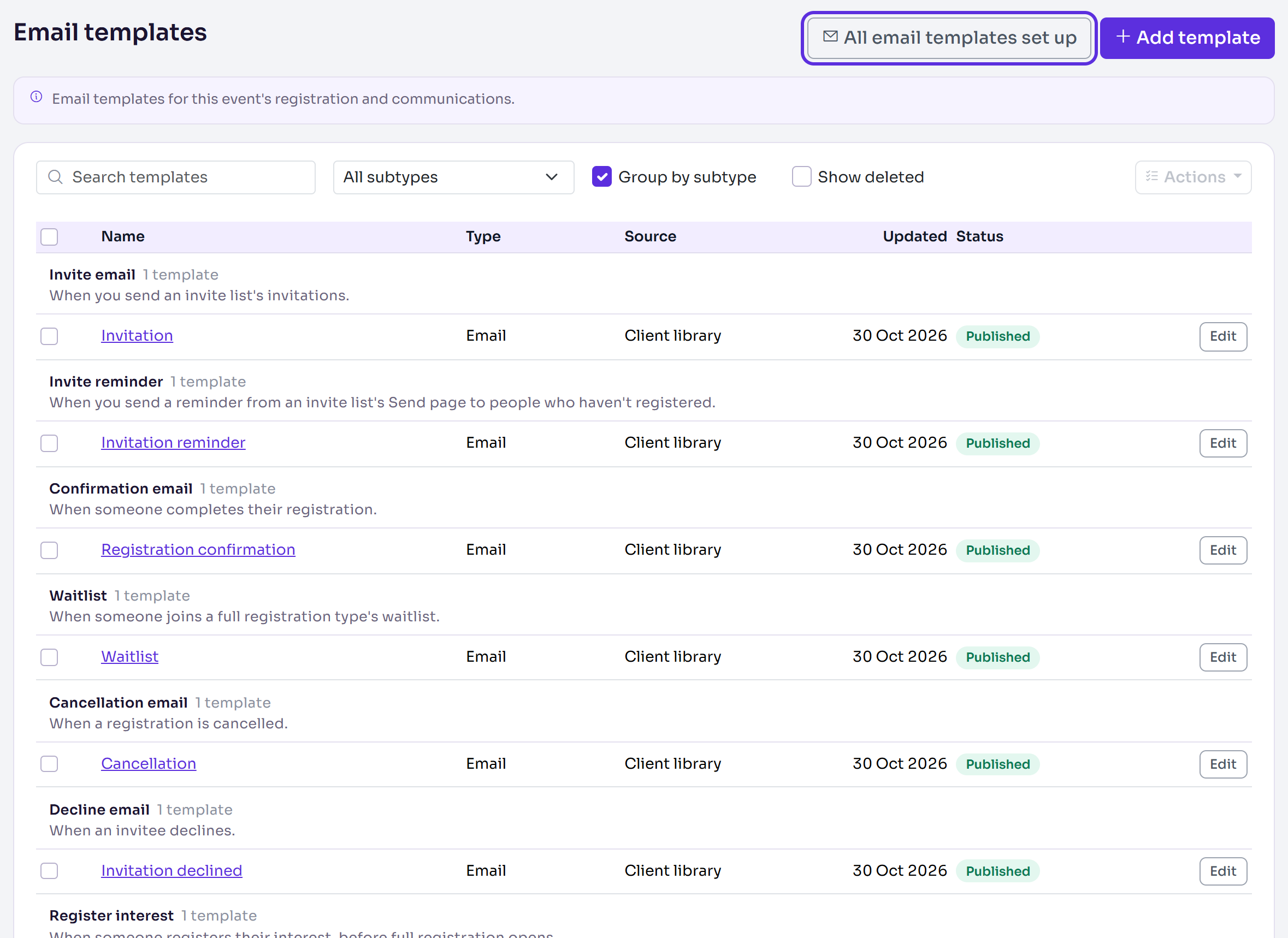
Select the email templates button. It says how many emails are missing, for example 3 email templates not set up, or All email templates set up when none are.
In Email templates, check each email's Status. The list is grouped into Registration emails and Sponsor & speaker portal emails:
- Set up, with This event or Client default under it: ready to use.
- Not published: the event has the email, but it isn't live yet.
- Not set up: there's no template for it yet.
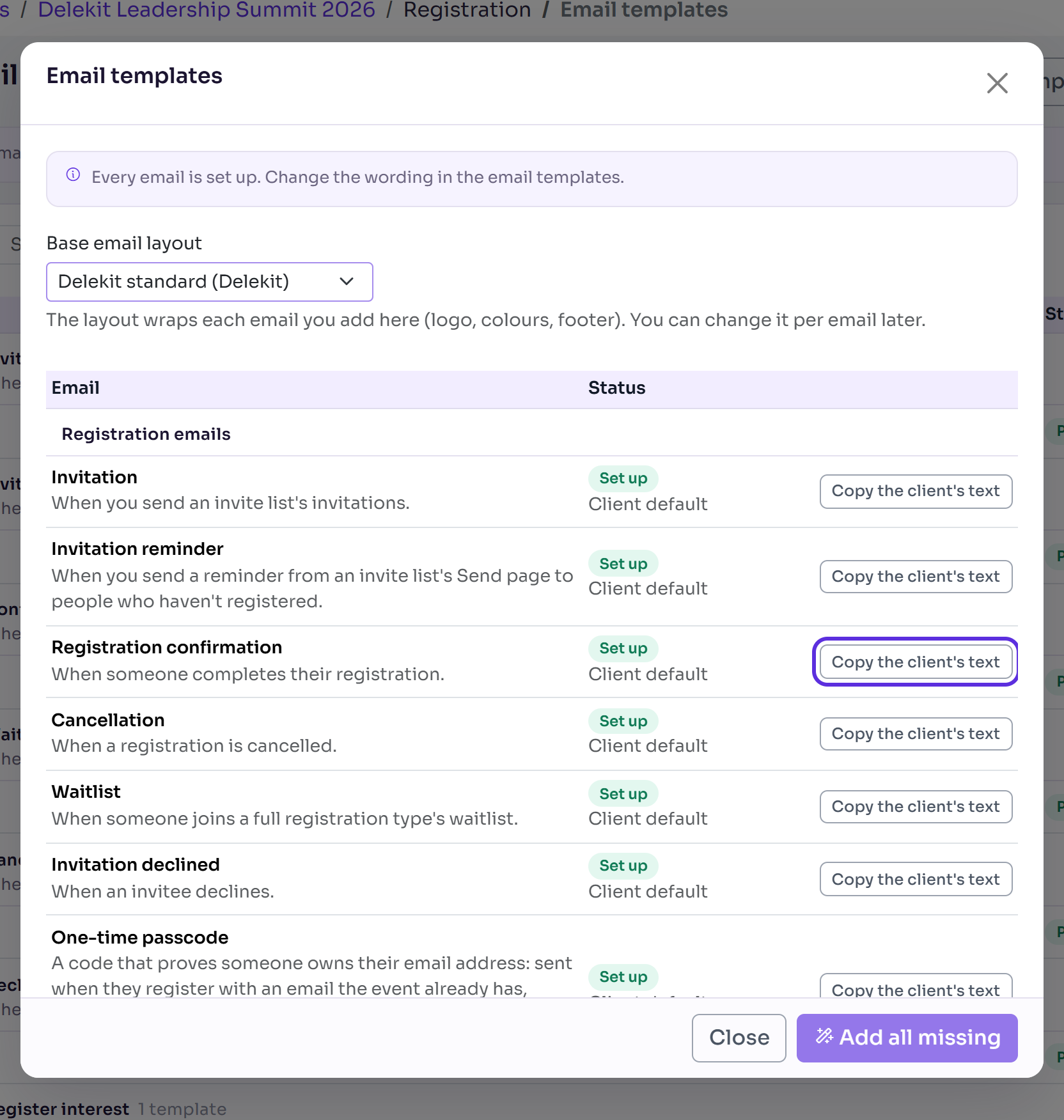
Choose a Base email layout. It wraps each email you add here, and you can change it for each email later.
Select Add all missing to add every email that isn't set up, with Delekit's text. To add just one, select Copy Delekit's text (or Add with default text) on its row. For an email set up by a Client default, select Copy the client's text to word it differently for this event.
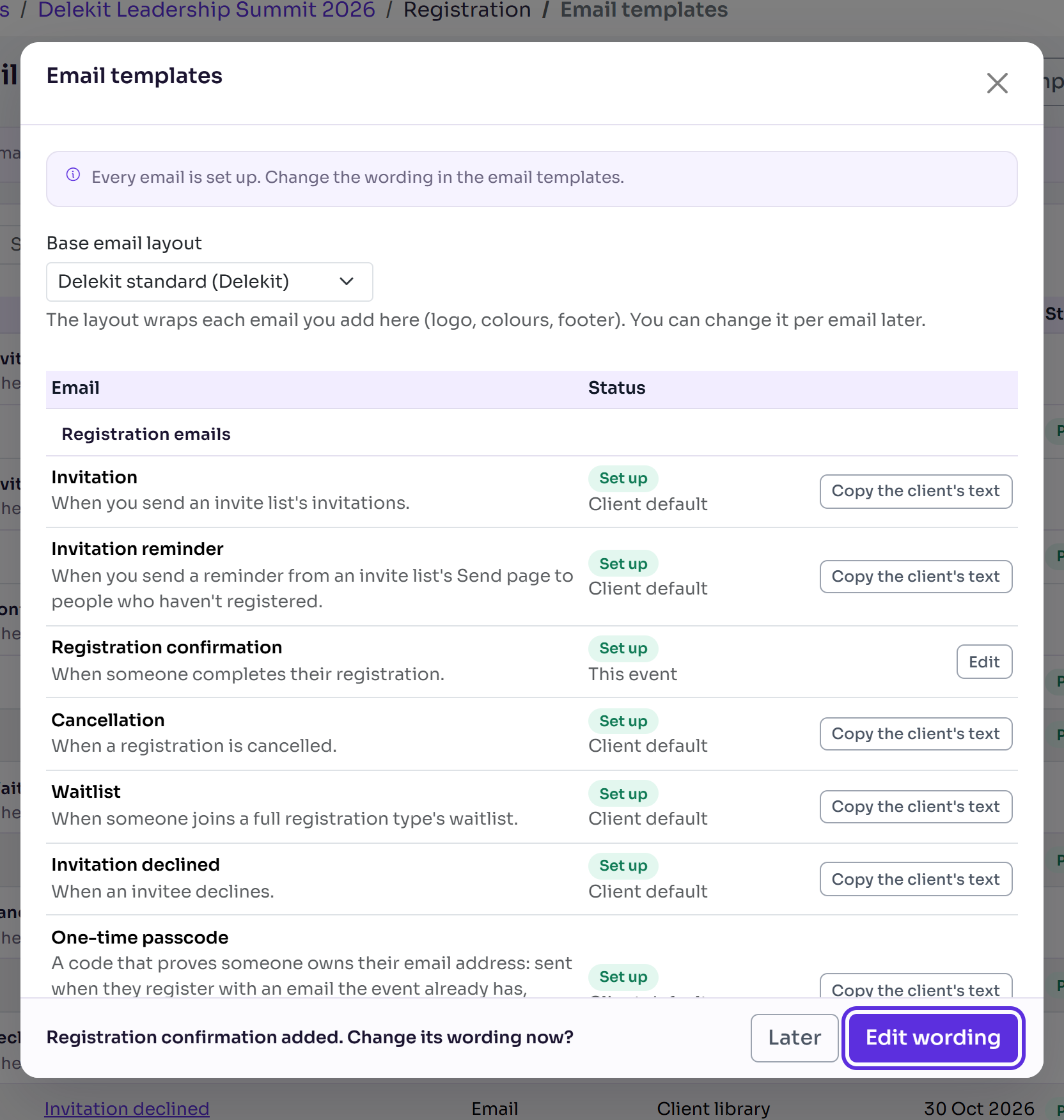
After adding one email, you're asked whether to change its wording now. Select Edit wording to open it in the editor, or Later to stay in the list.
What happens next
- You'll see what was added, for example 3 templates added. Each email added is published, so it's in use straight away.
- Registration emails (the invitation, the confirmation and the rest) are only sent to the members of an invite list that has one chosen. Adding them also chooses them on any of the event's invite lists that has none of that email yet; a list that already has one keeps it.
- A row that says, for example, 1 of 2 invite lists have none chosen, so it isn't sent to them needs an email chosen on that list. See Create an invite list.
- Nothing is emailed to anyone when you set up templates.
Check it works
The button says All email templates set up, and every row shows Set up. The emails you added are in the Email templates list, with This event as their Source. Select one to see it in the editor's Preview.
If something isn't right
- A row shows Not published: select Edit on its row, then Publish changes.
- You see "Check these merge tags in the editor, they aren't available for this email in your account": open the email it names and change or remove those tags. See Change the wording of an email.
- An invite list still sends your organisation's wording: each list sends the template chosen in its Emails section. Choose the event's own copy there.
Related articles
- Set up your default email templates
- Change the wording of an email
- Brand your emails with an email layout
- Create an invite list
Still stuck? Contact Delekit support.
Was this article helpful?
That’s Great!
Thank you for your feedback
Sorry! We couldn't be helpful
Thank you for your feedback
Feedback sent
We appreciate your effort and will try to fix the article