Audience: event administrators and client administrators. Applies to: plans that include the registration form builder. If Email templates shows a padlock in the menu, it isn't in your plan.
Open an email template in the editor to change its subject, preview text and wording, add data tags and buttons, and check it in the preview. Then publish it: people only ever get the published version, so a saved draft changes nothing until you do.
Before you start
- Check whose template it is. In Registration › Email templates, the Source column says where each template lives. A This event template belongs to this event only. A Client library template is your organisation's default: changing it changes it for every event that uses it.
- To change an email for this event only, give the event its own copy first. See Set up your event's email templates.
- Delekit templates can't be changed. Select Use on one to copy it into this event as a draft.
Change the email
In the menu, select Registration, then Email templates, and select the email's name.
In Details, change the Subject and the Preview text (the line shown after the subject in the inbox) if you need to.
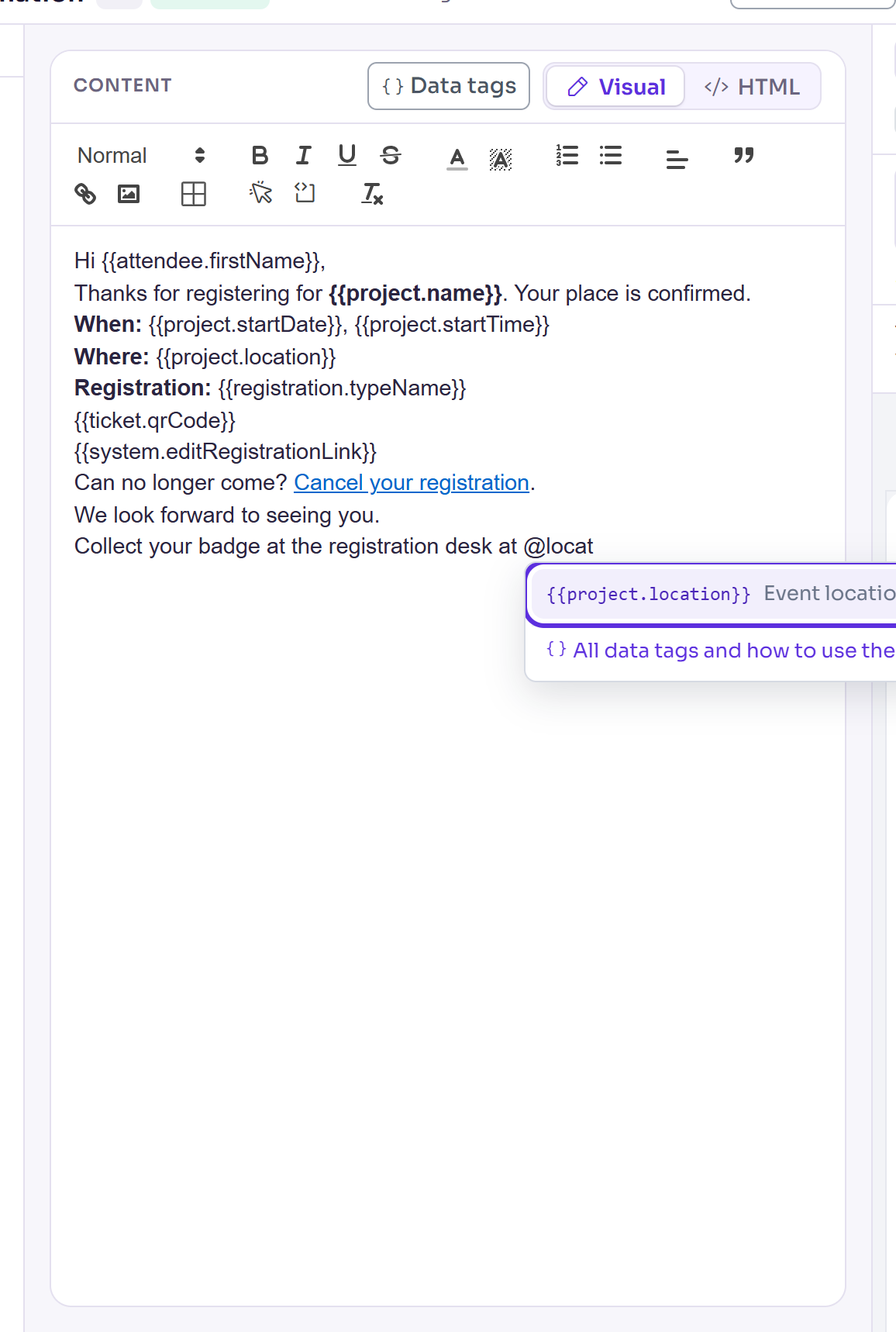
In Content, change the wording. To add a data tag, such as the event's location, type @ and the start of its name, then choose it from the list (or press Enter).
To add a button, select Insert a button on the editor's toolbar. Enter the Button text and the Link, then select Insert button. The link is a link tag such as
{{system.manageRegistrationUrl}}, or a web address starting https://.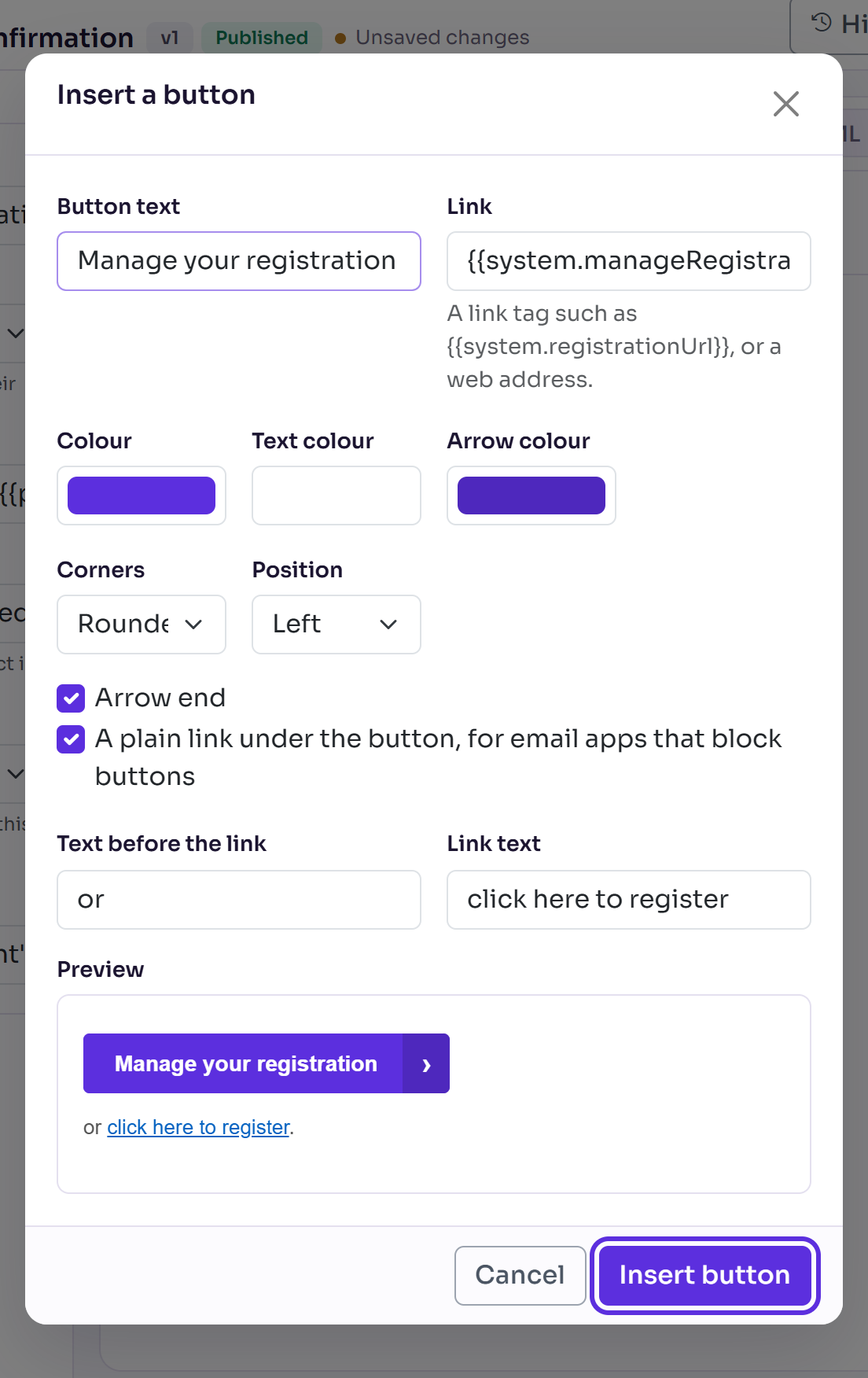
Check the email in Preview. Choose Desktop, Phone, Dark, Images off or Text to see it as different email apps show it.
Select Save draft to keep your changes without making them live. You can stop here and come back later.
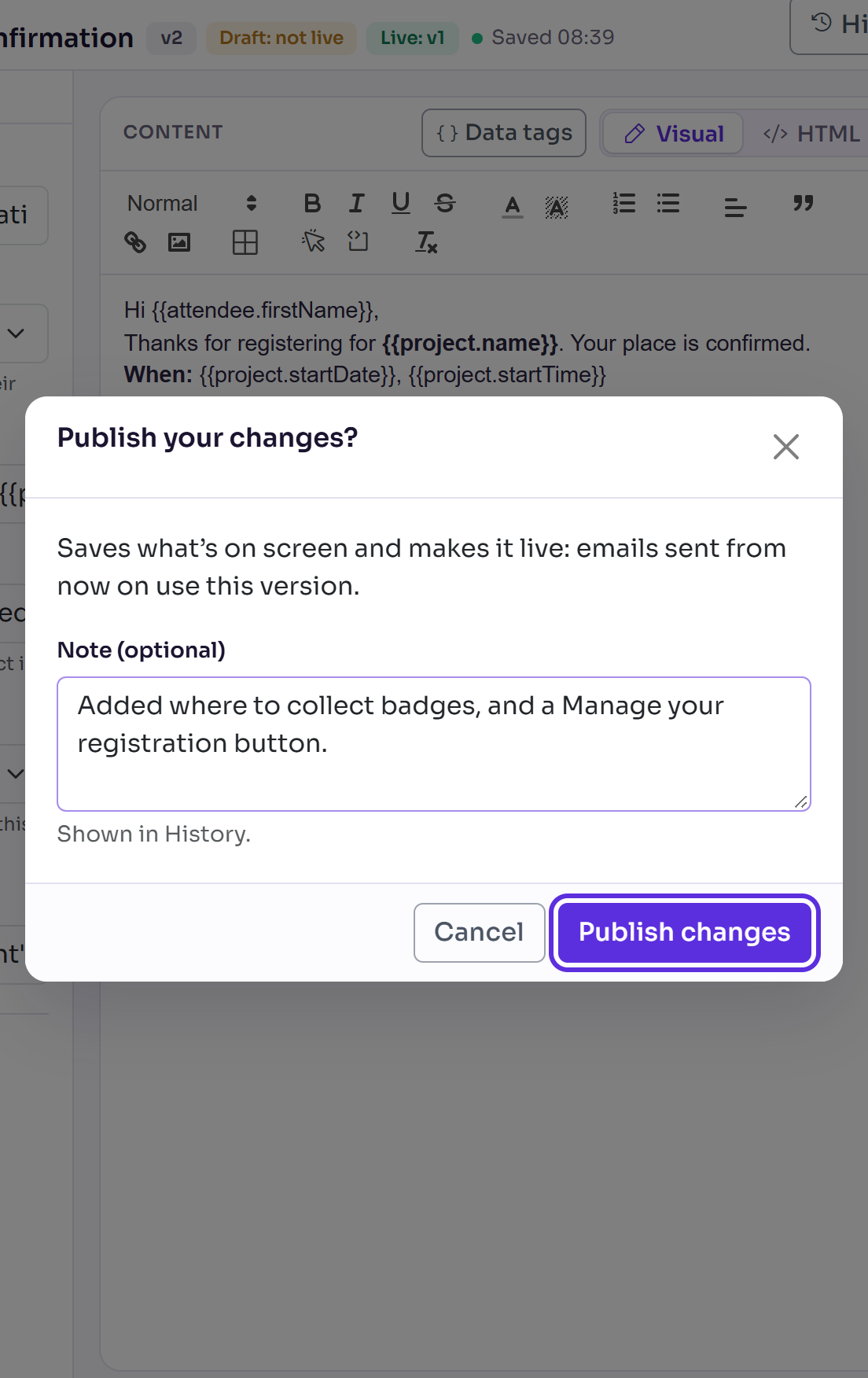
Select Publish changes, add a Note (optional) to say what changed, then select Publish changes in the pop-up.
What happens next
- After Save draft you'll see Saved as a draft. It isn't live until you publish it. The editor shows Draft: not live, and Live: with the version people still get.
- After publishing you'll see Template published. and the editor shows Published. Emails sent from now on use this version; emails already sent don't change.
- Every version, with its note, is kept in History.
- If you leave with changes that aren't live, you're asked first: Stay on this page, Keep as draft (or Save as draft), Publish changes, or Leave without saving.
Check it works
Merge tags in Details says No tag issues found. when every tag works in this email.
Select Send me a test to get the email as the editor shows it, saved or not, with sample data. It goes to you only, its subject starts with [TEST], and you can send up to 10 tests in 10 minutes.
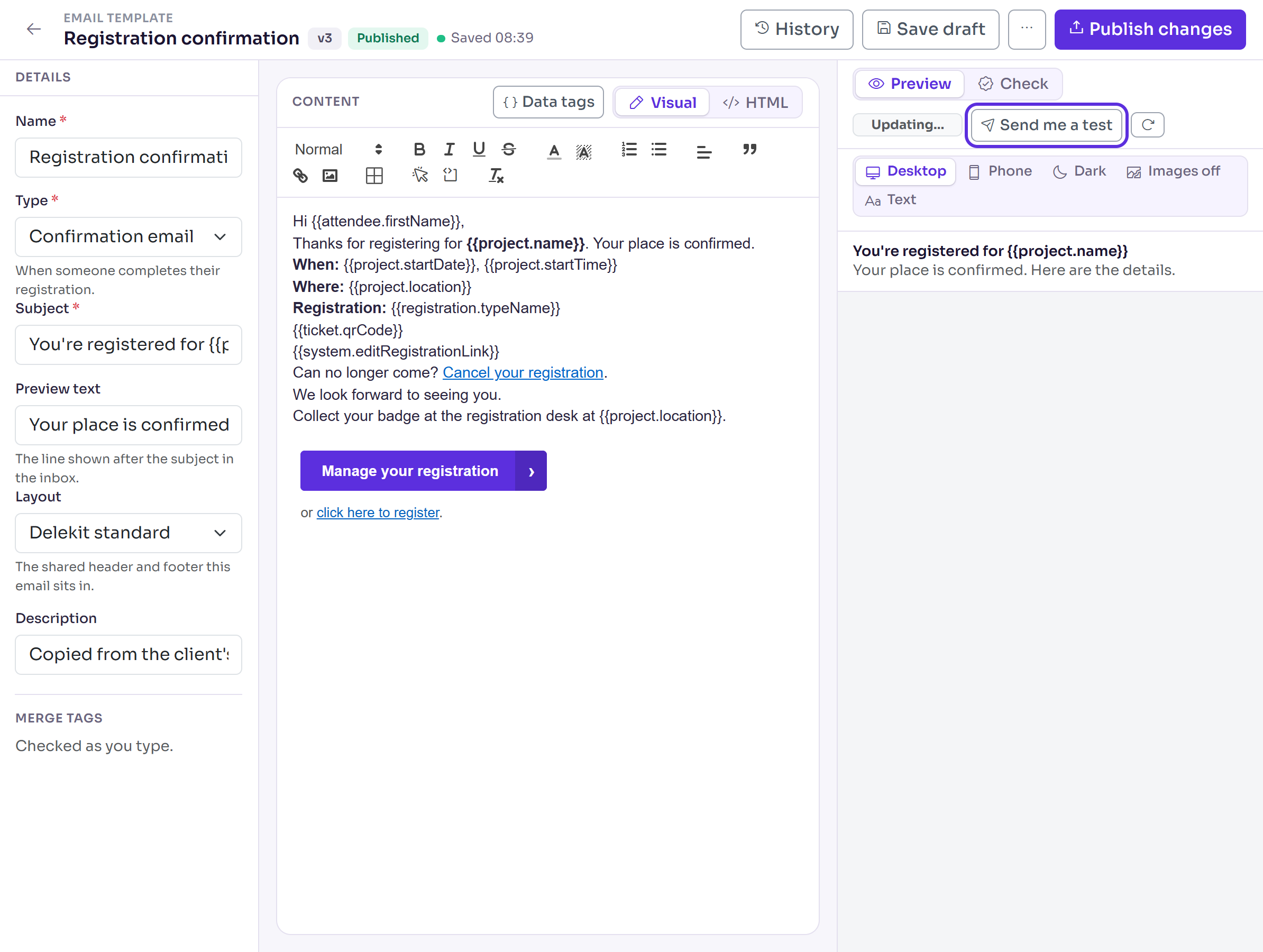
Select Check, then Run checks, to check the sending domain, links, images and how email apps show the email.
If something isn't right
- Merge tags says "Fix these before sending": a tag is misspelt, or doesn't work in this type of email. Registration emails with a tag like that aren't sent, so change or remove it.
- The email opened in HTML: it has formatting the visual editor can't keep, such as styled tables. Edit it in HTML, or keep those parts in an HTML block (Insert an HTML block). Switching to Visual asks first.
- "Use a link tag such as {{system.registrationUrl}}, or a web address starting https://.": change the button's Link to one of those.
- People still get the old wording: the change is saved as a draft. Open the email and select Publish changes.
Related articles
- Set up your event's email templates
- Brand your emails with an email layout
- Personalise emails with data tags
- Template history: publishing and reverting
Still stuck? Contact Delekit support.
Was this article helpful?
That’s Great!
Thank you for your feedback
Sorry! We couldn't be helpful
Thank you for your feedback
Feedback sent
We appreciate your effort and will try to fix the article