Audience: event administrators and client administrators. Applies to: all plans.
The Email queue shows every email your event has scheduled, queued and sent, and whether it was delivered. Use it to follow an invite list's send, cancel a send before it goes, and deal with emails held because their address looks wrong.
Before you start
- Times are in the event's time zone, as the page says.
- Delivery takes a few minutes to show: it comes back from the recipients' mail servers.
- Emails already sent can't be called back. Cancelling stops only those that haven't gone.
Cancel a send
In the menu, select Registration, then Email queue.
Find the send under Invite list sends. Its Status says where it is, for example Scheduled, Sending or Done, and Waves shows when the next one goes.
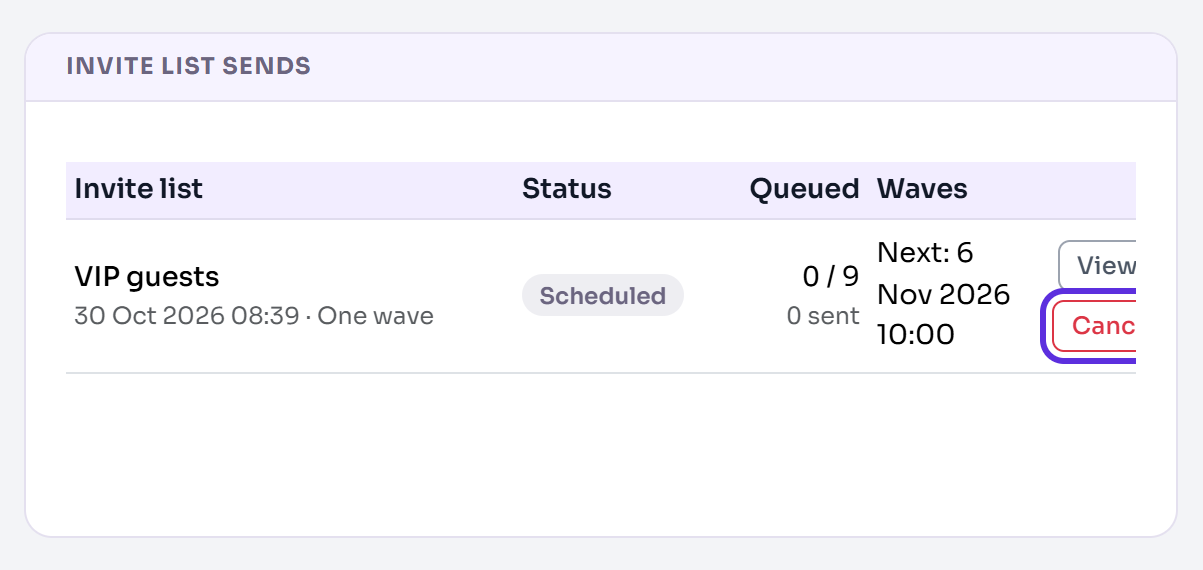
Select Cancel send.
In Cancel this send?, select Cancel send. To leave it as it is, select Keep sending.
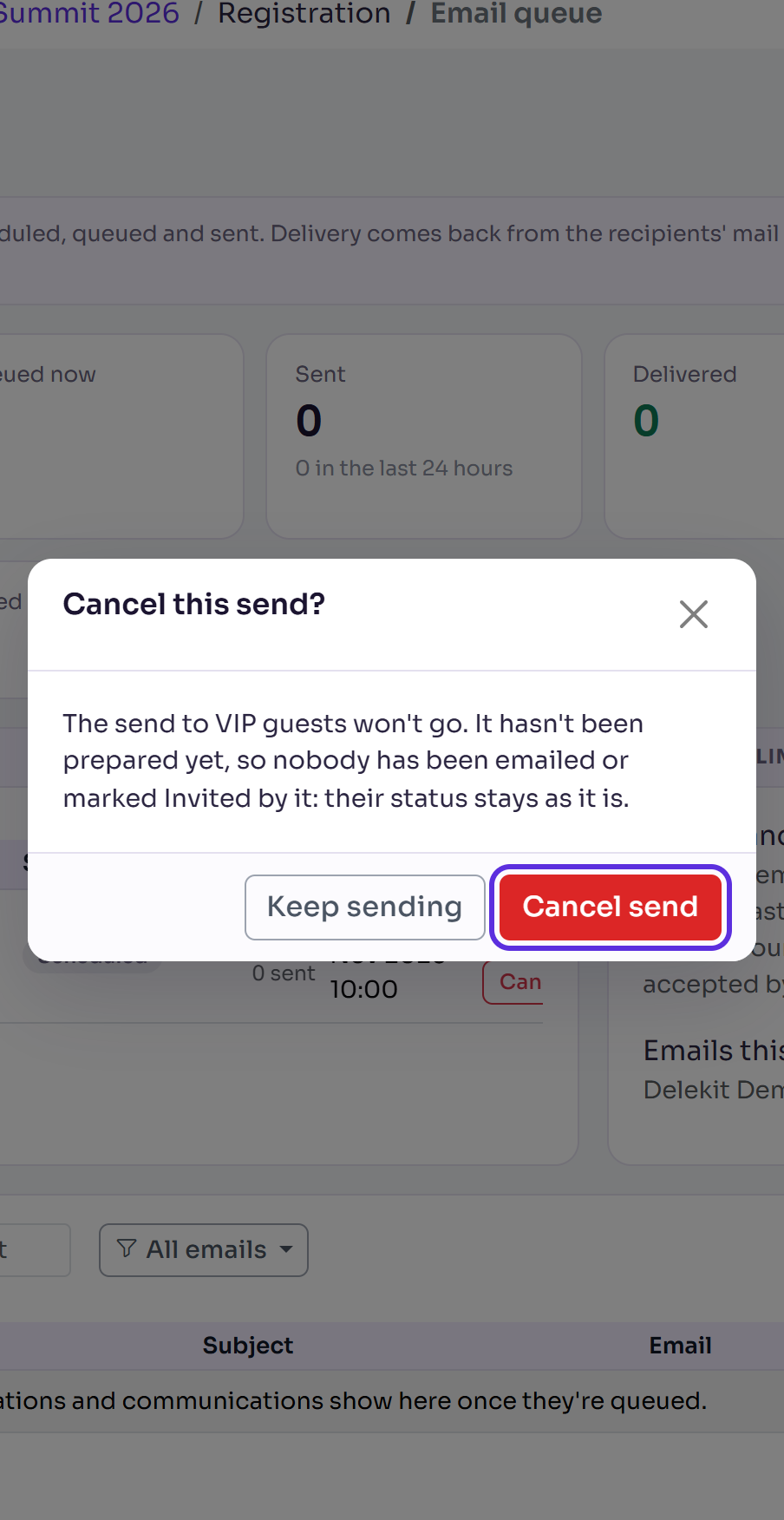
You'll see Send cancelled. and the send shows Cancelled. Its unsent emails are cancelled, and anyone it had marked Invited goes back to how they were, so a later send invites them. A scheduled send prepares nothing until shortly before its time, so cancelling one before then changes nobody's status.
Read the queue
- The tiles count the event's emails: Scheduled, Queued now, Sent, Delivered, Hard bounces, Soft bounces, Complaints and Failed. Select a tile to show only those emails; select it again to show all.
- The list shows each email's recipient, subject, status and times. Search by email or subject, or choose statuses from the All emails menu.
- Sending limits shows how many invites and communications your organisation has sent this hour, out of its limit. Anything over the limit waits its turn; confirmations and codes still go.
- An invite list send scheduled for later shows under Invite list sends straight away, but its emails only appear in the list once they're prepared, shortly before they go.
Deal with held emails
Delekit checks each invitation's and communication's address before sending it. When the address looks like a mailbox that doesn't exist, the email is held, and the page says how many are held.
- Select Show held emails.
- Tick the email, then choose one of these from Actions:
- Approve address if you've checked the address is right. It applies to every event of your organisation.
- Correct address to change the attendee's email address. Their emails that haven't gone are sent to the new address instead.
- Cancel sending if it shouldn't be sent at all.
If something isn't right
- "Nothing left to cancel: every email of this send has gone." The send has finished.
- The page says sending is paced: emails from a new or slowed sending domain go out gradually to protect its reputation. They wait in the queue and go on their own.
- Invites and communications are paused: too many of your organisation's emails bounced. Delekit's team has been told and resumes sending once it's looked into. Confirmations, codes and receipts still go.
Related articles
- Send or schedule invitations
- Remind people who haven't registered
- Bounced emails and spam complaints
Still stuck? Contact Delekit support.
Was this article helpful?
That’s Great!
Thank you for your feedback
Sorry! We couldn't be helpful
Thank you for your feedback
Feedback sent
We appreciate your effort and will try to fix the article