Audience: event administrators and client administrators. Applies to: plans that include the registration form builder. If Invite lists shows a padlock in the menu, it isn't in your plan.
Send an invite list's invitations from its Send invites page: check who gets one, preview the email as one of them will see it, then queue the invitations to go now or at a date and time in the event's time zone. Nobody is invited twice.
Before you start
- The list needs its registration types and a published Invite email. See Create an invite list.
- Who gets one: people with the list's registration types who have an email and haven't been invited or registered yet. People who unsubscribed from the event's emails, or whose address has bounced for good, are left out.
- Try the email first. In the template editor, Send me a test sends it to you only.
- To send several lists at once, tick them on Invite lists and select Actions › Send invites.
Send the invitations
In the menu, select Registration, then Invite lists. Open the list, then select Send invites.
On Email, leave What to send on Invitations. In Send to, choose Everyone waiting on this list, or Only people with certain answers and select Add condition to choose a custom field and its answers. Check People to invite and the invite email.
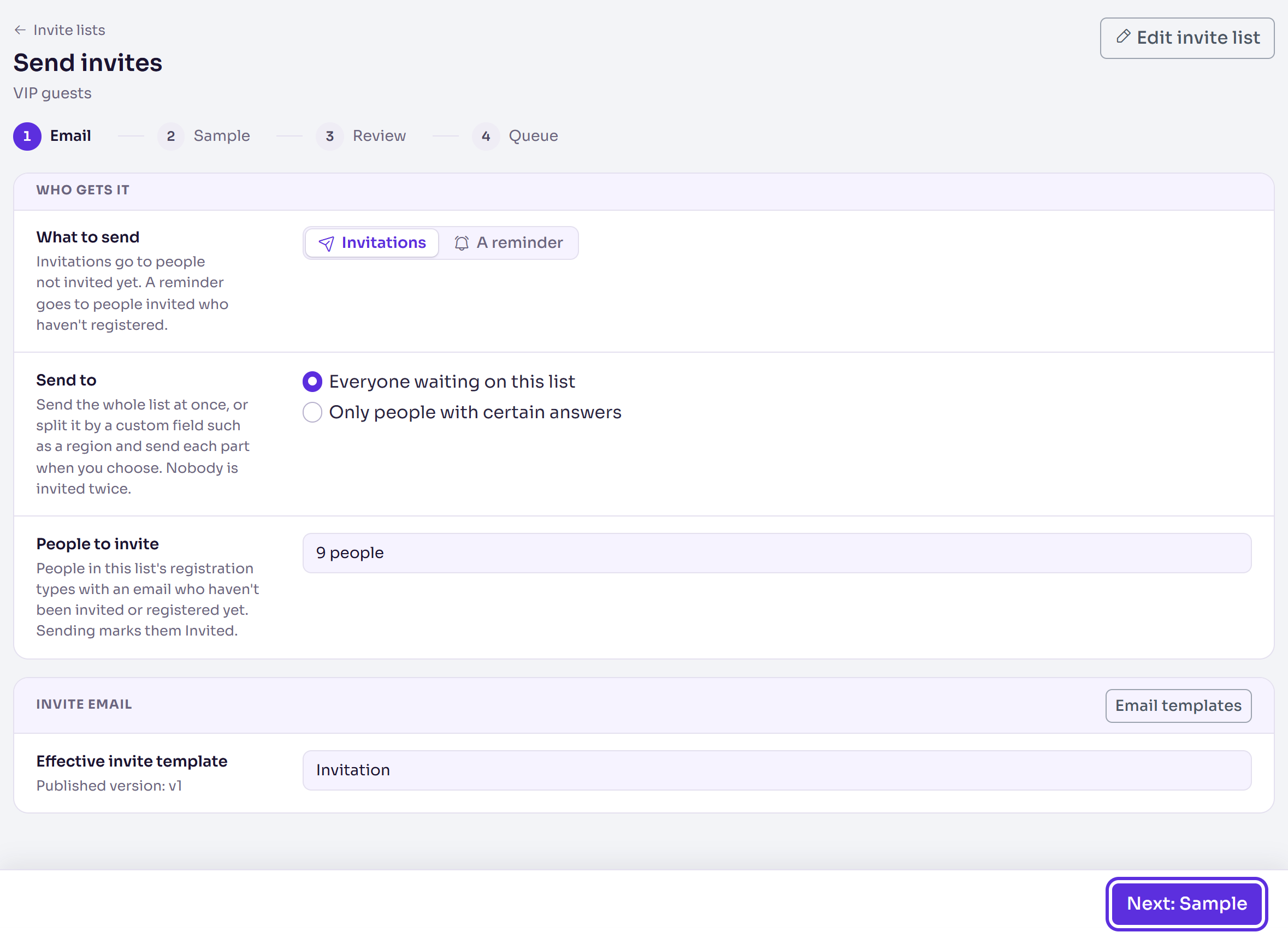
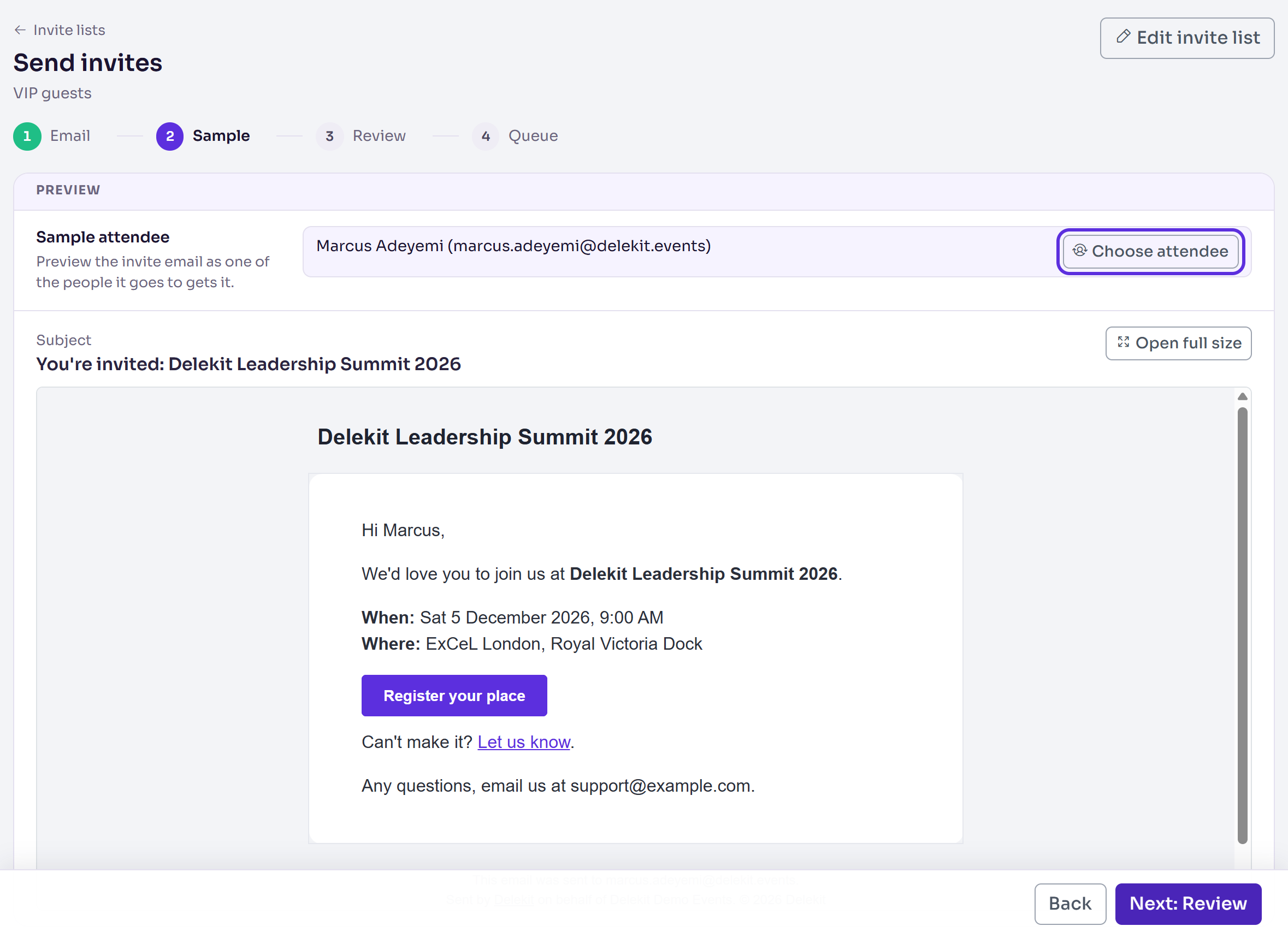
Select Next: Sample. The invite is previewed for one of the people it goes to; select Choose attendee to see another person's.
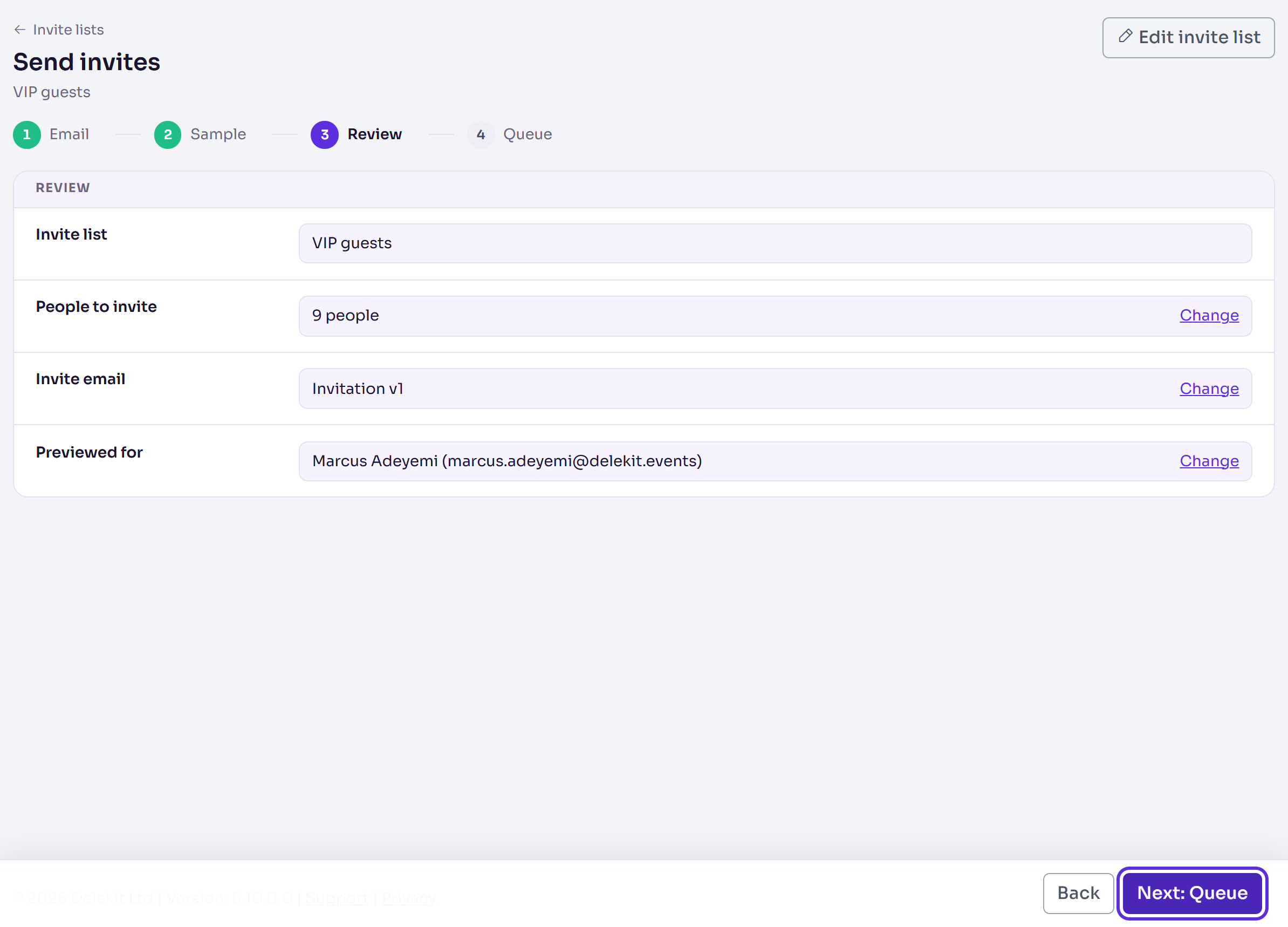
Select Next: Review and check the list, the people and the email. Select Change next to anything to go back to it.
Select Next: Queue. In Send, choose Send now, or Schedule for later and enter the Date and time in the event's time zone. The page says when that is.
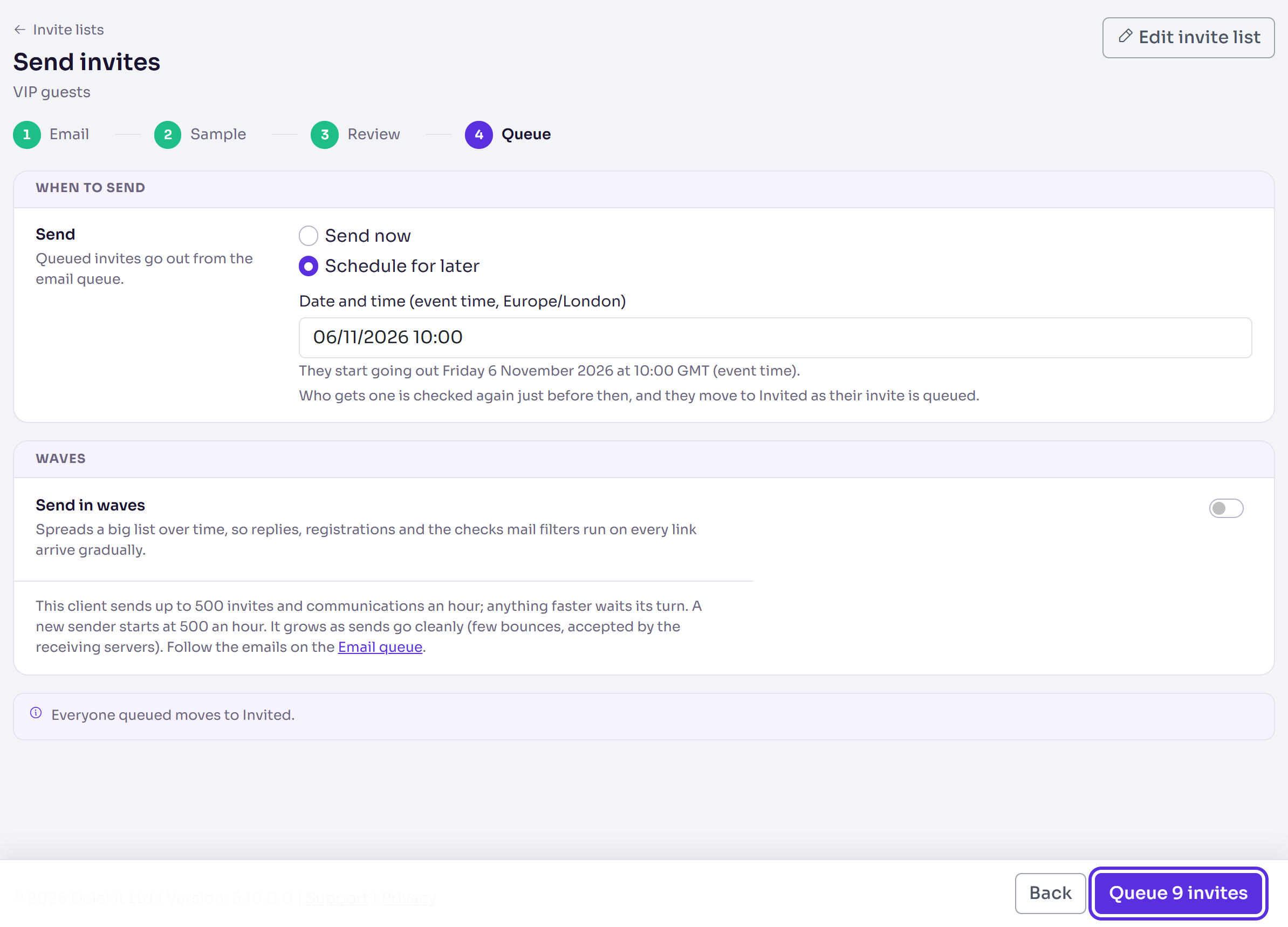
To spread a big list over time, turn on Send in waves and enter the Invites per wave and Minutes between waves.
Select Queue followed by the number of invites, for example Queue 11 invites, then select it again in the pop-up.
What happens next
- Sent now: the invites are queued, and each person moves to Invited as their invite is queued. They go out from the email queue, within your organisation's hourly limit.
- Scheduled: you'll see, for example, "Scheduled 11 invite emails for … (event time). Cancel it on the Email queue page." Nothing is prepared until shortly before that time. Who gets one is checked again then, and they move to Invited as their invite is queued.
- Invitations carry an unsubscribe link. Anyone who uses it is left out of later sends.
- To stop a send, cancel it on the Email queue. See Check your emails on the Email queue.
Check it works
In the menu, select Registration, then Email queue. The send is under Invite list sends, with its status (Scheduled for a send at a later time) and when its next wave goes.
If something isn't right
- "This list already has invites scheduled or being sent." Follow that send on the Email queue, or cancel it first.
- "That time has passed. Choose a time in the future." Choose a later date and time.
- "No published invite email is chosen on this list." Choose and publish one in the list's Emails section.
- "Fix template configuration or ensure there are eligible attendees before sending." Nobody is waiting, or the list has no published invite email.
- Fewer people than you expected: people already invited or registered aren't counted, nor anyone without an email address.
Related articles
- Create an invite list
- Remind people who haven't registered
- Check your emails on the Email queue
- Change the wording of an email
Still stuck? Contact Delekit support.
Was this article helpful?
That’s Great!
Thank you for your feedback
Sorry! We couldn't be helpful
Thank you for your feedback
Feedback sent
We appreciate your effort and will try to fix the article