Audience: event administrators and client administrators. Applies to: all plans. Fees apply only to events that sell tickets.
Decide whether registrations can be cancelled, until when, and whether guests can cancel their own place. The policy is set once for the event in Edit event › Payments and cancellations. Fees are set on each ticket: a fixed amount, a percentage or nothing back, kept from the refund. For attendees to cancel online, the event also needs a published Cancel form.
Before you start
- You need to be an administrator of the event.
- The policy limits attendees, not you. Event administrators can cancel any registration from the attendee's page, whatever the policy says.
- Refunds are the amount paid minus any fee, and fees only apply to tickets that were paid for.
Set the cancellation policy
In the menu, select Event, then Edit event, and go to Payments and cancellations.
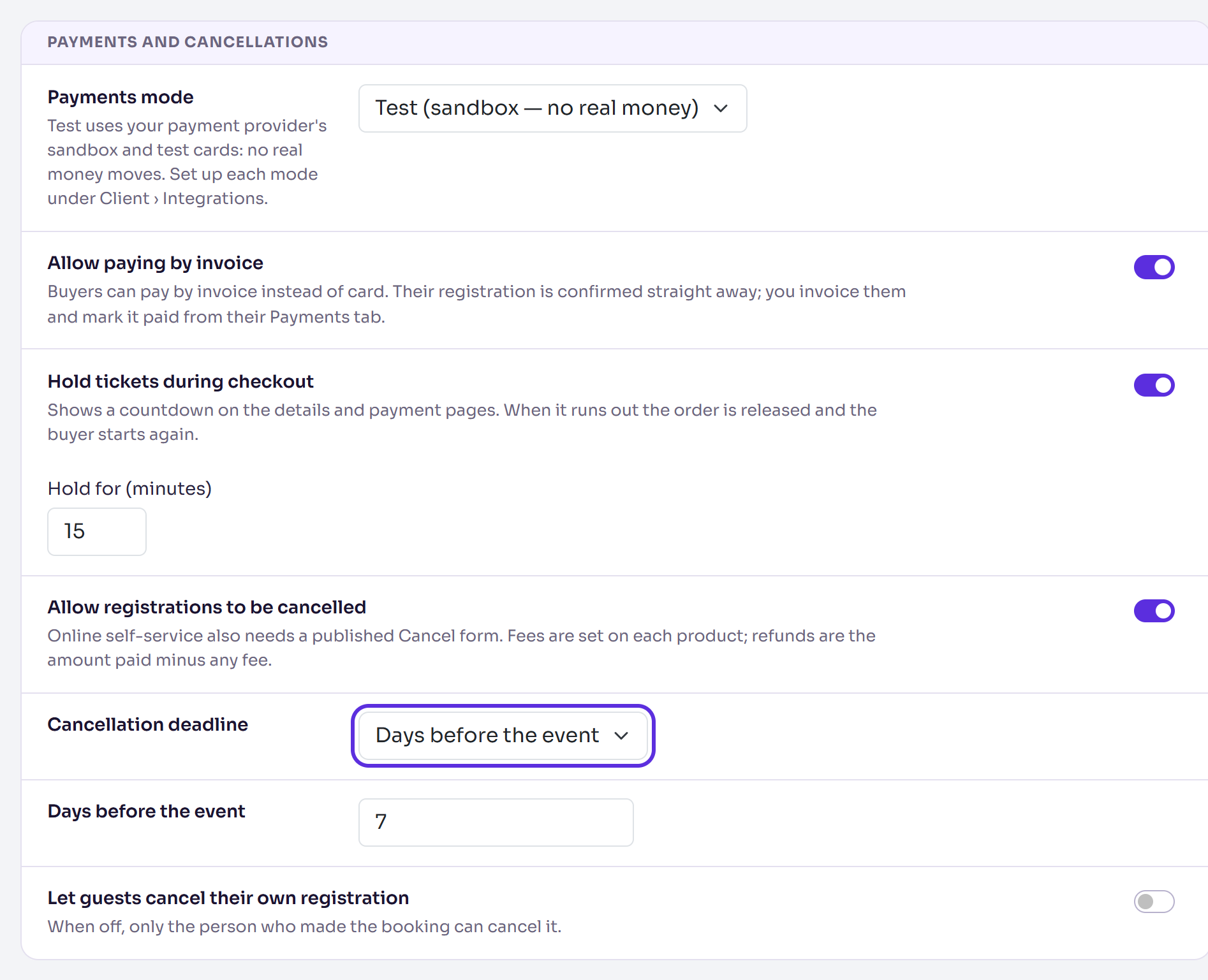
Turn on Allow registrations to be cancelled. It's on for a new event.
Choose a Cancellation deadline: No deadline, Days before the event or A fixed date.
For Days before the event, enter the number of days, for example 7. For A fixed date, enter Cancel by (event time): the last moment, in the event's time zone.
Turn Let guests cancel their own registration on or off. When it's off, only the person who made the booking can cancel it.
Select Save changes. It appears once you've changed something.
You'll see Changes saved.
Set a cancellation fee on a ticket
In the menu, select Registration, then Registration types. Select the type's name, then Manage products, and select the ticket.
Go to Cancellation fee and choose one:
- None: refunded in full.
- Fixed: enter the Fixed fee amount to keep.
- Percent: enter the Fee percentage (%) of the amount paid, and an optional Fee cap.
- Non Refundable: nothing is refunded, but the ticket is still cancelled and its place released.
Select Save changes (or Add product for a new ticket).
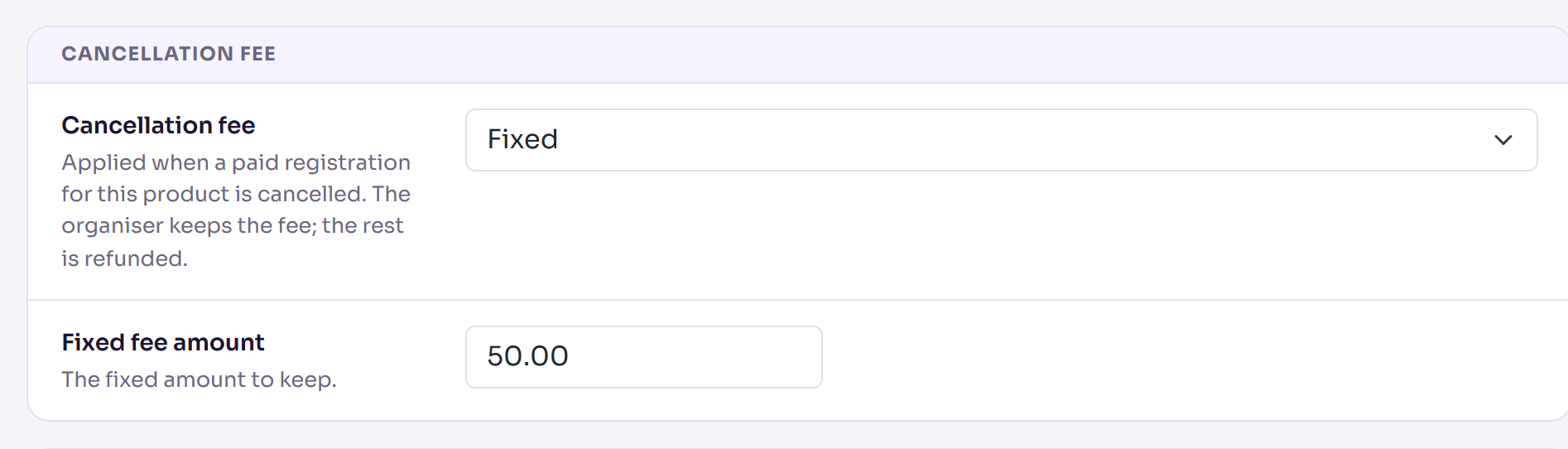
A fixed fee is never more than was paid, and is taken once per person for each product they cancel.
Let attendees cancel online
The policy alone doesn't let attendees cancel: online cancellation also needs a published Cancel form. Add a registration form whose Purpose is Cancel and publish it: see Cancel, decline and additional-information forms. Without one, attendees see "This registration can't be cancelled online."
What happens next
- When someone cancels, their tickets are released and any amount paid is refunded, minus the fee.
- After the deadline, attendees see "The cancellation deadline for this event has passed, so this registration can no longer be cancelled online."
- To cancel for an attendee, open their record, select Change status and choose Cancelled. To refund them in full, tick Waive the cancellation fee (refund in full). This can't be undone.
Check it works
Reload Edit event and the ticket, and check your choices. Once the Cancel form is published, make a test registration with a test card and cancel it with the Cancel your registration link in its confirmation email. The refund should be the amount paid minus the fee.
If something isn't right
- "This registration can't be cancelled online.": Allow registrations to be cancelled is off, or the event has no published Cancel form.
- "Only the person who made the booking can cancel this registration.": a guest tried to cancel while Let guests cancel their own registration is off.
- "Set a currency before adding a fixed cancellation fee.": choose the ticket's Currency under Pricing first.
- "Cancellation fee percentage must be between 0 and 100.": correct the percentage.
Related articles
- Choose your event's registration and privacy options
- Add tickets to a registration type
- Take payments with Stripe
Still stuck? Contact Delekit support.
Was this article helpful?
That’s Great!
Thank you for your feedback
Sorry! We couldn't be helpful
Thank you for your feedback
Feedback sent
We appreciate your effort and will try to fix the article