Audience: event administrators and client administrators. Applies to: plans with the registration form builder. Only for events that sell tickets or offer extras.
Tickets are the products people book under a registration type: an admission ticket such as a Delegate pass, and extras such as a workshop or a dinner. Add them with Manage products on the type's page, with a price and tax rate, how many can be sold, how many one order can buy, when they're on sale, and whether one is only sold with another.
Before you start
- The registration type must exist: see Create a registration type.
- To take payments, connect your payment provider, and leave Payments mode on Test while you try it out: see Take payments with Stripe.
- A product belongs to one registration type. If two types sell the same ticket, add it to each. When you later save changes to one, and another type has a product of the same name, Delekit offers to copy the new settings to it too.
Add a ticket
In the menu, select Registration, then Registration types. Select the type's name, then Manage products.
Select Add product.
Enter the Name buyers see, and choose its Kind. Admission grants event entry; Add On, Session and Goods are extras bought alongside a ticket.
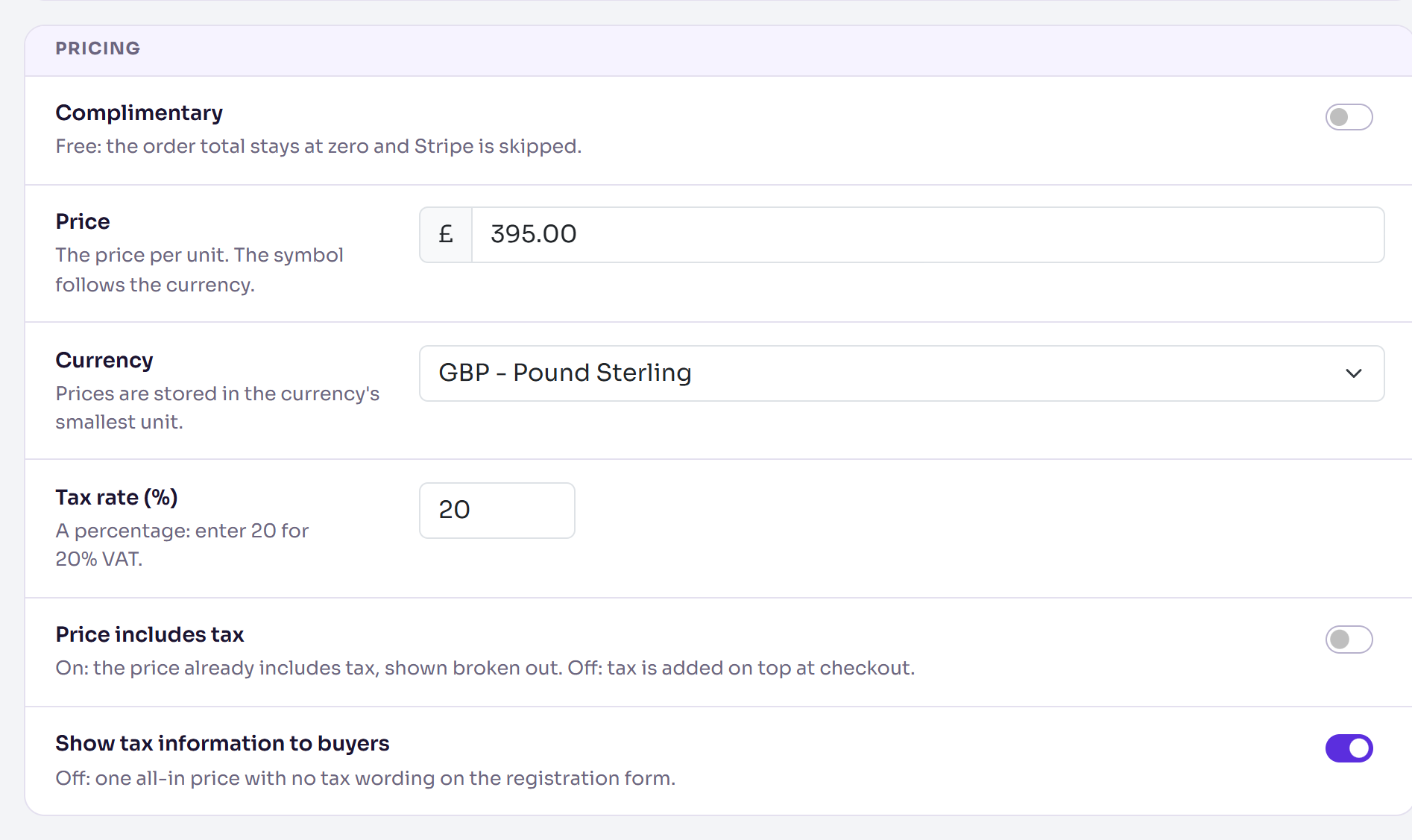
Under Pricing, enter the Price, choose the Currency, and enter the Tax rate (%): 20 for 20% VAT. Turn on Price includes tax if the price already includes it; otherwise tax is added on top at checkout. For a free ticket, turn on Complimentary instead.
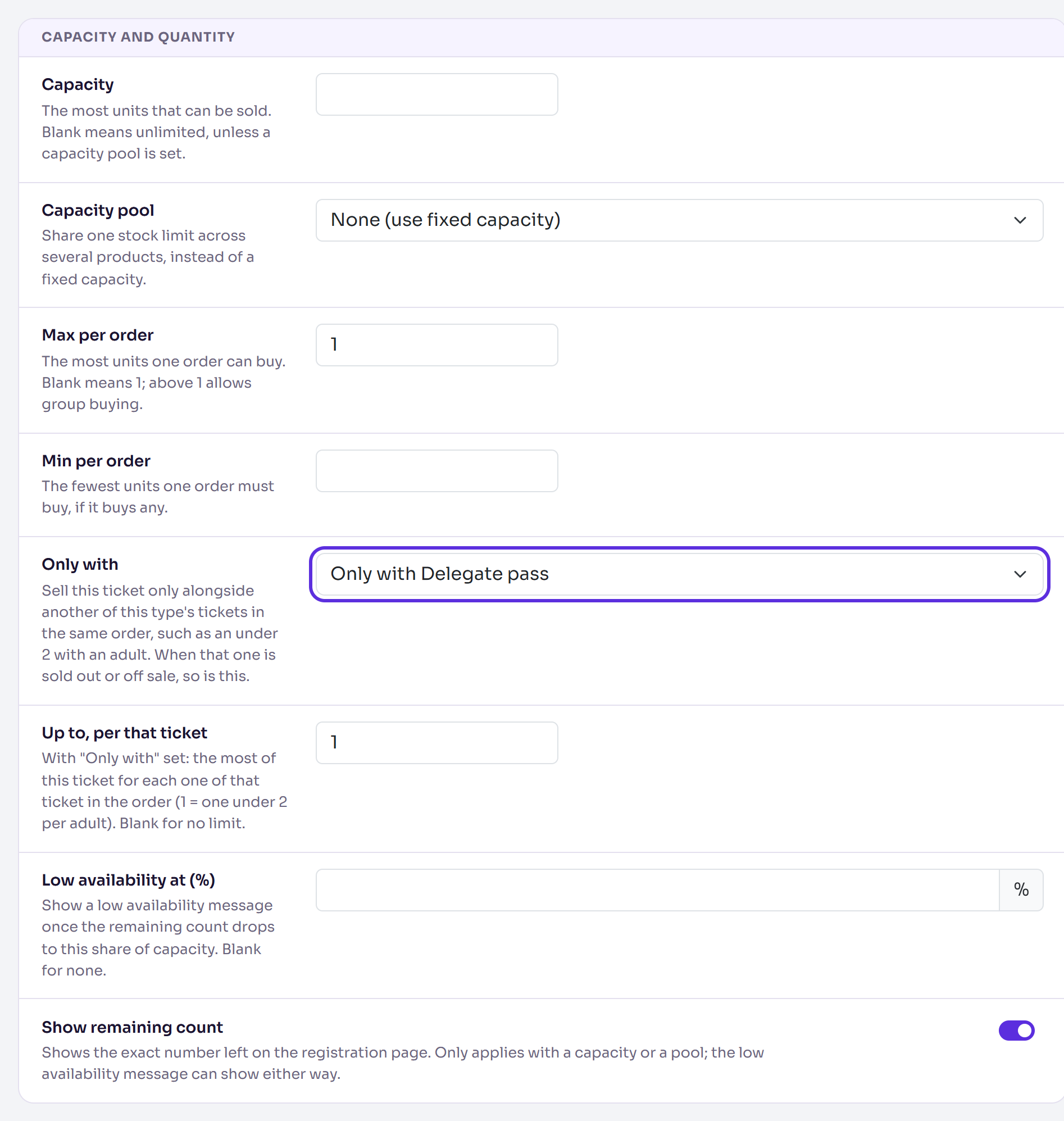
Under Capacity and quantity, enter the Capacity: the most that can be sold (blank for unlimited). Enter Max per order: blank means 1, and more than 1 allows group buying.
If you like, under Sales window, enter Sales start and Sales end, in the event's time. Leave them blank for no limit.
Select Add product.
You're back on Products, with Product added. The new product is Active: it's on sale as soon as your registration form is published.
Sell a ticket only with another
Some extras only make sense with a ticket in the same order, such as a workshop for pass holders.
In the extra's Capacity and quantity, choose Only with and the ticket it needs, for example Only with Delegate pass.
Enter Up to, per that ticket: the most of this extra for each of that ticket in the order. 1 means one per pass. Leave it blank for no limit.
Select Add product, or Save changes if the product already exists.
When the ticket it needs is sold out or off sale, so is the extra. You can only choose one of the same type's admission or add-on tickets, and not one that is itself sold only with another.
What happens next
The Products list shows each product's Kind, Price, Capacity, how many are Allocated and Remaining, and whether it's Active.
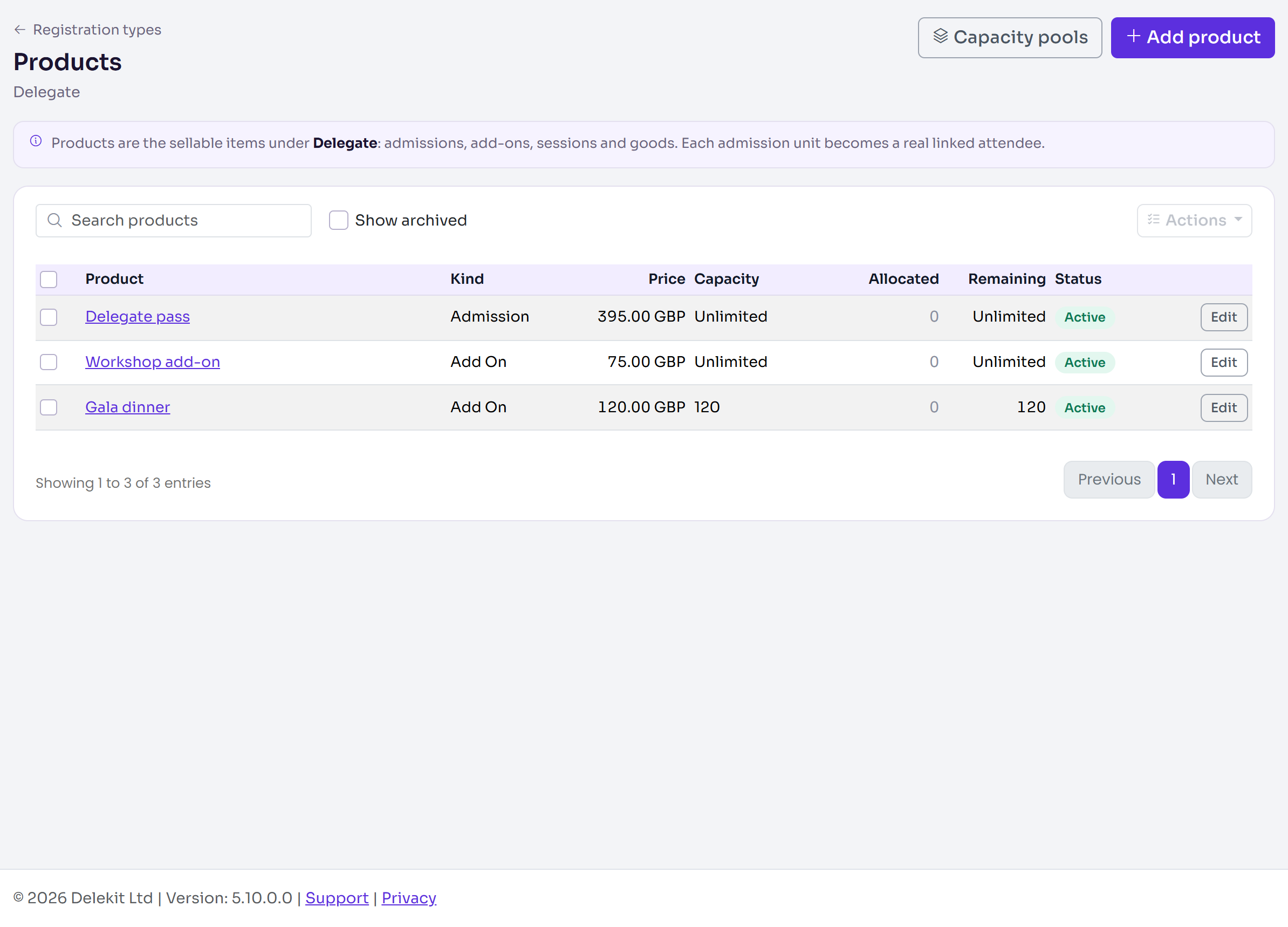
- To change a product, select its name, make the change and select Save changes.
- To stop selling one, turn off Active under Publishing (it's hidden from the public picker), or tick it and choose Actions › Archive. Anyone who already has one keeps their booking and ticket.
- To share one limit across several products, use Capacity pools on the Products page.
Check it works
On the Setup checklist, Add tickets / products is ticked and says how many you've created. Once your registration form is published, open it and check the tickets, prices and limits.
If something isn't right
- "Use either a fixed capacity or a capacity pool, not both.": clear Capacity or set Capacity pool to None (use fixed capacity).
- "Min per order cannot exceed max per order.": lower Min per order or raise Max per order.
- "Choose one of this registration type's tickets.": the ticket chosen in Only with isn't on this type any more.
- "Sales end must be on or after sales start.": swap the two dates.
Related articles
- Registration types and tickets explained
- Set a cancellation policy and fees
- Set capacity, a waitlist and registration dates
Still stuck? Contact Delekit support.
Was this article helpful?
That’s Great!
Thank you for your feedback
Sorry! We couldn't be helpful
Thank you for your feedback
Feedback sent
We appreciate your effort and will try to fix the article