Audience: event administrators and client administrators. Applies to: plans with the registration form builder.
On each registration type you can set when registration opens and closes, how many places it has, and whether people can join a waitlist once it's full. You can also let people change their registration after it's confirmed. Each type has its own settings, so Delegates can close a day before Speakers.
Before you start
- You need to be an administrator of the event, and the registration type must exist: see Create a registration type.
- Dates and times are in the event's time zone, the one in Edit event › Dates and venue.
- Tickets have their own sale dates and capacity (Sales window, Capacity), set on each ticket: see Add tickets to a registration type.
Set when registration opens and closes
In the menu, select Registration, then Registration types, and select the type's name.
Go to Registration window. Enter Registration from, or leave it blank for no start limit.
Enter Registration to, or leave it blank for no end limit.
If you like, enter a Registration closed message. Leave it blank for the default: "Registration for this ticket type has closed."
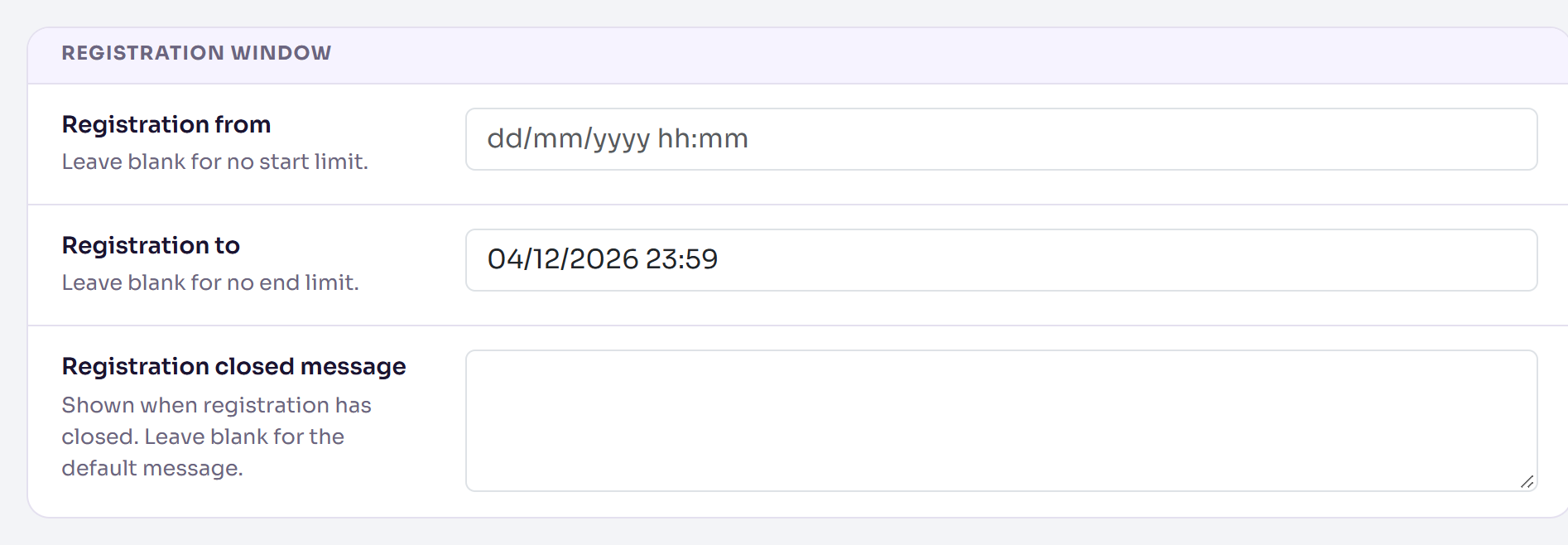
Before Registration from, people see when registration opens instead of the form.
Limit places and open a waitlist
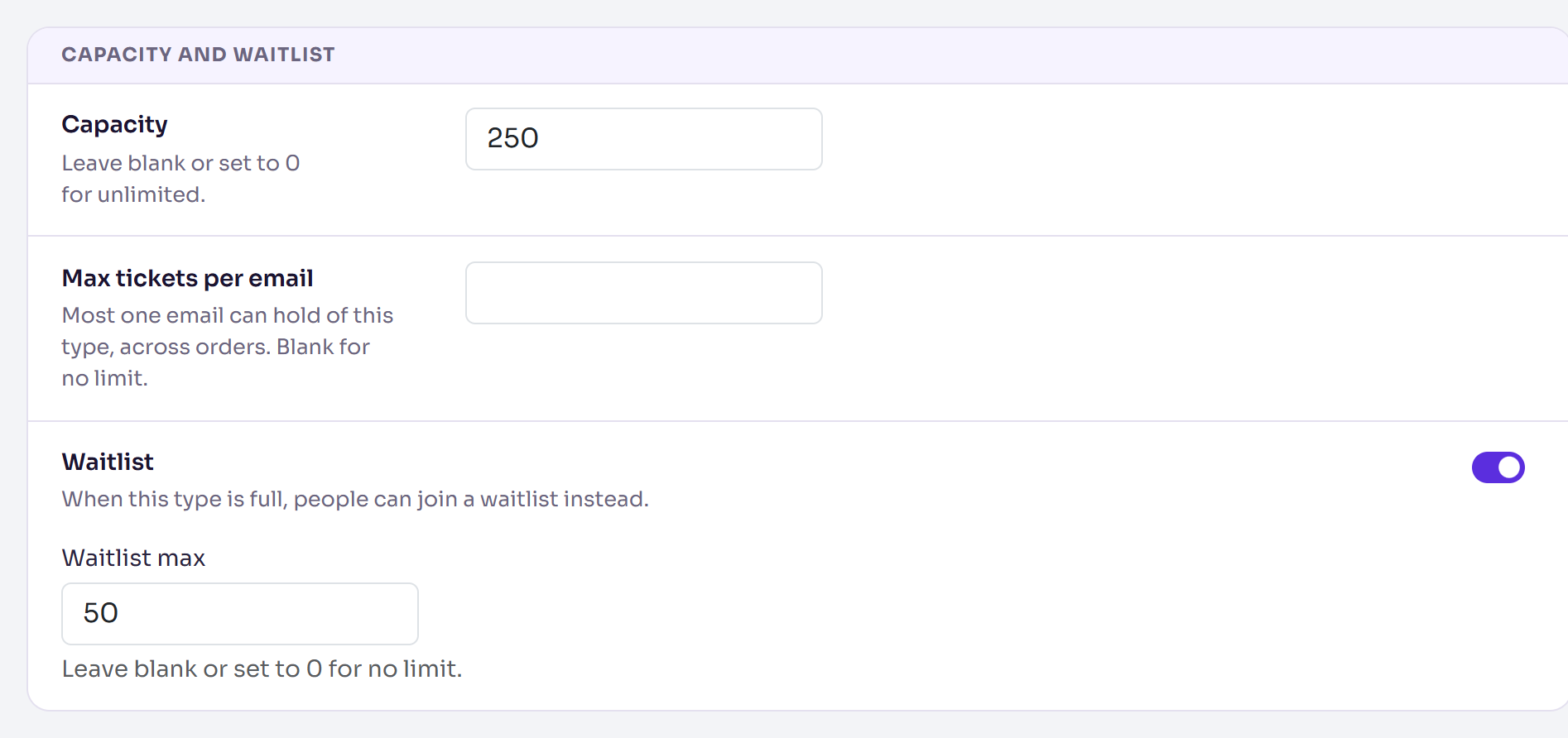
Go to Capacity and waitlist and enter the Capacity. Leave it blank, or set it to 0, for unlimited.
If you like, enter Max tickets per email: the most one email address can hold of this type, across orders. Leave it blank for no limit.
To let people join a waitlist when the type is full, turn on Waitlist.
Enter the Waitlist max, or leave it blank (or 0) for no limit.
Select Save changes. It appears once you've changed something.
You'll see Changes saved.
Let people edit their registration
- Go to Editing after confirmation and turn on Attendees can edit their registration.
- If you like, enter Editable from and Editable to to limit when. Leave them blank for no limit.
- Select Save changes.
How places are counted
- A type that sells tickets counts its admission tickets that are taken: confirmed tickets plus those held during checkout. Add-ons don't use up places.
- A type with no tickets counts its confirmed registrations.
- A type is also full when every admission ticket on sale has sold out.
- Invite links respect capacity too. To let one invited person book anyway, turn on Book even when sold out on their attendee record.
- A limit for the whole event, across every type, is Max tickets per email in Registration types › Settings.
What happens next
- Registration for the type closes after Registration to, with your message.
- When the type is full and Waitlist is on, people can join the waitlist instead, until the Waitlist max is reached. Joining sends the Waitlist email from the person's invite list, if it has one.
Check it works
Reload the type's page and check the values. On the Registration types list, the Attendees column shows how many people the type has.
If something isn't right
- "Registration to must be on or after registration from.": swap the two dates.
- "Capacity cannot be negative." or "Waitlist max cannot be negative.": enter 0 or more.
- "Max tickets per email must be at least 1 (leave blank for no limit).": enter 1 or more, or clear it.
- Registration closed at the wrong time: check the event's Time zone in Edit event › Dates and venue. The dates are read in that zone.
Related articles
- Create a registration type
- Add tickets to a registration type
- Registration types and tickets explained
Still stuck? Contact Delekit support.
Was this article helpful?
That’s Great!
Thank you for your feedback
Sorry! We couldn't be helpful
Thank you for your feedback
Feedback sent
We appreciate your effort and will try to fix the article