Audience: event administrators and client administrators. Applies to: plans with the registration form builder.
A registration type is a way of registering for your event, such as Delegate, Speaker or VIP. Add one in Registration types with a name and a key, then make the one most people book the default: the type the public Register button opens. A new event has no registration types, so add at least one before you build your registration form.
Before you start
- You need to be an administrator of the event. If Registration types shows a padlock in the menu, it isn't in your plan.
- Decide which types you need, and which one is the default. If you're not sure, read Registration types and tickets explained first.
- Each attendee has one registration type. Tickets, capacity and registration dates are set on the type after you've added it.
Add the registration type
In the menu, select Registration, then Registration types.
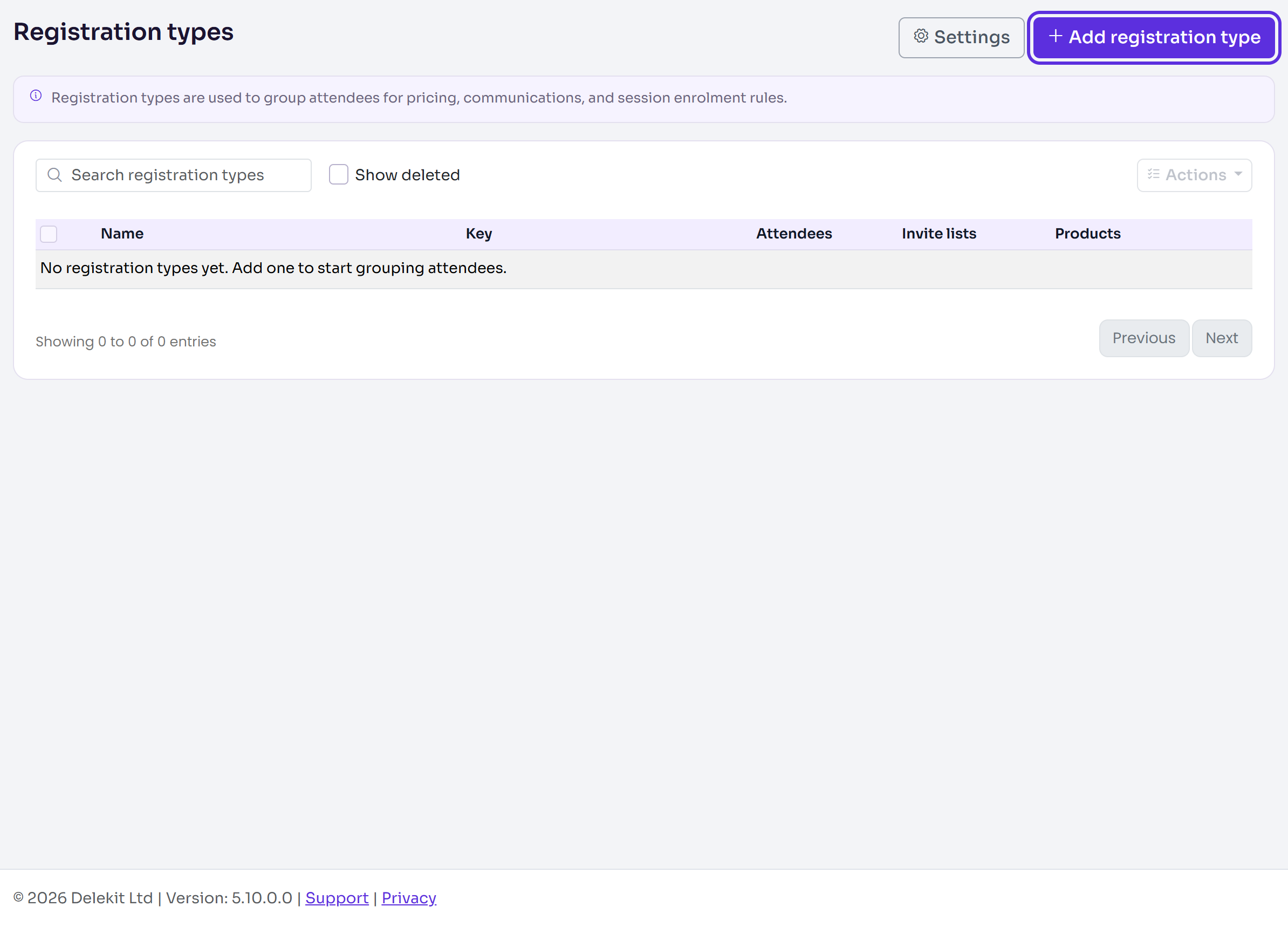
Select Add registration type.
Enter a Name, as attendees will see it, for example Delegate. Delekit fills in the Key from the name, in capitals.
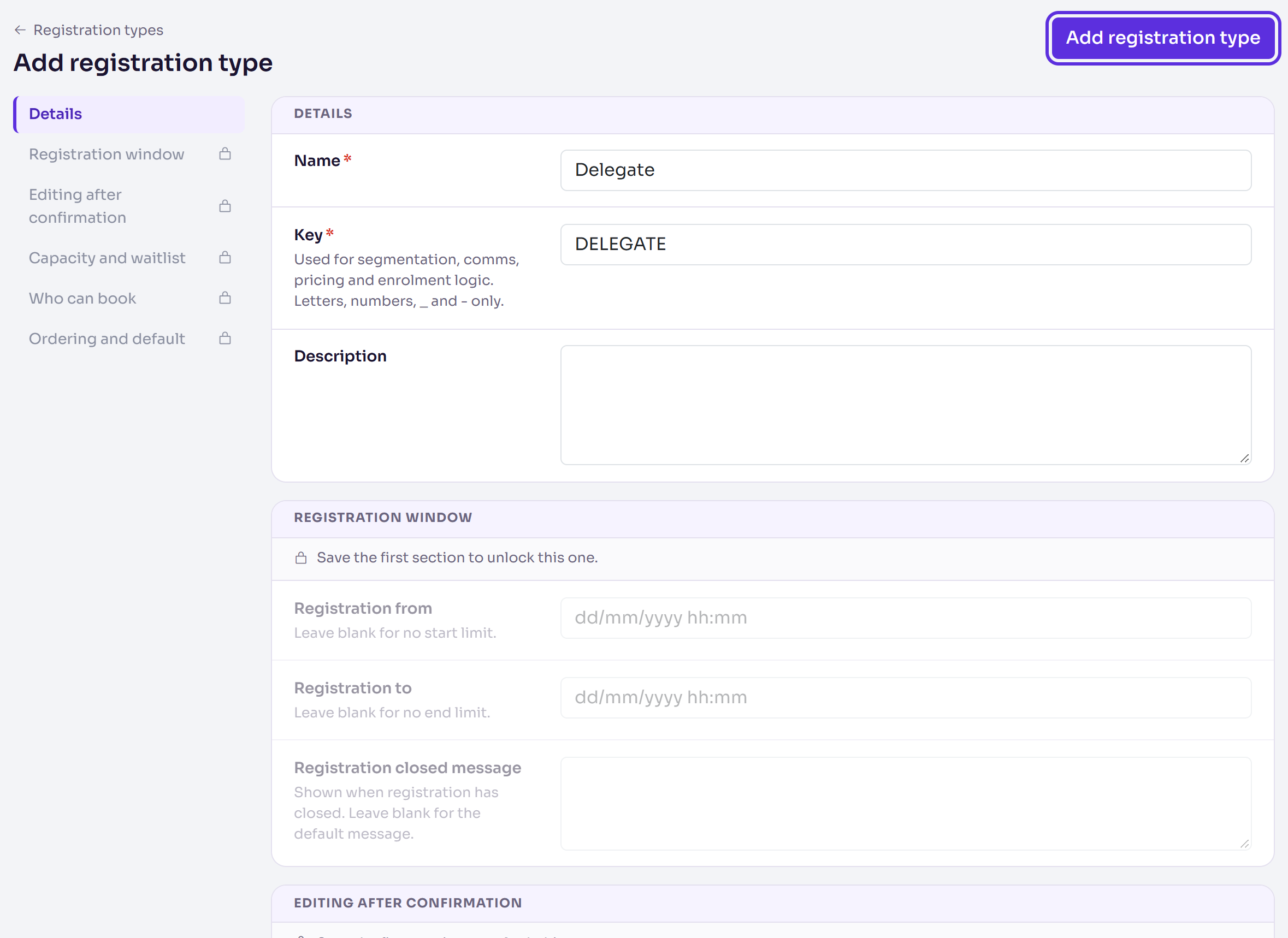
Change the Key if you like. It's used for segmentation, emails, pricing and session rules: letters, numbers, _ and - only, and different for each type in the event.
Enter a Description if you like.
Select Add registration type.
The type's page opens, with Registration type added. Its other sections, which were locked until the type existed, are now open.
Make it the default
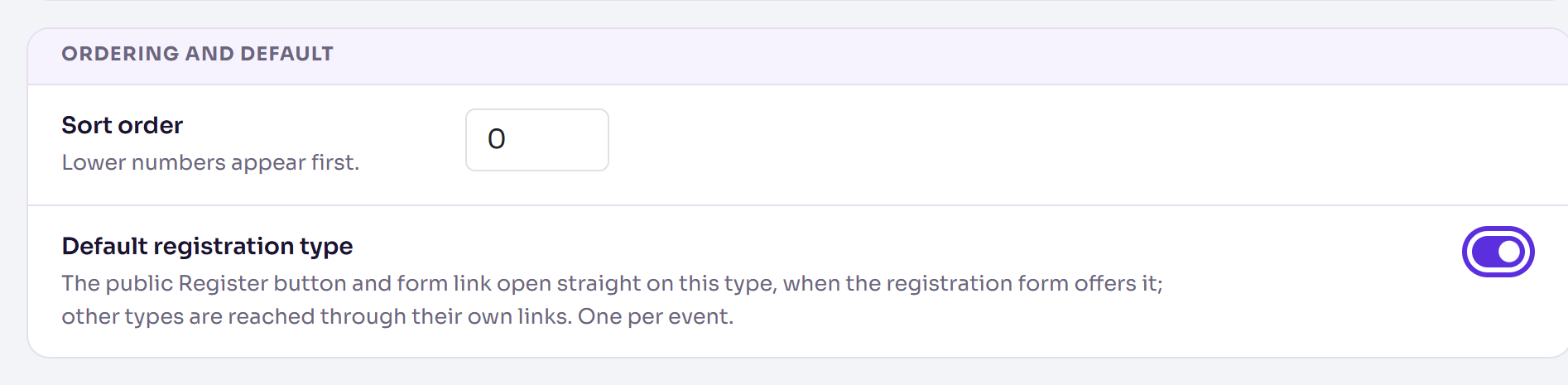
On the type's page, go to Ordering and default.
Turn on Default registration type. An event has one default, so this turns it off for the type that had it.
If you like, enter a Sort order. Lower numbers appear first.
Select Save changes. It appears once you've changed something.
You'll see Changes saved, and a Default label next to the type's name.
Change what attendees see it called
People see the word Registration type when they register. To call it something else, such as Location:
- On Registration types, select Settings.
- Enter a Public label. Leave it blank to use "Registration type".
- Select Save settings.
What happens next
- The type is in the Registration types list, with Edit to open it again.
- Set it up further on its page: registration dates, capacity and a waitlist, tickets and who can book.
- Nothing is public yet. People can register as this type once your registration form offers it and is published.
Check it works
The Registration types list shows each type, with Default against one of them. On the Setup checklist, Create registration type(s) is ticked and says how many you've created.
If something isn't right
- "Key must be unique within the event.": another type already has that key. Change one of them.
- "Key can only contain letters, numbers, underscore, and dash.": remove spaces and other characters from the Key.
- You can't delete a type: it can't be deleted while it's the default, has attendees or is linked to invite lists. For the default you'll see "You cannot delete the default registration type. Set another default first." The default type has no checkbox in the list for the same reason.
Related articles
- Registration types and tickets explained
- Add tickets to a registration type
- Set capacity, a waitlist and registration dates
Still stuck? Contact Delekit support.
Was this article helpful?
That’s Great!
Thank you for your feedback
Sorry! We couldn't be helpful
Thank you for your feedback
Feedback sent
We appreciate your effort and will try to fix the article