Audience: client administrators. Applies to: events that sell paid tickets or products.
Connect your own Stripe account once for your organisation, and every event can then take card payments for its tickets and products. Money goes straight into your Stripe account, and Delekit's platform fee is taken from each payment. You connect a test (sandbox) account to rehearse checkout and a live account for real payments.
Before you start
- You need to be a client administrator. Stripe is set up in your client's integrations, which only client administrators can open.
- Have a Stripe account, or create one while you connect. Stripe needs your business and bank details before it lets a live account take payments.
- Card payments go through Stripe unless your organisation uses CyberSource. If it does, the Stripe page says so: see Take payments with CyberSource.
Connect Stripe
In the menu, select Admin, then Client settings. It opens in a new tab.
In Integrations, select Manage integrations.
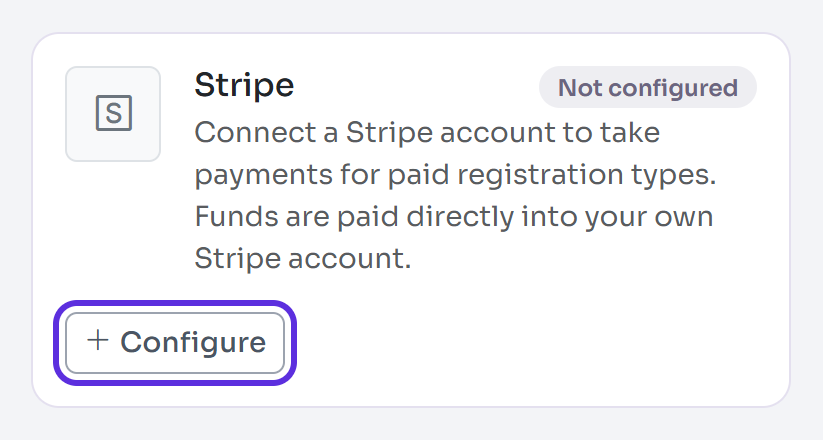
On the Stripe card, select Configure (or Manage once it's connected).
In Test payments (sandbox), select Connect Test Stripe. Stripe opens.
Sign in to Stripe, or create an account, and allow Delekit to take payments for you. You come back to the Stripe page with "Test Stripe account connected."
When you're ready for real payments, do the same in Live payments with Connect Live Stripe.
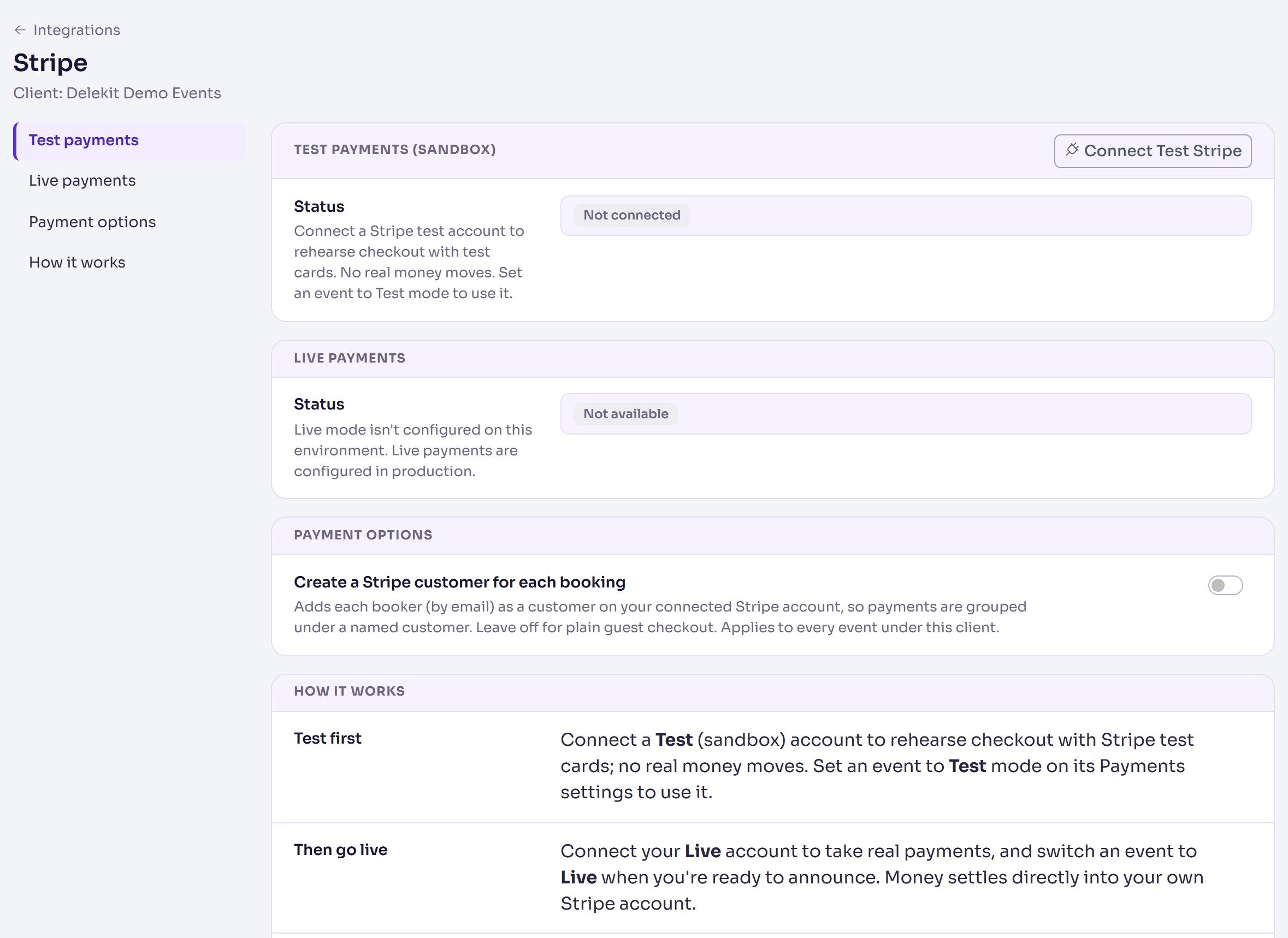
Each event then chooses which account it uses with its Payments mode: see Switch between test and live payments.
Read the status
Each section shows a Status:
| Status | What it means | What to do |
|---|---|---|
| Not connected | No Stripe account is linked for this mode. | Select Connect Test Stripe or Connect Live Stripe. |
| Incomplete | Stripe still needs details from you. | Select Complete setup in Stripe, finish there, then Re-check status. |
| Action required | Stripe has restricted the account. | Select Resolve in Stripe, then Re-check status. |
| Active | Ready to take payments. Charges and Payouts show whether Stripe has enabled them. | Nothing. View Stripe dashboard opens your account. |
| Paused | You've paused payments. The connection is kept. | Select Resume payments. |
| Can't reach Stripe | Delekit can no longer reach the account, for example because it was disconnected in Stripe. | Select Reconnect Test Stripe or Reconnect Live Stripe. |
How money and fees work
- One payment per order, whatever is in it, described in Stripe as "Order ref:" and the order's reference.
- Delekit's platform fee is taken from each payment as an application fee, worked out on the price before tax. Stripe charges its own card fees as usual.
- Your payouts follow your Stripe account's schedule.
- On the buyer's statement, the charge shows your Stripe statement name with the start of the event's name.
- Create a Stripe customer for each booking (in Payment options, then Save changes) adds each booker as a customer in your Stripe account. Leave it off for plain guest checkout.
Refund a payment
Open the purchaser's attendee page and, in Orders, select Refund on the line to refund. The money goes back to the buyer's card, with Delekit's fee on that amount. When a refund comes from cancelling a registration under your cancellation policy, Delekit's fee isn't refunded.
Pause or disconnect
- Pause payments stops new payments in that mode and keeps the connection.
- Disconnect removes the connection. You can reconnect the same account later. It's refused while a payment is in progress: try again in a few minutes.
Neither refunds or changes completed payments.
Check it works
Set an event's Payments mode to Test, book a ticket with Stripe's test card 4242 4242 4242 4242 (any future expiry and CVC), and check the payment shows in your Stripe test dashboard. See Test a registration before you go live.
If something isn't right
- The event's Overview says Payments can't be taken for this event., or buyers see "Payments are not available for this event.": the overview gives the reason, such as no Stripe account for the event's mode, payments paused, or the account not enabled for charges. Select Open Stripe settings to fix it.
- Incomplete or Action required: finish what Stripe asks for, then Re-check status.
- You connected the wrong account: select Disconnect, then connect again.
- "Stripe connection was cancelled.": you left Stripe before allowing Delekit. Start again from the Stripe page.
Related articles
Still stuck? Contact Delekit support.
Was this article helpful?
That’s Great!
Thank you for your feedback
Sorry! We couldn't be helpful
Thank you for your feedback
Feedback sent
We appreciate your effort and will try to fix the article