Audience: client administrators. Applies to: events that sell paid tickets or products.
If your organisation has its own CyberSource merchant account (usually set up through your bank), card payments can go through it instead of Stripe. You enter and verify your keys for the sandbox and for live payments, then choose CyberSource for your organisation's card payments. Money settles straight into your merchant account.
Before you start
- You need to be a client administrator. CyberSource is set up in your client's integrations.
- Your merchant account needs Unified Checkout, and Payer Authentication if you want 3-D Secure. Your bank or CyberSource contact can confirm both.
- Get a REST key for each environment. In the CyberSource Business Center, go to Payment Configuration → Key Management, choose Generate key, then REST – Shared Secret. Copy the Key ID and Shared Secret: the secret is shown only once. Use the sandbox Business Center for Test and the production one for Live; keys only work in the environment that made them.
Open the CyberSource page
- In the menu, select Admin, then Client settings. It opens in a new tab.
- In Integrations, select Manage integrations.
- On the CyberSource card, select Configure (or Manage once it's set up).
Add your keys
In Test (sandbox), enter your Merchant ID, Key ID and Shared secret.
In Currencies, enter the currencies your account takes, such as
USD.To use 3-D Secure, turn on Use 3-D Secure (Payer Authentication) and choose a 3-D Secure policy (see 3-D Secure).
Select Save and verify. Delekit checks the keys with CyberSource, and the Status shows Verified.
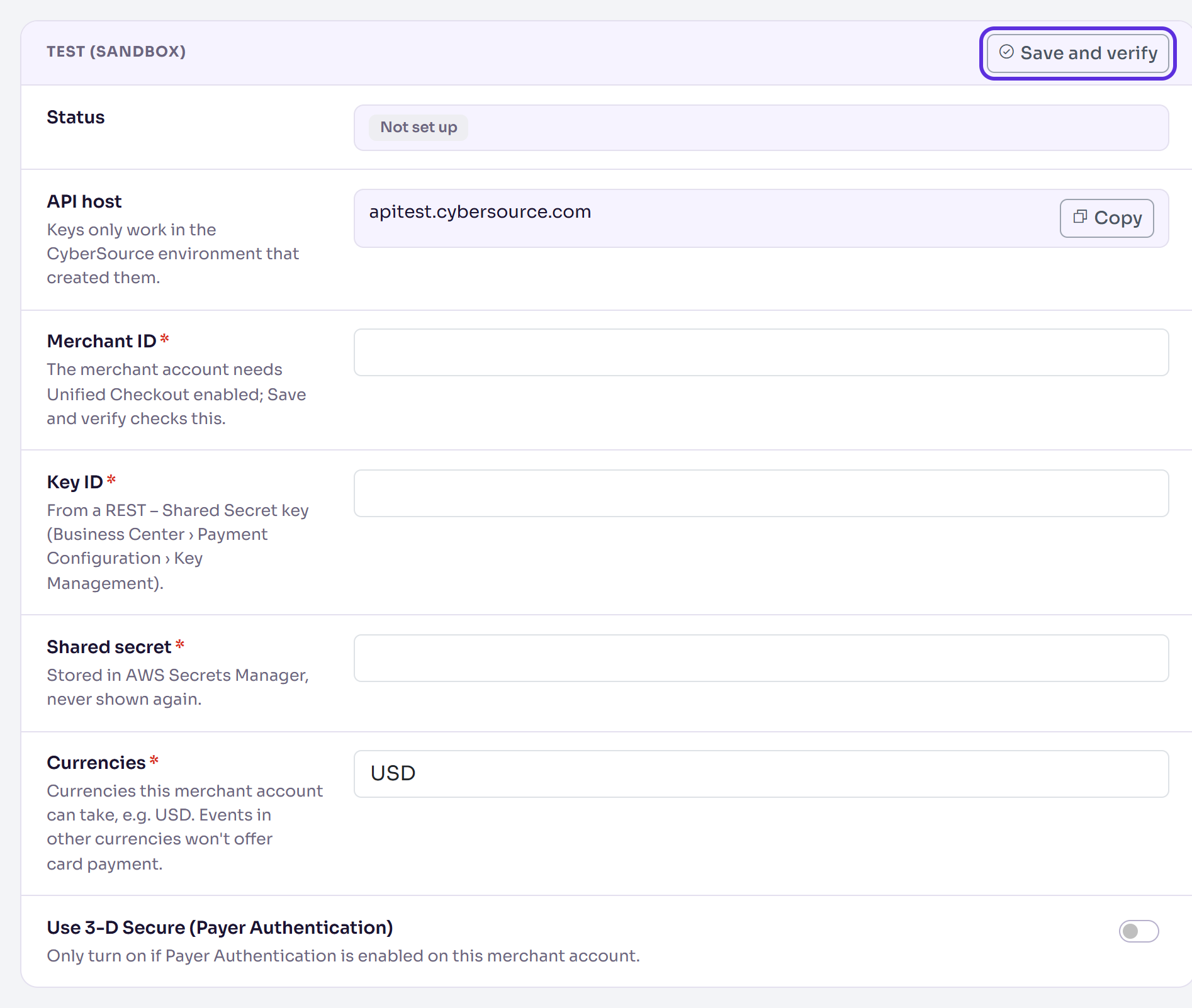
When you're ready for real payments, do the same in Live with your production keys.
Send card payments through CyberSource
In Card payments, under Card payments go through, choose CyberSource. You can choose it once test or live keys are verified.
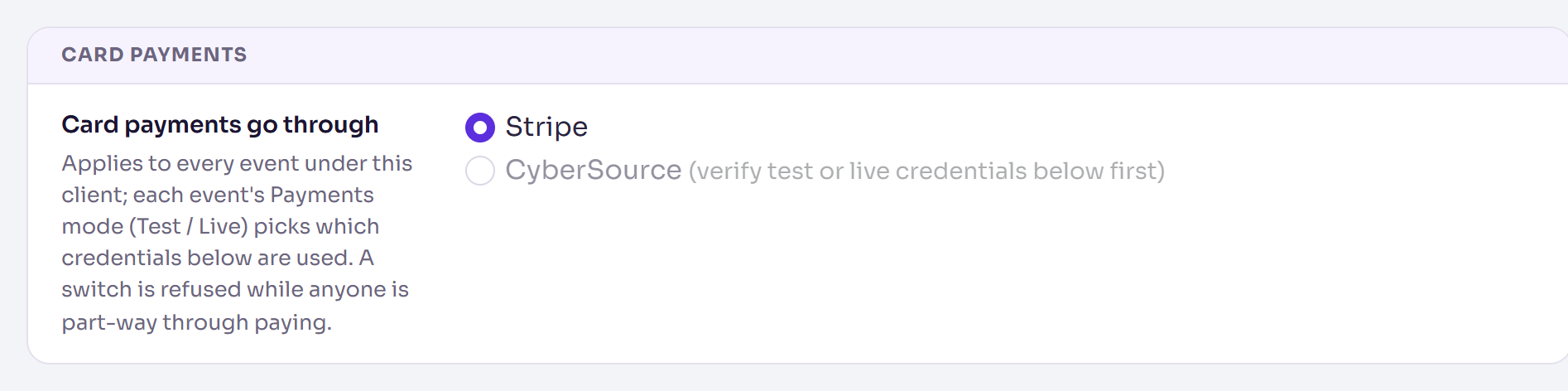
Select Save changes. You see "Card payments now go through CyberSource."
This applies to every event in your organisation. Each event's Payments mode picks the Test or Live keys: see Switch between test and live payments. The switch is refused while anyone is part-way through paying.
3-D Secure
3-D Secure asks the buyer's bank to confirm the payment. Choose a policy:
- Attempt: every card is checked; cards whose bank doesn't take part still go through.
- Require: only payments the bank verified are accepted, and fraud liability moves to the bank. Some genuine buyers whose banks don't take part are turned away.
If 3-D Secure can't start, the section shows 3-D Secure problem: check that Payer Authentication is enabled on your merchant account.
Receipts, refunds and protection
- Receipts: CyberSource has no receipt page, so Delekit makes one in the event's
branding, with a PDF to download. Add
{{registration.receiptUrl}}to the confirmation email to send buyers the link. In Receipts, Preview receipt shows a made-up one for the event you choose. - Refunds: refund from the purchaser's attendee page in Delekit, not the Business Center, so the registration stays in step. A full refund on the day of payment is done as a void.
- Card details are entered in CyberSource's secure form and never reach Delekit.
- Repeated declines: after several declined attempts the order is cancelled and the buyer starts again, which protects you from card testing.
- Fraud screening: if CyberSource flags a payment for review but the bank approved it, the booking is confirmed and the attendee's Orders shows a fraud review warning. Check the case in the Business Center and refund it in Delekit if you reject it.
- Fees: your bank and CyberSource charge their own. Delekit takes no fee per payment.
Pause or remove
Pause payments stops new payments in that mode. Remove credentials also stops refunds from Delekit for payments taken in that mode. Neither changes completed payments. Verify again re-checks saved keys.
Check it works
Set an event's Payments mode to Test and book with CyberSource's test card 4111 1111 1111 1111, any future expiry and security code, and a real-looking billing address. The Payment page's Test mode notice suggests one. See Test a registration before you go live.
If something isn't right
- Status says Not verified: the Verification error says why. Check the keys are for this environment, then select Save and verify again.
- CyberSource can't be chosen: verify test or live keys first.
- Card payment isn't offered: the event's currency isn't in that mode's Currencies.
- Payments stopped after you changed your key: enter the new key and verify it.
Related articles
- Take payments with Stripe
- Switch between test and live payments
- Test a registration before you go live
Still stuck? Contact Delekit support.
Was this article helpful?
That’s Great!
Thank you for your feedback
Sorry! We couldn't be helpful
Thank you for your feedback
Feedback sent
We appreciate your effort and will try to fix the article