Audience: client administrators and event administrators. Applies to: events that sell paid tickets or products.
Each event has a Payments mode. Test uses your payment provider's sandbox, so you can book with test cards and no real money moves. Live takes real payments. Set your event up and test it in Test mode, then switch it to Live before you open registration.
Before you start
- Set up your payment provider for each mode. A client administrator connects them once for your organisation, in your client's integrations. Stripe has Test payments (sandbox) and Live payments, each connected on its own; CyberSource has Test (sandbox) and Live, each with its own keys. See Take payments with Stripe or Take payments with CyberSource.
- New events start in Test. The mode is chosen per event, so switching one event to Live doesn't change any other.
- Paying by invoice (if you allow it) works the same in both modes: no card is taken.
Switch an event to live payments
In the menu, select Event, then Edit event.
Select Payments and cancellations.
In Payments mode, choose Live (take real payments).
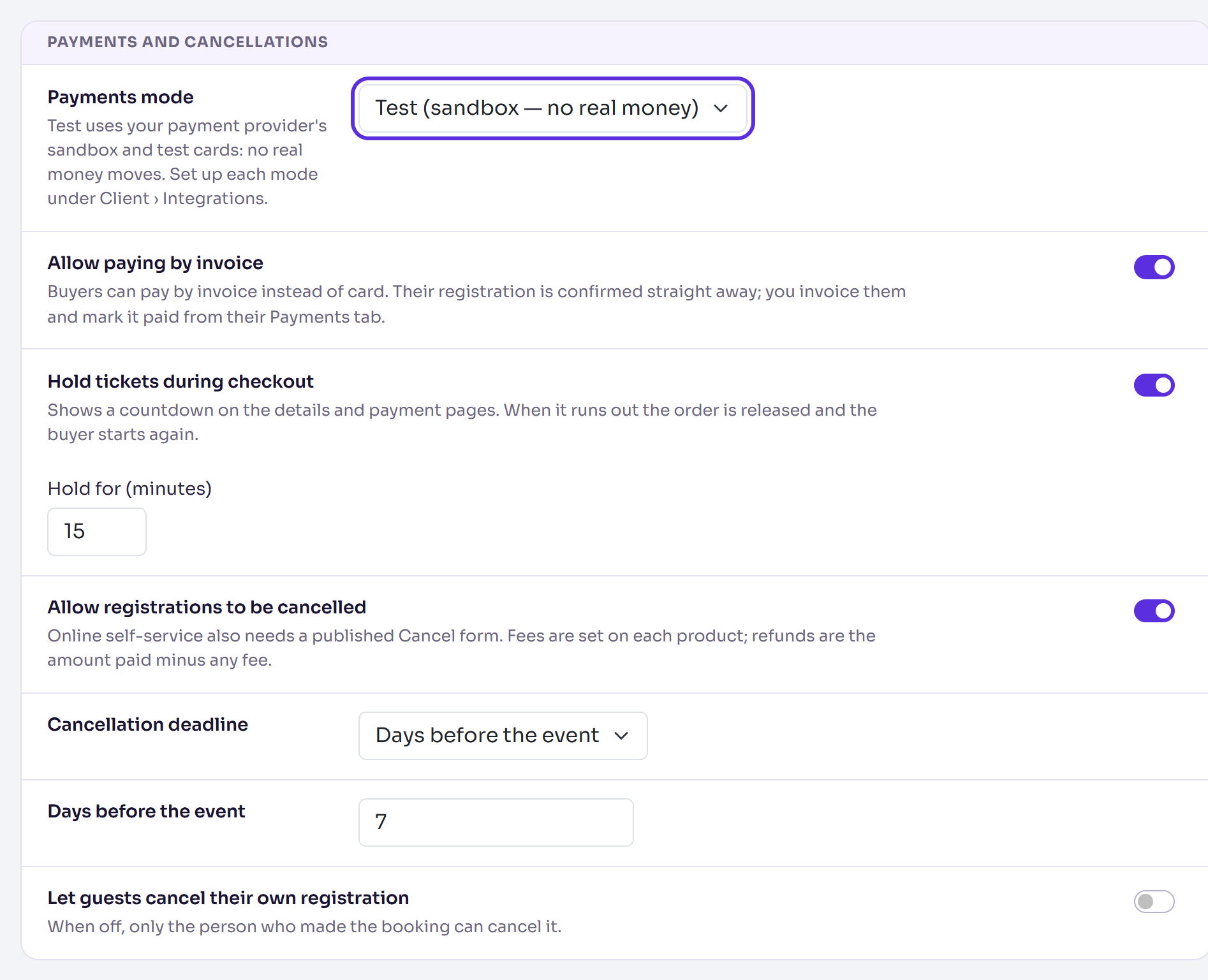
Select Save changes.
To go back to testing, choose Test (sandbox — no real money) and save again.
How buyers can tell
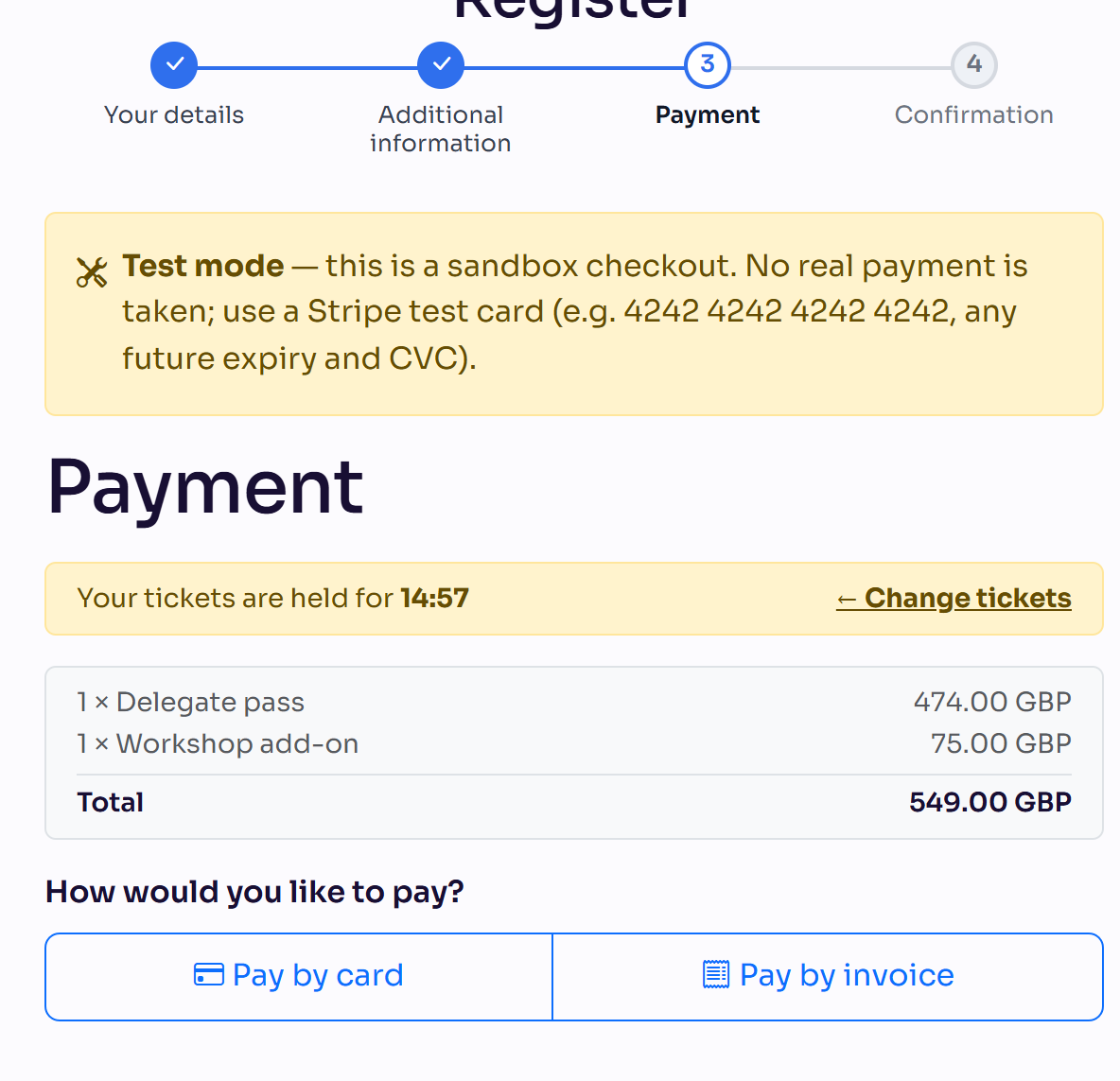
In Test mode the Payment page shows a Test mode notice, saying it's a sandbox checkout, that no real payment is taken, and which test card to use: Stripe's 4242 4242 4242 4242, or CyberSource's 4111 1111 1111 1111, with any future expiry date and security code. In Live mode there's no notice.
What happens next
- Test-card bookings are marked as tests. When a card payment goes through in Test mode, everyone on that order is marked Test attendee, so they're hidden from the attendee list, session management and reports. Bookings paid by invoice aren't marked: see Test a registration before you go live.
- Sandbox payments stay in the sandbox. You see them in your provider's test dashboard, not with your real payments.
- In Live mode, buyers pay real money into your own account.
Check it works
After you switch to Live, open the event's Overview. If the event sells paid tickets through Stripe and the live account isn't ready, it says Payments can't be taken for this event., with the reason, such as "Client has no Stripe account for Live mode.", and an Open Stripe settings button.
Then open your registration form and start a booking: the Payment page should show no Test mode notice.
If something isn't right
- The overview says payments can't be taken: connect or finish the live account in your client's integrations, or ask a client administrator to.
- Buyers still see Test mode: the event is still in Test. Check Payments mode and select Save changes.
- A test card is declined: test cards only work while the event is in Test mode.
- Card payment isn't offered with CyberSource: the event's currency must be one of the Currencies set for that mode on the CyberSource page.
Related articles
Still stuck? Contact Delekit support.
Was this article helpful?
That’s Great!
Thank you for your feedback
Sorry! We couldn't be helpful
Thank you for your feedback
Feedback sent
We appreciate your effort and will try to fix the article