Audience: event organisers and on-site check-in staff. Applies to: events using the Delekit check-in app.
Sign in to the check-in app with the same Delekit account you use on the web: your email address and password. You stay signed in until you sign out, and the app shows the events you have access to.
Before you start
- You need a Delekit account with access to the event. If you don't have one, ask a client administrator in your organisation to invite you.
- To save scans, you need to be a client administrator, or an event administrator on the event. Other roles can see the event in the app, but their scans aren't saved.
- The event must have Visible in check-in app turned on. See Go live with your event.
- The device needs an internet connection to sign in.
Sign in
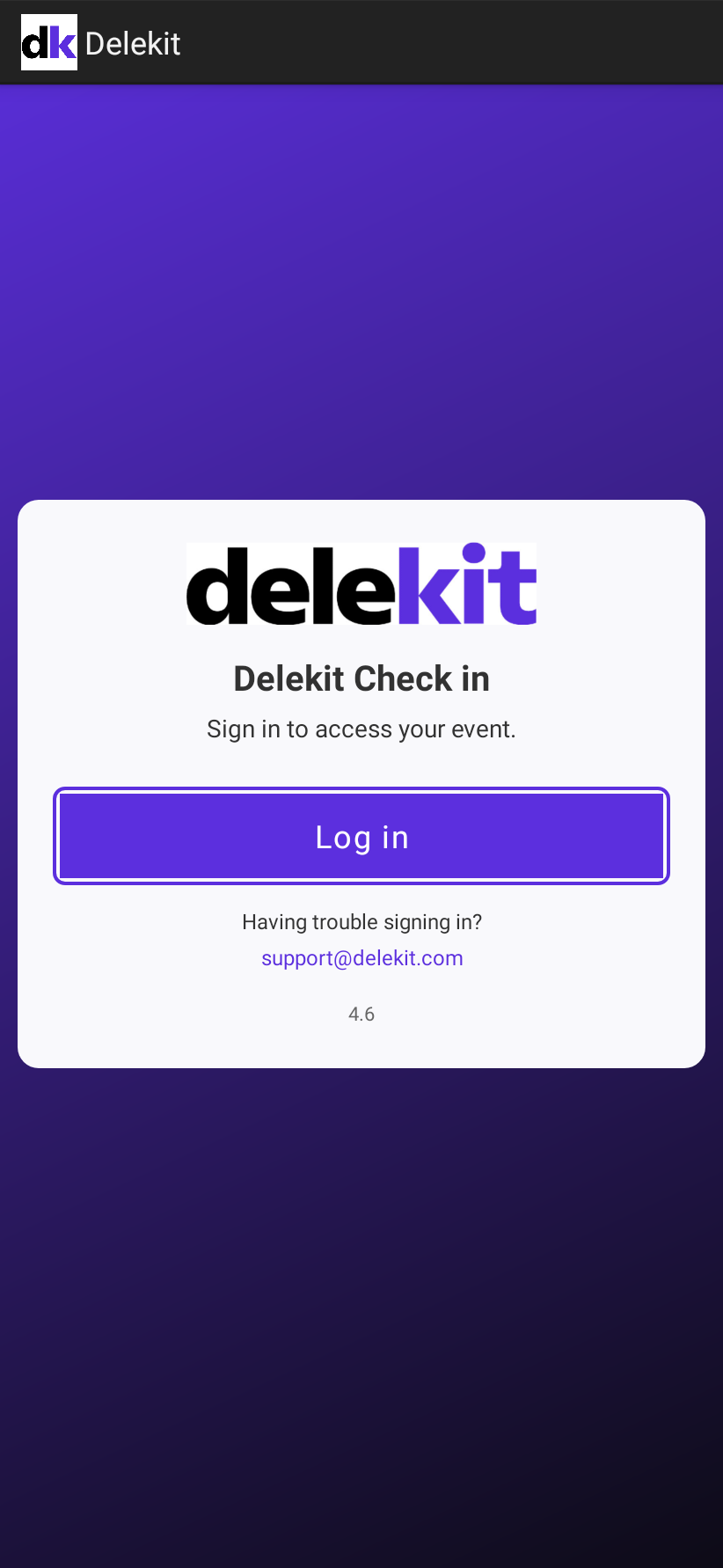
Open the Delekit Check-In app and select Log in.
Your browser opens the Delekit Sign in page. Enter your Email and Password, then select Sign in.
If you're asked to Enter your sign-in code, enter the 6-digit code from your email or your authenticator app, then select Sign in.
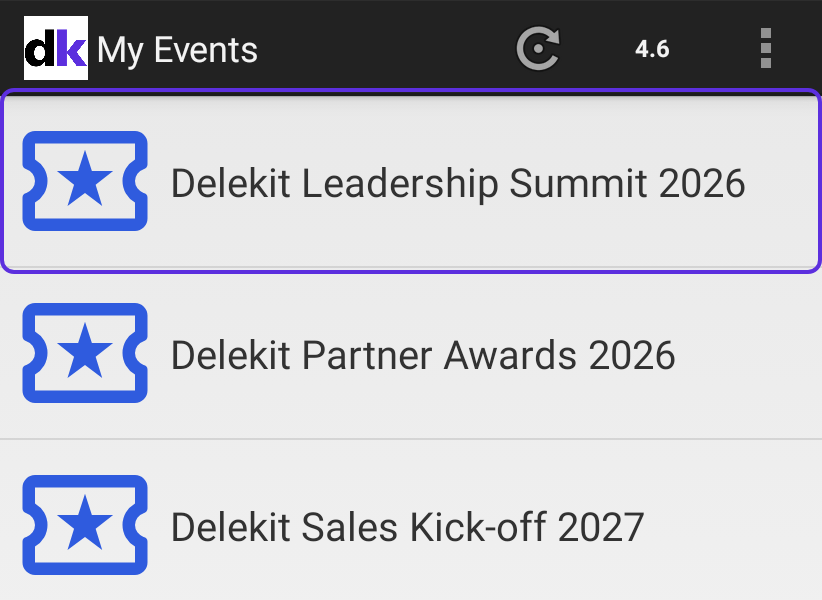
The app opens My Events. Select your event to see its sessions.
Reset your password
If you've forgotten your password, or never set one, reset it from the sign-in page.
- On the Sign in page, select Forgot password?.
- Enter your Email and select Send reset link.
- Open the email and follow its link. On Choose a new password, enter your Email, a New password and Confirm new password, then select Reset password.
- Go back to the app and select Log in again.
What happens next
- You stay signed in, even when the app is closed, until you sign out. To sign out, in My Events open the menu and select Log out. Signing out removes the event's data from the device, so do it after your scans have synced.
- My Events lists the events you have access to that are visible in the check-in app. To fetch an event that has just been made visible, select the refresh icon.
If something isn't right
- The reset email doesn't arrive: check your spam folder. It only arrives if a Delekit account exists for that email address.
- You've lost your authenticator app: on Enter your sign-in code, select Use a recovery code. If you have no recovery codes, ask your account administrator to reset two-factor authentication.
- My Events is empty, or your event is missing: check the event has Visible in check-in app turned on and that you have access to it, then select the refresh icon.
- You still can't sign in: in the app, Having trouble signing in? shows our support email address. Or raise a ticket: see Get help from Delekit support.
Related articles
Still stuck? Contact Delekit support.
Was this article helpful?
That’s Great!
Thank you for your feedback
Sorry! We couldn't be helpful
Thank you for your feedback
Feedback sent
We appreciate your effort and will try to fix the article