Audience: everyone who uses Delekit. Applies to: all plans.
Every sign-in to Delekit already needs a one-time code as well as your password: by default, it's emailed to you. An authenticator app on your phone is quicker, and keeps your account and your attendees' data safe even if someone gets into your email. This article sets one up and explains recovery codes.
Before you start
- You need an authenticator app on your phone, such as Microsoft Authenticator or Google Authenticator.
- Two-factor authentication is on for everyone. You can't turn it off, only choose where your codes come from: your email or an app.
- Your account settings are on the Delekit account site. To get there, select your name in the menu. See Change your profile, email or password.
Set up an authenticator app
In the menu, select your name. Your Profile opens.
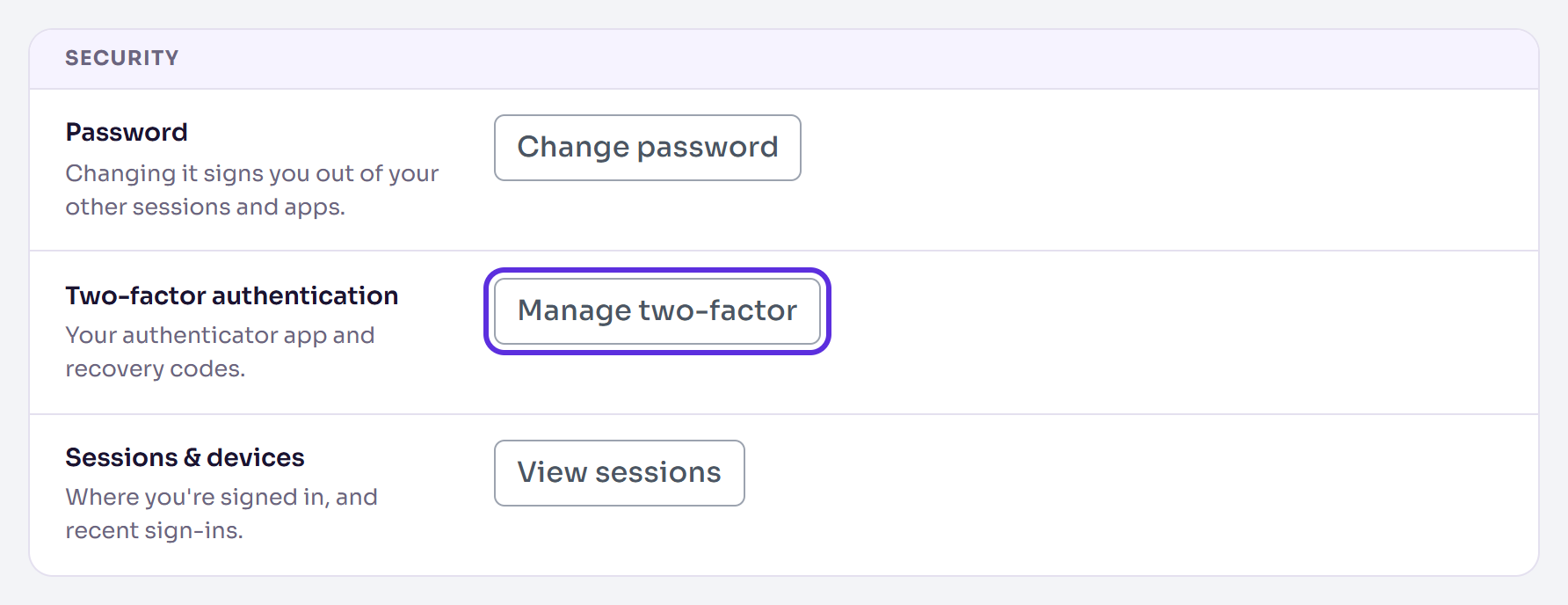
In Security, select Manage two-factor.
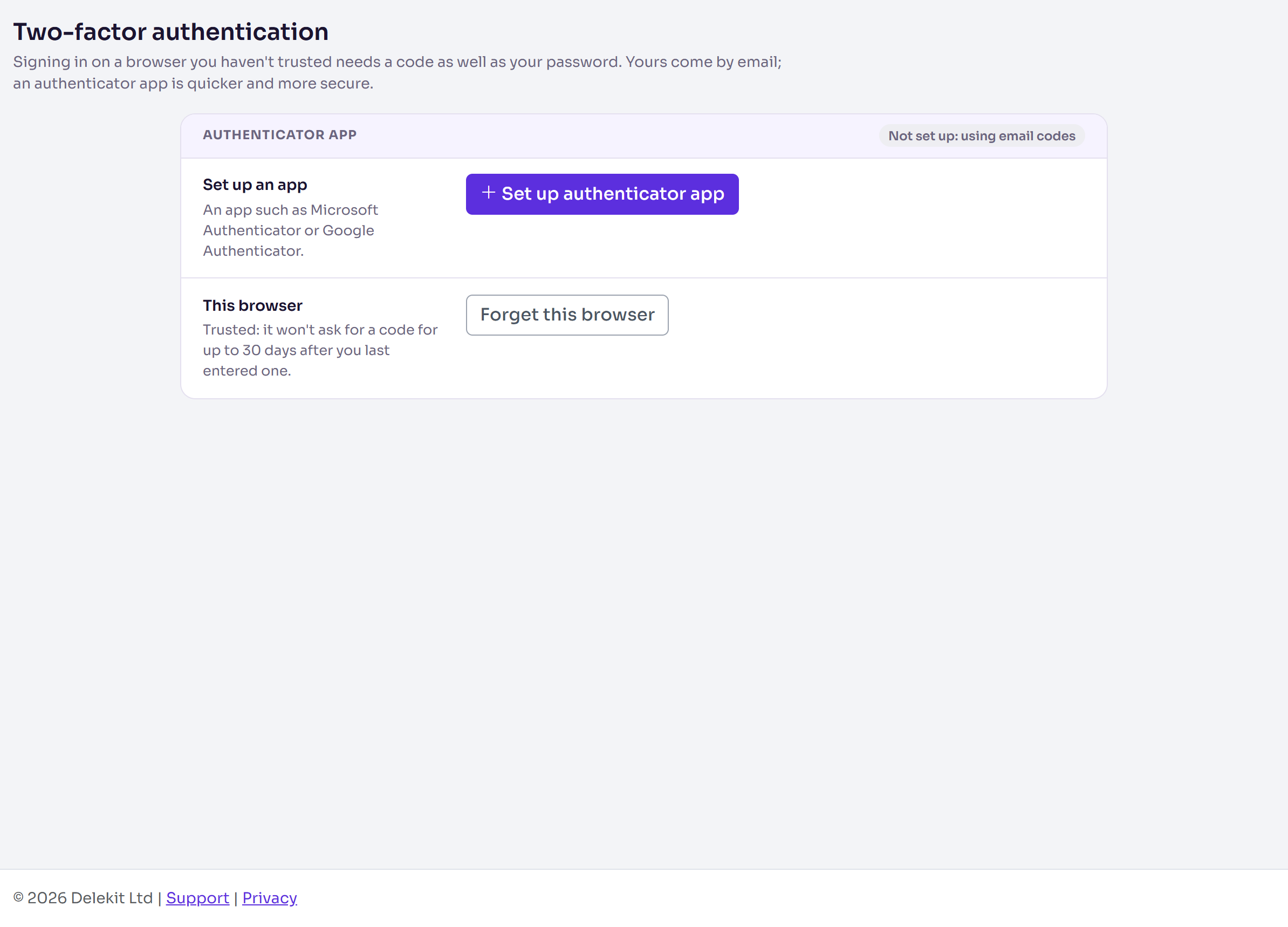
In Authenticator app, select Set up authenticator app.
Scan the QR code with your app, or type in the key shown next to it.
Enter the 6-digit code the app shows in Code from the app, then select Verify code.
On Save your recovery codes, select Copy codes and keep them somewhere safe, such as a password manager.
Select I've saved my codes.
What happens next
Authenticator app shows In use. From now on, signing in on a browser you haven't trusted asks for a code from your app instead of an email.
Each recovery code signs you in once, if you don't have your phone. You see them only once. When 3 or fewer are left, the page warns you; select Make new codes for a new set. The old ones then stop working.
This browser shows when you've trusted the browser you're using. It won't ask for a code for up to 30 days after you last entered one. To make it ask next time, select Forget this browser.
Check it works
Sign out, then sign in again with Remember this browser for 30 days unticked. Delekit asks for the code from your authenticator app.
Change or stop using the app
- A new phone: select Set up again and scan the code with the app on the new phone.
- Switch back to email codes: select Switch to email codes, then Switch to email codes again to confirm. Delekit stays in your app until you remove it there.
If something isn't right
- "Verification code is invalid." Enter the newest code the app shows for Delekit.
- You've lost your phone. On the code step when you sign in, select Use a recovery code. With no recovery codes left, ask your client administrator to reset two-factor authentication. They select Reset two-factor on your user page. You then sign in with an emailed code and can set up the app again.
Related articles
- Sign in and reset your password
- Manage where you're signed in (sessions and devices)
- Invite and manage users
Still stuck? Contact Delekit support.
Was this article helpful?
That’s Great!
Thank you for your feedback
Sorry! We couldn't be helpful
Thank you for your feedback
Feedback sent
We appreciate your effort and will try to fix the article