Audience: everyone who uses Delekit. Applies to: all plans.
Sessions & devices shows the apps signed in to your Delekit account and your recent sign-ins, with the device and address each came from. Use it to check nobody else is using your account, and to sign out an app or every other browser at once.
Before you start
- It's on the Delekit account site. In the menu, select your name, then select View sessions in Security, or Sessions & devices in the menu.
- Times are in your own time zone, the one your computer is set to.
- You stay signed in where you are. Signing out everywhere else never signs out the browser you're using.
Check your sessions
In the menu, select your name. Your Profile opens.
In Security, select View sessions.
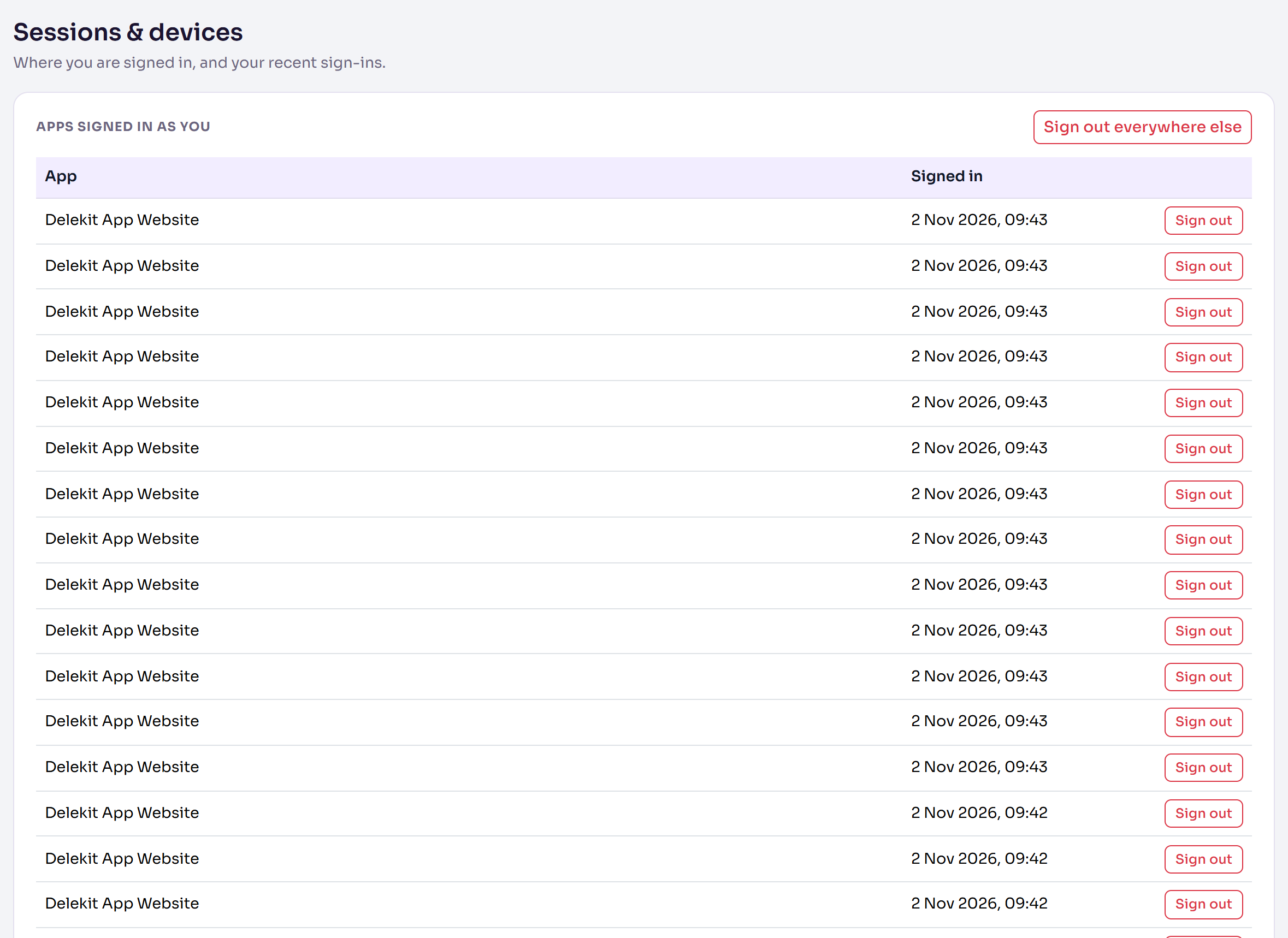
Read Apps signed in as you: each Delekit app signed in to your account, such as the Delekit website or the check-in app, and when it signed in.
Read Recent sign-ins: your last 20 sign-ins, with When, the Device (browser and system) and the IP address. New marks the first sign-in from an address.
Sign out an app, or everywhere else
To sign out one app, select Sign out on its row, then Sign out app. It has to sign in again.
To sign out everything but this browser, select Sign out everywhere else.
In Sign out everywhere else?, select Sign out everywhere else. To leave things as they are, select Cancel.
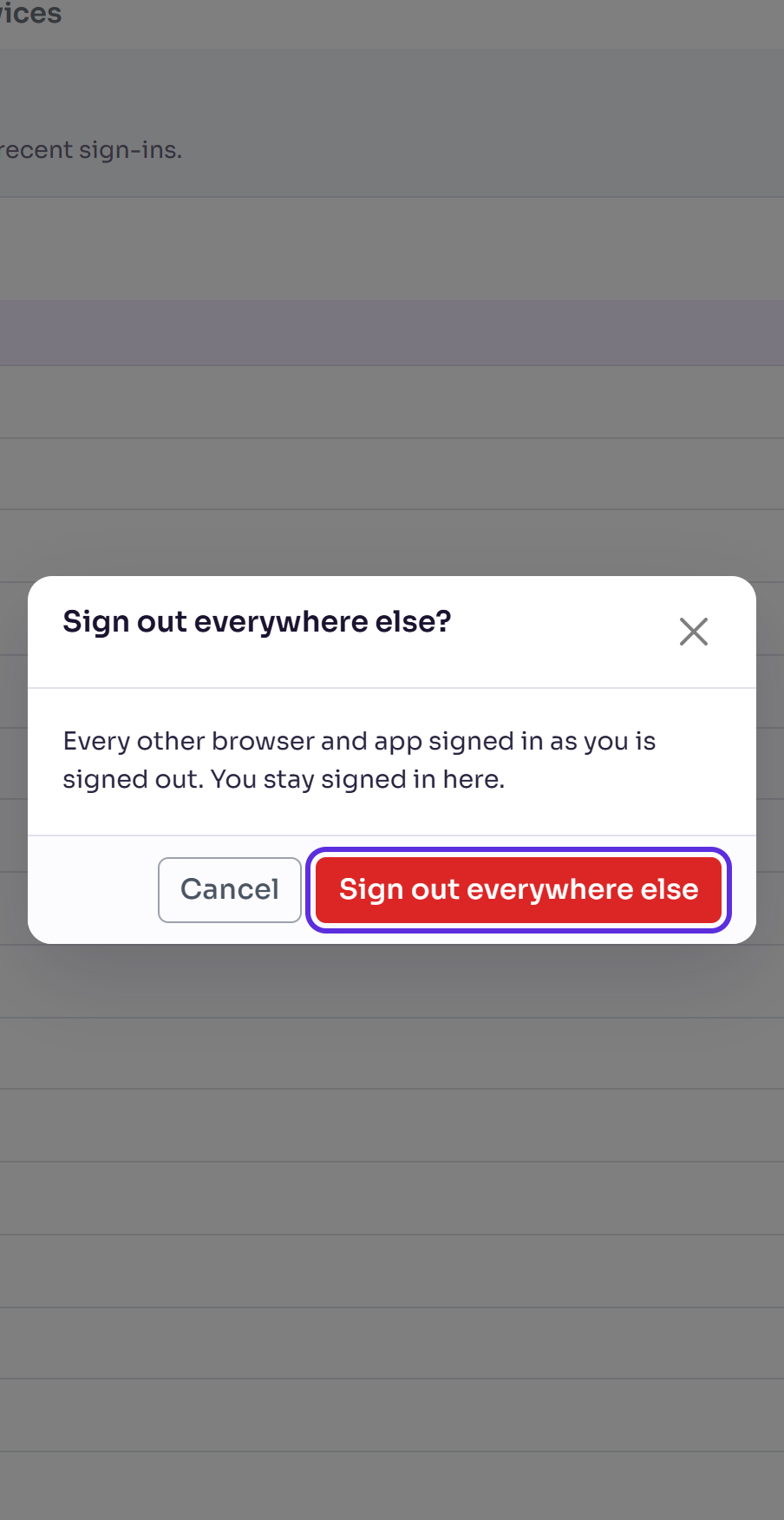
You'll see You've been signed out of all other sessions and apps.
What happens next
Every other browser and app signed in as you is signed out, and has to sign in again with your password and a code. Browsers you'd trusted ask for a code again too.
Changing or resetting your password does the same. See Change your profile, email or password.
When someone signs in to your account from an address it hasn't been used from before, Delekit emails you New sign-in to your Delekit account, with the time, device and IP address. You aren't emailed about your very first sign-in, or about a sign-in that used a code Delekit had just emailed you.
If something isn't right
- A sign-in you don't recognise. Change your password straight away, then select Sign out everywhere else. Setting up an authenticator app also helps: see Set up two-factor authentication.
- "That session could not be found. It may have already been revoked." The app was already signed out. The page shows what's signed in now.
Related articles
Still stuck? Contact Delekit support.
Was this article helpful?
That’s Great!
Thank you for your feedback
Sorry! We couldn't be helpful
Thank you for your feedback
Feedback sent
We appreciate your effort and will try to fix the article