Audience: everyone who uses Delekit. Applies to: all plans.
Your sign-in details live in My account, on the Delekit account site. There you can add a phone number, change the email address you sign in with, and change your password. Each change applies to your sign-in for every client and event you work on.
Before you start
Open My account from the menu. Select your name in the menu. My account opens on the Delekit account site; select Back to Delekit in its menu to return.
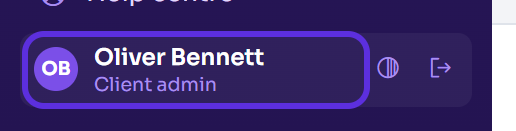
Your name is set by your client administrator. You can't change it in My account: ask them to change it on your user page. See Invite and manage users.
You can't delete your own account. Your client administrator can remove you from their organisation. To have your account and its data erased, ask them or email support@delekit.com.
Add a phone number
In the menu, select your name. Profile opens.
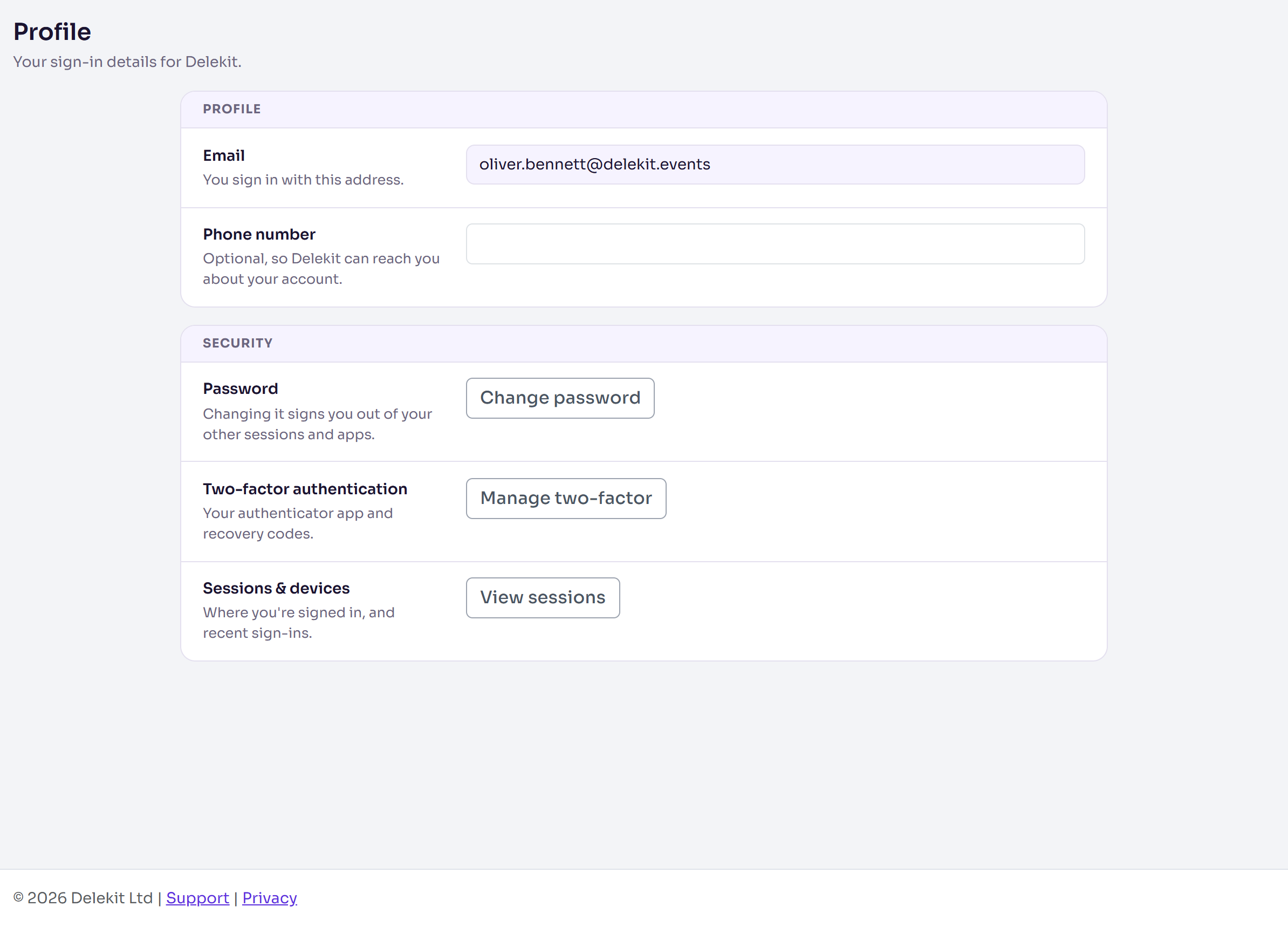
Enter a Phone number. It's optional, so Delekit can reach you about your account.
Select Save profile. You'll see Your profile has been updated.
Change your email
In My account, select Email.
In Change email, enter the New email.
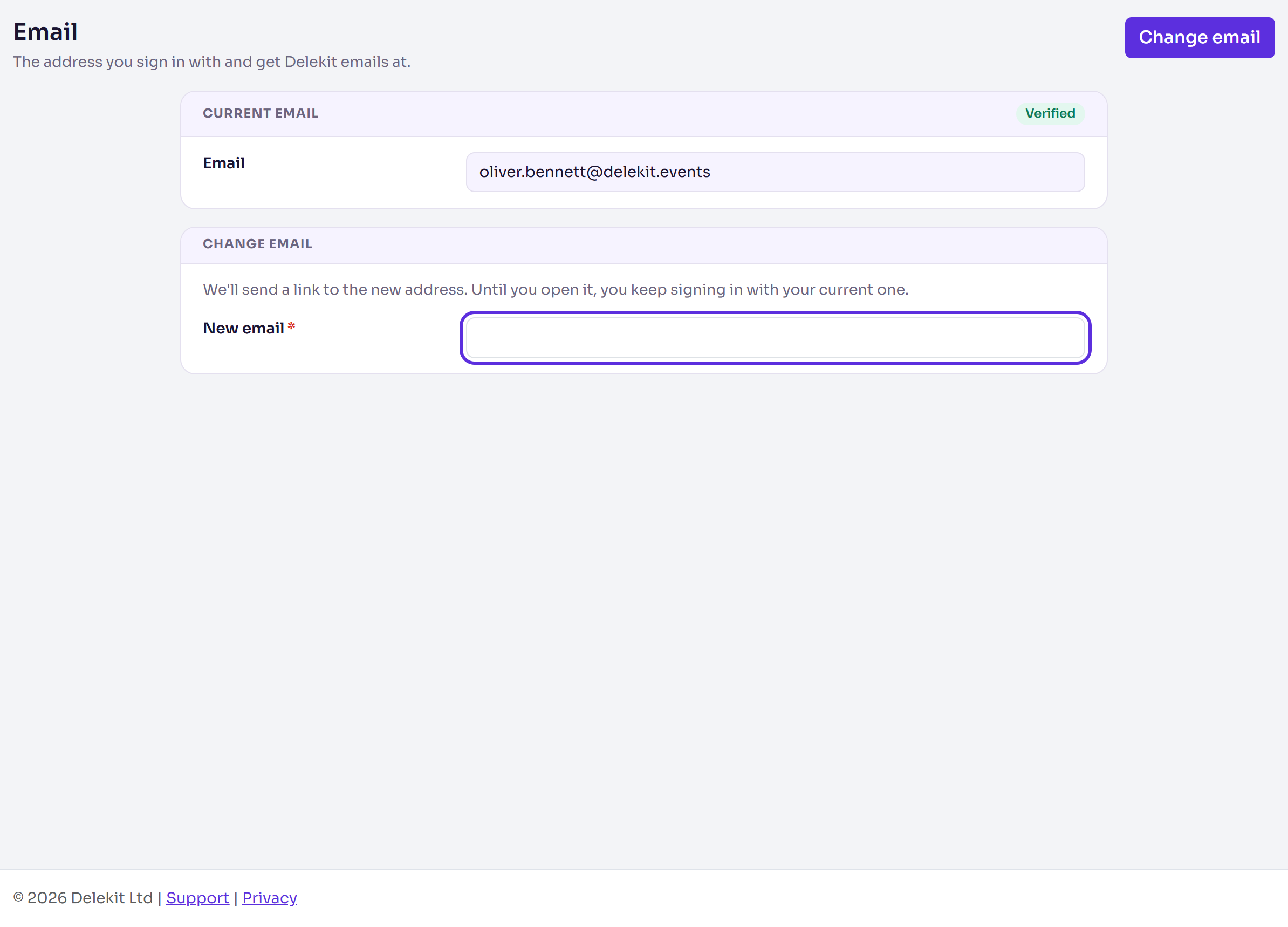
Select Change email. A message says Delekit has sent a link to the new address.
Open the Confirm your new email email at the new address, and select Confirm my new email.
Your email has changed confirms it. Until you open the link, you keep signing in with your current address. Delekit emails you at the new address from then on.
Change your password
In My account, select Password.
Enter your Current password.
Enter a New password and Confirm new password. A long passphrase is easiest to remember and hardest to guess.
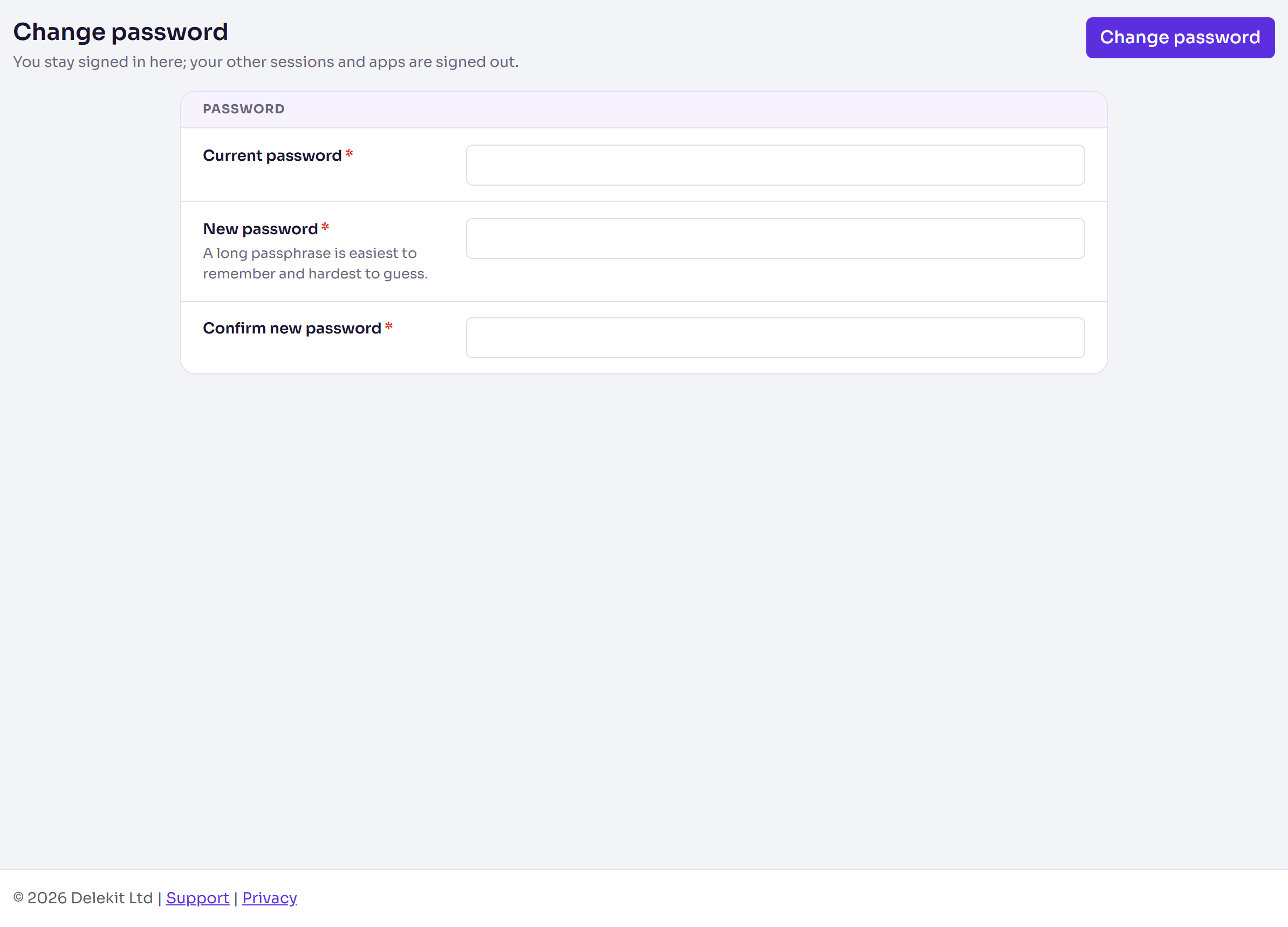
Select Change password.
You'll see Your password has been changed. You've been signed out of all other sessions and apps. You stay signed in where you are.
What happens next
A new password signs out every other browser and app signed in as you, including the check-in app, so sign in there again with the new one.
If something isn't right
- "That's already your email." The new email is the one you sign in with now.
- "Another account already uses this email." Someone already signs in with that address. Ask your client administrator or Delekit support.
- "We couldn't change your email." The link may have expired or been used already. Start again from My account › Email.
- Your profile still shows the old address after the change. Another Delekit user already has this address. Ask your client administrator to update it.
- You don't know your current password. Sign out, then select Forgot password? on the sign-in page. See Sign in and reset your password.
- Your new password isn't accepted. The message says why: for example, it must be at least 6 characters long.
Related articles
Still stuck? Contact Delekit support.
Was this article helpful?
That’s Great!
Thank you for your feedback
Sorry! We couldn't be helpful
Thank you for your feedback
Feedback sent
We appreciate your effort and will try to fix the article