Audience: sponsors, exhibitors and speakers invited to an event's portal. Applies to: events that use Delekit's sponsor and speaker portal.
The event portal is where you give the event team what they need from you: your profile, your logo or headshot, decisions and agreements. There's no password. You sign in with the email address your invitation was sent to, and Delekit emails you a 6-digit code.
Before you start
- Find your invitation email. It comes from the event team, with an Open the portal button. Each event has its own portal address, so use the link for this event.
- Use the email address the invitation was sent to. Another address won't get in, even at the same company. If a colleague should have access, ask your team's admin or the event team to add you.
- Have your inbox open, as the code expires after 10 minutes.
Sign in with a code
In your invitation email, select Open the portal. The sign-in page shows the event's name, dates and venue.
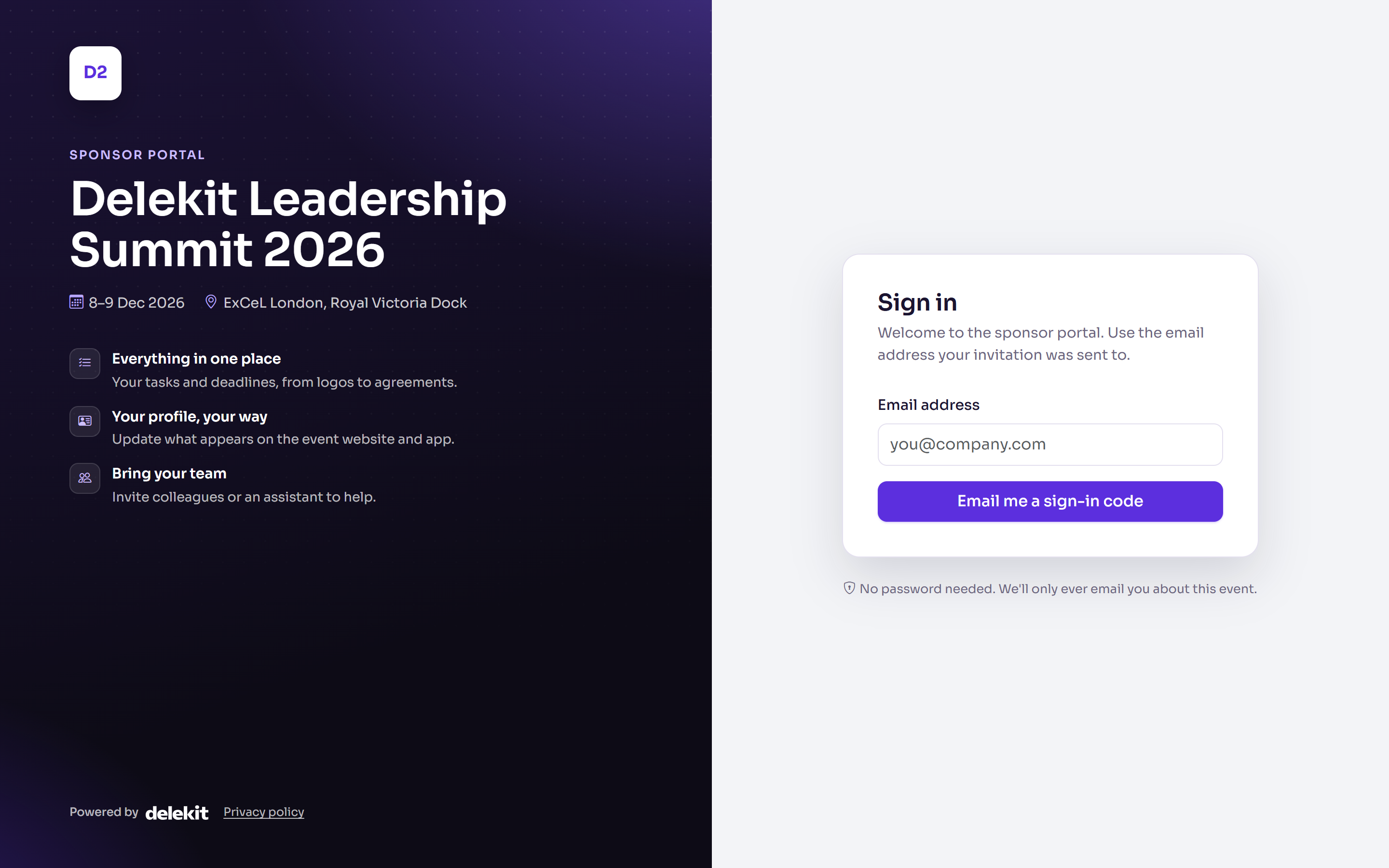
Enter your Email address and select Email me a sign-in code.
The page changes to Check your email. Open the email with your sign-in code.
Enter the 6 digits in Sign-in code and select Sign in.
Sign in with Google or Microsoft
If the sign-in page shows Google or Microsoft under or continue with, you can select it instead of asking for a code. It works when that account uses the same email address as your invitation.
What happens next
- You arrive at the portal's home page, with your tasks and how much is complete. See Complete your tasks and profile.
- You stay signed in on that browser, so next time the link takes you straight in. Usually that lasts 30 days from your last visit.
- Each event signs in separately. If you take part in another event that uses the portal, sign in to that event's portal too.
- On more than one team for this event (a sponsor's admin who is also speaking, say)? Choose which one you're working on in the Switch to list.
- To sign out, select your name, then Sign out.
If something isn't right
- No code arrives: check your junk or spam folder. A code is only sent to an address that has access to this portal, so check you typed the address your invitation went to. Wait a minute before asking again: select Send a new code, or Use a different email to change the address.
- "That code is invalid or has expired. Request a new one." Codes last 10 minutes and allow a few tries. Select Send a new code and use the newest one.
- "This account doesn't have access to this portal. Use the email address your invitation was sent to." Sign in with that address, or ask the event team to add the one you're using.
- "We couldn't confirm your email address with Google. Sign in with an email code instead." Use the code instead (Microsoft shows the same message with its own name).
- "Sign-in didn't complete. Please try again, or use an email code." Try again, or use a code.
- You lost the invitation: ask the event team to send it again.
Related articles
Still stuck? Contact Delekit support.
Was this article helpful?
That’s Great!
Thank you for your feedback
Sorry! We couldn't be helpful
Thank you for your feedback
Feedback sent
We appreciate your effort and will try to fix the article