Audience: event administrators and client administrators. Applies to: all plans.
Send portal invitations to the sponsors and speakers you've added, several at once from the list or one team or one person at a time from a record. Each person gets an email with a link to the portal's sign-in page, where they sign in with that email address. From the list, only people who haven't signed in yet are invited.
Before you start
- The portal emails must be set up: Portal invite, Portal sign-in code and Portal approval outcome, as the event's own templates or your organisation's defaults. Delekit's own templates don't count. Until then you'll see "Set up the portal emails first?": select Set up emails, or see Set up your event's email templates.
- Check the invitation first. In Email templates, open Portal invite and select Send me a test: see Change the wording of an email.
- Set up the portal before inviting, so people find their fields and tasks ready.
- Everyone you invite needs an email address on the team.
Invite several sponsors or speakers
In the menu, select Sponsors, then Sponsors (or Speakers, then Speakers).
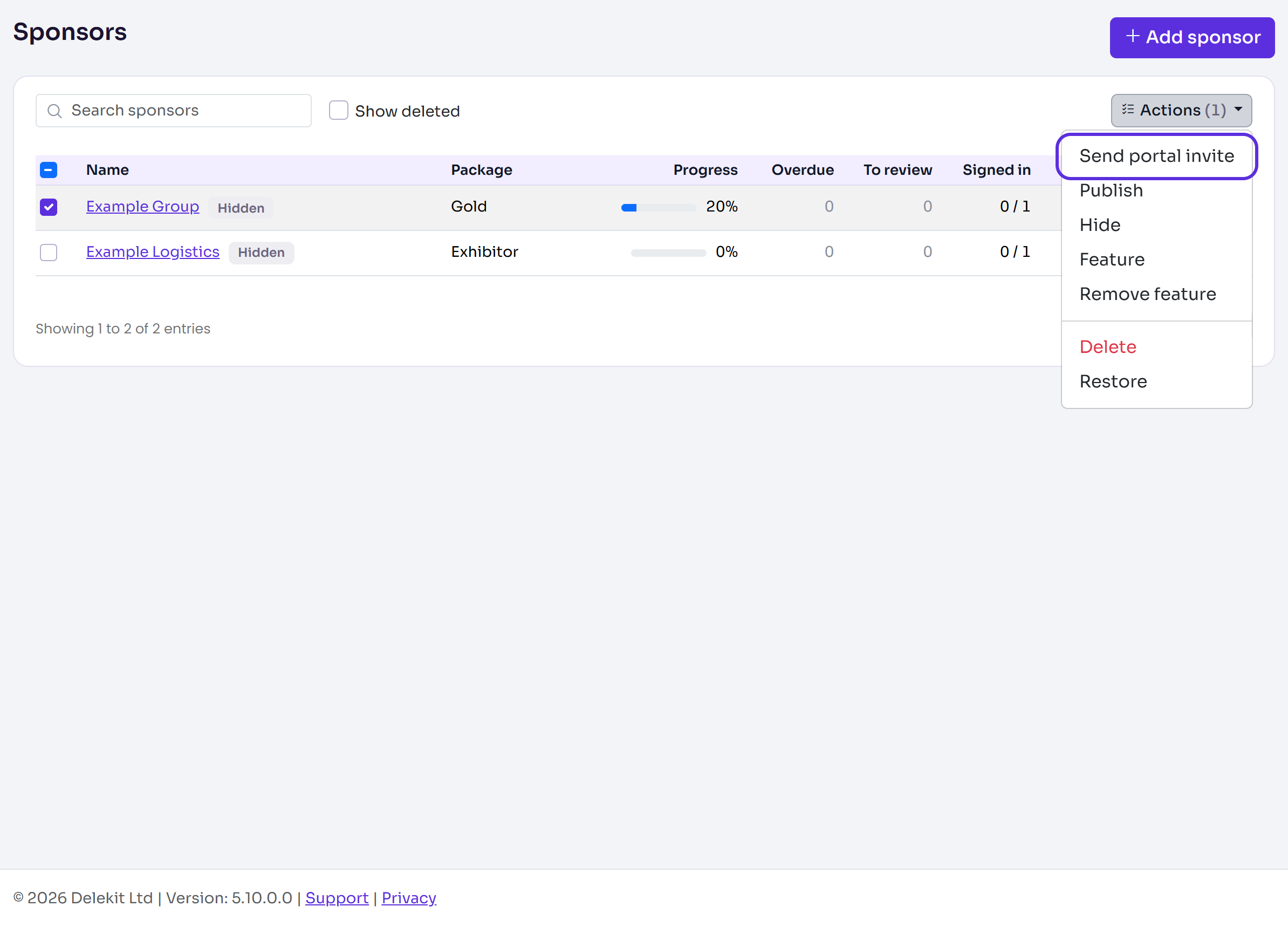
Tick each sponsor to invite.
Select Actions, then Send portal invite.
Check the question, for example "Send portal invites to 2 sponsors?". Everyone on each team who hasn't signed in yet gets an invitation email.
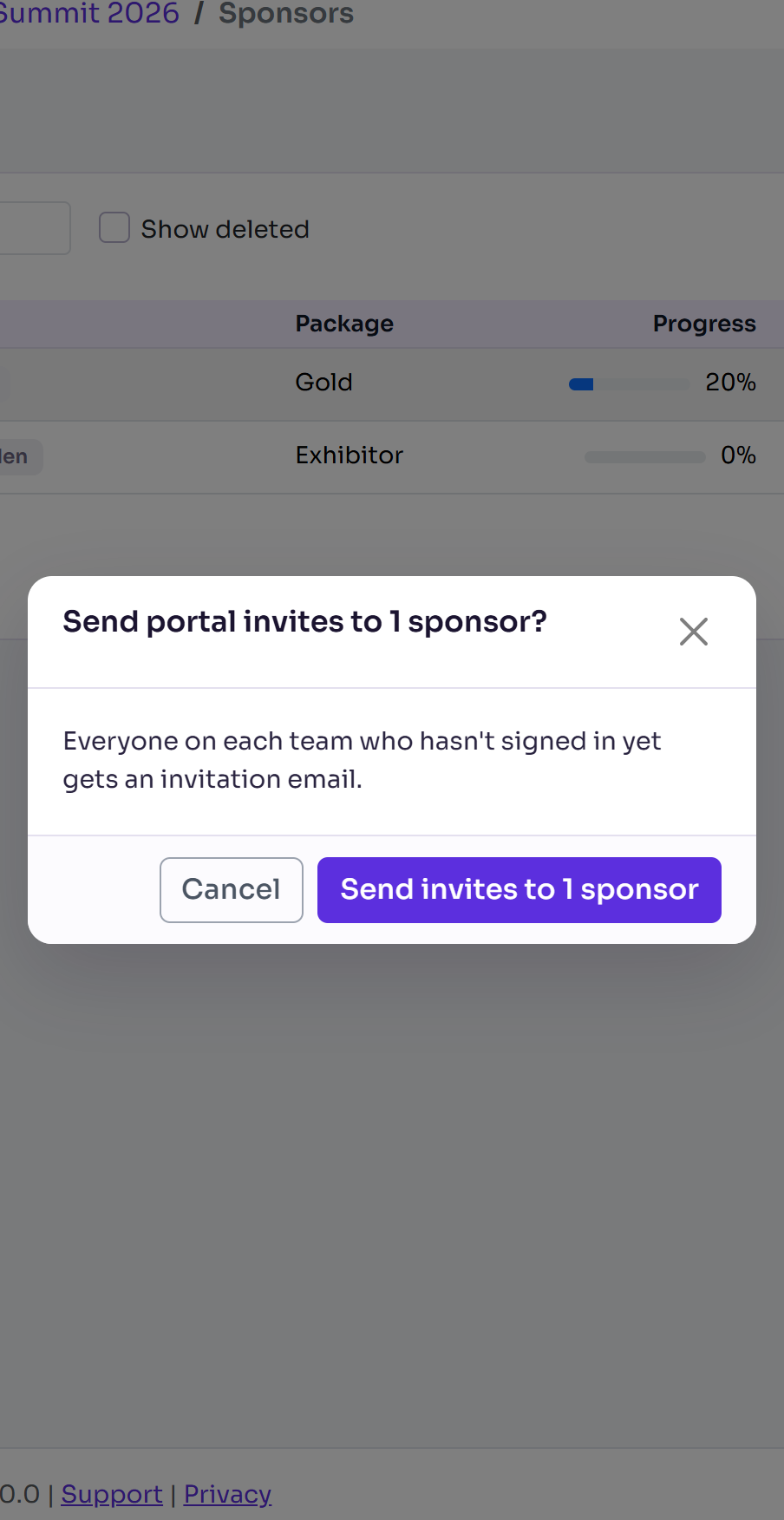
Select Send invites to 2 sponsors (with your number). You'll see how many were invited, for example "2 invited".
Invite one team, or one person
On a sponsor's or speaker's record:
- The whole team: select the more actions menu (⋯), then Send portal invites, then Send invites. You'll see "Invites sent".
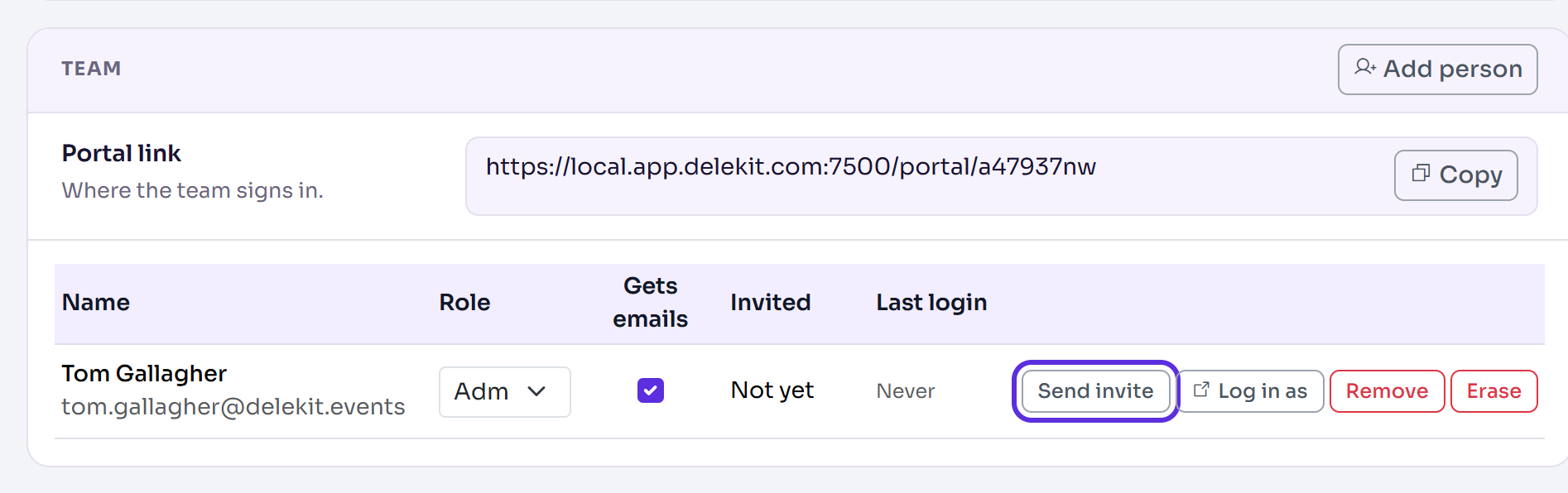
- One person: in Team, select Send invite on their row (Resend invite if they've been invited before). Delekit asks first, naming them and the address it goes to: select Send invite (or Resend invite) again. You'll see "Invitation sent."
What the invitation says
The Portal invite email names your portal, your event and the sponsor or speaker they're invited for, with an Open the portal button to the sign-in page. They sign in with the email address it was sent to, using a code Delekit emails them. The link doesn't sign them in by itself, so it's safe if it's forwarded. Its wording is yours to change in Email templates.
What happens next
- Invited on the team row shows the date the invitation was sent.
- When they first sign in, Last login fills in, the list's Signed in shows, for example, 1 / 1, and the record's status changes from Invited to Active.
- A sponsor's Admin, or a speaker's Assistant, can then invite colleagues from the portal's Team page. See Add your team.
- Inviting someone again sends a new email and updates the Invited date.
Check it works
Open the record's Team section: each person invited shows a date under Invited. You can also give someone the Portal link from the Team section: it's where the team signs in.
If something isn't right
- "Example Group: everyone has already signed in." Everyone on that team has used the portal; there's nobody to invite.
- "Set up the portal emails before sending invites ... Still needed: ..." Set up the emails it lists, then invite again.
- "There's no one to invite." Add a person with an email address to the team first.
- The invitation hasn't arrived: ask them to check their junk folder, or send them the Portal link to sign in with their email address.
Related articles
Still stuck? Contact Delekit support.
Was this article helpful?
That’s Great!
Thank you for your feedback
Sorry! We couldn't be helpful
Thank you for your feedback
Feedback sent
We appreciate your effort and will try to fix the article