Audience: event administrators and client administrators. Applies to: all plans.
Every sponsor and speaker starts Hidden. Publish them when their profile is ready: a published speaker appears on the event website's speaker and agenda sections and in the attendee app, with their approved profile. Publishing a sponsor marks it Published in your sponsors list only: sponsors reach your website through the Sponsors block. You can also feature sponsors and speakers, and set the order speakers are listed in.
Before you start
- Approve what's waiting first. Only approved versions of their profile are shown. See Approve profile changes and task submissions.
- Some tasks hold publishing back. A task marked Must be done before the profile can be published (shown as Needed to publish), such as a speaker agreement, must be done first. The record says which: "Can't be published until these are done: …".
- Deleted sponsors and speakers can't be published until you restore them. A restored one comes back Hidden.
Publish one sponsor or speaker
In the menu, select Sponsors, then Sponsors (or Speakers, then Speakers), and select a name.
Select Publish sponsor (or Publish speaker).
Check the question and select Publish sponsor again. For a speaker it says "They appear on the event website and in the attendee app."; for a sponsor, that publishing doesn't put it on the website or in the app. You'll see "Sponsor published", and the record shows Published.
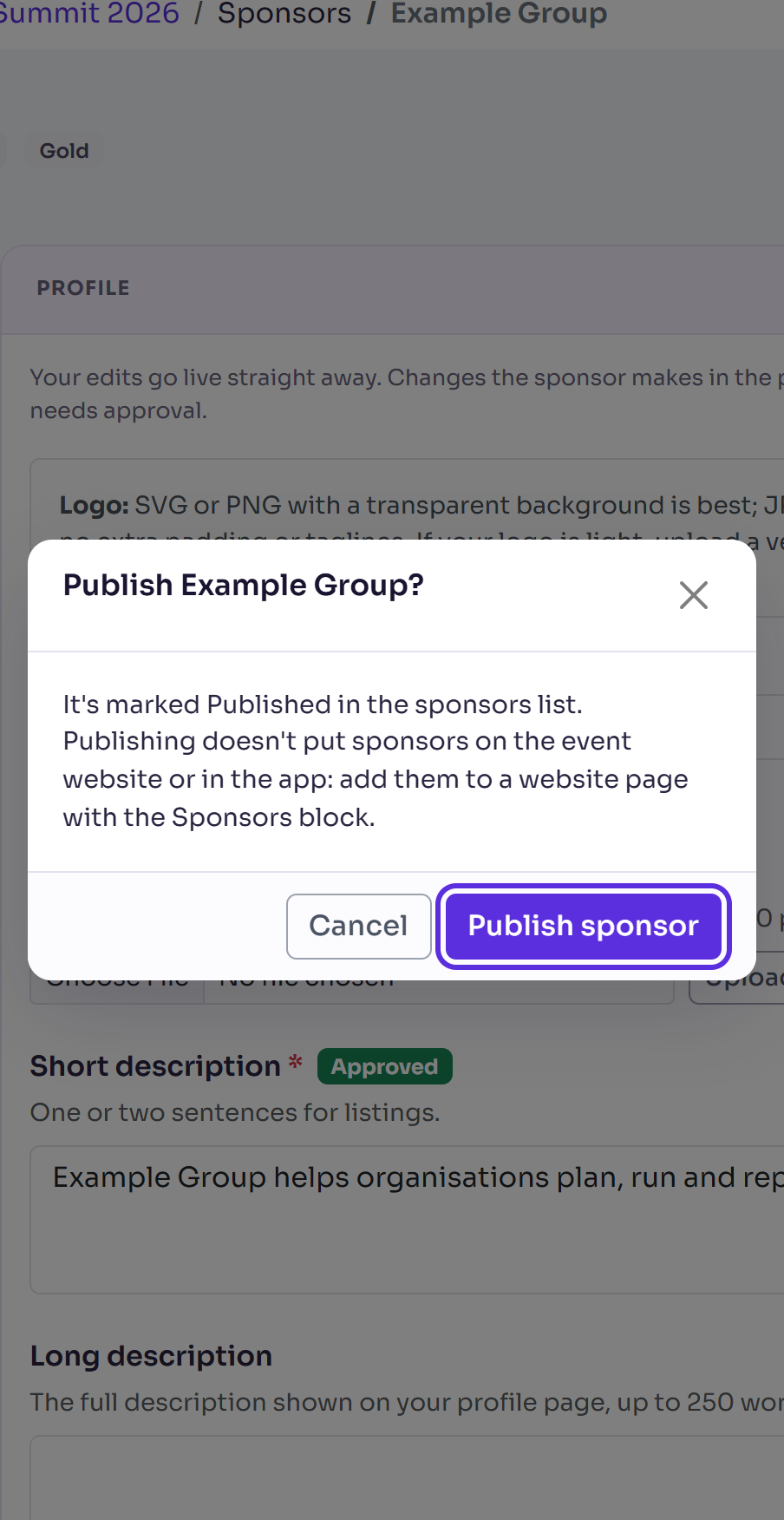
To take one off again, select Hide sponsor (or Hide speaker) on the record. A hidden speaker comes off the event website and the attendee app.
Publish, hide or feature several at once
- On the Sponsors or Speakers list, tick the ones you want.
- Select Actions, then Publish, Hide, Feature or Remove feature. You'll see how many were done, for example "2 published".
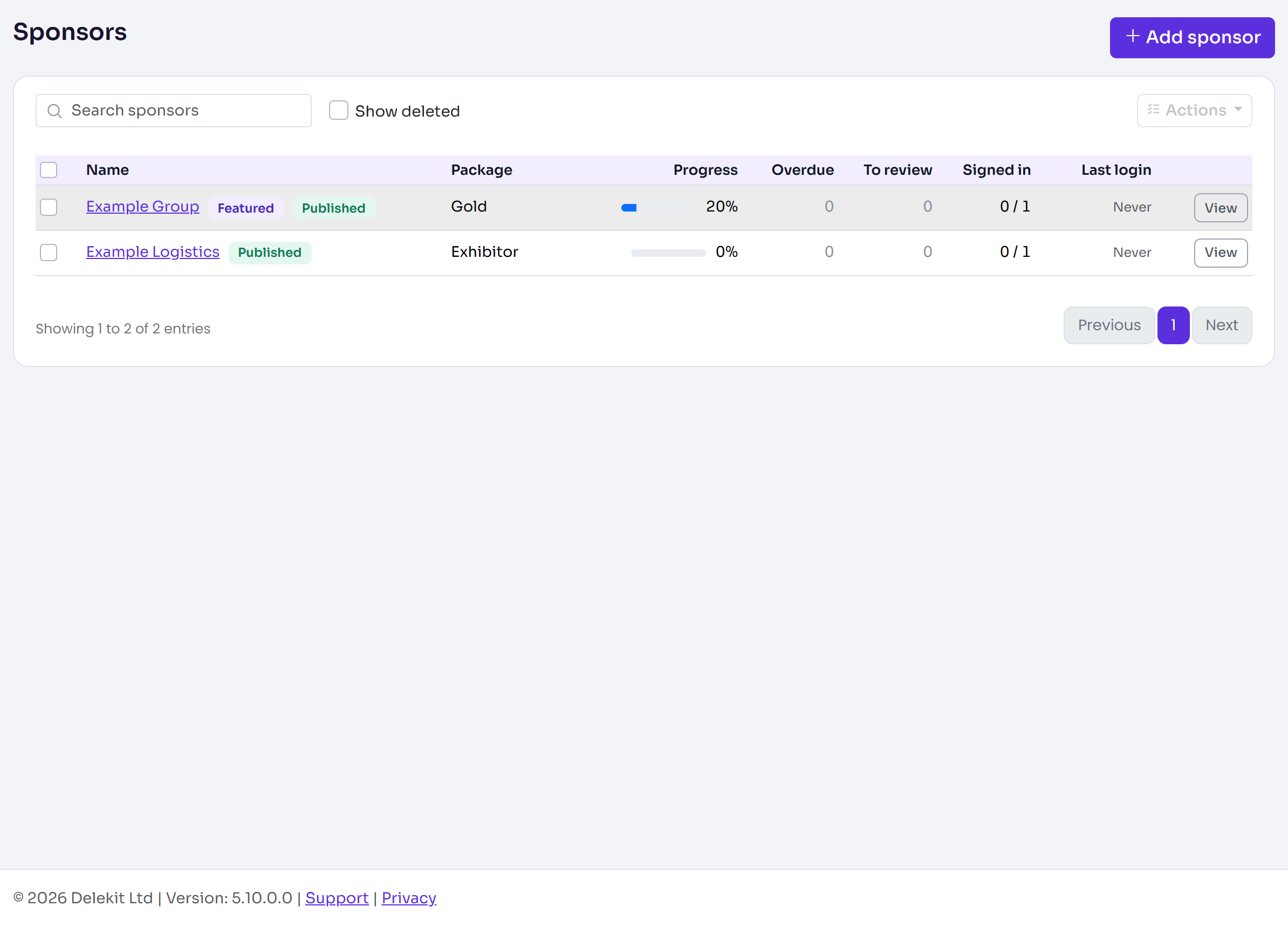
The list tags each name Published or Hidden, and Featured when it is.
Feature one, or set the order
- Feature: on the record, select the more actions menu (⋯), then Feature, then Feature sponsor. The record shows Featured, and the list tags it Featured. The event website and app don't use featuring yet. Remove feature undoes it.
- Order (speakers): in the record's Details section, enter a number in Order on the website and app. Lower numbers come first; leave it blank for alphabetical. Select Save changes. A sponsor's Order isn't used yet.
When publishing is held back
If a gate task isn't done, publishing is refused, for example "Aisha Rahman can't be published until these are done: Accept the speaker agreement."
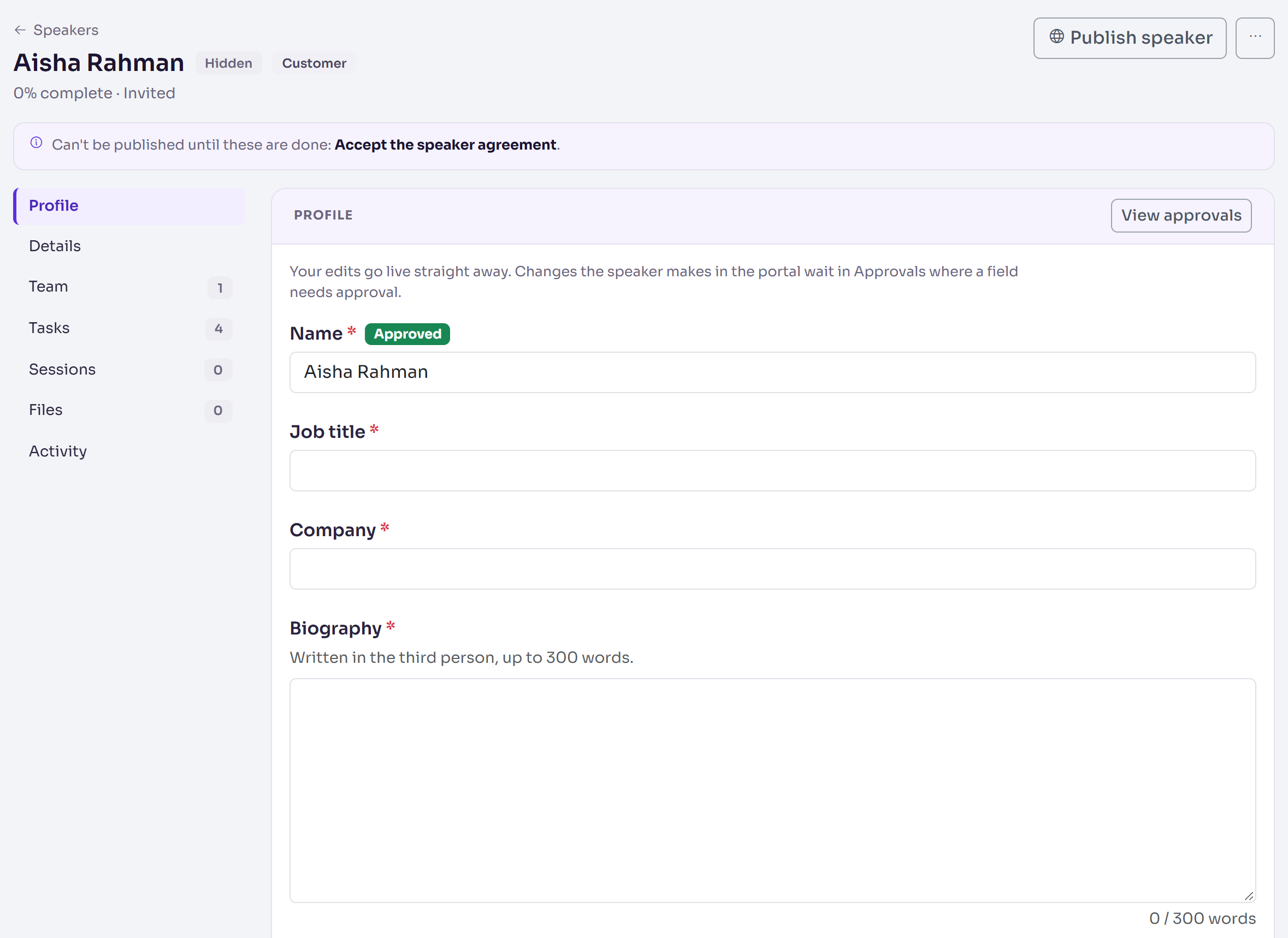
- Wait for them to do it in the portal; the record's Tasks section shows when it's done.
- Or, if you've had it done another way, select Mark done on the task in the record's Tasks section, or Not needed to waive it. Then publish.
What happens next
- A published speaker shows on the event website's speaker and agenda sections and in the attendee app. Hidden and deleted speakers are kept out of them.
- A published sponsor is marked Published in the sponsors list, and nothing else changes. To show sponsors on your website, add them to a page with the Sponsors block. See Page blocks reference.
- Changes they make later wait in Approvals where the field needs approval. The published version stays live until you approve the new one.
- Publishing emails nobody.
Check it works
The record and the list show Published. For a speaker, open the page of your event website that has its speakers or agenda section, and check they're there. See Your event website: an overview.
If something isn't right
- "… can't be published until these are done: …" Do, mark done, or waive the tasks it names.
- A speaker's details are out of date on the website: check Approvals for a change waiting.
- "Restore deleted sponsors before publishing them." Tick Show deleted, tick them, then select Actions › Restore.
Related articles
Still stuck? Contact Delekit support.
Was this article helpful?
That’s Great!
Thank you for your feedback
Sorry! We couldn't be helpful
Thank you for your feedback
Feedback sent
We appreciate your effort and will try to fix the article