Audience: event administrators and client administrators. Applies to: all plans.
When a sponsor or speaker changes a profile field that needs your approval, or uploads a file to a task you check, it waits on the Approvals page. Approve it to put it live, or ask for a change with a note, which Delekit emails to them. Until you approve a change, the previous version stays live.
Before you start
- Only fields with Changes need approval come here, and only task uploads where you ticked We check uploads before the task counts as done. See Set up profile fields and Set tasks for sponsors and speakers.
- Your own edits never come here. What you type on a record, or in the portal with Log in as, goes live straight away.
- Asking for changes sends an email, the Portal approval outcome email, to everyone on their team with Gets emails ticked. Approving sends no email.
Review one change
In the menu, select Sponsors, then Approvals (or Speakers, then Approvals). Each row shows who it's From, the Item, what's Proposed, what's Live now and when it was Submitted.
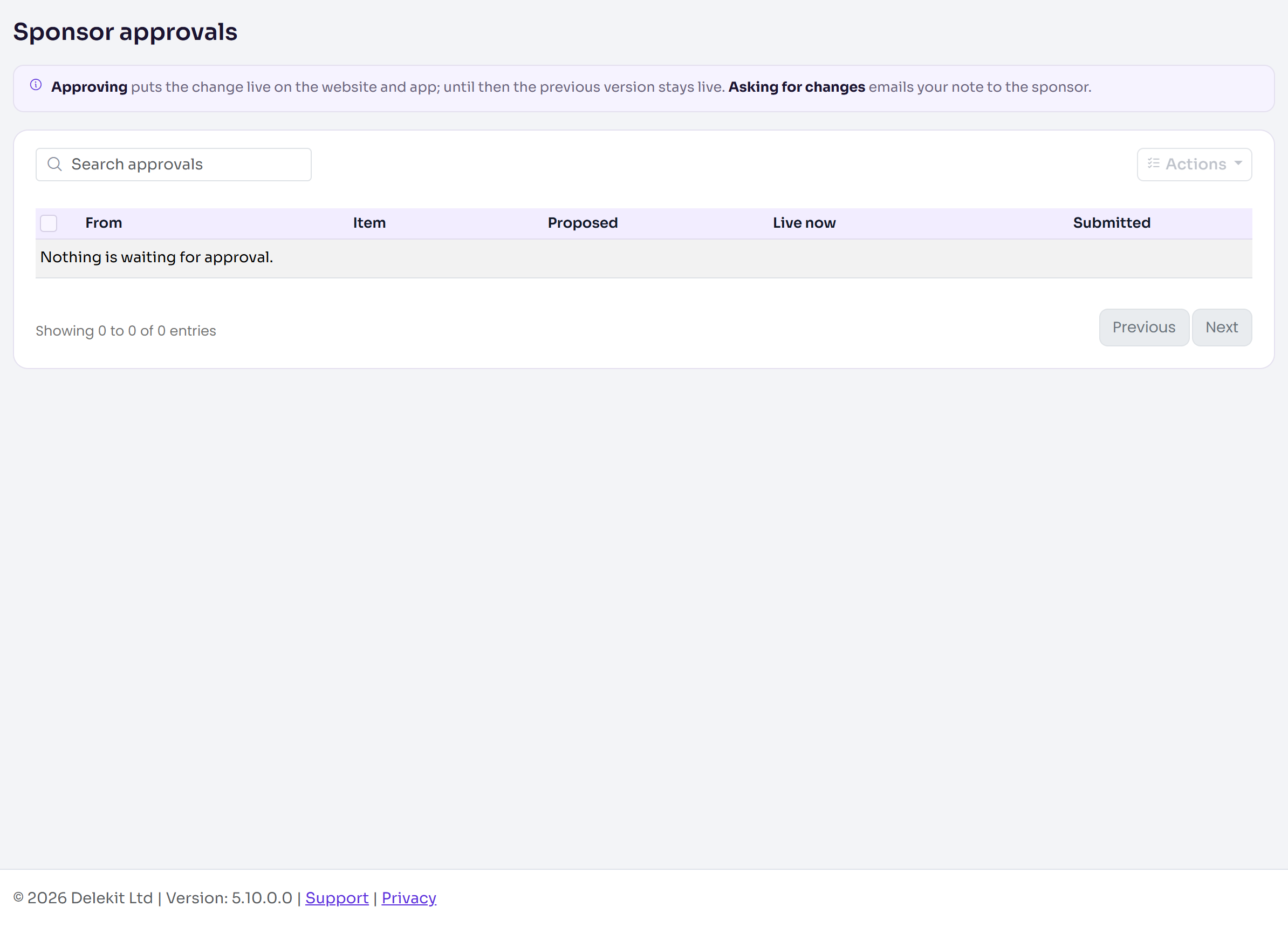
Select Review on a row. The side panel shows the proposed version (or the upload, or the signature) and the live one.
Select Approve change (Approve submission for a task) to put it live.
Or, to send it back, enter a Note to the sponsor (or speaker) and select Request changes.
After each one, the panel moves on to the next item waiting. Select Cancel to close it.
Review several at once
- Tick the rows.
- Select Actions, then Approve. You'll see how many were approved, such as "3 approved".
- Or select Actions, then Request changes. In What needs to change?, write one note for them all, and select Send request (or Send 3 requests).
What happens next
- Approved: the new version replaces the live one. For a published speaker, the event website and the attendee app show the approved version. Profile tasks that depend on the field complete themselves.
- Changes requested: the item comes off the page. In the portal, the field or task shows Changes requested with your note, and they get your note by email. When they change it again, it comes back here.
- The previous version stays live until a change is approved, so nothing disappears while you review it.
- The To review column on the Sponsors and Speakers lists counts what's waiting for each one.
Check it works
Select Open followed by the sponsor's or speaker's name in the panel, or their name in the From column, and check their Profile or Tasks section.
If something isn't right
- "Write a short note so they know what to fix." A request for changes needs a note.
- "This change was updated after you loaded the list. Reload to see the latest version before reviewing it." They changed it again: reload the page and review the newer version.
- "That change has already been reviewed." or "That submission has already been reviewed." Someone else on your team dealt with it.
Related articles
Still stuck? Contact Delekit support.
Was this article helpful?
That’s Great!
Thank you for your feedback
Sorry! We couldn't be helpful
Thank you for your feedback
Feedback sent
We appreciate your effort and will try to fix the article