Audience: event administrators and client administrators. Applies to: all plans.
Profile fields are what sponsors and speakers fill in about themselves in the portal: a logo, a description, a biography, a VAT number or a signature. For each field you choose whether it's required, whether their changes need your approval, whether it shows on the event website and app or stays with the event team, and whether it becomes a task until it's done.
Before you start
- Turn the portal on first. That adds the default fields: see Turn on the portal and choose its settings.
- Sponsor fields: Company name, Logo, Short description, Long description, Website, LinkedIn page and VAT number (for the event team only).
- Speaker fields: Name, Job title, Company, Biography, Short bio, Headshot and LinkedIn profile.
- Fields tagged Built-in feed the public card on the website and app. The name field can't be deleted.
- Terms to read in full and accept aren't a field: make them an Agreement task. See Set tasks for sponsors and speakers.
Add a field
In the menu, select Sponsors, then Profile fields. For speakers, select Speakers, then Profile fields.
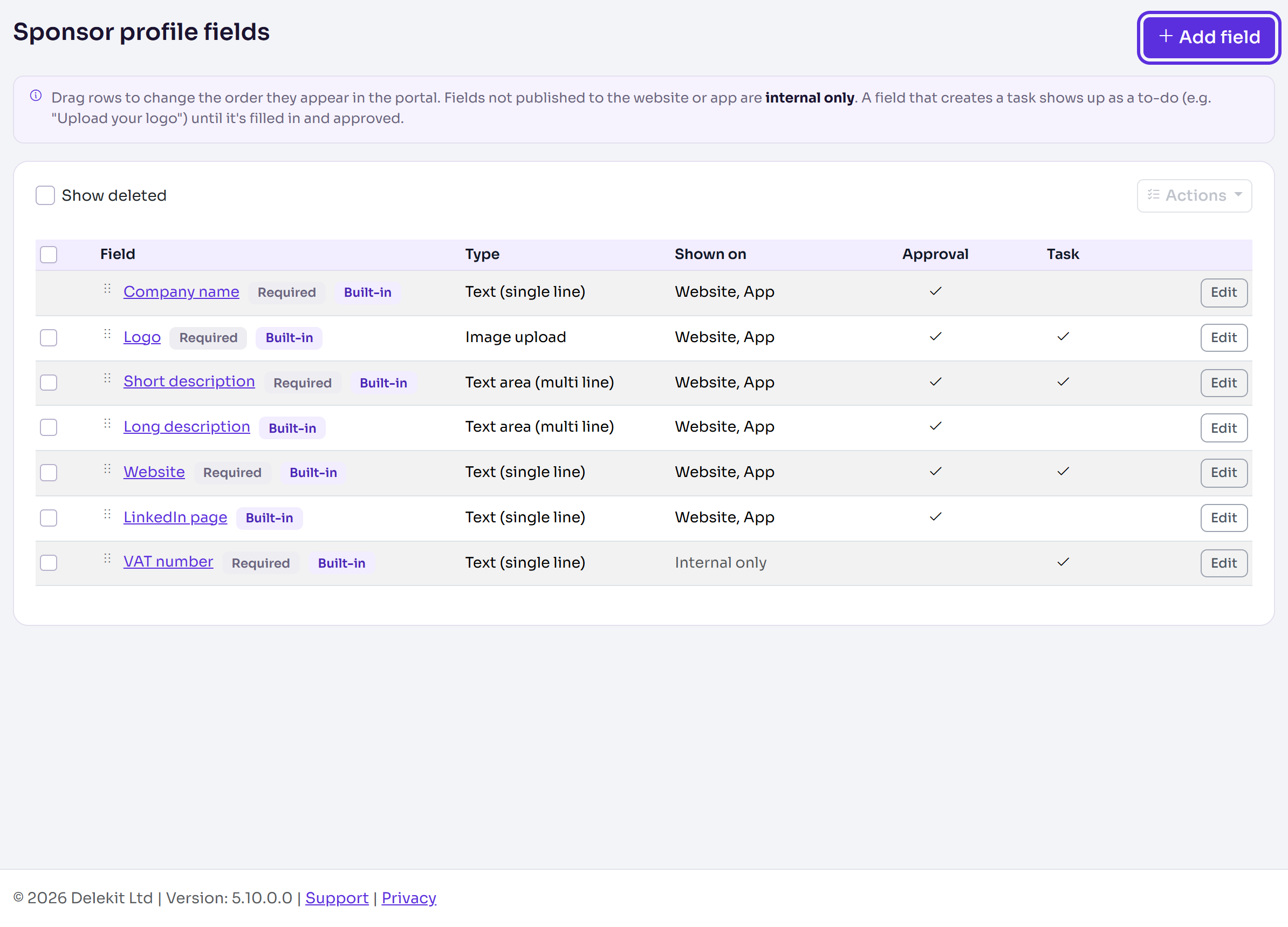
Select Add field. Enter a Label, and some Help text if it needs explaining.
Choose its Type. The types are the same as the registration form builder's, except Terms & Conditions (Embed).
Fill in the type's own settings: Options, one per line for lists, Link to the terms for a terms link, Max words, Max characters and Format for text, or the size, File types and guidance for uploads.
Under Rules, tick Required, Changes need approval and Show as a task until done as needed. Ticking the task also ticks Required.
Under Shown on, tick The event website and The attendee app, or neither to keep it for the event team. Under Only for, tick tiers to limit it to them; none ticked means every tier.
Select Save field. You'll see "Field saved".
Add a signature
A Signature field (under Files & Media) is a box sponsors or speakers sign with a mouse or a finger. It has no Shown on: a signature is never shown on the website or in the app.
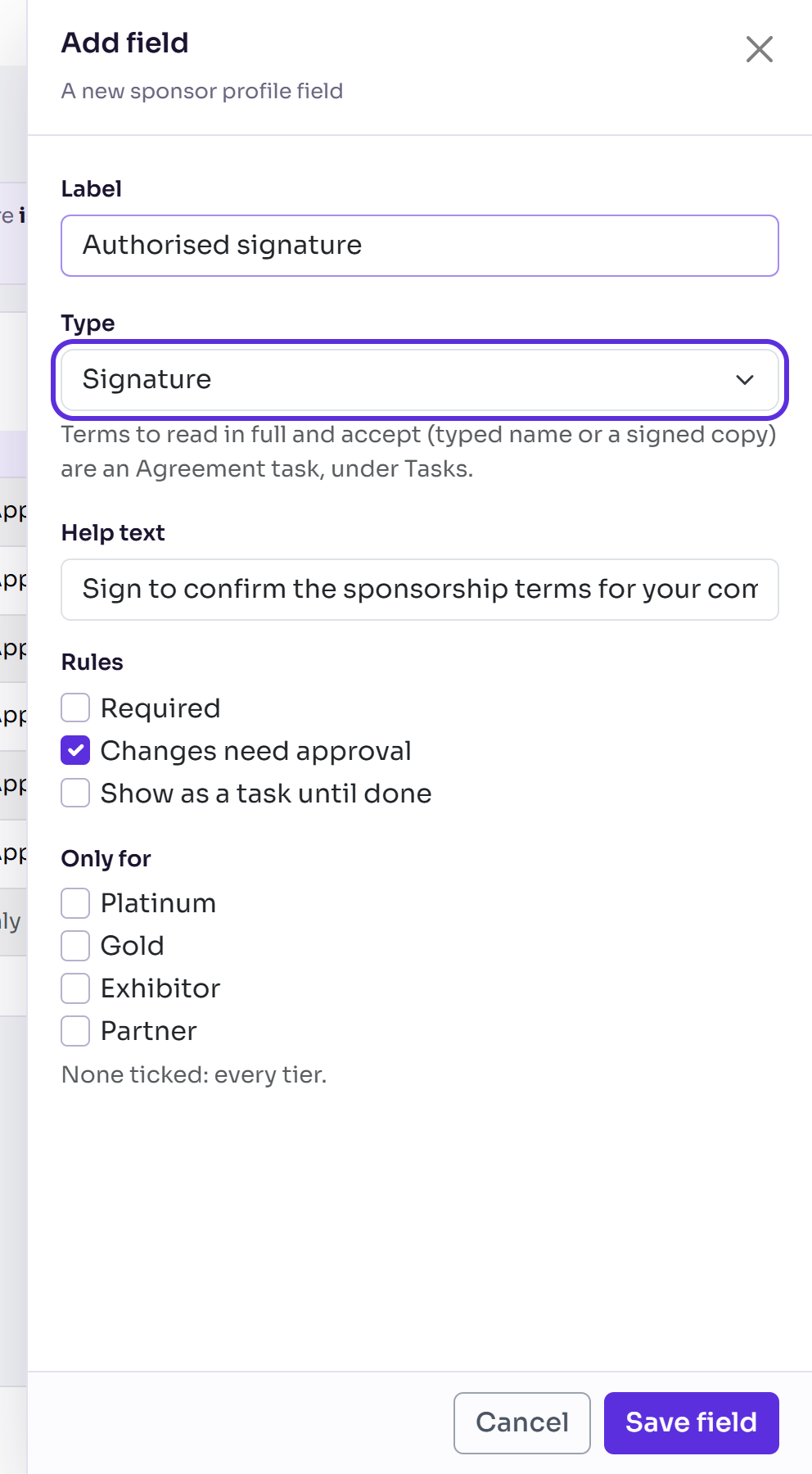
You see the signature on their record and in Approvals. The event team can't sign for them, even with Log in as: the field shows Not signed yet. until they sign it.
Set image rules
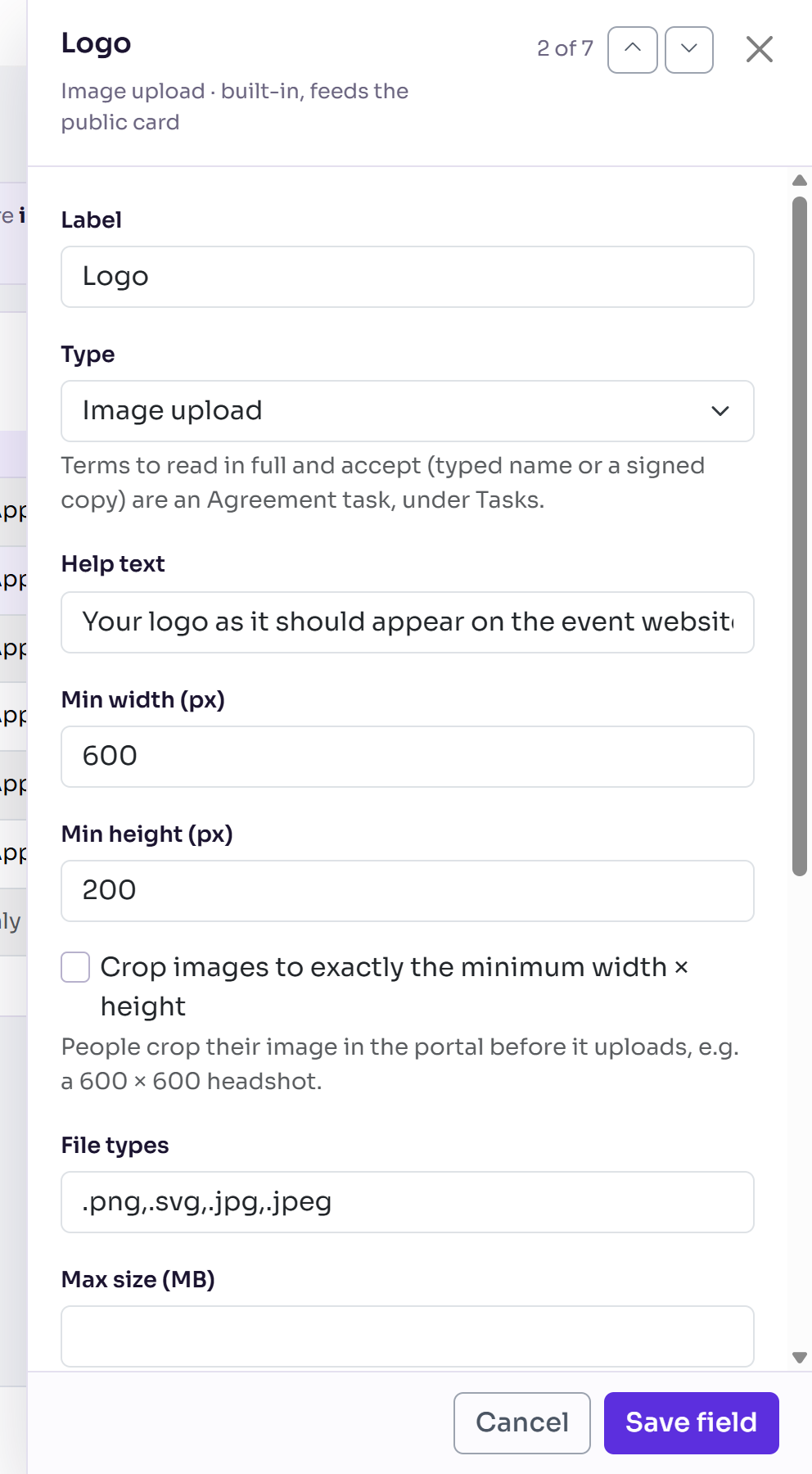
For Image upload and File upload fields, set Min width (px) and Min height (px), File types (such as .png,.svg), Max size (MB) and Guidance shown with the upload. For images, Crop images to exactly the minimum width × height lets people crop their picture in the portal before it uploads, as the speaker Headshot does at 600 × 600.
Change, reorder or delete fields
- Select a field's name or Edit to change it, then Save field.
- Once a field has answers, its Type can't change. Saving another type is refused: "The type of ... can't be changed because it already has answers. Keep its type, or add a new field of the type you want."
- Drag a row by its handle to change the order fields appear in the portal. You'll see "Order saved".
- To delete, tick the fields and select Actions › Delete. They disappear from the portal; answers are kept and come back if you restore them. Tick Show deleted to find them, then select Actions › Restore.
What happens next
- New and changed fields show on the profile form in the portal straight away.
- Internal only in the Shown on column means only the event team sees the answers. In the portal those fields are marked Not shown publicly.
- Fields with Show as a task until done are listed as profile tasks under Tasks, such as Upload your logo. They complete themselves once filled in, and approved if they need approval.
- When a sponsor or speaker changes a field that needs approval, it waits in Approvals. Your own edits on their record go live straight away.
Check it works
Open a sponsor's record: its Profile section shows the form as they see it.
If something isn't right
- "Set a minimum width and height to crop images to." Cropping needs both sizes.
- "Multiple-choice options can't contain commas." Reword the option.
- The name field has no tick box: it can't be deleted, as it's the sponsor's or speaker's name. You can change its label.
Related articles
Still stuck? Contact Delekit support.
Was this article helpful?
That’s Great!
Thank you for your feedback
Sorry! We couldn't be helpful
Thank you for your feedback
Feedback sent
We appreciate your effort and will try to fix the article