Audience: event administrators and client administrators. Applies to: all plans.
Tasks are the portal's to-do list: what you need from each sponsor or speaker, with deadlines. Some come from profile fields (Upload your logo) and complete themselves. The others you write: a box to tick, a yes or no decision, an upload, an external link or an agreement. You choose when each one appears, when it's due, and who gets it.
Before you start
- Turn the portal on first: see Turn on the portal and choose its settings.
- For a task only some get, set up the tiers first (on Portal settings), or add the sponsors or speakers first if you'll pick them by name.
- Something to keep or show (a logo, a VAT number) is better as a profile field: see Set up profile fields.
The task types
| Type | What they do in the portal | Done when |
|---|---|---|
| Tick when done | Tick I've done this. | Ticked. |
| Yes / no decision | Choose your "Yes" or "No" answer. | Answered either way. You see the answer. |
| Upload | Upload a file. | Uploaded, or approved if you check uploads. |
| External link | Open your link (a hotel booking, say), then tick I've completed this. | Ticked. |
| Agreement | Read your terms, type their full name and tick to accept, or upload a signed copy if you allow it. | Accepted, or the upload approved if you check uploads. |
Add a task
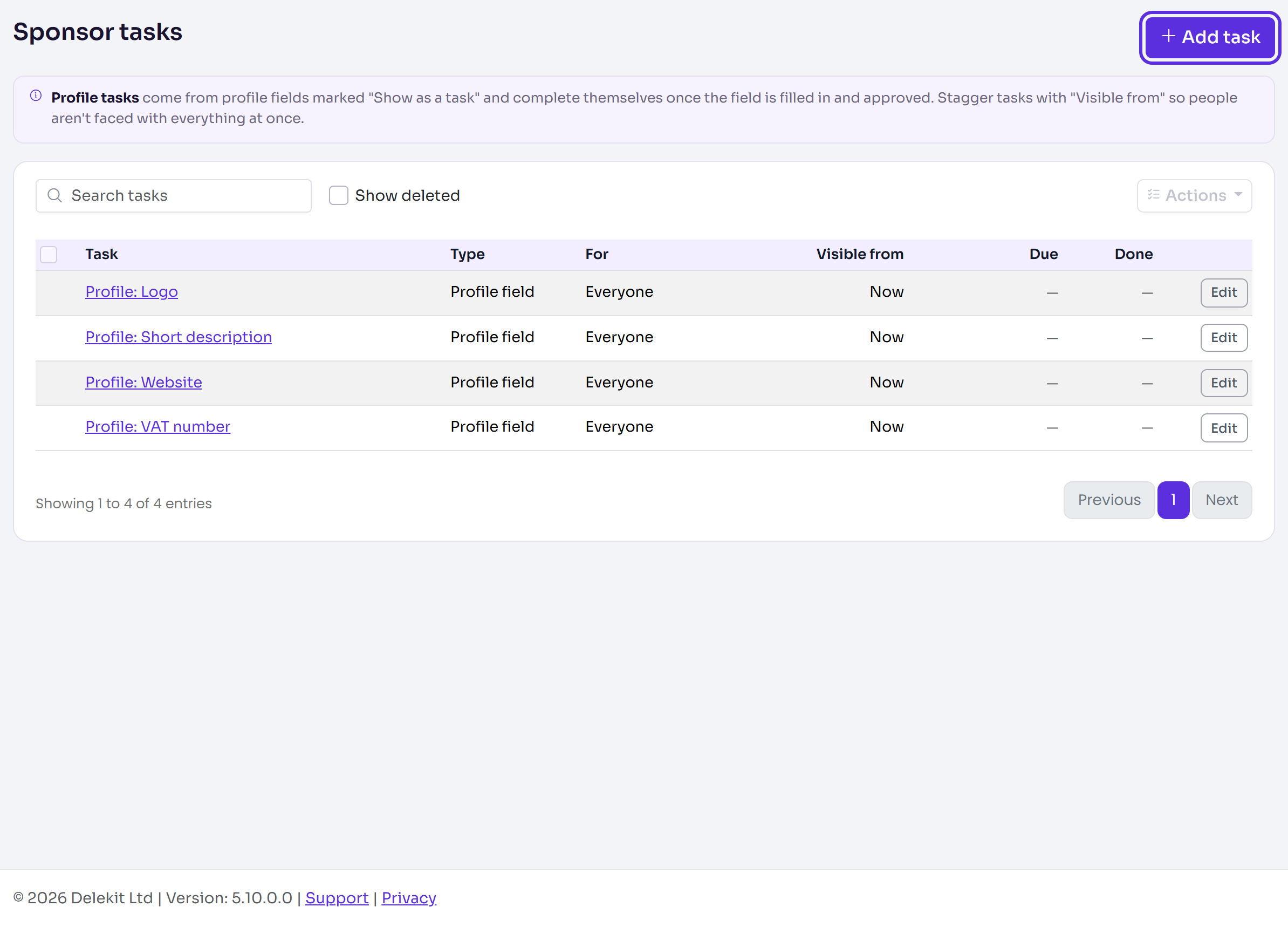
In the menu, select Sponsors, then Tasks. For speakers, select Speakers, then Tasks. Select Add task.
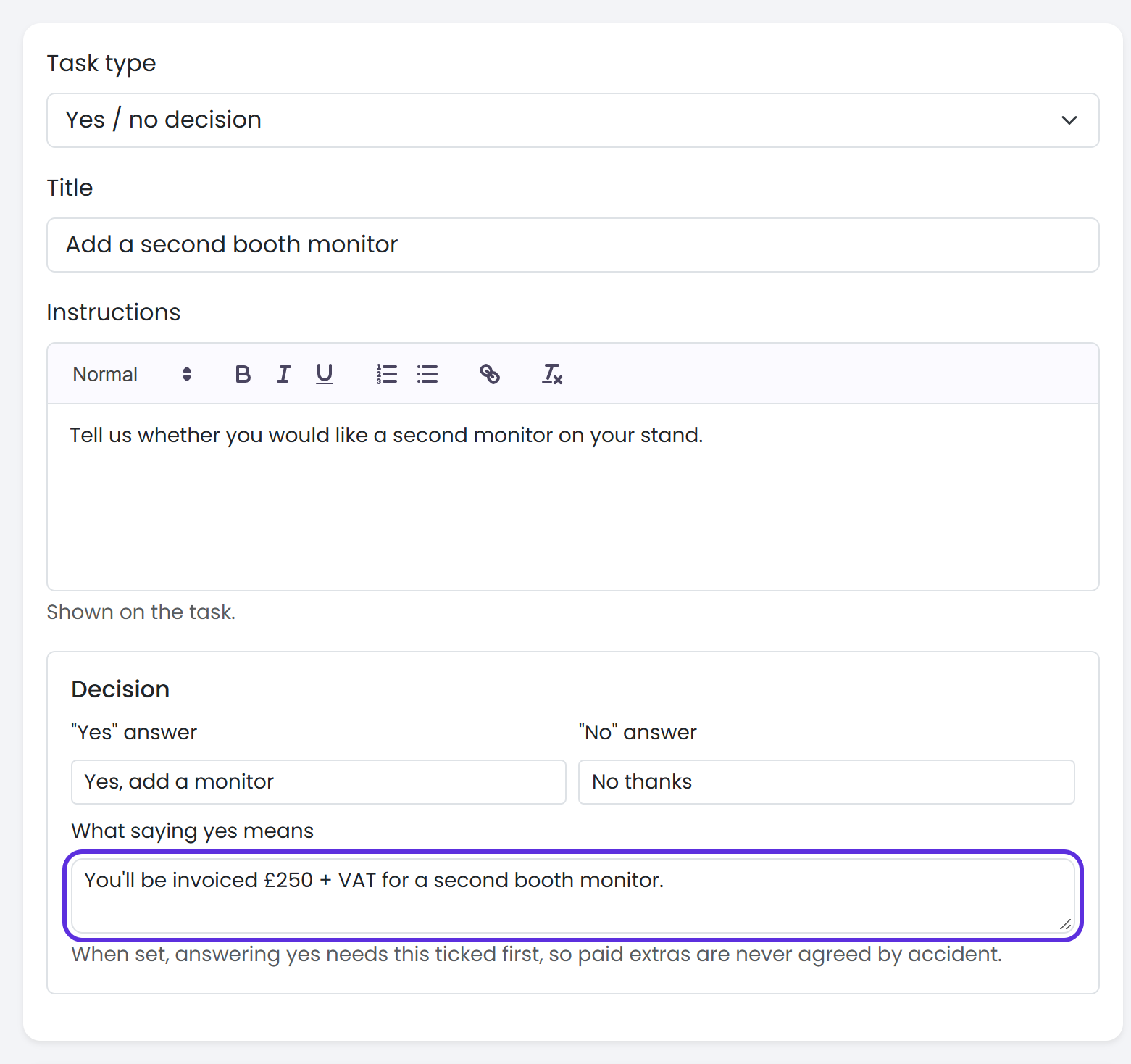
Choose the Task type, enter a Title, and write the Instructions shown on the task.
Fill in the type's settings. For a decision, enter the "Yes" answer and "No" answer, and in What saying yes means, what it costs or commits them to. Answering yes then needs that ticked first, so paid extras are never agreed by accident. For an upload or an agreement, tick We check uploads before the task counts as done to approve each upload yourself.
Under When, choose Visible from (Straight away, On a date or Days before the event) and Due (No deadline, On a date or Days before the event).
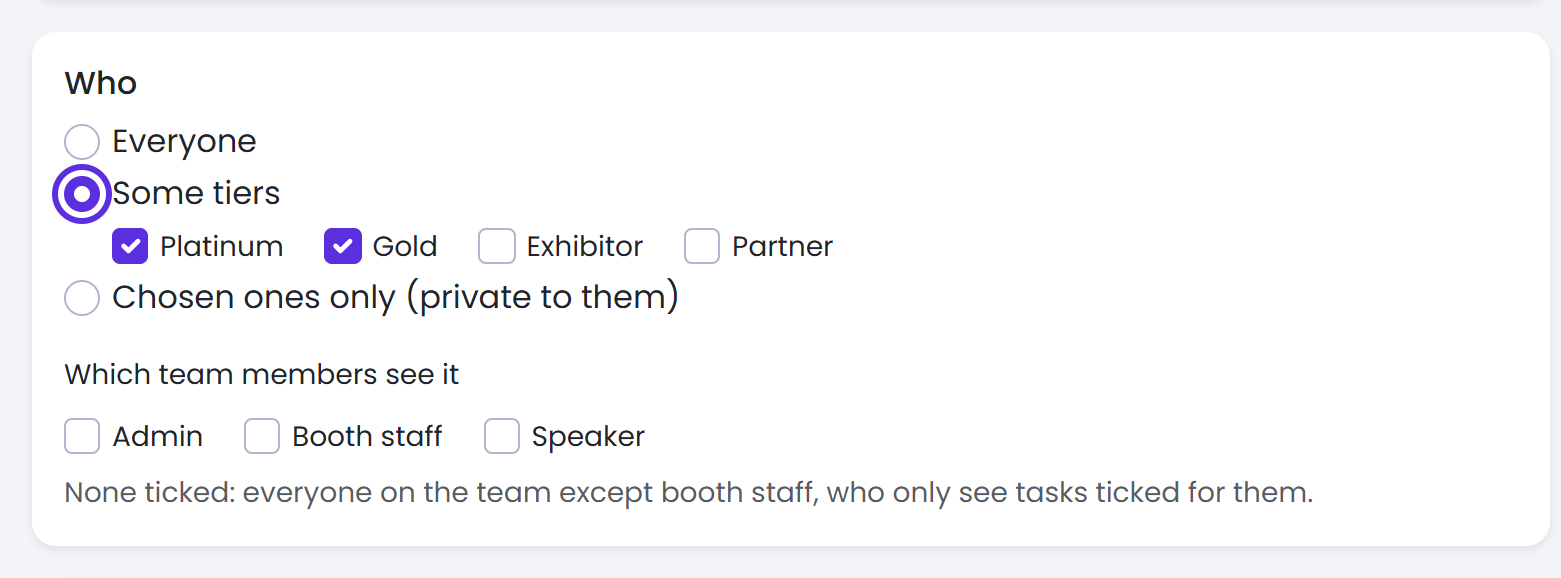
Under Who, choose Everyone, Some tiers (then tick them) or Chosen ones only (private to them) (then tick the sponsors or speakers). In Which team members see it, tick roles to narrow it further.
Leave Required (counts towards completion) ticked, or untick it for an optional task. Tick Must be done before the profile can be published for something like a speaker agreement.
Select Save task. You'll see "Task saved." and the task in the list.
Dates are in the event's time zone: a task becomes visible at the start of its day and is due by the end of it. Days before the event dates move if the event's dates do.
Profile tasks
Fields marked Show as a task until done are listed first, as Profile: Logo and so on, with the type Profile field. Select one to change its title (the portal shows Upload your logo until you do) and its dates. It's done once the field is filled in, and approved if needed. To remove it, untick Show as a task until done on the field.
What happens next
- From its Visible from date, the task shows on the Tasks page and home page of everyone it's for. Nobody is emailed about it: Delekit doesn't send task reminders yet.
- Done in the list counts how many have done it, such as 1 / 4.
- On a sponsor's or speaker's record, the Tasks section shows each task's status and answer. For a task you wrote, select Mark done, Not needed or Reopen. Tasks marked not needed don't count towards completion.
- Uploads you check wait in Approvals.
Check it works
Use Log in as on a sponsor or speaker the task is for.
If something isn't right
- Someone can't see a task: check its Visible from date, its tiers or chosen sponsors, and the roles ticked. Booth staff only see tasks with Booth staff ticked.
- "Enter the link as a full web address, starting with https://." Enter the whole address.
- To remove a task, tick it in the list and select Actions › Delete. Responses are kept and come back if you restore it.
Related articles
Still stuck? Contact Delekit support.
Was this article helpful?
That’s Great!
Thank you for your feedback
Sorry! We couldn't be helpful
Thank you for your feedback
Feedback sent
We appreciate your effort and will try to fix the article