Audience: event administrators and client administrators. Applies to: all plans.
Log in as opens the portal in a new tab as one person on a sponsor's or speaker's team, without a sign-in code. Use it to check what they see before you invite them, to help someone on the phone, or to fill in their tasks and profile for them. A banner shows the whole time, and anything you change is recorded as yours.
Before you start
- The person must be on the team. Add them on the record first if they aren't: see Add sponsors and speakers. They don't need to have been invited.
- It shows what that person sees. Booth staff, for example, see only their own tasks and no profile, so choose the person whose view you need.
- It isn't available for a deleted sponsor or speaker. Restore it first.
Log in as someone on the team
In the menu, select Sponsors, then Sponsors (or Speakers, then Speakers), and select a name.
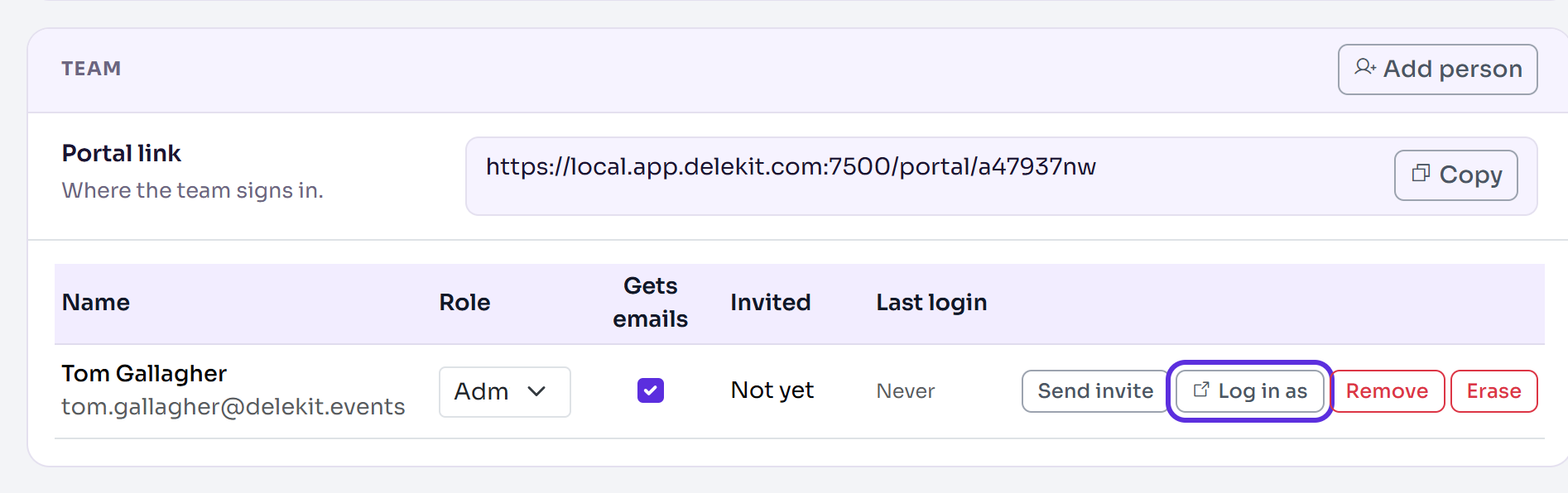
In the Team section, find the person and select Log in as.
The portal opens in a new tab at their home page, with a banner: ", you're viewing the portal as for . Changes you make are recorded as yours."

Use the portal as they would: Home, Tasks, Profile, Team, and Sessions for a speaker.
When you've finished, select Exit in the banner. You'll see "You've left the portal", and you can close the tab.
What's different from them signing in
- Your profile edits go live straight away, with no approval, as they do on the record: "Saved. Your changes are live." Profile editing stays open for you after Profile editing closes.
- You can't sign for them. A Signature field shows Not signed yet. until they sign it themselves.
- Task answers are recorded as yours. Agreeing to a paid extra or accepting an agreement for them counts as done, so only do it when they've asked you to.
- Adding someone on the portal's Team page emails them while Email them an invitation now is ticked, as it is to start with.
- It doesn't count as them signing in. Their Last login, the list's Signed in and their status stay as they were.
- The session is short. It ends when you select Exit, close the browser, or after two hours.
What happens next
The record's Activity section lists every sign-in, with how. A Log in as shows as, for example, "Log in as, by Oliver Bennett".

If something isn't right
- "That "log in as" link has expired. Start it again from the admin site." The link lasts about a minute and works once. Select Log in as again.
- "That person is no longer on the team." They were removed. Add them again if they should be there.
Related articles
Still stuck? Contact Delekit support.
Was this article helpful?
That’s Great!
Thank you for your feedback
Sorry! We couldn't be helpful
Thank you for your feedback
Feedback sent
We appreciate your effort and will try to fix the article