Audience: event administrators and client administrators. Applies to: all plans.
Add each sponsor, exhibitor or speaker to the event with a name, a tier and the email address of the person who'll look after their portal. You can fill in their profile for them, add more people to their team, and invite them when you're ready: adding them emails nobody unless you choose to.
Before you start
- Set up the portal first, so its fields and tiers are ready: see Turn on the portal and choose its settings. If you haven't, adding a sponsor or speaker switches the portal on with the default fields.
- Sponsors and exhibitors are both sponsors. Tell them apart by tier, such as Exhibitor.
- The first person you enter becomes the portal user: a sponsor's contact becomes its Admin, who can add colleagues; a speaker's email is the speaker's own.
- To invite them now, the portal emails must be set up. Otherwise Send the portal invite now can't be ticked, and you can invite them later.
Add a sponsor
In the menu, select Sponsors, then Sponsors. Select Add sponsor.
Enter the Company name and choose its Package.
Enter the Contact's first name, Contact's last name and Contact's email.
Leave Send the portal invite now unticked to invite them later, or tick it to email the invitation now.
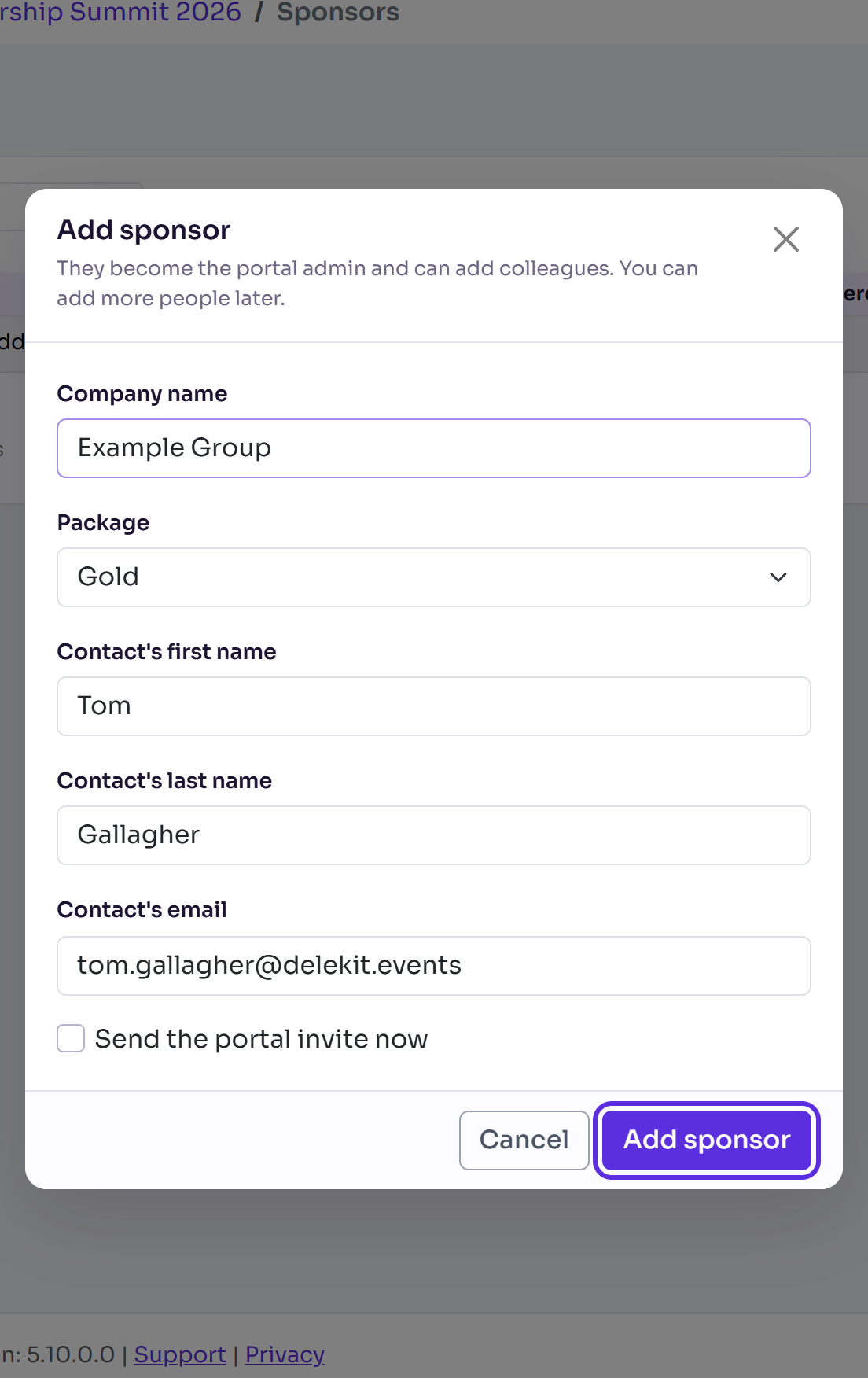
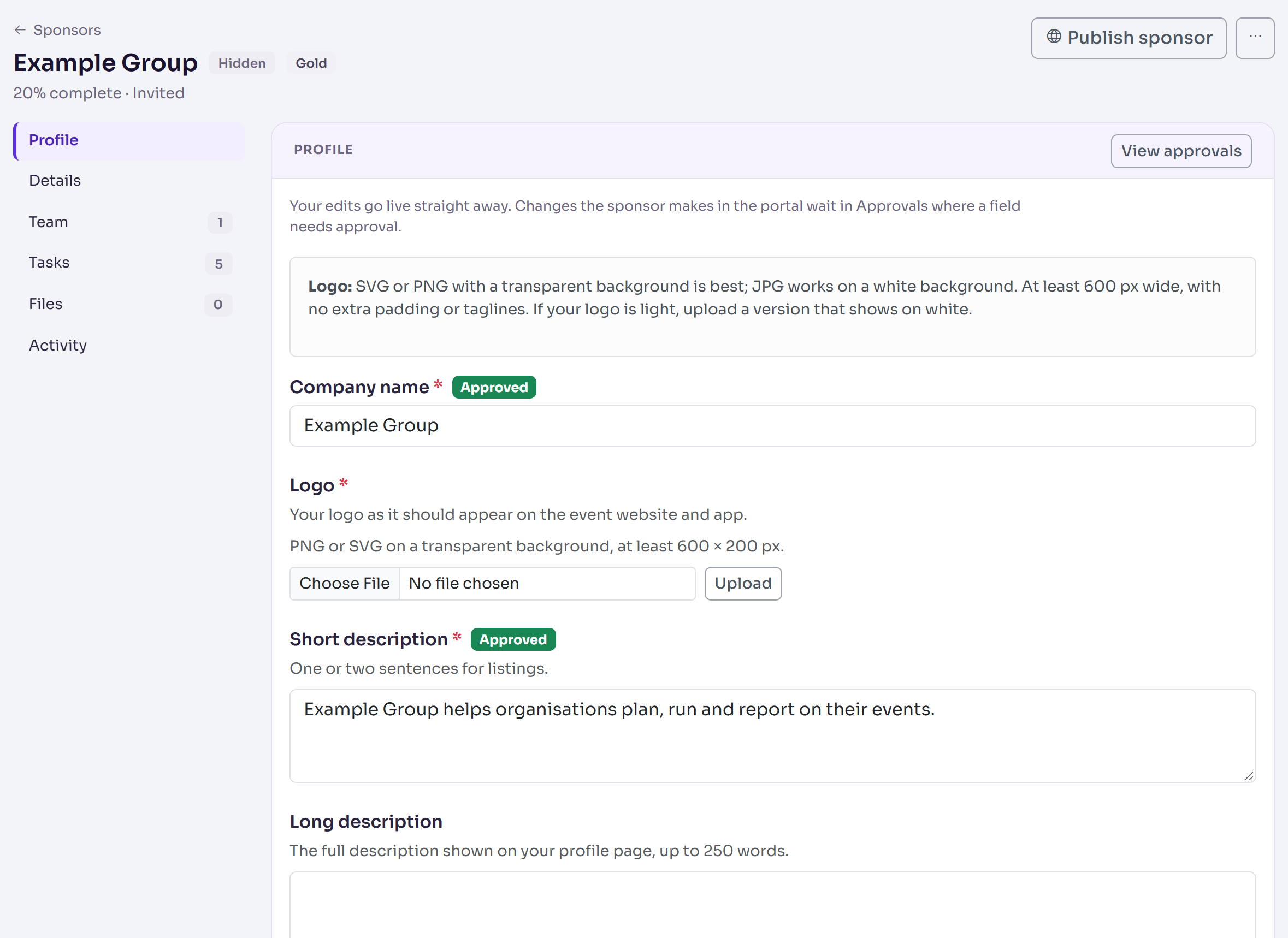
Select Add sponsor. The sponsor's record opens, with "Sponsor added."
Add a speaker
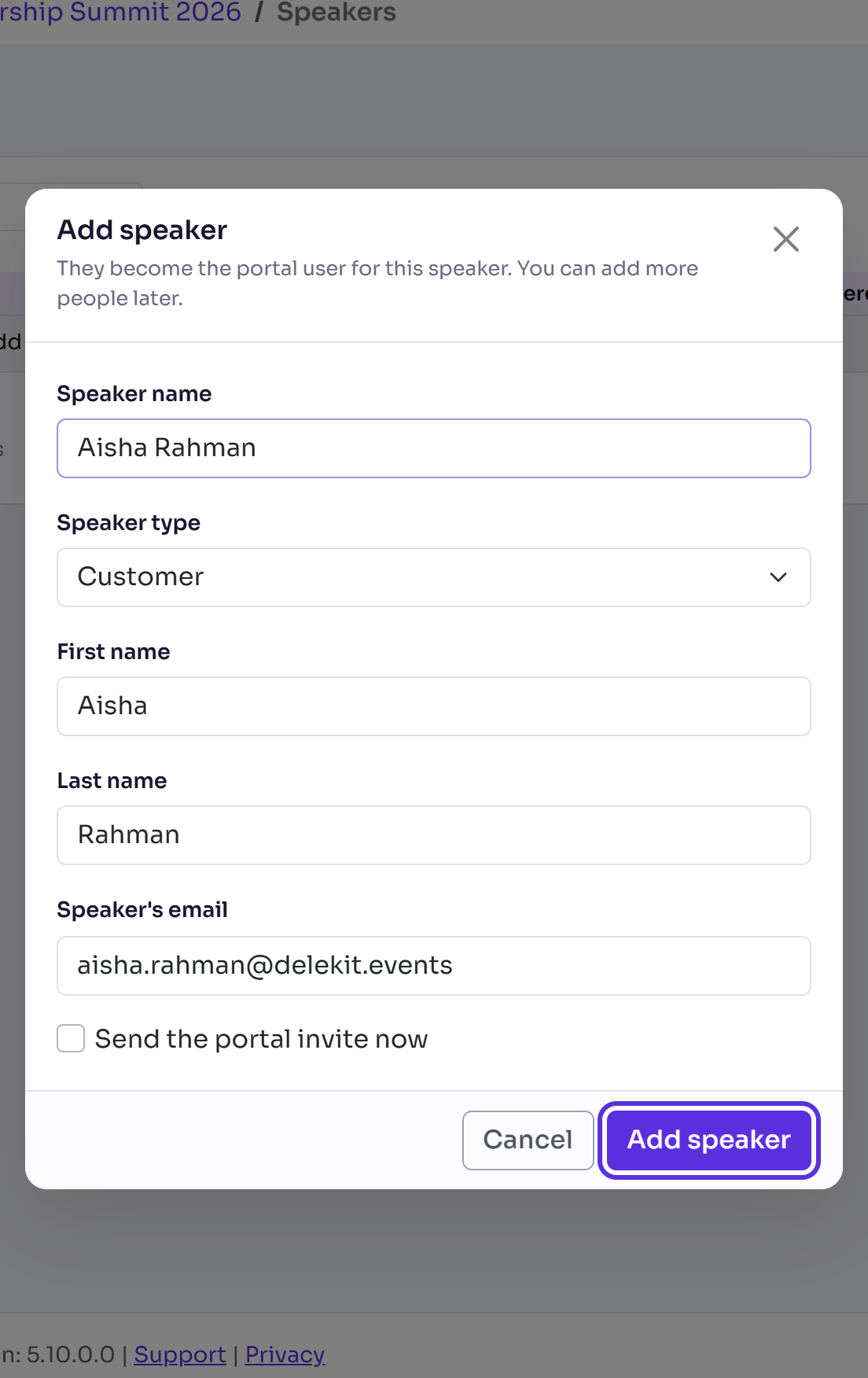
- In the menu, select Speakers, then Speakers. Select Add speaker.
- Enter the Speaker name and choose the Speaker type.
- Enter their First name, Last name and Speaker's email, then select Add speaker.
Fill in their record
- Profile: type in what they've sent you and select Save changes. You'll see "Profile saved. Changes are live." Your edits never wait for approval. Uploads go live straight away too.
- Details: change the Package (or Speaker type), the Status or, for a speaker, the Order on the website and app, then select Save changes in the bar that appears.
- Team: select Add person to add a colleague, an agency or a speaker's assistant, with their Email and Role. Send the portal invite now starts unticked: tick it to email them their invitation as you add them.
- Sessions (speakers only): tick the sessions they're speaking at and select Save sessions. Speakers see them, read-only, in the portal. Session details are changed on the session itself.
What happens next
- The sponsor or speaker is Hidden until you publish them. See Publish and feature sponsors and speakers.
- Their Status starts as Invited, and changes to Active the first time someone on their team signs in. Confirmed is yours to set.
- The record's title shows how much is complete, from the tasks that apply to them.
- Nobody is emailed unless you ticked Send the portal invite now. To invite them later, see Invite sponsors and speakers to the portal.
Check it works
The Sponsors (or Speakers) list shows them, with their tier, Progress, Signed in (0 / 1 until they sign in) and Last login (Never).
If something isn't right
- "Enter a name." or "Enter a valid contact email address." Correct it in the pop-up.
- " is already on the team." That person is on this team already.
- Added by mistake: on the record, use Delete sponsor (or Delete speaker). It disappears from the portal (a speaker from the website and app too), and you can restore it from Show deleted on the list. It comes back Hidden.
- They asked for their personal data to be erased: see Delete and erase personal data.
Related articles
Still stuck? Contact Delekit support.
Was this article helpful?
That’s Great!
Thank you for your feedback
Sorry! We couldn't be helpful
Thank you for your feedback
Feedback sent
We appreciate your effort and will try to fix the article