Audience: sponsors, exhibitors and speakers using an event's portal. Applies to: events that use Delekit's sponsor and speaker portal.
The portal's Tasks page lists everything the event team needs from you, with deadlines, and the Profile page holds the details that appear on the event website and app. Work through them at your own pace: the home page shows how much is complete and what's due next.
Before you start
- Sign in first: see Sign in to the event portal.
- What you see depends on your role. Booth staff see only the tasks meant for them, and have no Profile page.
- New tasks can appear later, as the event gets closer.
See what's needed
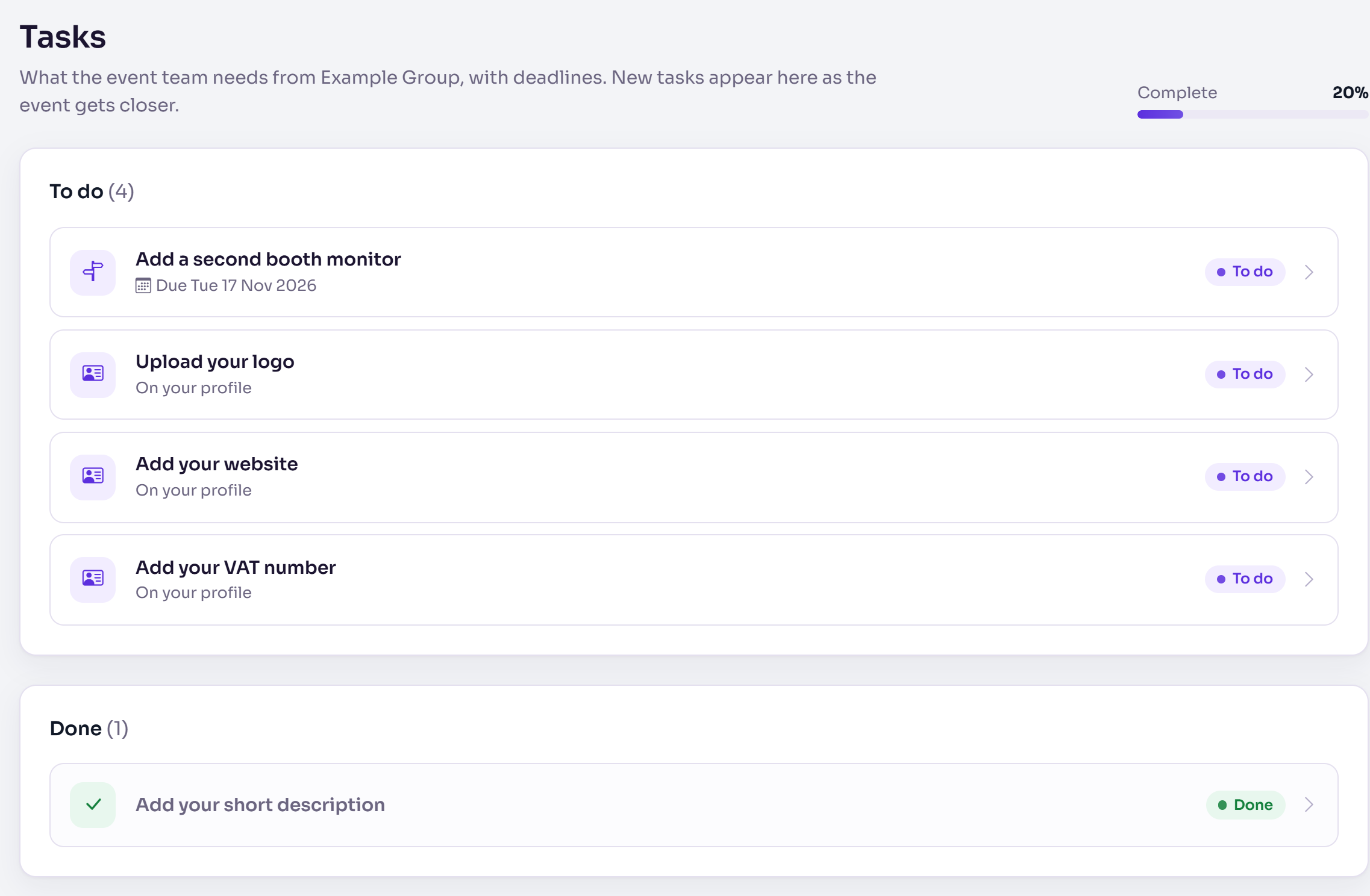
The home page says how many tasks you have to do, any that are overdue, when the next one is due, and how many are with the event team (waiting for them to check). Next up lists the tasks due soonest.
In the menu, select Tasks. To do lists what's left, each with its due date and status; Done lists what you've finished. Tasks marked On your profile are completed on the Profile page.
Complete a task
On Tasks, select the task. Read the instructions from the event team.
Answer it in the way it asks:
- A box to tick: tick I've done this (or I've completed this, after using the task's button to open a booking or other site), then select Mark as done.
- A decision: choose an answer. If saying yes has a cost or a commitment, it's shown: tick I understand and confirm … too. Select Send answer.
- An upload: choose the file in Upload and select Upload.
- An agreement: read the terms, enter your name in Type your full name to accept, tick I accept these terms on behalf of …, and select Accept. Where it's offered, you can upload a signed copy instead.
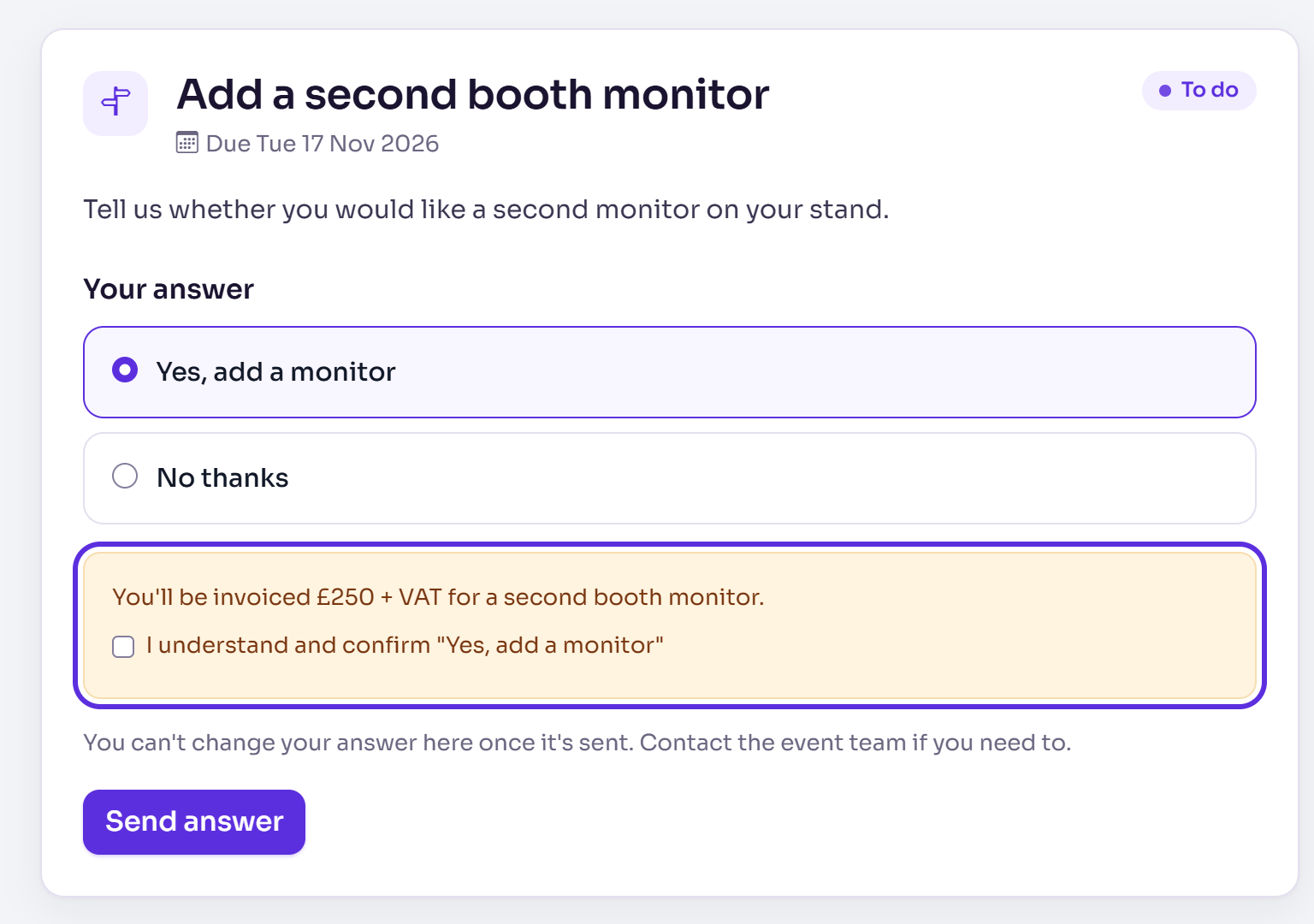
You'll see, for example, "Thanks, your response to "Add a second booth monitor" has been saved."
You can't change an answer once it's sent. Contact the event team if something needs to change.
Fill in your profile
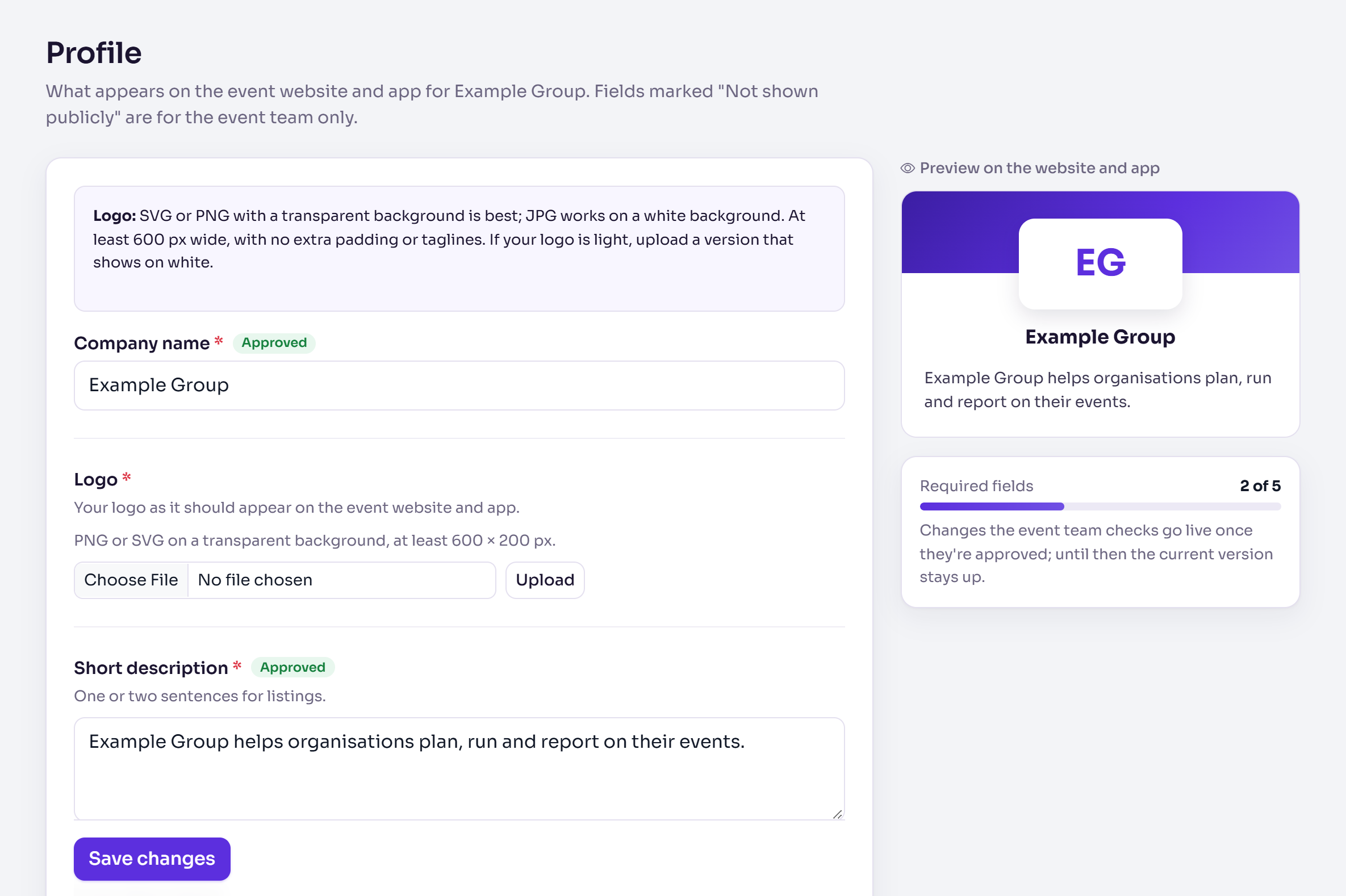
- In the menu, select Profile. Fields marked with an asterisk (*) are required. Fields marked Not shown publicly are for the event team only.
- Type in your details. The preview card shows how you'll appear on the website and app.
- For a logo, headshot or other file, choose it and select Upload (or Replace). A headshot opens an image editor first, to crop it to the shape the event uses: select Save there.
- For a signature, sign in the box with your mouse or finger. Clear starts again.
- Select Save changes.
What happens next
- Changes the event team checks show as Awaiting approval until they're approved. The current version stays on the website and app until then.
- If they ask for a change, the field or task shows Changes requested with their note, and they email you the note too. Make the change and send it again.
- Uploads the event team checks show as Awaiting review.
- A profile task completes by itself once the field is filled in, and approved if it needs to be.
- After the date in Profile editing closes on …, only the event team can change your profile.
If something isn't right
- "Confirm that you've read what this means before answering yes." Tick the confirmation box.
- "Type your full name and tick the box to accept." Do both, then select Accept.
- "This task is already done. Contact the event team if something needs to change."
- "Profile editing has closed. Contact the event team if something needs to change."
- A text is too long, for example "Biography must be 300 words or fewer (it's 320).": shorten it.
- A picture is refused: check the size and file types in the field's guidance.
Related articles
Still stuck? Contact Delekit support.
Was this article helpful?
That’s Great!
Thank you for your feedback
Sorry! We couldn't be helpful
Thank you for your feedback
Feedback sent
We appreciate your effort and will try to fix the article