Audience: everyone who uses Delekit. Applies to: all plans.
You sign in to Delekit with your email address, your password and a one-time code. If you've forgotten your password, you can choose a new one from the sign-in page with a link Delekit emails you.
Before you start
- You need an account. Accounts are made by an invitation from your organisation's client administrator, or from Delekit. There's no way to sign up yourself. See Accept an invitation to Delekit.
- Every sign-in needs a code, unless you've signed in on this browser in the last 30 days and chose to trust it. The code is emailed to you, or comes from your authenticator app if you've set one up. See Set up two-factor authentication.
Sign in
Go to app.delekit.com. The Sign in page opens.
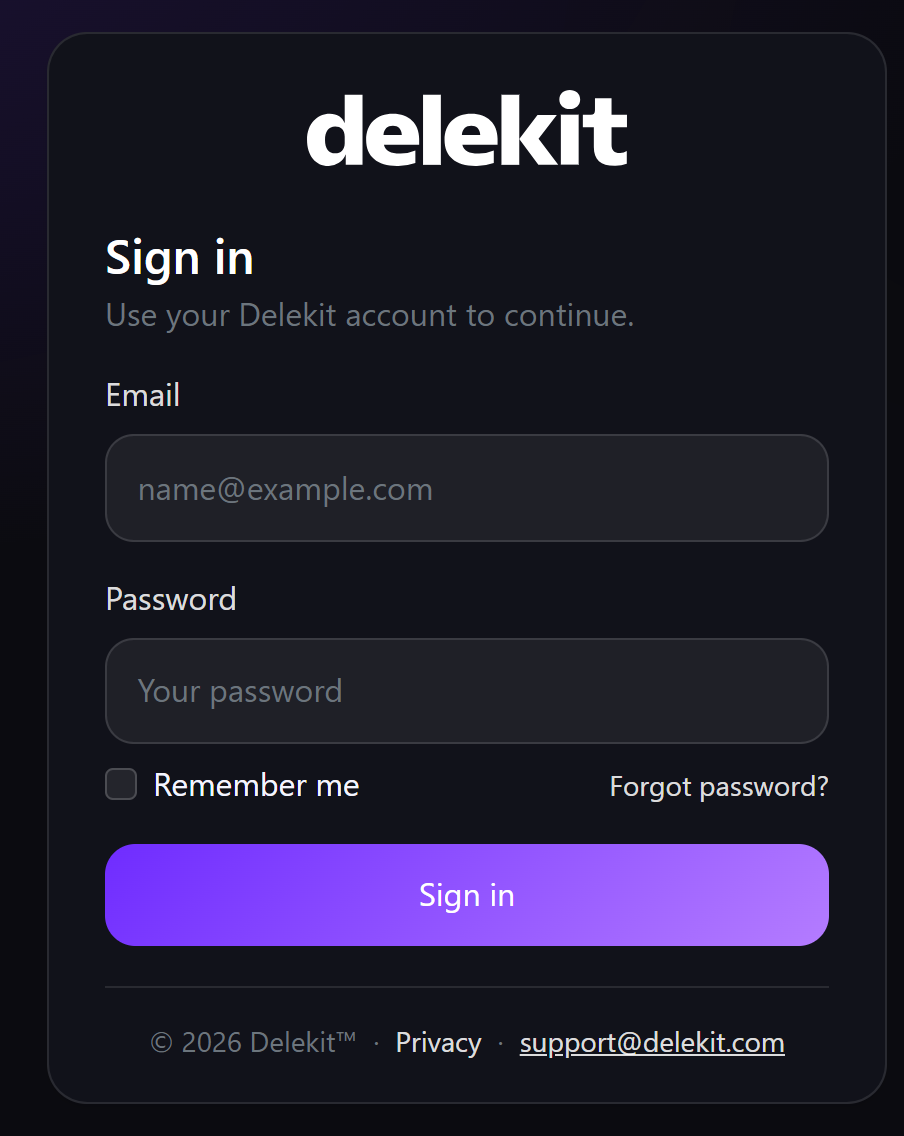
Enter your Email and Password.
To stay signed in after you close the browser, tick Remember me.
Select Sign in. Enter your sign-in code opens.
Enter the 6-digit Code from the email (its subject starts "Your Delekit sign-in code"), or from your authenticator app.
Leave Remember this browser for 30 days ticked on your own computer, or untick it on a shared one.
Select Sign in.
If you signed in with an emailed code, Delekit then suggests an authenticator app. Select Set up authenticator app, or Not now, keep using email codes to carry on.
Reset your password
On the Sign in page, select Forgot password?.
Enter the Email you sign in with, then select Send reset link.
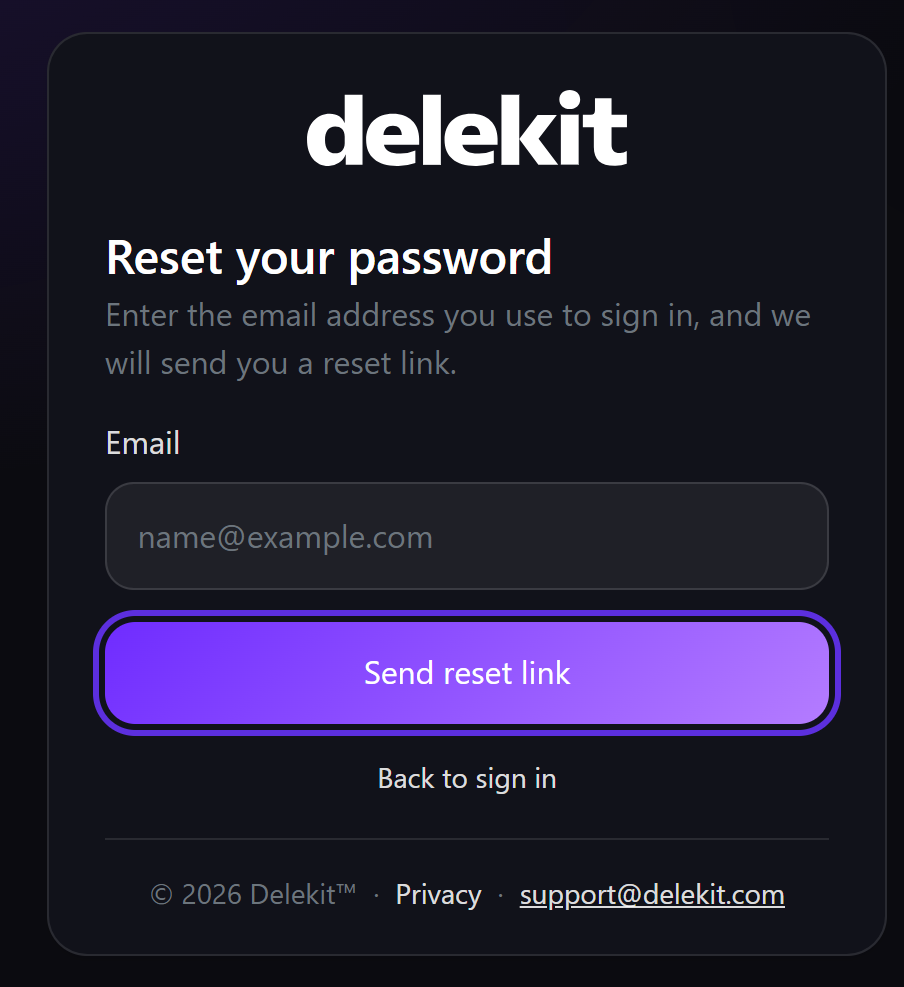
Open the Reset your password email and select its link.
On Choose a new password, enter your Email, your New password and Confirm new password.
Select Reset password, then Go to sign in.
What happens next
After you sign in, Delekit opens where you were going, or your events list. A trusted browser skips the code for 30 days after you last entered one.
Resetting your password signs you out of every other browser and app, and every browser you'd trusted asks for a code again. For your security, Check your email shows whether or not an account exists for the address you entered.
To sign out, select Sign out next to your name in the menu.
If something isn't right
- "Invalid login attempt." The email or password is wrong. After 5 wrong attempts in a row, your account is locked for 15 minutes. Your client administrator can let you try again sooner with Unlock sign-in on your user page.
- The code hasn't arrived. Check your spam folder, then select Send a new code. You can ask for one a minute, and up to 5 in 15 minutes. Use the newest code, within 5 minutes.
- "That code didn't work." Check the code, or send a new one.
- The reset email hasn't arrived. Check your spam folder and that you entered the address you sign in with. Select Didn't receive an email? to try again.
- You've lost the phone with your authenticator app. Select Use a recovery code on the code step, or ask your client administrator to reset two-factor authentication.
- "You can't open that page": your account doesn't have access to it. Ask your client administrator.
Related articles
- Set up two-factor authentication
- Change your profile, email or password
- Manage where you're signed in (sessions and devices)
Still stuck? Contact Delekit support.
Was this article helpful?
That’s Great!
Thank you for your feedback
Sorry! We couldn't be helpful
Thank you for your feedback
Feedback sent
We appreciate your effort and will try to fix the article