Audience: event organisers and client administrators. Applies to: all plans.
Keep an event's reports in order: rename them and file them in folders, copy one to start a new report or to use it in another event, and delete the ones you no longer need. Deleted reports can be restored from the Reports list.
Before you start
- Everyone with access to the event sees its reports, and can change or delete them.
- Reports tagged Our library or Delekit are standard reports. They're read-only in your event and can't be deleted from it. To change one, save it as a new report.
- Folders belong to the event. You make one by choosing New folder… when you build a report or in its settings. You can't rename or delete a folder.
Rename a report or move it to a folder
In the menu, select Insights, then Reports. Open the report.
Select Report settings. On a narrow screen it's under More actions (⋯).
Change the Report name, add a Description, or choose another Folder (or New folder… and a name).
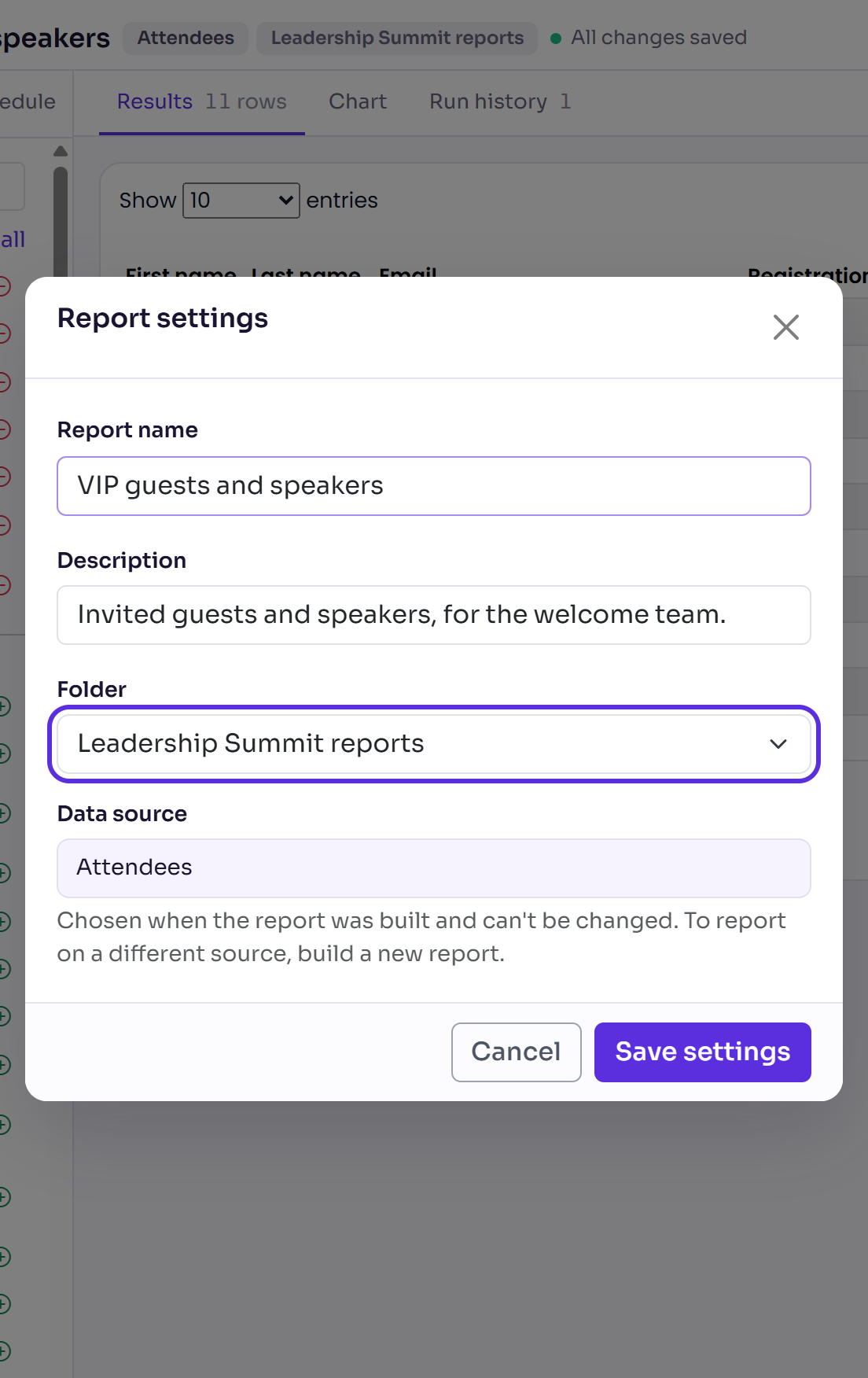
Select Save settings. You see "Report settings saved."
The Data source can't be changed. To report on something else, build a new report.
Copy a report in this event
On the Reports list, tick the report.
Select Actions, then Save as new report.
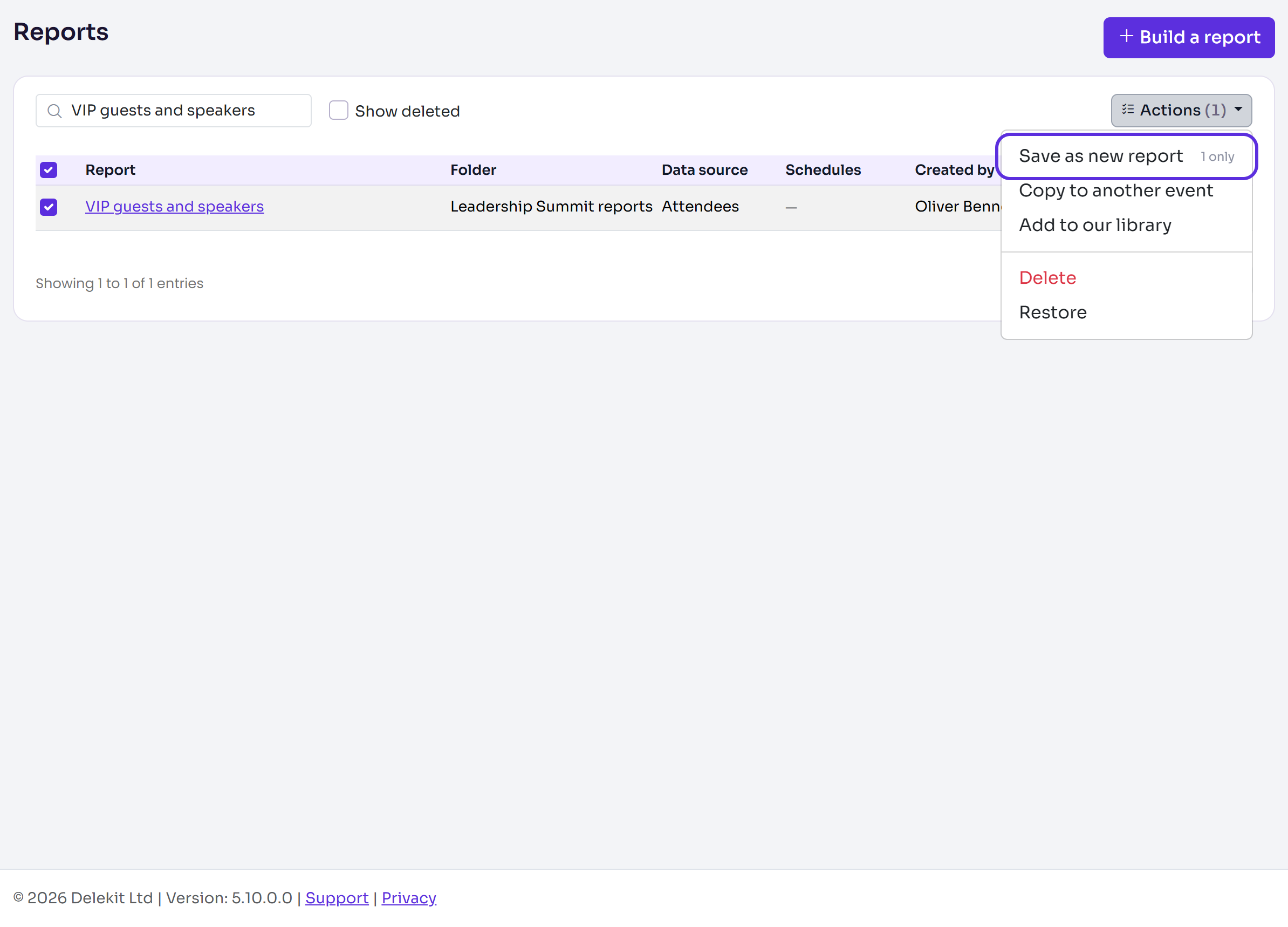
Change the New report name (it starts as "Copy of" and the report's name), then select Save new report.
The copy has the same columns, filters, chart and folder, but no schedules. In the report builder, More actions › Save as new report does the same and opens the copy.
Copy reports to another event
On the Reports list, tick the reports, then select Actions › Copy to another event. (In the report builder, it's More actions › Copy to another event.)
In Copy to, choose the event, then select Copy and the number of reports.
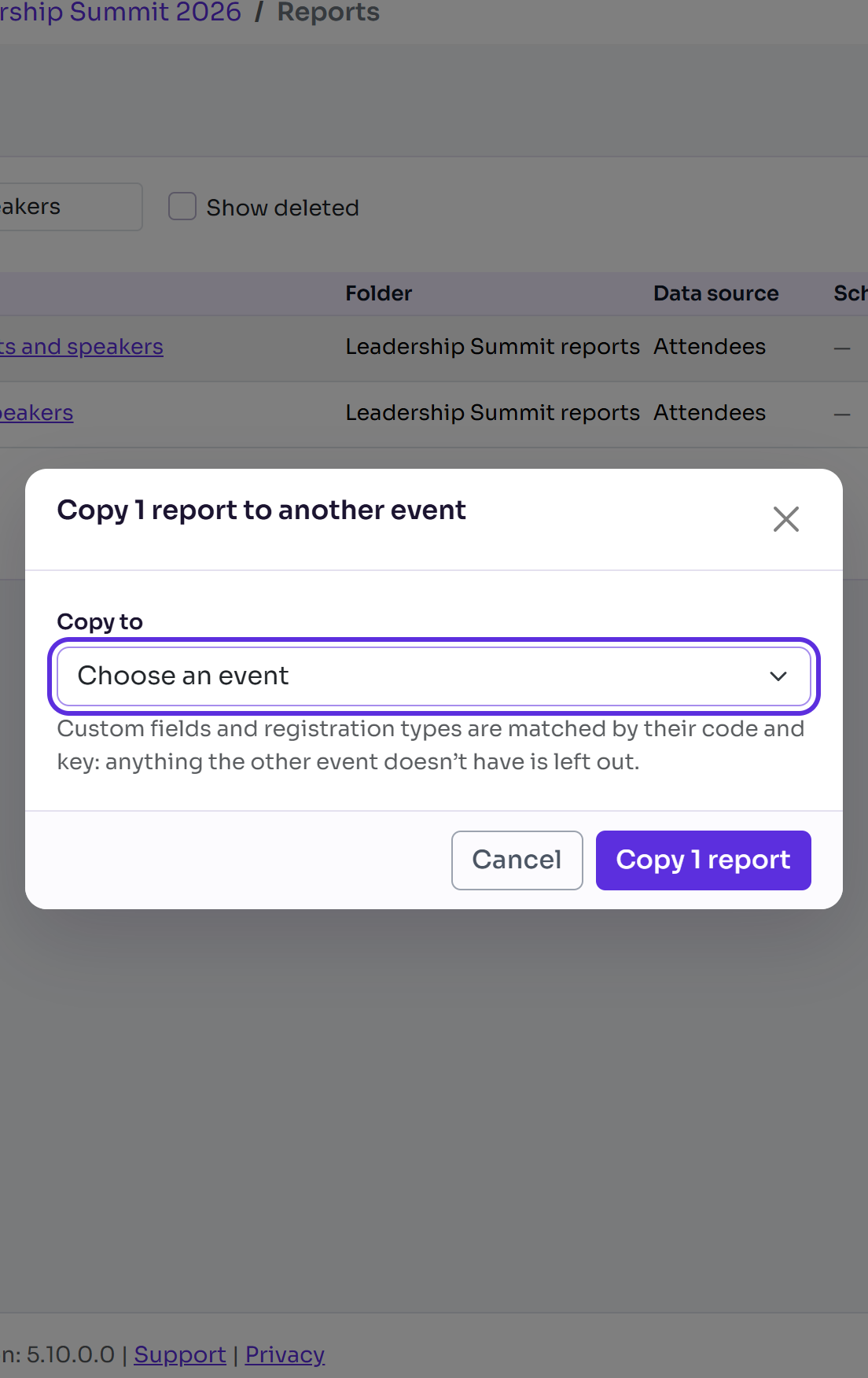
Custom fields and registration types are matched by their code and key. Anything the other event doesn't have is left out of the copy. The copy goes in the folder of the same name in that event, if it has one, or else Unfiled.
Share a report with every event
Client administrators can tick a report and select Actions › Add to our library, then Add 1 report. Every event of your organisation then lists it, read-only, run on its own data. This event keeps its own report too. Reports on a shop, or filtered to one session, can't be added.
Delete or restore reports
- On the Reports list, tick the reports, then select Actions › Delete.
- Delekit warns that the reports' schedules are deleted and stop sending, and can't be restored. Select Delete and the number of reports. You see, for example, "1 deleted".
- To bring one back, tick Show deleted, tick the report (it's marked Deleted), then select Actions › Restore.
In the report builder, More actions › Delete report asks you to type the report's name first, then goes back to the list, where you see the report's name and deleted.
What happens next
- Deleting a report deletes its schedules, which stop sending. Restoring the report doesn't bring them back: add them again on its Schedule tab.
- A dashboard widget that shows a deleted report says so until the report is restored. The delete question tells you how many widgets use it.
Check it works
On the Reports list, the Folder column shows each report's folder, and Search reports finds a report by name. A deleted report shows only with Show deleted ticked.
If something isn't right
- "Library reports are deleted from their library, not from an event." Standard reports can't be deleted in an event. Ask a client administrator.
- "Restore the report before saving it as a new report." Restore it first, then copy it.
- The other event isn't listed under Copy to: you can only copy to events you have access to.
- A copied report shows a warning that it uses something the event doesn't have: those columns are left out and filters on them match no one. Remove them from the copy and save it.
Related articles
Still stuck? Contact Delekit support.
Was this article helpful?
That’s Great!
Thank you for your feedback
Sorry! We couldn't be helpful
Thank you for your feedback
Feedback sent
We appreciate your effort and will try to fix the article