Audience: event organisers and client administrators. Applies to: all plans.
Have Delekit email a report to the people you choose, once or every day, week or month. Each email has the report attached as an Excel or CSV file, run with its saved filters at the time it goes, so the people who need the numbers get them without signing in.
Before you start
- Save the report first. A schedule sends the saved report, with its saved columns and filters. See Build a report.
- Recipients can be anyone with an email address, inside or outside your organisation. The file holds whatever the report's columns show, such as names and email addresses, so only send it to people who should see them.
- A schedule belongs to its event. A standard report from your library is scheduled in each event separately.
Add a schedule
Open the report from Insights › Reports, then select the Schedule tab.
Select Add schedule. The New schedule panel opens.
Choose the Frequency: Daily, Weekly, Monthly or One-off. Then choose the Day of week, the Day of month (1 to 28) or the Run on date, as it asks.
Enter the Time (local). Timezone starts as the event's time zone: change it if you mean another.
Choose the Export format, Excel or CSV, and leave Status on Active.
In Recipients, type an email address and press Enter, for each person. You can also paste several addresses separated by commas. Enter an Email subject (optional) if you want one.
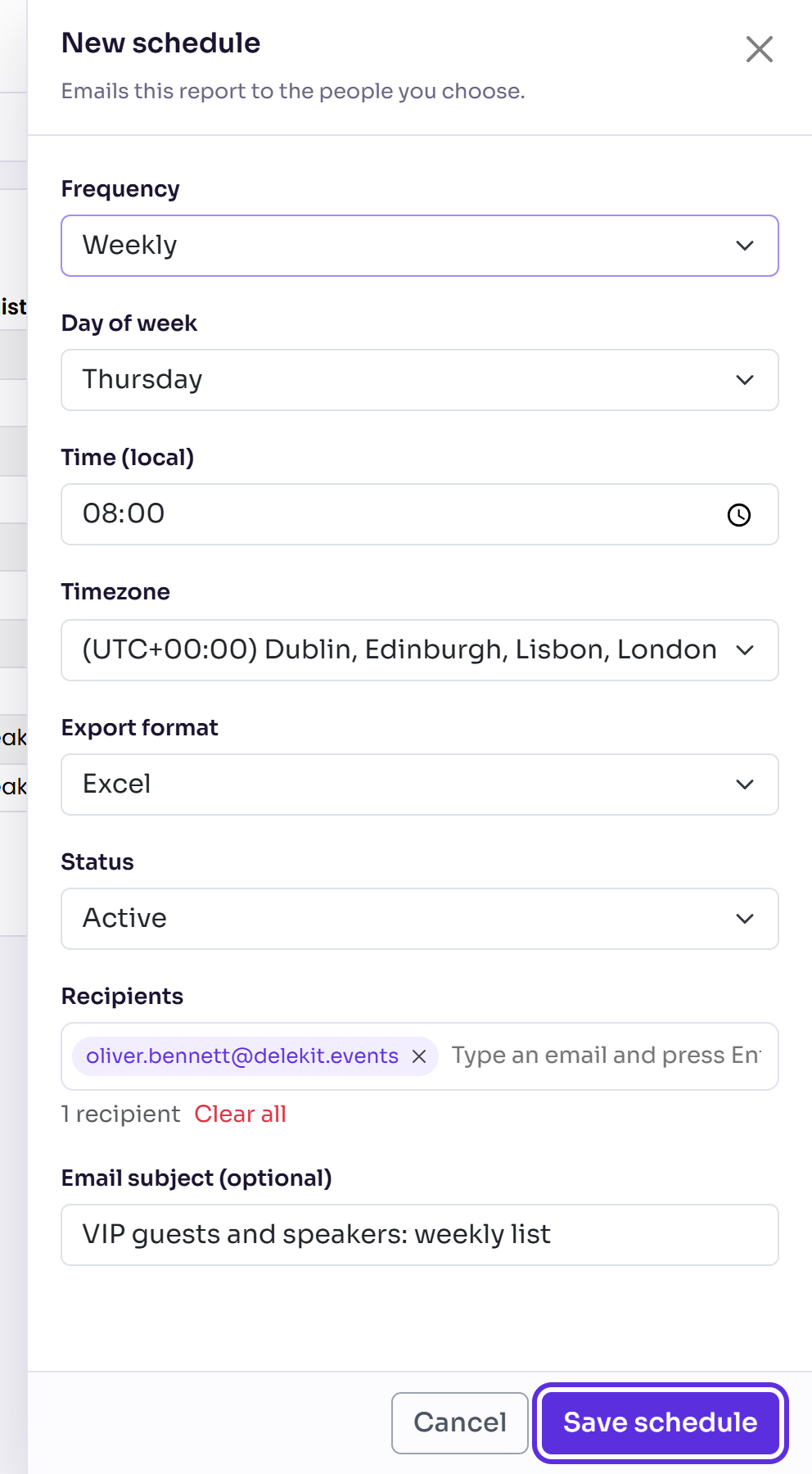
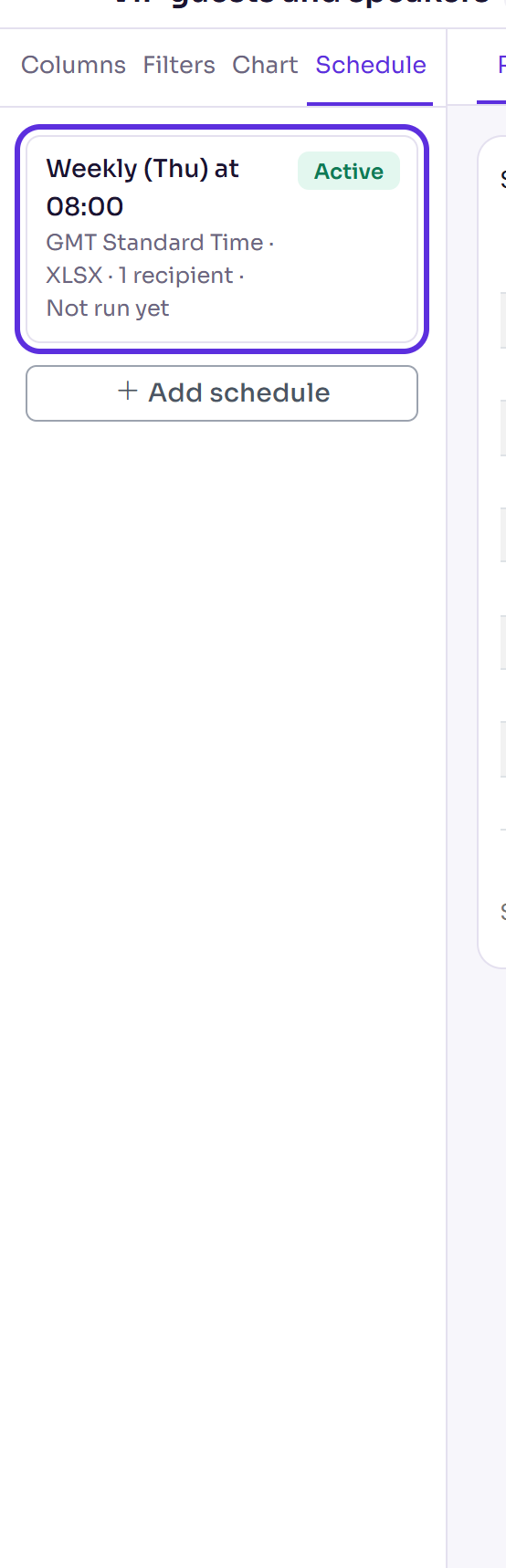
Select Save schedule. You see "Schedule added", and the schedule is listed on the tab.
Change, pause or delete a schedule
Select the schedule on the Schedule tab to open it. Change what you need and select Save schedule. To stop it for a while, set Status to Paused. To remove it, select Delete schedule, then Delete schedule again when asked "Delete this schedule?".
What happens next
- At each time, Delekit runs the report and emails it to every recipient, with the file attached. Without a subject of your own, the email is called "Report ready:" and the report's name. It says which event it is for, how many rows the report has, and when it was generated.
- Each run is listed on the report's Run history, where you can download its file again.
- On the Reports list, the Schedules column shows how many of a report's schedules are active and how many are paused.
- If a schedule fails three times in a row, it's paused. Fix the report, then set its Status back to Active.
- Deleting a report deletes its schedules. Restoring the report doesn't bring them back.
Check it works
On the Schedule tab, the schedule shows Active, its time zone, format and number of recipients, and "Not run yet" until it first runs, then when it last ran. To see the file recipients will get, export the report yourself: see Export a report to Excel or CSV.
If something isn't right
- "Add at least one recipient email." Type an address in Recipients and press Enter before you save.
- "… is not a valid email address." Check the address for typing mistakes.
- The email arrives at the wrong hour: open the schedule and check its Timezone.
- A schedule shows Paused that you didn't pause: it failed three times in a row. Check the report runs (select Run), then set Status to Active and save.
Related articles
- Export a report to Excel or CSV
- Filter, sort, group and chart a report
- Organise, copy and delete reports
Still stuck? Contact Delekit support.
Was this article helpful?
That’s Great!
Thank you for your feedback
Sorry! We couldn't be helpful
Thank you for your feedback
Feedback sent
We appreciate your effort and will try to fix the article