Audience: event organisers and client administrators. Applies to: all plans.
Download a saved report as an Excel workbook or a CSV file, to work on it in a spreadsheet or pass it on. The file holds the report's columns and the rows that match its saved filters, with the event's data as it is at that moment.
Before you start
- Save the report first. An export runs the saved report, not what's on screen. If you have unsaved changes, the Export report pop-up says so: select Save report first to include them. See Build a report.
- An export holds every row that matches the report's saved filters, however many there are. The preview on screen shows them a page at a time. To export only some, filter the report first: see Filter, sort, group and chart a report.
- Personal data: the file holds whatever the report's columns show, such as names and email addresses. Keep it as safely as you would the attendee list.
Export the report
In the menu, select Insights, then Reports. Open the report.
Select Export.
In Format, choose Excel (.xlsx) or CSV (.csv).
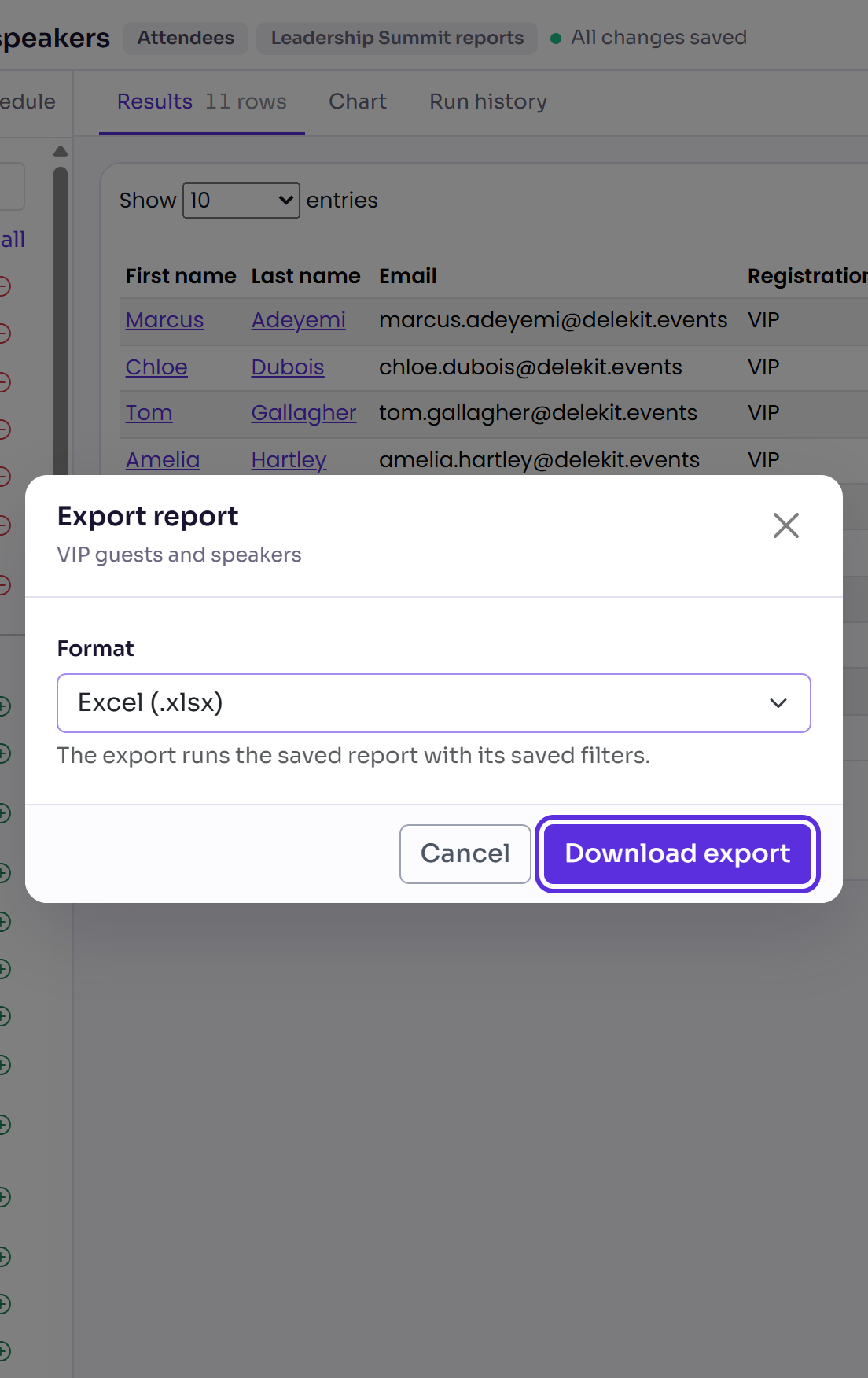
Select Download export. The file downloads through your browser, named after the report with the date and time.
Choose CSV for a system that imports files, and Excel to open it straight in a spreadsheet. A chart isn't included in either: to keep one, select Download chart on the report's Chart view.
What happens next
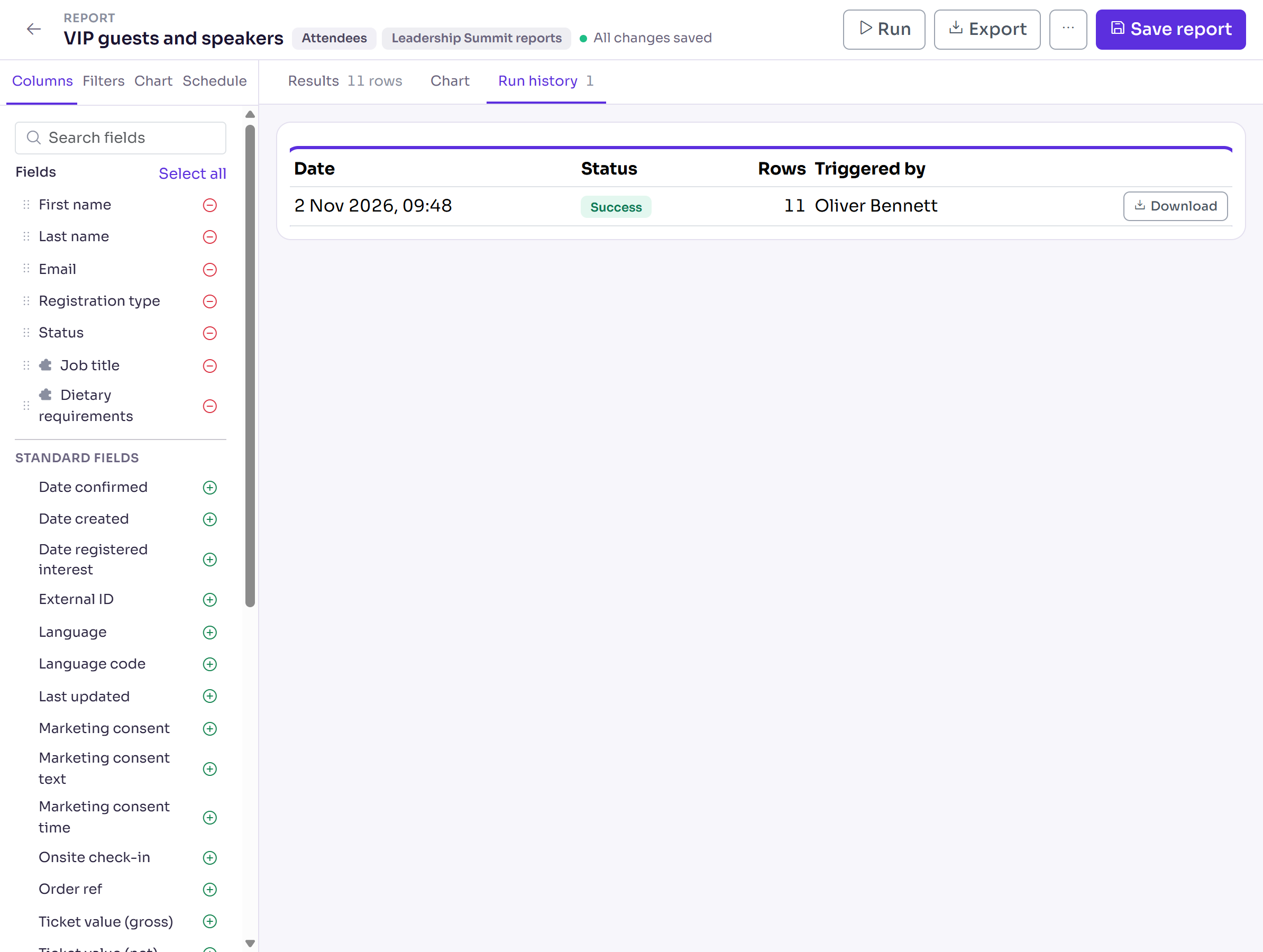
Every export is recorded on the report's Run history, with when it ran, its status, how many rows it held and who ran it.
On Run history, select Download next to a run to download that file again, as it was when it ran. Runs sent by a schedule are listed there too.
Exporting doesn't change the report or send anything to anyone.
Check it works
Open the downloaded file. Its columns are the report's columns, in the same order, and the number of rows matches the count next to Results when you select Run.
If something isn't right
- "Export failed." Select Run to check the report shows results, then try again.
- The file is missing your latest changes: the export uses the last saved version. Select Save report, then export again.
- The file has a different number of rows from the report: the export uses the saved filters. Select Save report, then export again.
- Test attendees aren't in the file: they're left out unless the report's Include test attendees filter is on.
- Run history's times are in your own time zone, the one your computer is set to. Point at a time to see the zone.
Related articles
Still stuck? Contact Delekit support.
Was this article helpful?
That’s Great!
Thank you for your feedback
Sorry! We couldn't be helpful
Thank you for your feedback
Feedback sent
We appreciate your effort and will try to fix the article