Audience: event administrators and client administrators. Applies to: all plans.
Ask people who register whether they're happy to hear from you about other things, such as future events. The opt-in is an optional checkbox with your own wording, unticked to start. Delekit records who ticked it, when, and the exact wording they saw, so you have their consent on file.
Before you start
- You need to be an administrator of the event.
- Write wording that says who will contact them and about what, for example "I'm happy to hear about future events from Delekit Demo Events." It's one line next to a checkbox.
- The opt-in is a record of consent, not a mailing list. Delekit's emails to attendees don't check it, so use it to choose who you contact about other things.
- Your privacy notice is set in the same place. See Choose your event's registration and privacy options.
Turn on the opt-in
In the menu, select Event, then Edit event, and go to Privacy and consent.
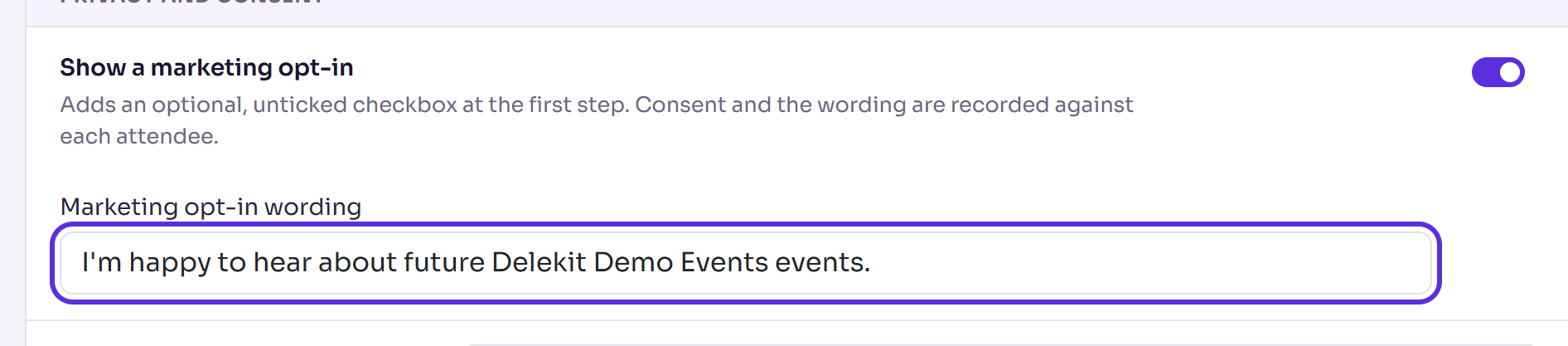
Turn on Show a marketing opt-in.
Enter the Marketing opt-in wording, up to 1,000 characters.
Select Save changes. It appears once you've changed something.
You'll see Changes saved.
Where people see it
The checkbox shows, unticked, with your wording:
under Your details on the tickets step, and on the waitlist form;
on the first step of a registration form;
on the Register interest form.

Ticking it is never required to register. If your event is shown in more than one language, translate the wording on the event's Translations page, like the rest of your text.
What's recorded
- Ticking it records their consent on their attendee record: that they agreed, the time, and the wording as they saw it, in the language they saw it in.
- Leaving it unticked later never removes a consent they gave on an earlier booking.
- Changing your wording doesn't change what earlier people agreed to: each keeps the wording they saw.
- Someone booking only for others (not attending) has their consent kept with the booking, not on an attendee record.
- A change to someone's consent shows as Marketing consent in their page's Change history.
Find who opted in
- Build a report on the Attendees data. See Build a report.
- Add the Marketing consent, Marketing consent time and Marketing consent text columns.
- Export it for your mailing tool. See Export a report to Excel or CSV.
Reports leave out deleted attendees. Test attendees are left out unless you include them.
Check it works
Open your registration form in a private (incognito) browser window: the checkbox is there, unticked, with your wording. To test the record, make a test registration with it ticked (see Test a registration before you go live), then find it in your report.
If something isn't right
- "Enter the wording people tick to opt in.": Show a marketing opt-in is on, but the wording is empty. Enter it, or turn the opt-in off.
- The checkbox doesn't show: the switch is off or the wording is empty. The checkbox needs both.
- Someone wants to withdraw their consent: stop contacting them in your mailing tool. To stop Delekit's bulk emails too, they can use the unsubscribe link in any invitation or communication.
Related articles
Still stuck? Contact Delekit support.
Was this article helpful?
That’s Great!
Thank you for your feedback
Sorry! We couldn't be helpful
Thank you for your feedback
Feedback sent
We appreciate your effort and will try to fix the article