Audience: event administrators and client administrators. Applies to: all plans.
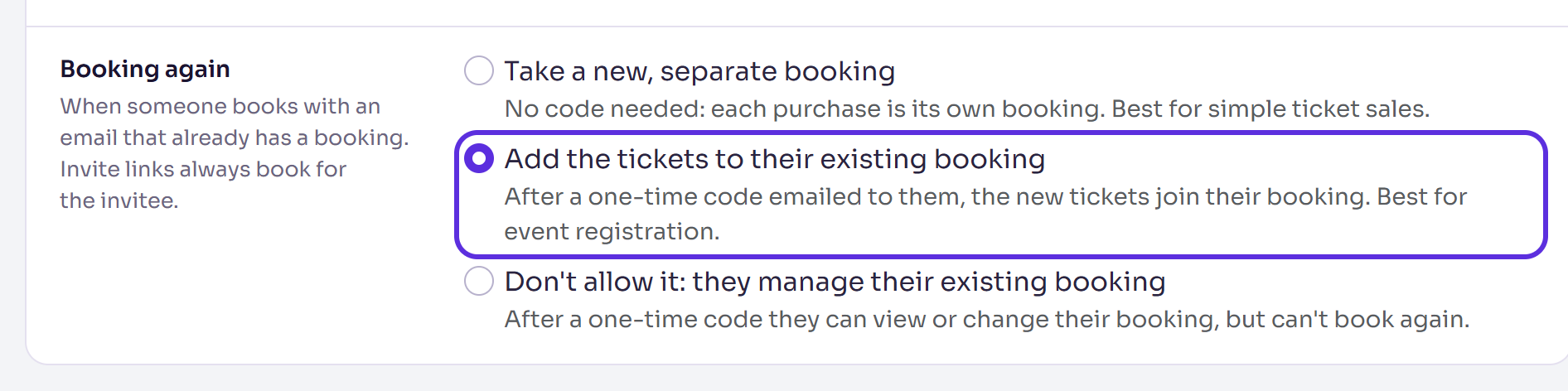
Choose what happens when someone books with an email address that already has a booking for your event: a new, separate booking; the new tickets added to the booking they have; or no new booking, only a way into the one they have. You choose once for the whole event, and you can limit how many tickets one email can hold.
Before you start
- You need to be an administrator of the event.
- What counts as an existing booking: any registration for that email in the event that isn't cancelled, declined or deleted. That includes someone invited, waitlisted, registered interest or part-way through registering.
- Invite links always book for the invitee's own record, whatever you choose. Someone invited who hasn't started registering also books on their invited record, with no code, from the public form.
- The code protects bookings. It goes to the address already booked, so nobody can see or add to someone else's booking by typing their email.
The three choices
| Choice | What the person booking sees | Best for |
|---|---|---|
| Take a new, separate booking | No code. Each purchase is its own booking, with its own attendee record. | Simple ticket sales |
| Add the tickets to their existing booking | A one-time code emailed to them; then the new tickets join their booking. | Event registration (the starting choice) |
| Don't allow it: they manage their existing booking | A one-time code; then they can view or change their booking, but not book again. | One place per person |
Choose what happens
In the menu, select Event, then Edit event, and go to Registration.
Under Booking again, choose one of the three.
Select Save changes. It appears once you've changed something.
You'll see Changes saved.
What the person booking sees
With Add the tickets to their existing booking or Don't allow it, after they select Continue on the tickets step:
- They're asked for a code. The page says We've found your registration (or Is this you? if they haven't registered yet) and "We've sent a one-time code to" a masked address. The code expires in 10 minutes. They enter it and select Verify.
- Already registered, adding allowed: they choose View or change my registration (or View my registration) or Buy additional tickets. Buying more says how many they already have and how many they're adding, and they select Confirm and continue. Extra admission tickets join their booking as guests: see Take group bookings and collect guest details.
- Already registered, adding not allowed: they're taken straight to their registration.
- Not registered yet (invited, waitlisted, unfinished): the checkout carries on, on their existing record.
- Joining a waitlist asks for the code in the same way.
A code checked in a browser counts there for 12 hours.
Limit how many tickets one email can hold
In the menu, select Registration, then Registration types, and select Settings.
Enter Max tickets per email: the most tickets one email may hold across the whole event. Leave it blank for no limit.
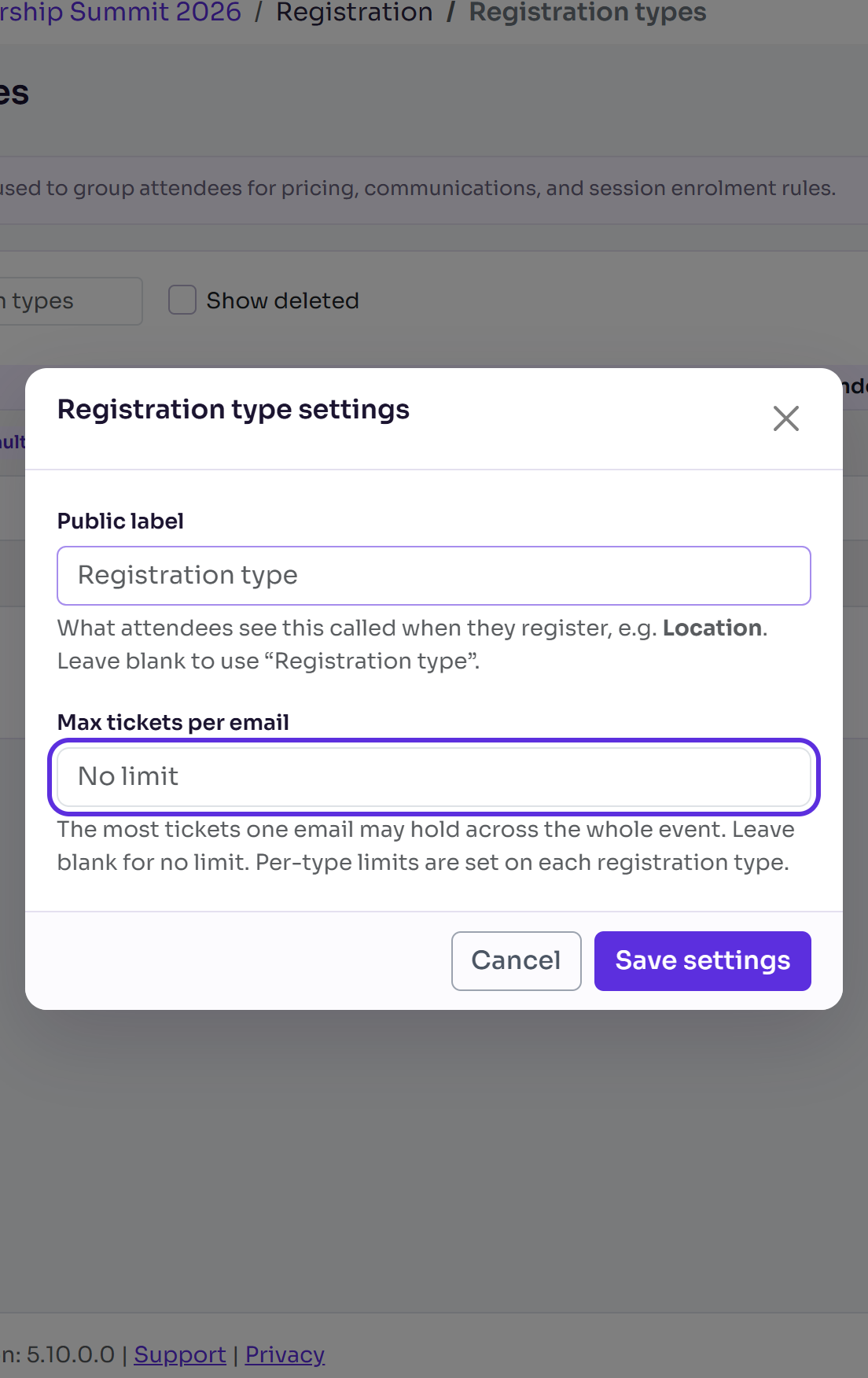
Select Save settings.
Each registration type can have its own Max tickets per email too, on the type's page. A booking over a limit is refused with, for example, "This event allows at most 4 tickets per person. You already have 2." With Take a new, separate booking, each booking is counted on its own.
What happens next
The choice applies straight away to bookings made on the tickets step and to joining the waitlist. Bookings already made don't change.
Check it works
Book once on your form in a private window, then again with the same email: with the code choices, you're asked for a code sent to that address.
If something isn't right
- "This email address is already registered to another attendee in this event." when you add someone by hand: only Take a new, separate booking lets two attendees share an email. You'll then see "Another booking in this event uses the same email." as a warning.
- People say they can't book a second time: Don't allow it is chosen, or they've reached Max tickets per email.
- Duplicate bookings for one person: Take a new, separate booking is chosen. Choose Add the tickets to their existing booking instead.
Related articles
- Choose your event's registration and privacy options
- Take group bookings and collect guest details
- Test a registration before you go live
Still stuck? Contact Delekit support.
Was this article helpful?
That’s Great!
Thank you for your feedback
Sorry! We couldn't be helpful
Thank you for your feedback
Feedback sent
We appreciate your effort and will try to fix the article