Audience: event administrators and client administrators. Applies to: all plans. Only for registration types that sell tickets.
Let one person book several places in a single order, and choose how much you ask about each guest: nothing, a name, a name and email, or a full registration form. Each guest becomes an attendee with their own ticket, linked to the person who booked.
Before you start
- Group booking is set on each ticket. An admission ticket whose Max per order is above 1 can be booked for a group. See Add tickets to a registration type.
- Booking only for others (the booker doesn't come) is allowed per registration type, under Who can book. See Accept work email addresses only.
- Guests' emails come from their registration type's invite list, like everyone's. Choose a Guest details request and Guest details invite email there. See Set up your event's email templates.
- Max tickets per email counts guests' tickets too: see When someone books again with the same email.
Allow more than one ticket per order
In the menu, select Registration, then Registration types. Select the type's name, then Manage products, and select the ticket.
Go to Capacity and quantity and enter Max per order: the most tickets one booking can include, for example 4. Blank means 1.
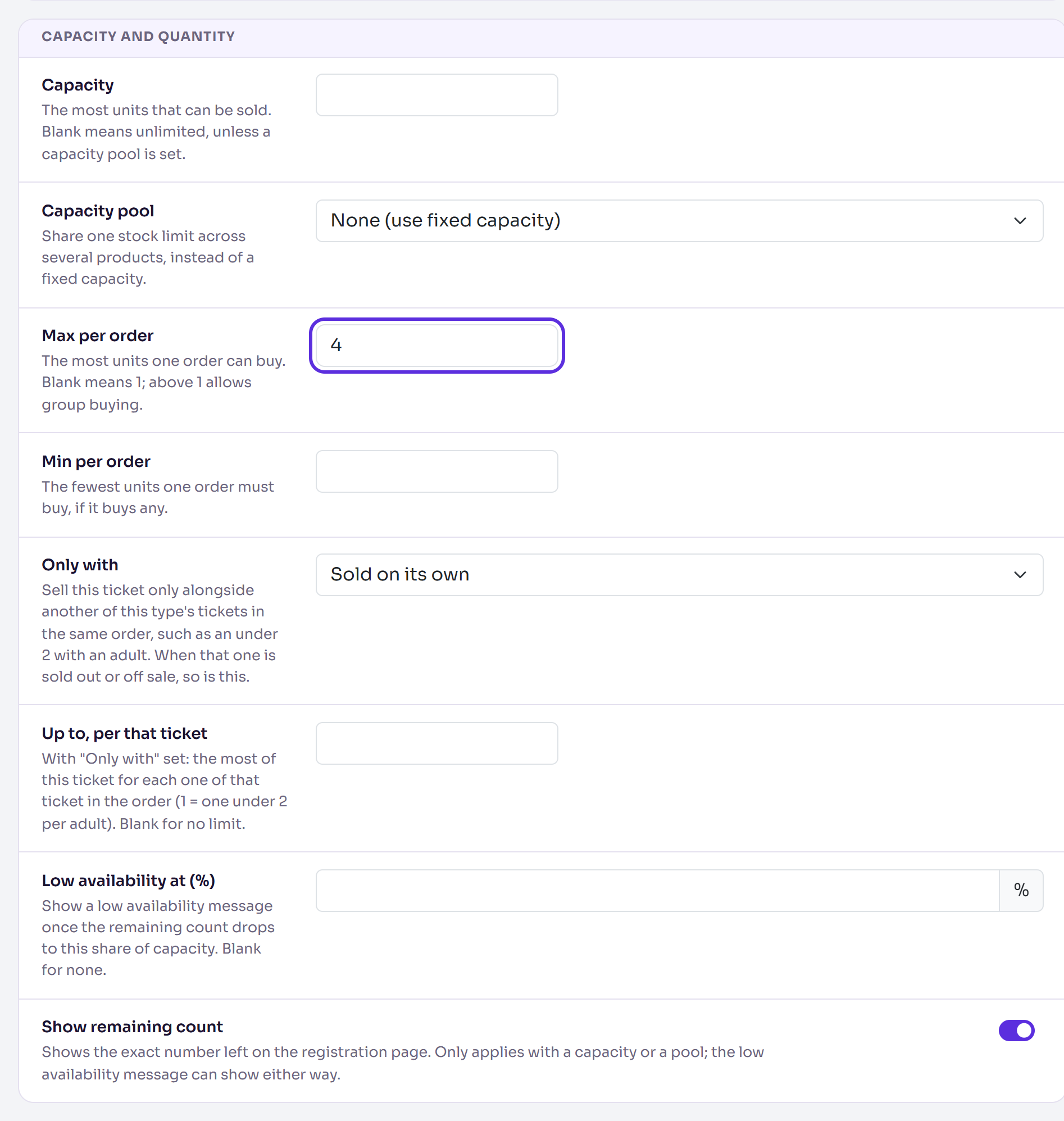
To make every booking of this ticket include at least a number of them, enter Min per order.
Select Save changes.
Choose what you ask about each guest
Only admission tickets have these. The booker takes the first ticket; each one after it is a guest.
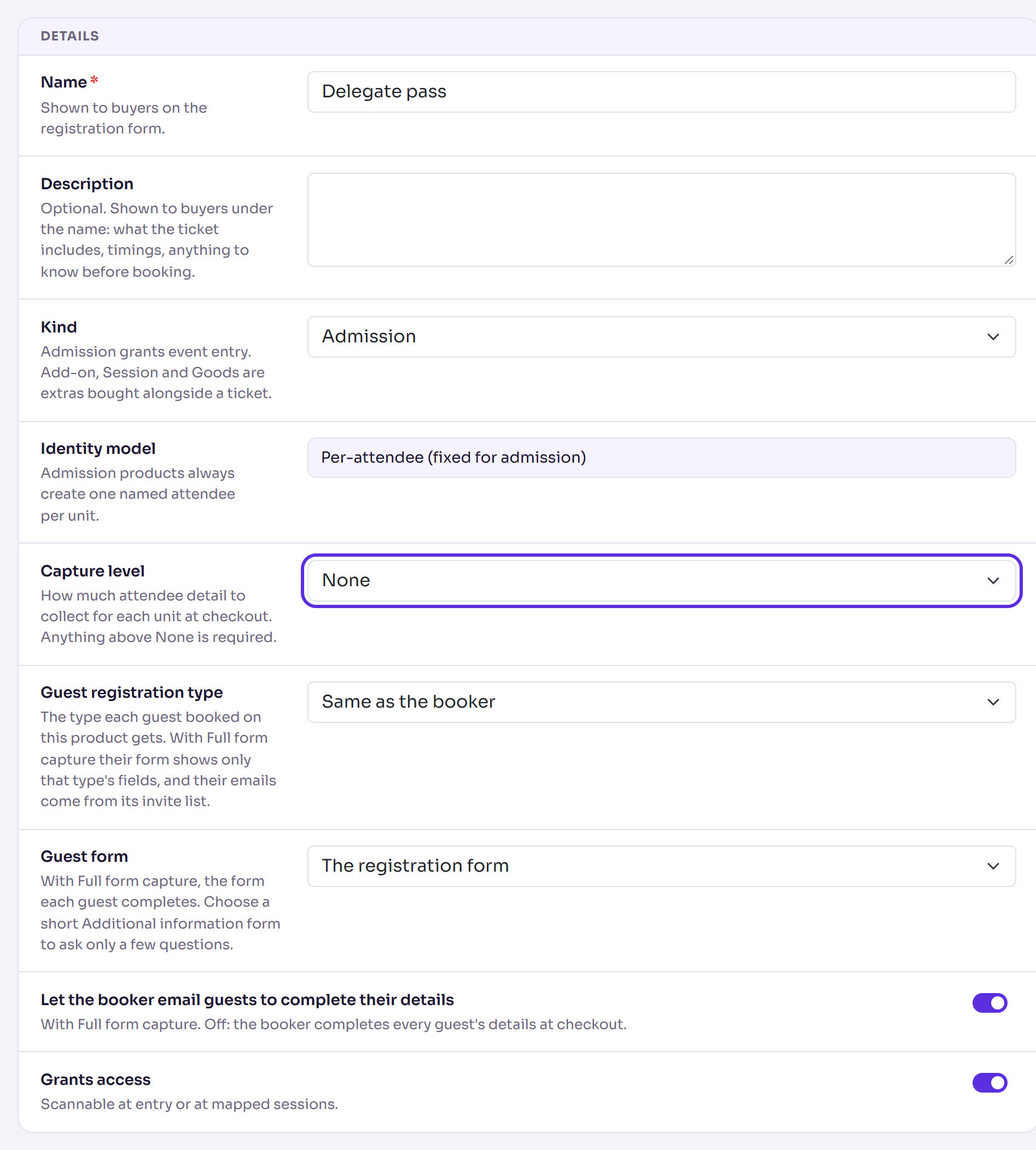
Open the ticket as above and go to Details.
Choose a Capture level:
- None: nothing is asked. Guests are added under the booker's name, numbered, for example "Lucas Fischer Guest 1".
- Name Only: each guest's first and last name. Their email is optional.
- Name And Email: each guest's name and email.
- Full Form: name and email, then the guest's own registration form.
If guests should have a different registration type from the booker (a dinner guest, say), choose it in Guest registration type. A type shown "(on no invite list: no emails)" gets no emails.
For Full Form, choose the Guest form: The registration form, or a short Additional information form.
For Full Form, leave Let the booker email guests to complete their details on, or turn it off so the booker fills in every guest at checkout.
Select Save changes.
What the booker sees
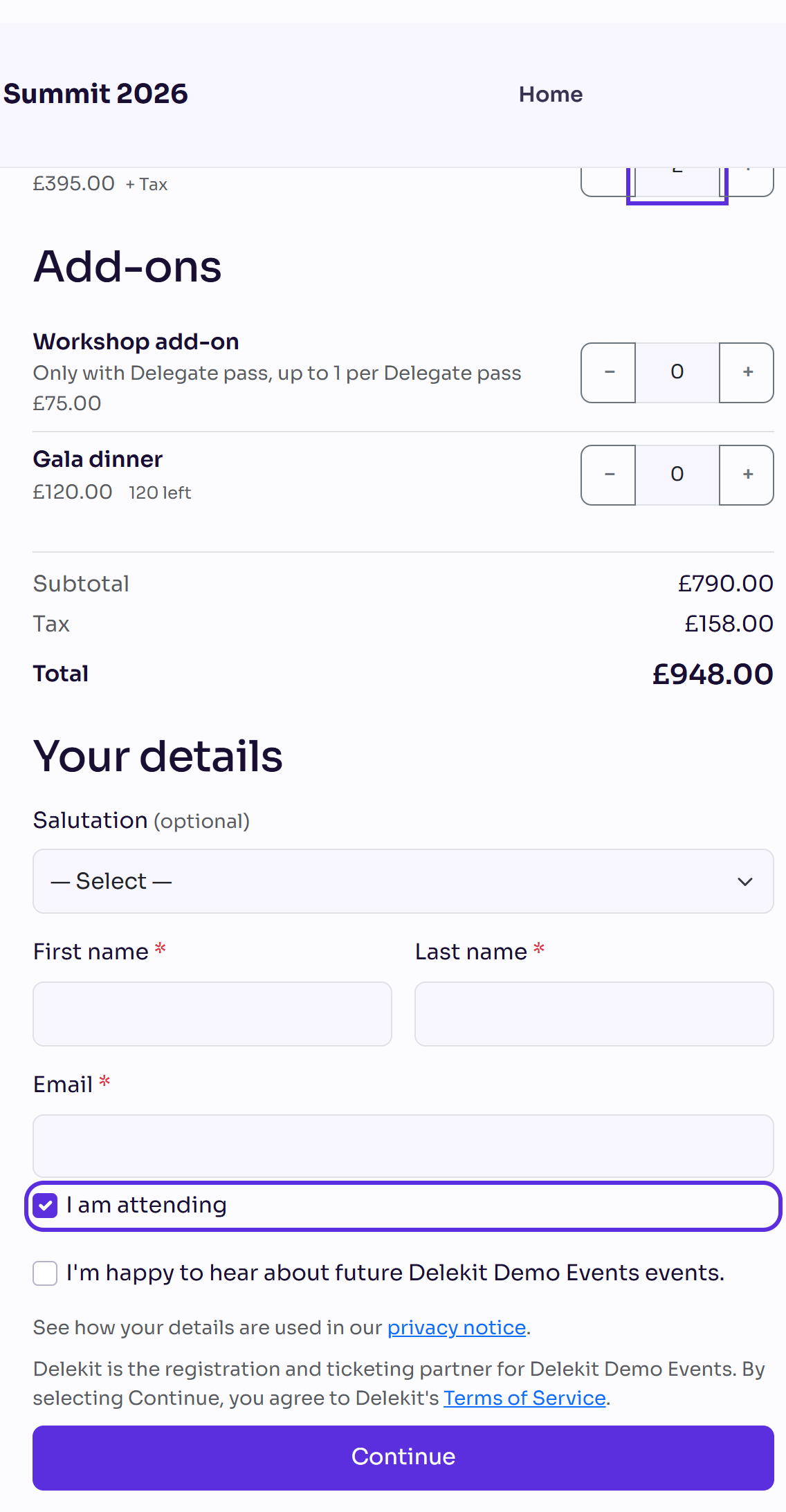
On the tickets step they choose how many they need, up to Max per order. I am attending is ticked; unticking it books every ticket for guests.
After paying (or straight after their own details, for free tickets), a Guest details step lists the Main guest and Your guests. They select Complete details for each.
They can select Continue with guests still to do. Delekit then emails them the Guest details request, then a few reminders about a day apart, until every guest is complete or the event is over.
With Full Form, they can select Email guest to complete their details. The guest gets the Guest details invite with their own link, and shows as Invited in the list.
What happens next
- Each guest is an attendee on your Attendees list. The booker's page lists them under Linked attendees. A guest booked by someone who isn't attending shows Booked by instead.
- A guest whose details are still needed is Pending additional information until they're complete, then Confirmed. Guests with an email get their own emails.
- The order belongs to the booker. Its payment, refunds and invoice are on their page: see View an attendee's orders and payments.
Check it works
Book two tickets in a private window, as in Test a registration before you go live. With a capture level above None, the Guest details step follows payment. Each guest appears on the Attendees list.
If something isn't right
- Only one ticket can be chosen: Max per order is blank or 1.
- No Guest details step: the ticket's Capture level is None.
- No Email guest to complete their details: it needs Full Form, the switch on, and a published Guest details invite on the guest's invite list.
- The booker lost their link: on their page, under Registration, copy the Complete guest details link and send it to them.
- No I am attending checkbox: the type doesn't allow booking on behalf of someone else.
Related articles
- Add tickets to a registration type
- When someone books again with the same email
- View an attendee's orders and payments
Still stuck? Contact Delekit support.
Was this article helpful?
That’s Great!
Thank you for your feedback
Sorry! We couldn't be helpful
Thank you for your feedback
Feedback sent
We appreciate your effort and will try to fix the article