Audience: event administrators and client administrators. Applies to: all plans.
Every booking with tickets is an order. On an attendee's page, the Orders section shows each order they bought or hold a ticket in: its reference and status, what was bought and for whom, what was paid and refunded, and how it was paid. Invoices are marked paid and refunds made from here too.
Before you start
- You need access to the event.
- An order shows as soon as someone has chosen their tickets. Until they pay it's Pending payment, and one released by the ticket hold shows Cancelled.
- Test bookings are hidden from the Attendees list until you tick Show test. See Test a registration before you go live.
- Payments are taken by your payment provider. Its own dashboard has the full payment record: see Take payments with Stripe.
Open an attendee's orders
In the menu, select Attendees, then View all.
Search for the person by name, email or order reference, and select their name.
In the page's sections, select Orders. The number next to it is how many orders they have.
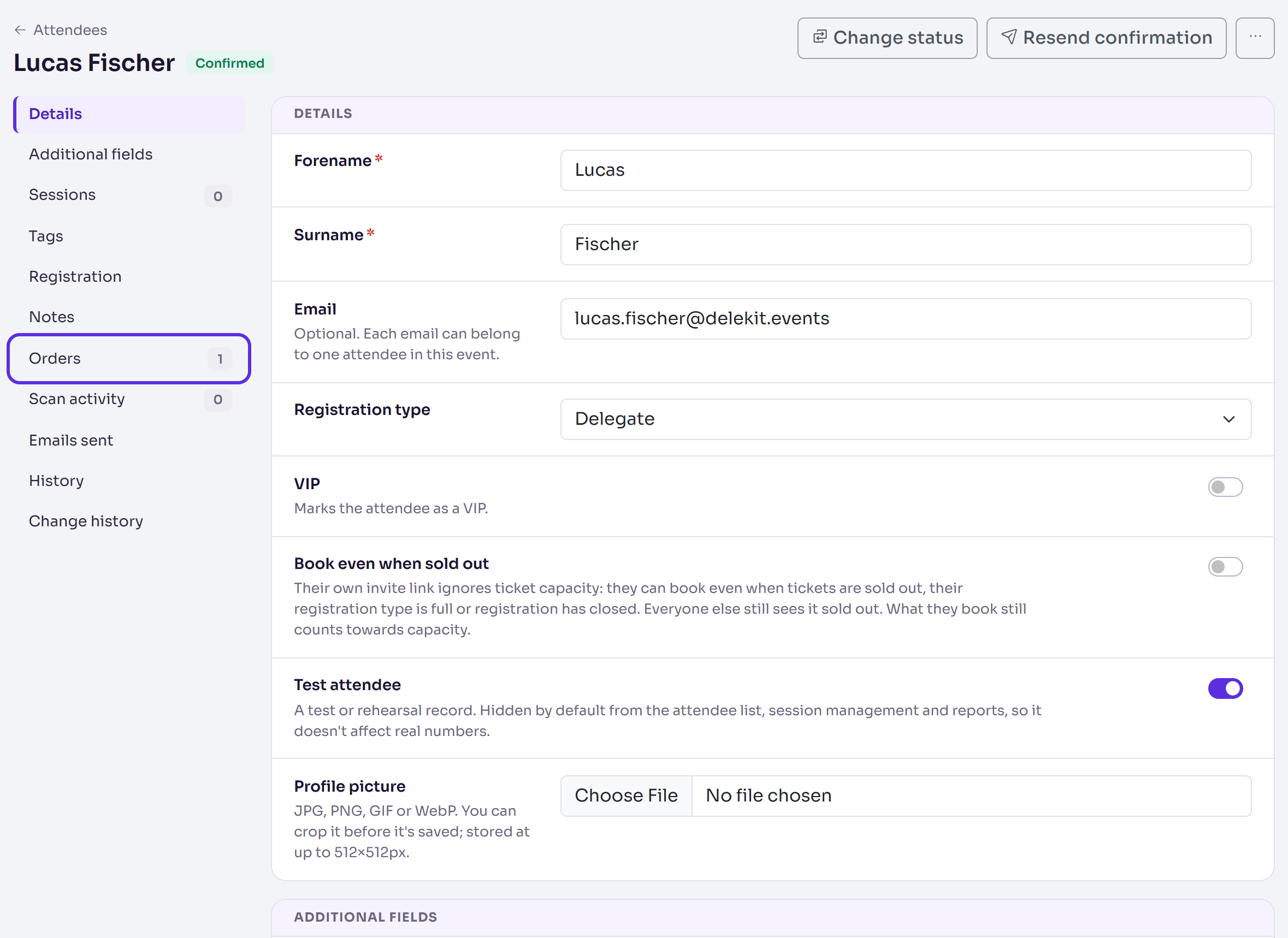
Read each order: the newest is first.
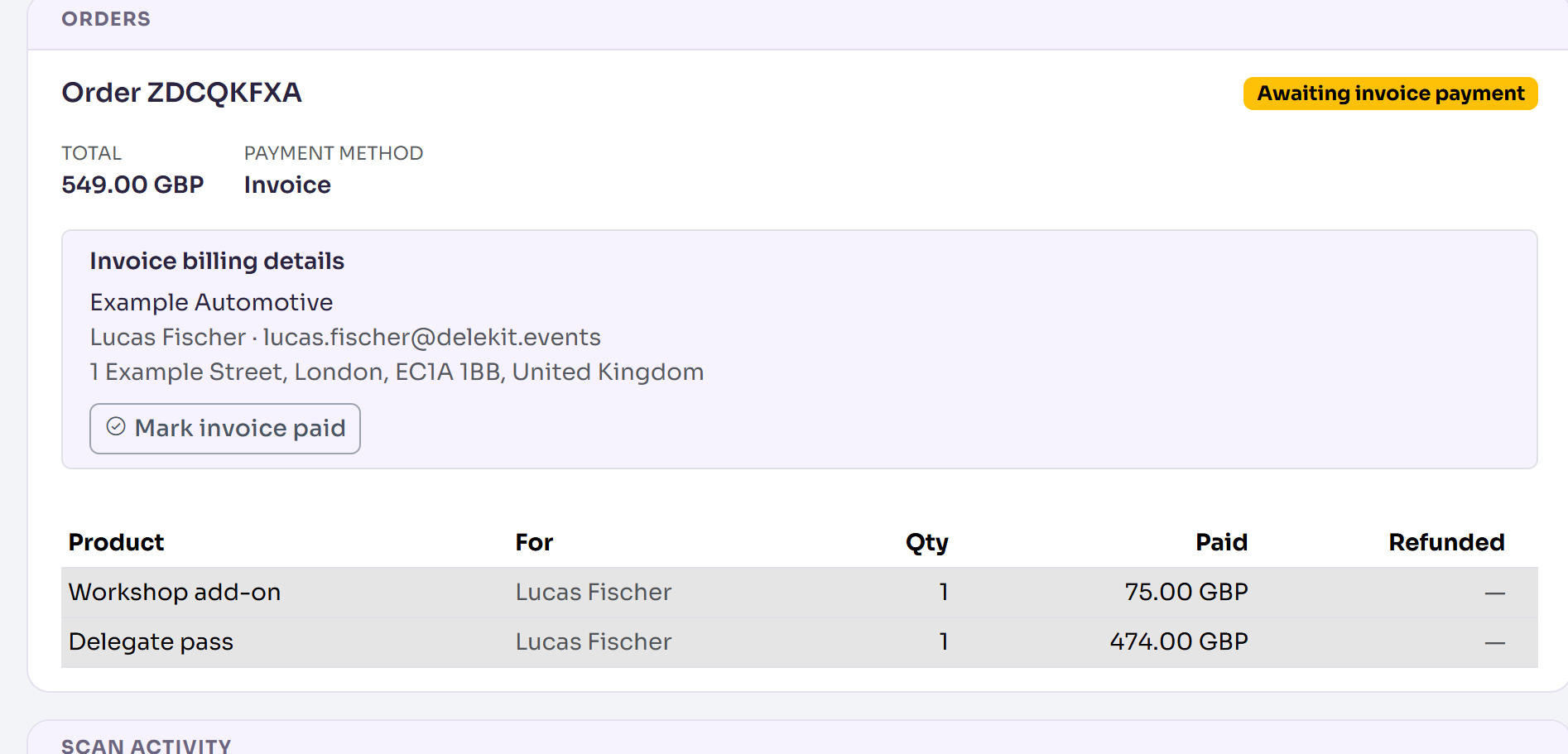
What an order shows
- Order and its reference, the one in the attendee's emails. On a guest's page, "purchased by" names who bought it. A free registration with no products shows Booking, its reference and Free.
- Its status: Paid, Awaiting invoice payment, Pending payment, Partially refunded, Refunded or Cancelled.
- Total, and any Discount (with its code) and Refunded amount.
- How it was paid: Payment method Invoice, the Stripe payment reference, or the CyberSource transaction, with the Card and 3-D Secure result.
- View receipt, for card payments and for invoices once they're marked paid.
- Invoice billing details, for an invoice order: the company, contact, address, purchase order number and VAT or tax reference the buyer gave. See Let people pay by invoice.
- A row for each product, with For (whose ticket it is), Qty, Paid and Refunded. Cancelled next to a product means all its tickets are cancelled. Refund is on the row when it can be refunded: see Refund an order.
Find orders across the event
- In the Attendees list, select Columns and tick Order ref. See Find attendees: search, filter and columns.
- For sales, build a report on the Product sales data, which has an Order status filter. See Build a report.
What happens next
The section updates as the order changes: when the payment confirms, an invoice is marked paid, a refund goes through or a registration is cancelled. Reload the page to see the latest.
If something isn't right
- No Orders section: they have no order yet, for example someone you added by hand and haven't confirmed.
- "Refunds are issued from the purchaser's page": you're on a guest's page, and the buyer is an attendee too. Open the page of the person it names. When the buyer booked only for others, this doesn't show: refund from any guest's page on the order.
- "Live refund detail unavailable": Delekit couldn't reach Stripe for the refund detail. The order's totals still show; try again later.
- "Payment flagged for fraud review.": CyberSource asked for a manual check. Review it in the CyberSource Business Center, and refund the order here if you reject it.
Related articles
Still stuck? Contact Delekit support.
Was this article helpful?
That’s Great!
Thank you for your feedback
Sorry! We couldn't be helpful
Thank you for your feedback
Feedback sent
We appreciate your effort and will try to fix the article