Audience: event administrators and client administrators. Applies to: all plans. Only for orders paid by card, through Stripe or CyberSource.
Refund a product on an order from the buyer's attendee page. The money goes back to the card they paid with, through your payment provider, and you can cancel the tickets at the same time. To refund someone and cancel their registration in one go, cancel it instead: that refunds what they paid minus the ticket's cancellation fee, unless you waive it.
Before you start
- Refunds are made from the buyer's page. A guest's page says "Refunds are issued from the purchaser's page" and names the buyer. When the buyer booked only for others and isn't an attendee, refund from the page of anyone with a ticket on the order.
- Only paid card orders can be refunded here: orders that are Paid or Partially refunded. An order paid by invoice has no Refund: refund the buyer yourself. See Let people pay by invoice.
- Refund refunds a whole product row, for example every Delegate pass on the order. To refund one person in a group, cancel that person's registration instead.
- A refund can't be undone.
- In Test mode, refunds go through your provider's sandbox: no real money moves. See Switch between test and live payments.
Refund a product
- In the menu, select Attendees, then View all, and open the person who paid.
- In Orders, find the order and the product's row.
- Select Refund on the row.
- Check the amount: "Refunds" the amount "for" the product "to the buyer. This can't be undone."
- To release the places too, tick Also cancel the ticket(s) for this product.
- Select Refund followed by the amount, for example Refund 474.00 GBP.
The pop-up stays open while the payment provider makes the refund. The page then reloads, saying "Refunded" and the amount, with "and cancelled the ticket(s)" if you ticked it.
Refund by cancelling the registration
Cancelling refunds what that person's tickets cost, minus each ticket's cancellation fee, and releases their places. See Cancel a registration for an attendee.
On their page, select Change status and choose Cancelled.
To refund everything they paid, tick Waive the cancellation fee (refund in full).
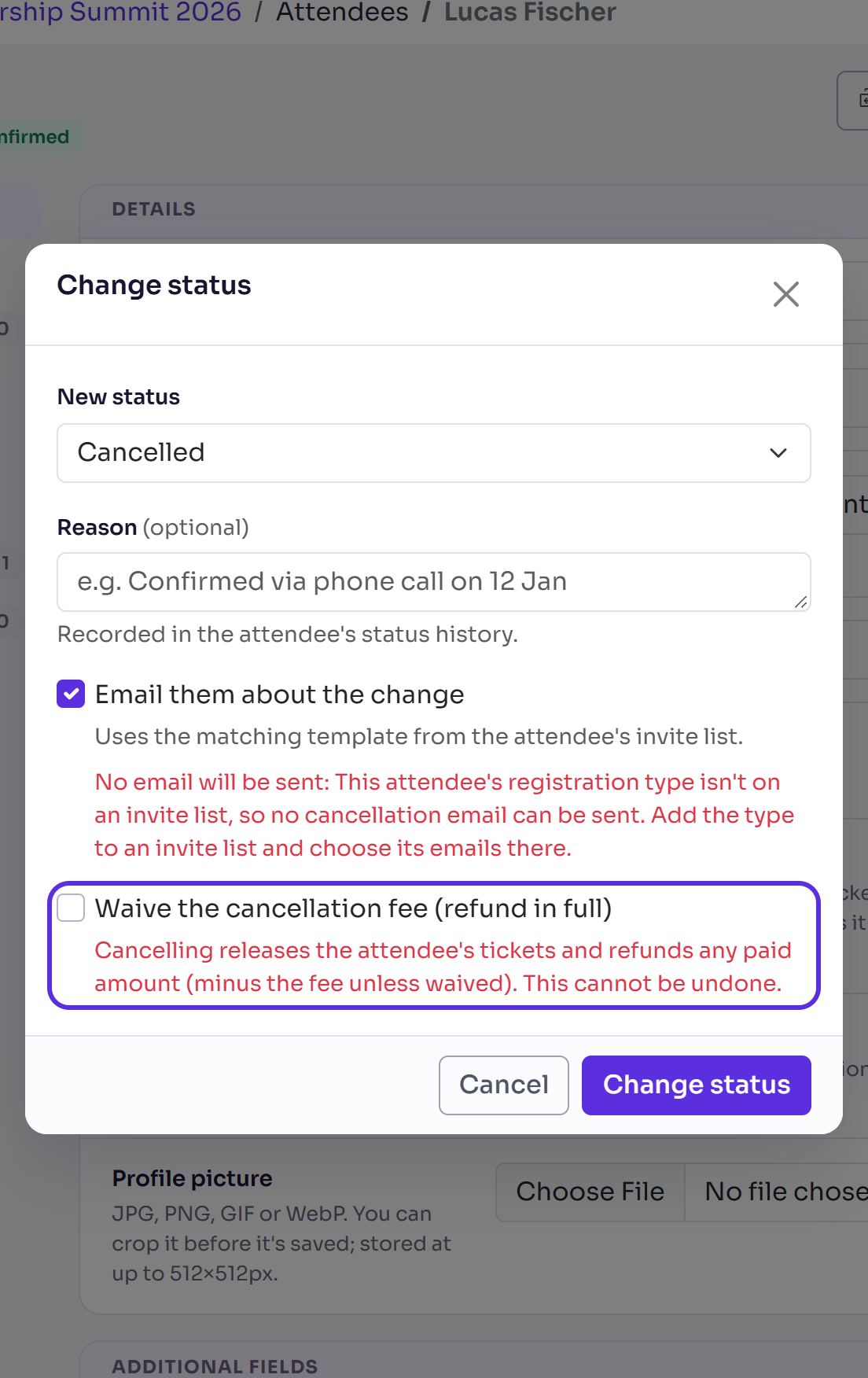
Select Change status.
What happens next
- The order's status becomes Partially refunded, or Refunded once everything is back. The row's Refunded column shows the amount.
- A refund on its own doesn't cancel the registration. Their status stays as it was, and their tickets stay valid unless you ticked Also cancel the ticket(s) for this product.
- The money reaches the buyer on your payment provider's usual timescale. The refund is also in your provider's dashboard.
- Deleting someone who paid offers to refund them first. See Delete and erase personal data.
Check it works
Reload the buyer's page: the row's Refunded amount and the order's status have changed. In Test mode, try it on a booking paid with a test card first.
If something isn't right
- No Refund button: you're on a guest's page and the buyer is an attendee, the order was paid by invoice or isn't paid yet, or the row is already fully refunded.
- "Stripe refused the refund:" followed by Stripe's reason: nothing was refunded. Check the payment in your Stripe dashboard.
- "Could not verify existing refunds with Stripe:": Delekit couldn't reach Stripe. Try again in a few minutes.
- "This order is not in a refundable state.": it isn't paid, or it's already refunded in full.
- "This order belongs to another event.": the order isn't one of this event's. Open the attendee from the event the order was made in.
Related articles
- View an attendee's orders and payments
- Cancel a registration for an attendee
- Set a cancellation policy and fees
Still stuck? Contact Delekit support.
Was this article helpful?
That’s Great!
Thank you for your feedback
Sorry! We couldn't be helpful
Thank you for your feedback
Feedback sent
We appreciate your effort and will try to fix the article