Audience: client administrators. Applies to: organisations that have connected a Salesforce org to Delekit.
Link an event to a campaign in Salesforce so that its attendees reach your CRM: Delekit finds or creates each person as a contact or lead, adds them to the campaign and keeps their campaign member status in step with their registration. You choose who is synced and how each field moves between the two systems.
Before you start
- You need to be a client administrator. Event integration pages are for client administrators only.
- Your Salesforce org must be connected to Delekit first, on the client's Salesforce page. See Connecting your Salesforce org to Delekit.
- The campaign must already exist in Salesforce. You choose it from the org's campaigns.
- Set up the event's registration types and custom fields first, so you can choose them here.
Check the org is connected
Open the Integrations page (see Integrations: an overview).
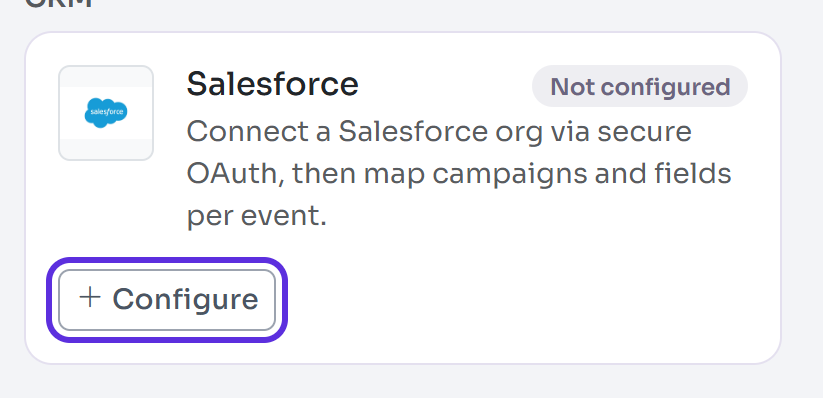
Check the Salesforce card says Connected. If it says Not configured, connect your org first.
Link the campaign
- In the event, select Edit event. In Integrations, select Configure Salesforce. The event's Salesforce page opens in a new tab.
- In Connected org, choose the org.
- In Salesforce campaign, type part of the campaign's name and select Search, then choose the campaign from the list.
- Turn on Push attendees to Salesforce to send attendees to the campaign.
- Leave Auto-sync: apply changes automatically on to send changes straight away, or turn it off to approve each change first.
- Select Link campaign. You see "Campaign linked."
Choose who is synced and map the fields
- In Who is synced, under Push at status, keep Every status, including attendees with none yet, or choose Only the statuses ticked below and tick them (Invited, for example).
- Under Include, keep All registration types, including ones added later, or choose Only the registration types ticked below and tick them.
- In Field mapping, select Add contact field (or Add lead field, Add campaign member field). Choose the Salesforce field and the Delekit field, which can be a Fixed value.
- Choose its Direction: Push (Delekit to Salesforce), Pull (Salesforce to Delekit) or Push & pull. For Push & pull, choose what happens if both change: Ask me, Delekit wins, Salesforce wins or Latest change wins.
- In Campaign member status, choose the Salesforce status for each Delekit status, or Don't send. Match same names fills in the statuses with the same name.
- Select Save changes. You see "Field mapping saved."
What happens next
- When an attendee reaches a status you chose, the sync matches them by email to a contact, or else an open lead, and sends their mapped fields. If there's neither, it creates a lead. They're added to the campaign. Once linked, their changes keep syncing whatever their status.
- A field with no value in Delekit is never sent, so nothing in Salesforce is cleared. Pull only fills attendees already linked to a contact or lead: it never creates attendees.
- With auto-sync off, and for Ask me fields changed on both sides, changes wait on the Salesforce sync page. See Review and approve Salesforce sync changes.
- Salesforce sync appears in the menu under Attendees, with the number of changes waiting.
- With a Salesforce sandbox, only test attendees are synced while you test.
Check it works
In the Sync section, Last sync and Last status show when the sync last ran for this event. Then check a confirmed attendee is a member of the campaign in Salesforce.
If something isn't right
- There's no Configure Salesforce in Edit event: your org isn't connected, or its connection isn't active. See Connecting your Salesforce org to Delekit.
- "No campaigns matched …" Try a shorter part of the campaign's name.
- "Link a campaign before saving the field mapping." Select Link campaign first.
- To send everyone again, select Resync all attendees in Sync, then Resync all attendees again when asked.
- To stop syncing the event, select Remove integration. Its campaign link and field mapping are removed; your org's connection isn't affected.
Related articles
- Connecting your Salesforce org to Delekit
- Review and approve Salesforce sync changes
- Integrations: an overview
Still stuck? Contact Delekit support.
Was this article helpful?
That’s Great!
Thank you for your feedback
Sorry! We couldn't be helpful
Thank you for your feedback
Feedback sent
We appreciate your effort and will try to fix the article