Audience: client administrators. Applies to: all plans.
Integrations connect Delekit to the other systems your organisation uses: a payment provider to take money, Salesforce to keep your CRM up to date, and Cvent to bring in attendees from an event run there. This article explains where they're set up, what each status means, and how an event starts using one.
Two levels: your organisation, then each event
An integration is connected once for your organisation (your client), on the Integrations page. Each event then chooses whether and how it uses it:
| Integration | Connect it once, on Integrations | Then, in each event |
|---|---|---|
| Stripe | Connect your Stripe account | Choose the Payments mode in Edit event |
| CyberSource | Enter your merchant account's keys | Choose the Payments mode in Edit event |
| Salesforce | Enter your Connected App, then connect an org | Link a campaign and map fields |
| Cvent | Add a connection with your Cvent credentials, and activate it | Link a Cvent event to import from |
Only client administrators can open Integrations and an event's integration pages. Other event users see "Set up at client level. Only a client administrator can manage them." in Edit event › Integrations.
Find the Integrations page
Any of these routes opens it:
- In the menu, select Admin, then Client settings (it opens in a new tab). In Integrations, select Manage integrations.
- From All events, select Client integrations in the menu.
- In an event, select Edit event, then in Integrations, select Manage client integrations.
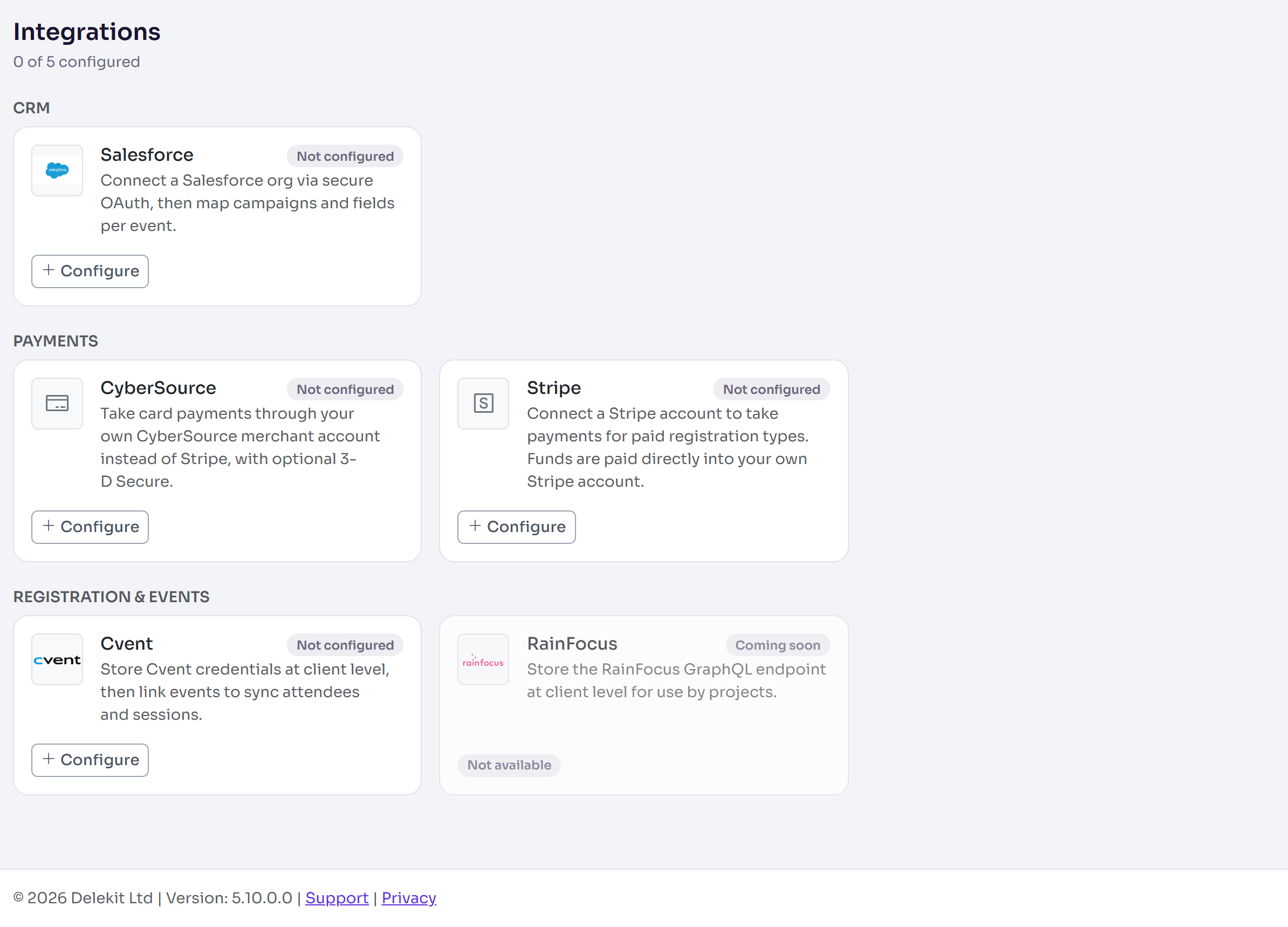
The page lists every integration by category, with a count of how many are configured. Each card has Configure (or Manage, once it's set up), which opens that integration's page. A card marked Not available can't be set up yet.
What the statuses mean
| Status | What it means |
|---|---|
| Not configured | Nothing is set up yet. |
| Connected | It's set up and working. With more than one connection, it says how many, such as 2 connected. |
| Configured (inactive) | It's set up but not switched on: no active connection yet, or Stripe's sign-up isn't finished. |
| Action required | Something needs your attention: Stripe has restricted the account or lost access, or CyberSource's keys haven't been verified. |
| Paused | Payments through it are paused. |
| Coming soon | Not available yet. |
How an event starts using one
Once Salesforce or Cvent is connected and active, it's listed in each event's Edit event › Integrations, with Configure Salesforce or Configure Cvent. These open the event's own page in a new tab. Until then, the section says None yet.

Payment providers don't appear there: an event uses your Stripe or CyberSource account through its Payments mode, in Edit event › Payments and cancellations.
Related articles
- Take payments with Stripe
- Take payments with CyberSource
- Connecting your Salesforce org to Delekit
- Link an event to a Salesforce campaign
- Import from Cvent
Still stuck? Contact Delekit support.
Was this article helpful?
That’s Great!
Thank you for your feedback
Sorry! We couldn't be helpful
Thank you for your feedback
Feedback sent
We appreciate your effort and will try to fix the article