Audience: client administrators. Applies to: all plans.
When someone leaves your team, remove them from your client. They lose access to its events, and the events, attendees and changes they made stay as they are.
Before you start
- You need to be a client administrator. Users are managed on the Delekit account site, from Client settings.
- You can't remove yourself, or the client's last client admin. To hand over, make someone else a client admin first. See Invite and manage users.
- Only want to take away some events? Don't remove them: change the events they Can manage instead.
- This can't be undone from the page. To give them access again, invite them again.
Remove the user
In the menu, select Admin, then Client settings.
In Team and access, select Manage users. Users opens in a new tab.
Select Edit on the person's row.
In Remove from, followed by your client's name, select Remove user.

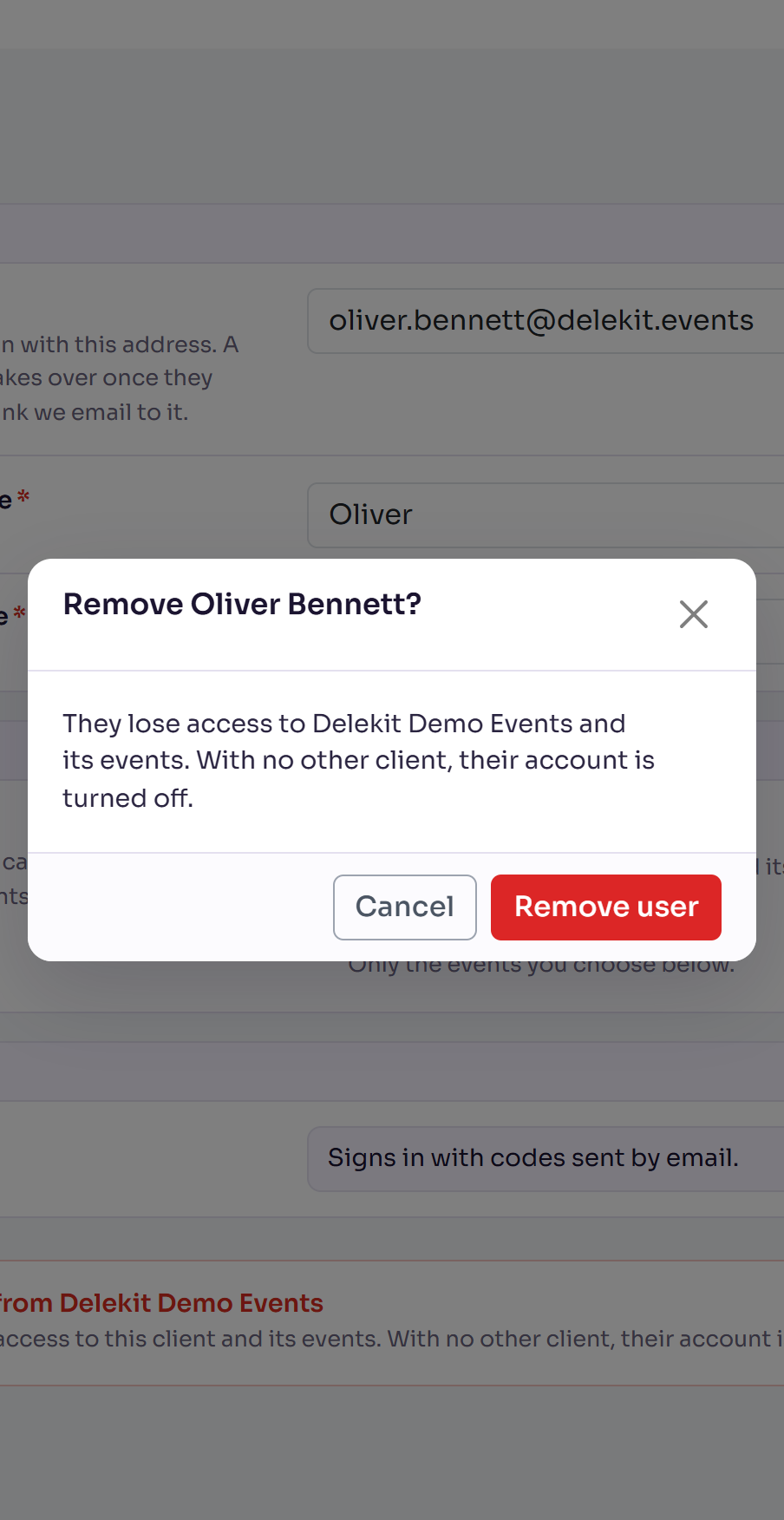
In the question that names them, select Remove user. To keep them, select Cancel.
You'll see their name followed by has been removed., and they're no longer in Users.
What happens next
- They lose access to your client and its events the next time they open a page, including the events they'd been given as an event admin. They don't have to sign out first.
- With no other client, their account is turned off, and they can't use Delekit. If they work for another organisation in Delekit too, they keep their sign-in for that one.
- Nothing they made is deleted. Events, attendees, emails and reports stay, and so do the records of what they changed.
- No email is sent to the person you removed.
Check it works
They're no longer listed in Users.
If something isn't right
- "Cannot remove the last client admin. Assign another client admin first." Make someone else a client admin, then remove this person.
- "You cannot remove your own account." Ask another client admin to remove you.
- You removed the wrong person. Invite them again with Add user, choosing their role and events. Someone who had accepted an invitation before signs in with their old password. See Invite and manage users.
Related articles
- Invite and manage users
- Roles and permissions: client admins and event admins
- Delete and erase personal data
Still stuck? Contact Delekit support.
Was this article helpful?
That’s Great!
Thank you for your feedback
Sorry! We couldn't be helpful
Thank you for your feedback
Feedback sent
We appreciate your effort and will try to fix the article