Audience: client administrators. Applies to: all plans.
Let a colleague work on one or more of your events, without giving them every event or your organisation's settings. You do it on the Users page: make them an Event admin and turn on Can manage for each event they need. A new colleague is emailed an invitation to set up their sign-in.
Before you start
- You need to be a client administrator. Only client administrators can open Users and see Manage users.
- Choose the right role:
- Client admin: every event, the client's settings, and its users.
- Event admin: only the events you choose. They can't create events or open your organisation's settings.
- Archived events can't be given to anyone new. Set the event back to Draft or Live first if someone needs it. See Go live with your event.
See who has access to an event
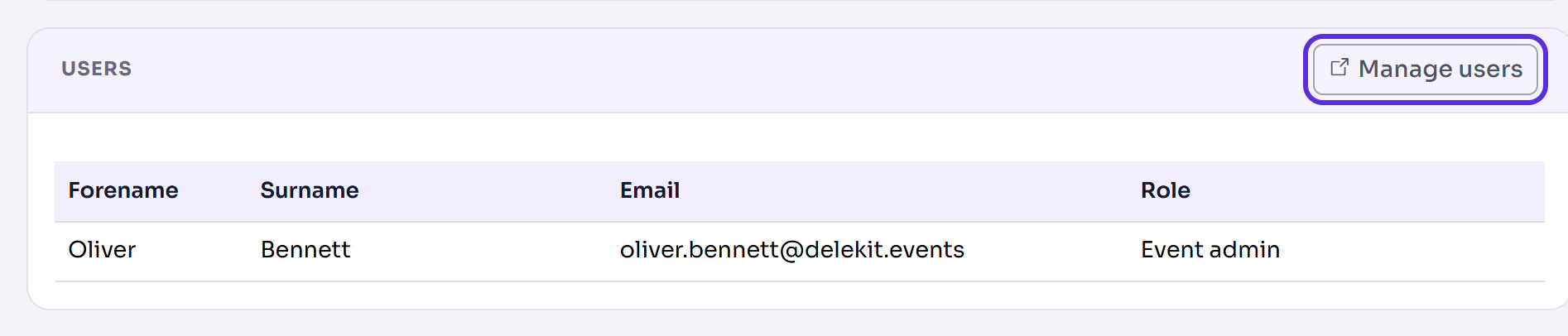
In Edit event, the Users section lists the people who have access to this event now, with their email and their Role on it (Event admin). Someone whose access you took away isn't listed. Client administrators can open every event, whether they're listed or not.
Open the Users page
- In the menu, select Admin, then Client settings. It opens in a new tab.
- In Team and access, select Manage users. Users opens in a new tab.
You can also select Manage users in Edit event › Users.
Invite someone new to an event
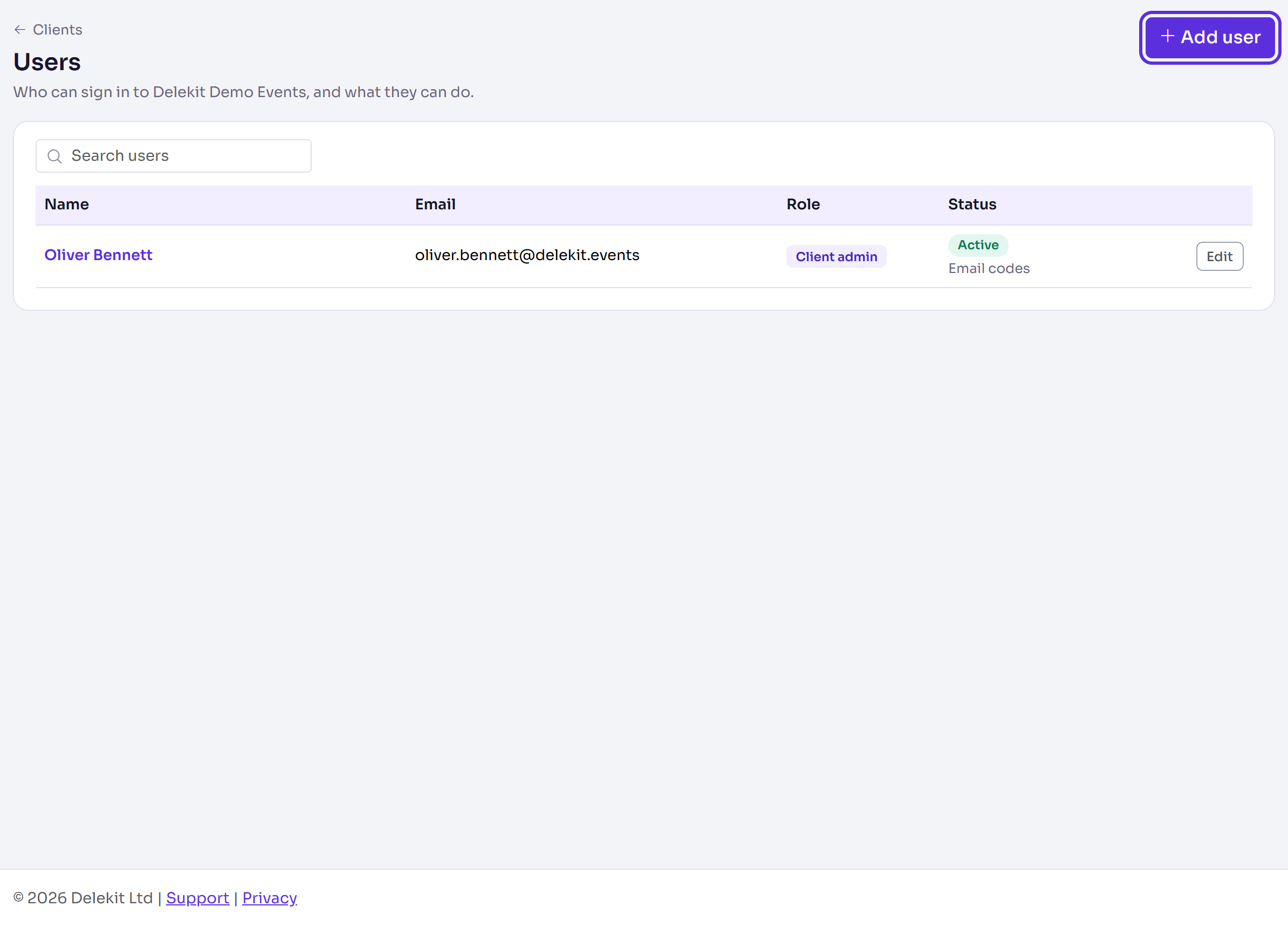
On Users, select Add user.
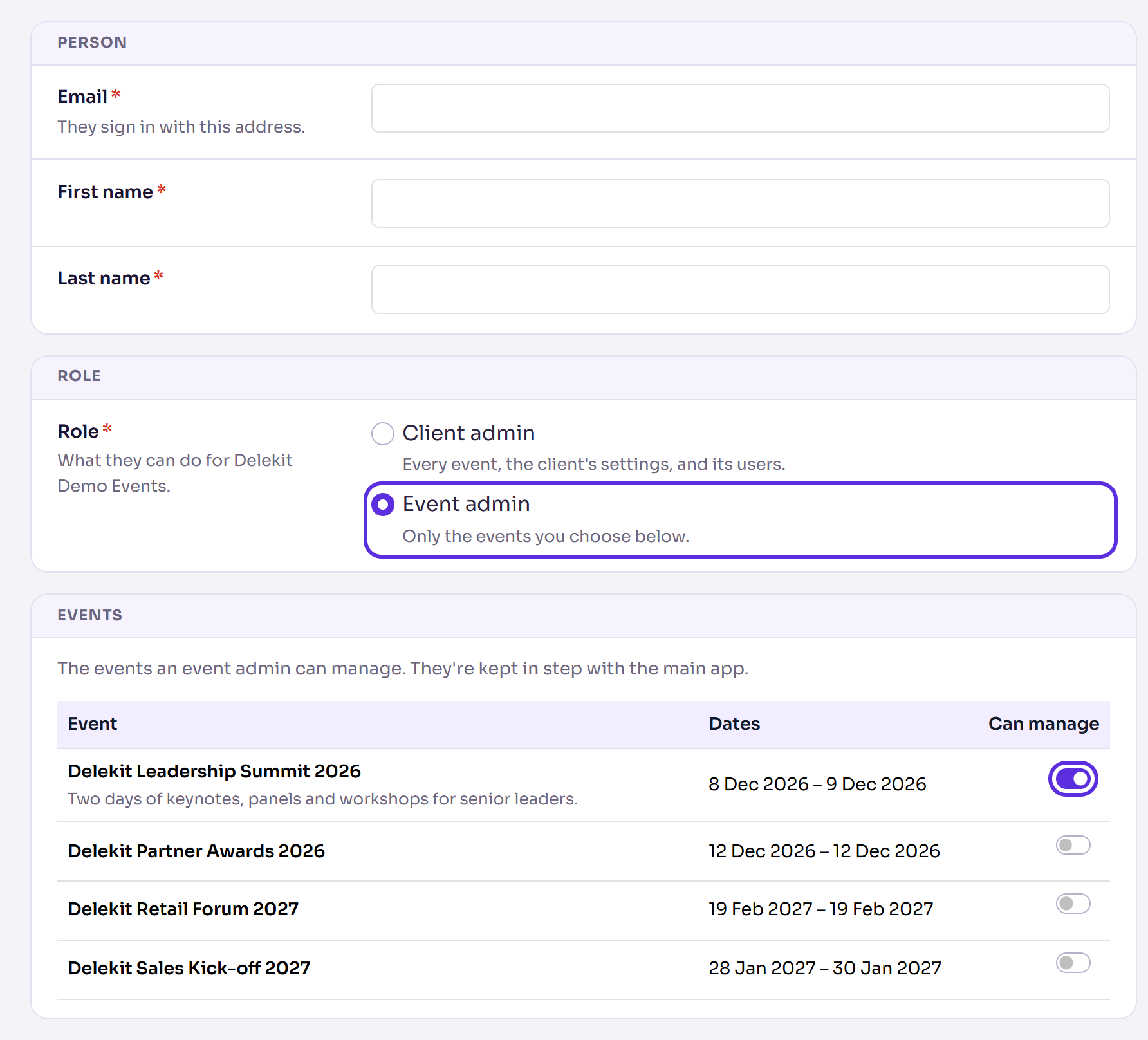
Enter their Email, First name and Last name. They sign in with this email address.
In Role, choose Event admin.
In Events, turn on Can manage for each event they need.
Select Send invite.
User invited and roles assigned. shows. They're emailed You've been invited to Delekit, with a link to confirm their email and set a password.
Give someone who already signs in another event
- On Users, select their name, or Edit on their row.
- In Events, turn on Can manage for the event.
- Select Save user.
User access updated and notification sent. shows, and they're emailed Your Delekit access has been updated, naming the events you added. Saving never sends an invitation again: if theirs has expired, see Invite and manage users.
What happens next
- The event appears in their All events the next time they open a page, and in Switch event. They don't need to sign in again. See Find your events.
- On the Users page, their Status shows Invited, not signed in yet until they've set up their sign-in, then how they sign in (Email codes or Authenticator app).
- A client admin needs no events chosen: choosing Client admin hides Events, because they have every event.
Take an event away from someone
On Users, select their name, turn off Can manage for the event, and select Save user. Nobody is emailed about it, and they lose the event the next time they open a page. Remove user takes them off your organisation and all its events.
If something isn't right
- The event isn't in the Events list: it's archived or deleted. Only events that are neither can be given to someone.
- They can't see the event: check Can manage is on for it and that you selected Save user. Ask them to reload the page.
- They didn't get the invitation: ask them to check their junk folder. If it's not there, or its link has expired, open them on Users and select Resend invite.
Related articles
- Roles and permissions: client admins and event admins
- Invite and manage users
- Find your events
- Edit an event's details
- Sign in and reset your password
Still stuck? Contact Delekit support.
Was this article helpful?
That’s Great!
Thank you for your feedback
Sorry! We couldn't be helpful
Thank you for your feedback
Feedback sent
We appreciate your effort and will try to fix the article