Audience: client administrators and event administrators. Applies to: all plans.
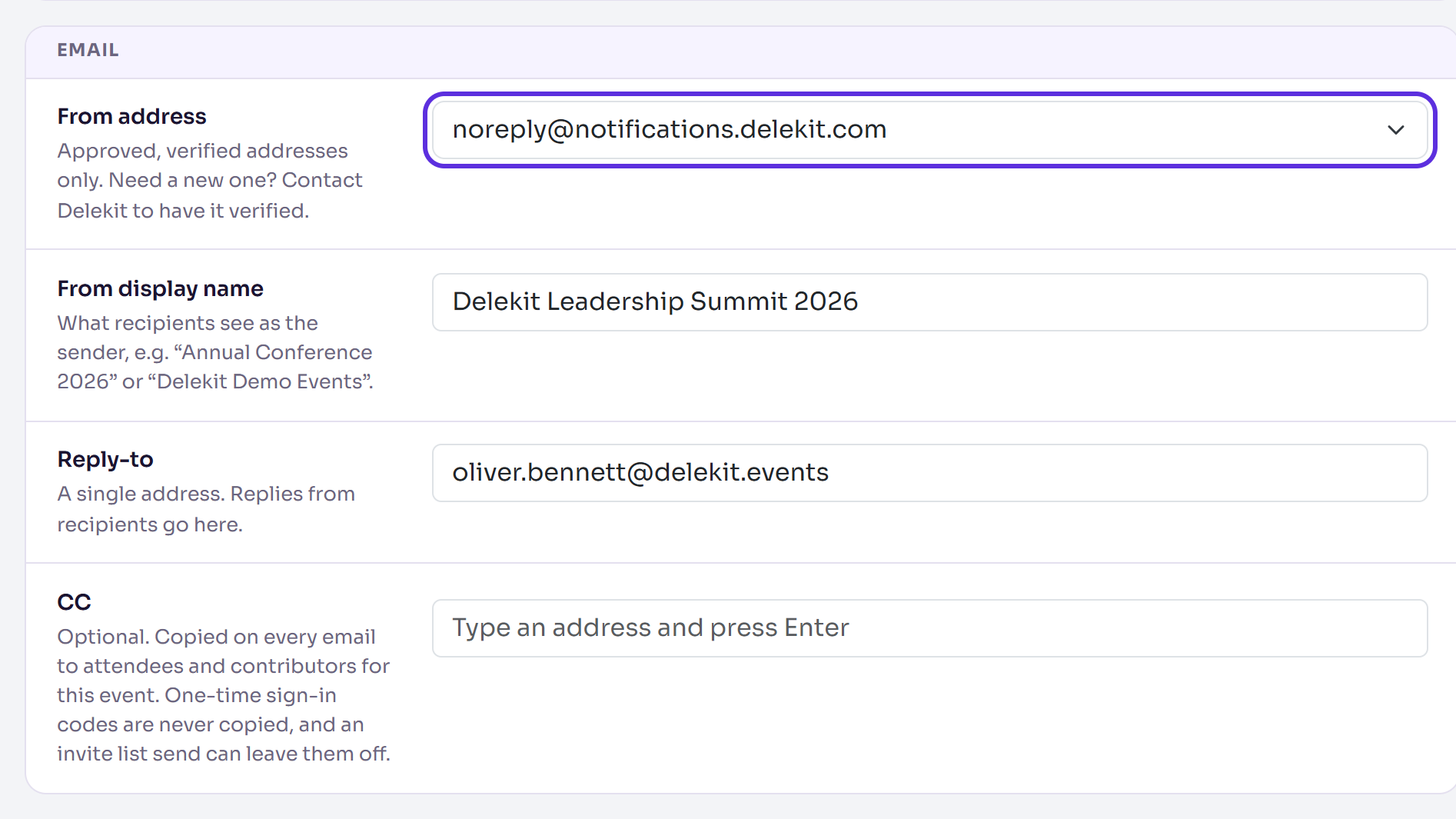
Choose who your event's emails come from and where replies go, in Edit event › Email. The From address and From display name are what attendees see as the sender of invitations, confirmations and every other email for the event. Reply-to is where their replies arrive, so set it to a mailbox your team reads. You can also copy your team on every email.
Before you start
- The From address must be approved for your organisation. The list only offers addresses
that Delekit has verified for sending. Need a new one, such as
events@yourcompany.com? Ask Delekit support to verify it first: see Get help from Delekit support. - Reply-to can be any single email address, such as your events team's shared mailbox.
- These settings are per event. Until you choose a From address, the event's emails are sent from Delekit's own address.
Set the sender and reply-to
In the menu, select Event, then Edit event.
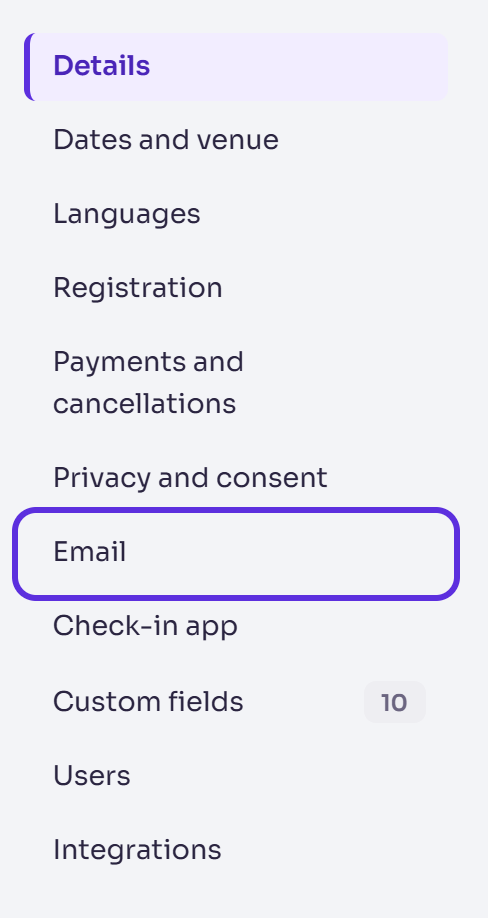
In the list of sections, select Email.
Choose the From address.
Enter a From display name: what people see as the sender, such as your event's name or your organisation's name.
Enter the Reply-to address.
To copy colleagues on every email, type each address in CC and press Enter. Select the cross on an address to remove it.
Select Save changes.
Changes saved shows when it's done.
What happens next
- Emails sent from now on use the new sender and reply-to. Emails already sent don't change.
- The CC addresses are copied on every email to attendees and contributors for the event. One-time sign-in codes are never copied, and an invite list's send can leave them off. See Send or schedule invitations.
- Email templates can show the Reply-to address with the Support email tag.
- A From address on a domain new to sending is warmed up: Delekit sends bulk email from it slowly at first and speeds up over the following days, to protect its reputation. The Email queue says when a send is paced. See Check your emails on the Email queue.
Check it works
Open an email template and select Send me a test. The test arrives from your From display name and From address, and replying to it goes to your Reply-to address. See Change the wording of an email.
You can also open an attendee who has been emailed: Emails sent on their page shows who each email went to, with its CC and reply-to.
If something isn't right
- The address you want isn't in the From address list: it hasn't been verified for your organisation yet. Contact Delekit support.
- "Please choose a from address.": you changed the email settings without choosing a From address. Choose one, then save again.
- "Reply-to must be a single valid email address.": enter one address only, with no name or extra spaces.
- "Not a valid email" under CC: check the address you typed. You can add up to 20 CC addresses.
- Replies aren't reaching you: check Reply-to is a mailbox someone reads, and that it's saved.
Related articles
- Edit an event's details
- Set up your event's email templates
- Check your emails on the Email queue
- Brand your emails with an email layout
Still stuck? Contact Delekit support.
Was this article helpful?
That’s Great!
Thank you for your feedback
Sorry! We couldn't be helpful
Thank you for your feedback
Feedback sent
We appreciate your effort and will try to fix the article