Audience: client administrators and event administrators. Applies to: all plans.
Edit event holds everything about the event itself: its name, status and description, its dates, venue and time zone, its languages, how registration and payments work, its emails, the check-in app, custom fields and who works on it. Change what you need, then save it with Save changes.
Before you start
- Anyone who can open the event can edit it. Client administrators can open every event; others can open the events they've been given.
- You can't change the event's Code. Delekit made it when the event was created, and it never changes.
- Dates and times are in the event's time zone, not yours. Check Time zone whenever you change them.
Change the event's details
In the menu, select Event, then Edit event. You can also select Edit event on the event's Overview.
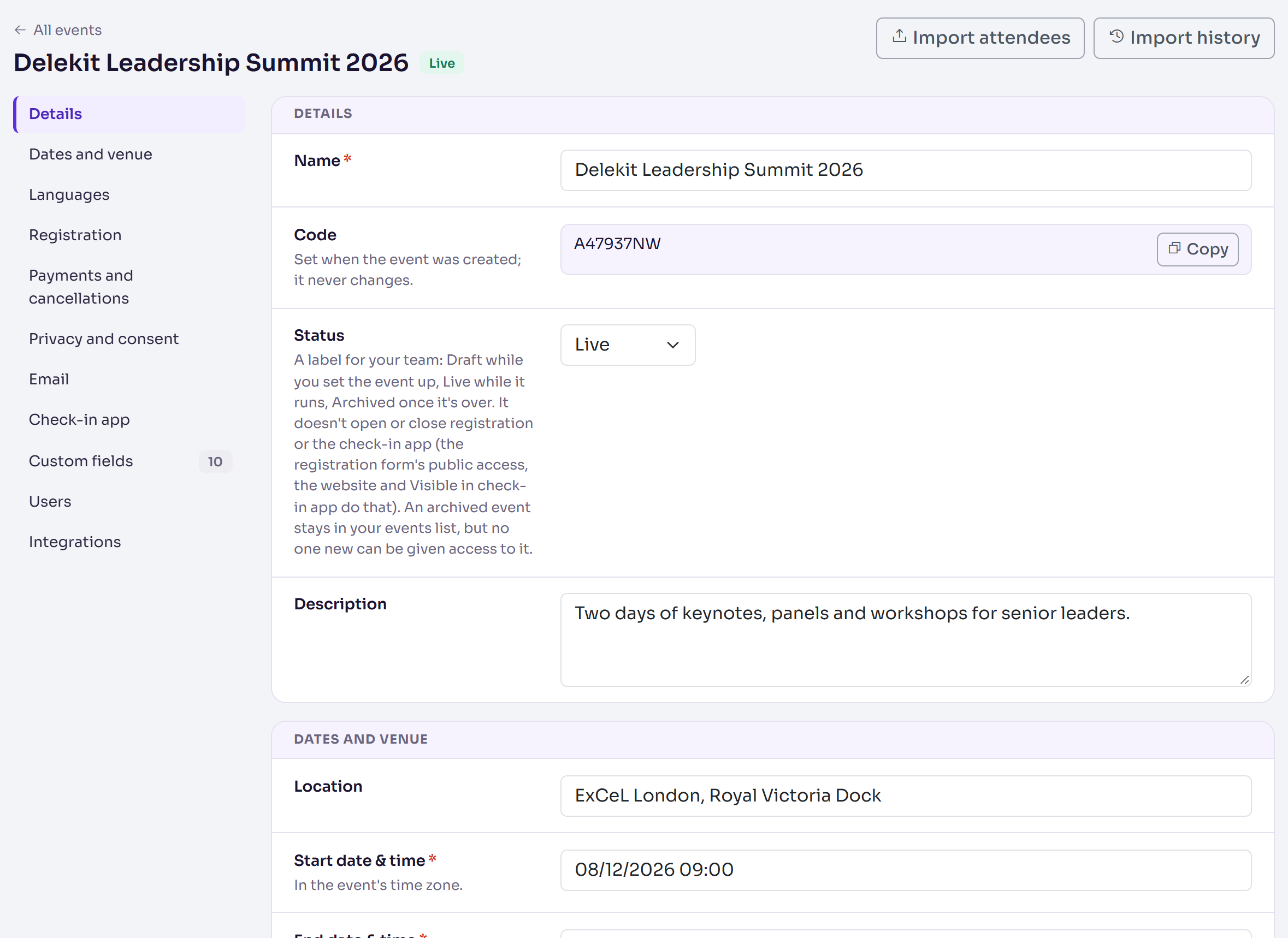
In the list of sections, select the section you want, such as Dates and venue.
Make your change, for example a new Description or End date & time. Type dates as dd/mm/yyyy hh:mm, or pick them from the calendar.
Select Save changes in the bar that appears once you've changed something.
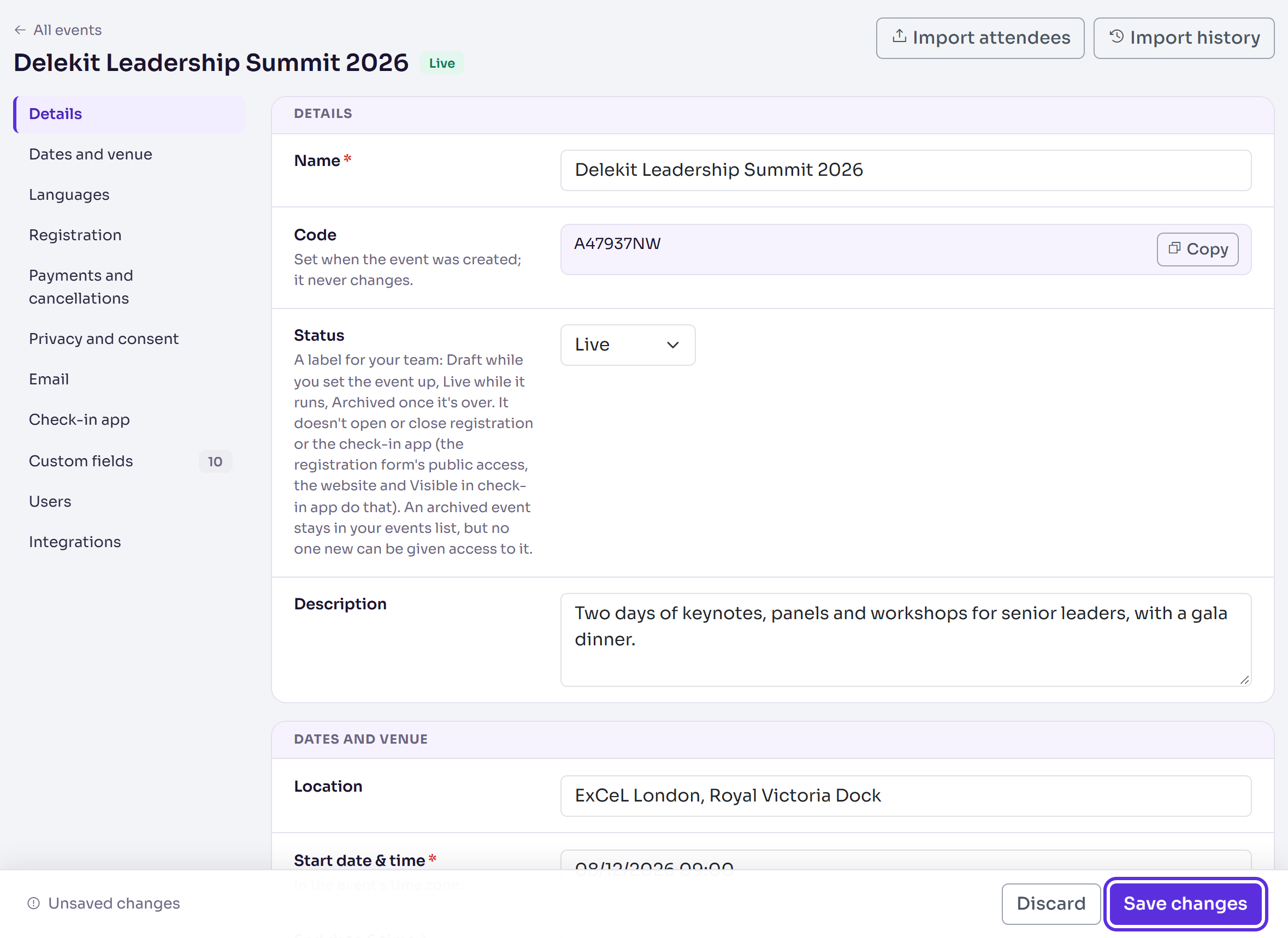
Changes saved shows when it's done. To undo your changes instead, select Discard. If you try to leave the page with unsaved changes, your browser asks first.
What each section holds
| Section | What you set there |
|---|---|
| Details | Name, Status (Draft, Live or Archived) and Description. Code is shown, with a copy button. See Go live with your event. |
| Dates and venue | Location, Start date & time, End date & time and Time zone. |
| Languages | The Default language and Languages this event uses. |
| Registration | Saving answers as people type, and what happens when someone books again with the same email. See Choose your event's registration and privacy options. |
| Payments and cancellations | Payments mode, holding tickets during checkout, and the cancellation deadline. See Set a cancellation policy and fees. |
| Privacy and consent | A marketing opt-in, and the link to your privacy notice. |
| Who the event's emails come from, and where replies go. See Set the From and Reply-to addresses for an event's emails. | |
| Check-in app | Visible in check-in app, Show email in app, and up to two extra columns for the app's attendee list. |
| Custom fields | The questions your event asks. These save as you add or edit each field, not with Save changes. See Add custom fields to your event. |
| Users | Who has been given this event. See Give people access to an event. |
| Integrations | Per-event settings for the integrations your organisation has turned on. Only client administrators can manage them. |
Delete event is at the end of the page, for client administrators only. See Delete an event.
The title row also has Import attendees and Import history. See Import attendees from a spreadsheet.
What happens next
- Your change applies straight away wherever the event's details are used: the events list, the Overview, and the emails and pages that show the event's name, dates or venue from now on.
- Changing Status doesn't open or close registration, and doesn't show or hide the event in the check-in app. Visible in check-in app does that, and your registration form's public access and website decide who can register.
- Nobody is emailed about a change to the event.
Check it works
Open the Overview. The name, dates and status in its title match what you saved, and the number of days to go follows the new start date.
If something isn't right
- Saving shows a message instead of Changes saved: the field it's about says what to fix, for example "Enter the wording people tick to opt in." when the marketing opt-in is on with no wording. Fix it and select Save changes again.
- An email setting is refused: see Set the From and Reply-to addresses for an event's emails.
- The dates look an hour out: check Time zone in Dates and venue.
Related articles
- The event overview
- Go live with your event
- Choose your event's registration and privacy options
- Delete an event
Still stuck? Contact Delekit support.
Was this article helpful?
That’s Great!
Thank you for your feedback
Sorry! We couldn't be helpful
Thank you for your feedback
Feedback sent
We appreciate your effort and will try to fix the article