Audience: on-site check-in staff. Applies to: events using the Delekit check-in app.
If someone has forgotten their ticket or wristband, find them by name in the session's attendee list and check them in from there.
Before you start
- In a Bookable session, the list shows everyone booked on it.
- In an Open to all session, the list shows only people already scanned. To check in someone else, see If something isn't right.
Check someone in by hand
In the sessions list, select the session.
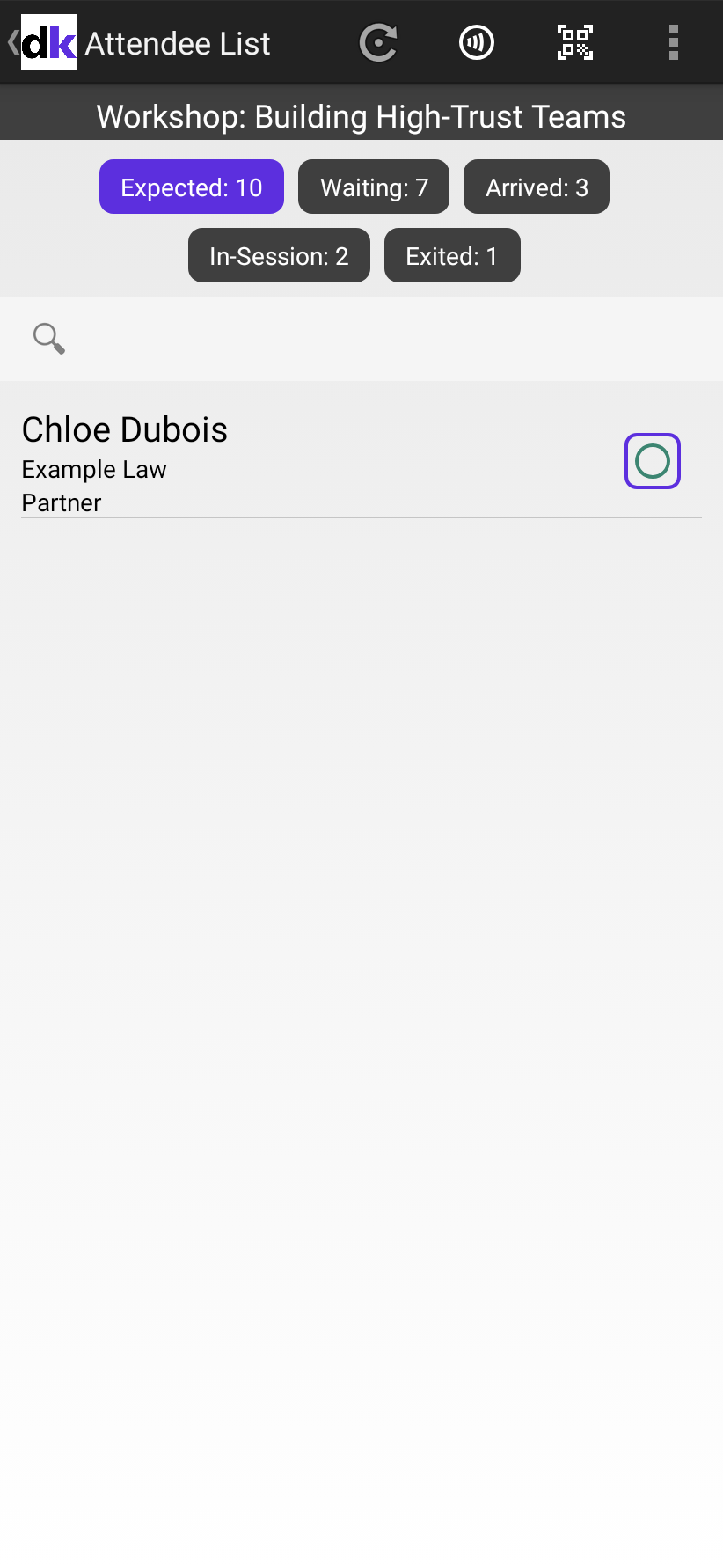
In Search Attendee, enter part of their first or last name. The list filters as you type.
Select the empty circle next to their name.
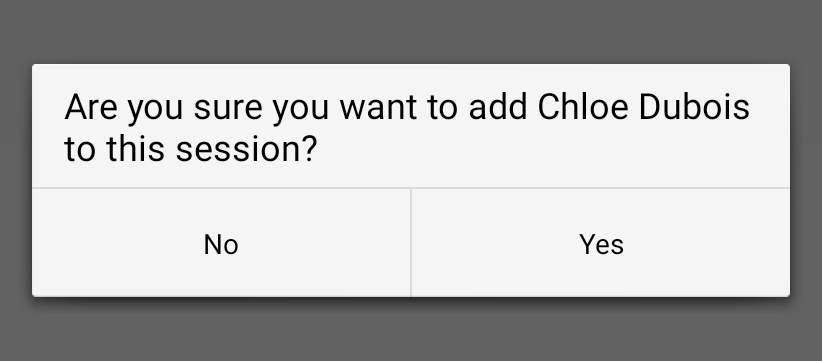
When asked "Are you sure you want to add Name to this session?", select Yes.
What happens next
A tick replaces the circle, and the Arrived and In-Session counts go up.
The check-in is sent to Delekit straight away, or at the next sync if the device is offline.
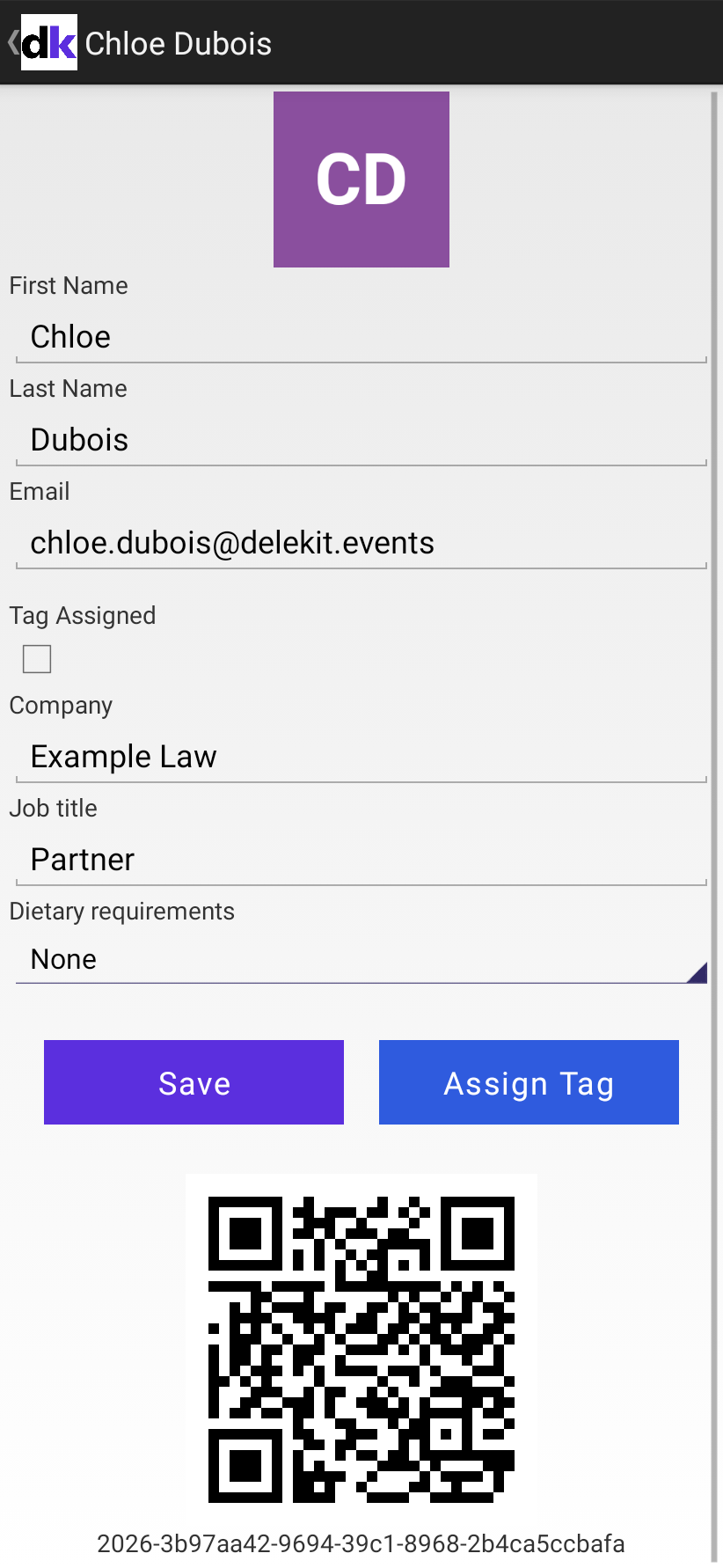
To check their details first, select their name. Their profile shows their custom fields, photo, wristband status and a QR code of their ticket.
If something isn't right
- They're not in the list: go back to the sessions list, and in the menu select Attendees to search the whole event, including custom fields. Open their profile there, and scan the QR code it shows with a second device that's scanning this session.
- You checked in the wrong person: select their tick, then select Waiting in a Bookable session, or Remove From Session in an Open to all session.
Related articles
- Scan QR code tickets
- Let in someone who isn't booked on a session
- Check attendees in at registration
Still stuck? Contact Delekit support.
Was this article helpful?
That’s Great!
Thank you for your feedback
Sorry! We couldn't be helpful
Thank you for your feedback
Feedback sent
We appreciate your effort and will try to fix the article