Audience: on-site check-in staff. Applies to: events that give attendees NFC wristbands, badges or cards.
Hold an attendee's NFC wristband, badge or card against the device to check them into a session. The app keeps listening, so you can scan one person after another without selecting anything in between.
Before you start
- NFC is turned on in the device's Android settings.
- The attendee's wristband has been assigned to them. See Assign a wristband to an attendee.
- Find the device's NFC reader. It is usually in the middle of the back, near the camera.
Scan a wristband
In the sessions list, select the session you're checking people into.
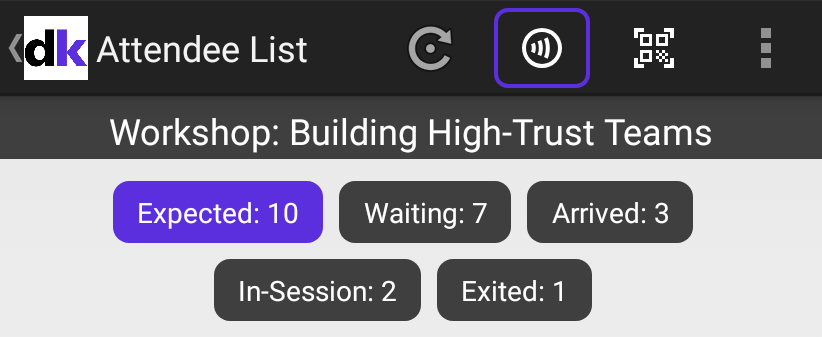
On the toolbar, select Scan Tag.
Check the screen shows Entry Scanning.
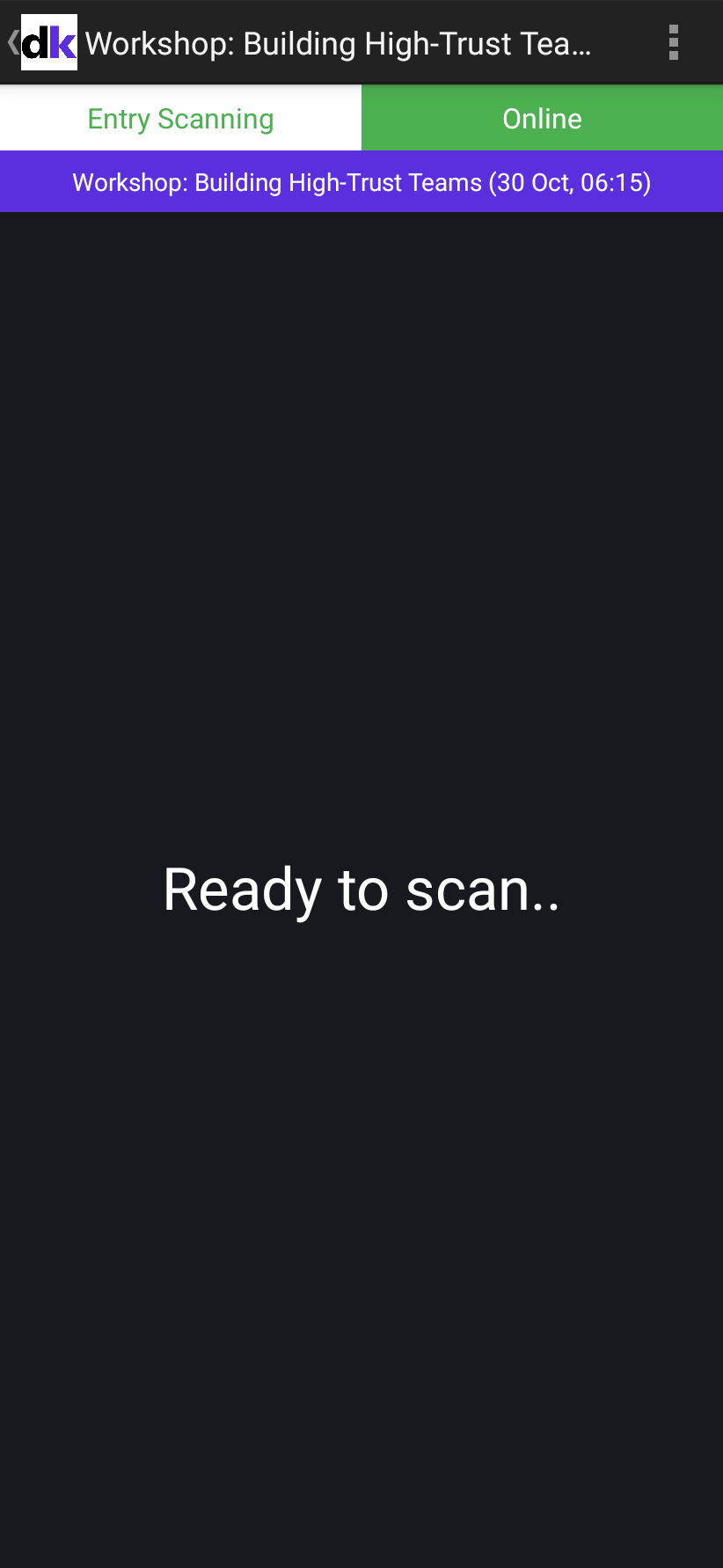
Hold the wristband flat against the back of the device for about a second.
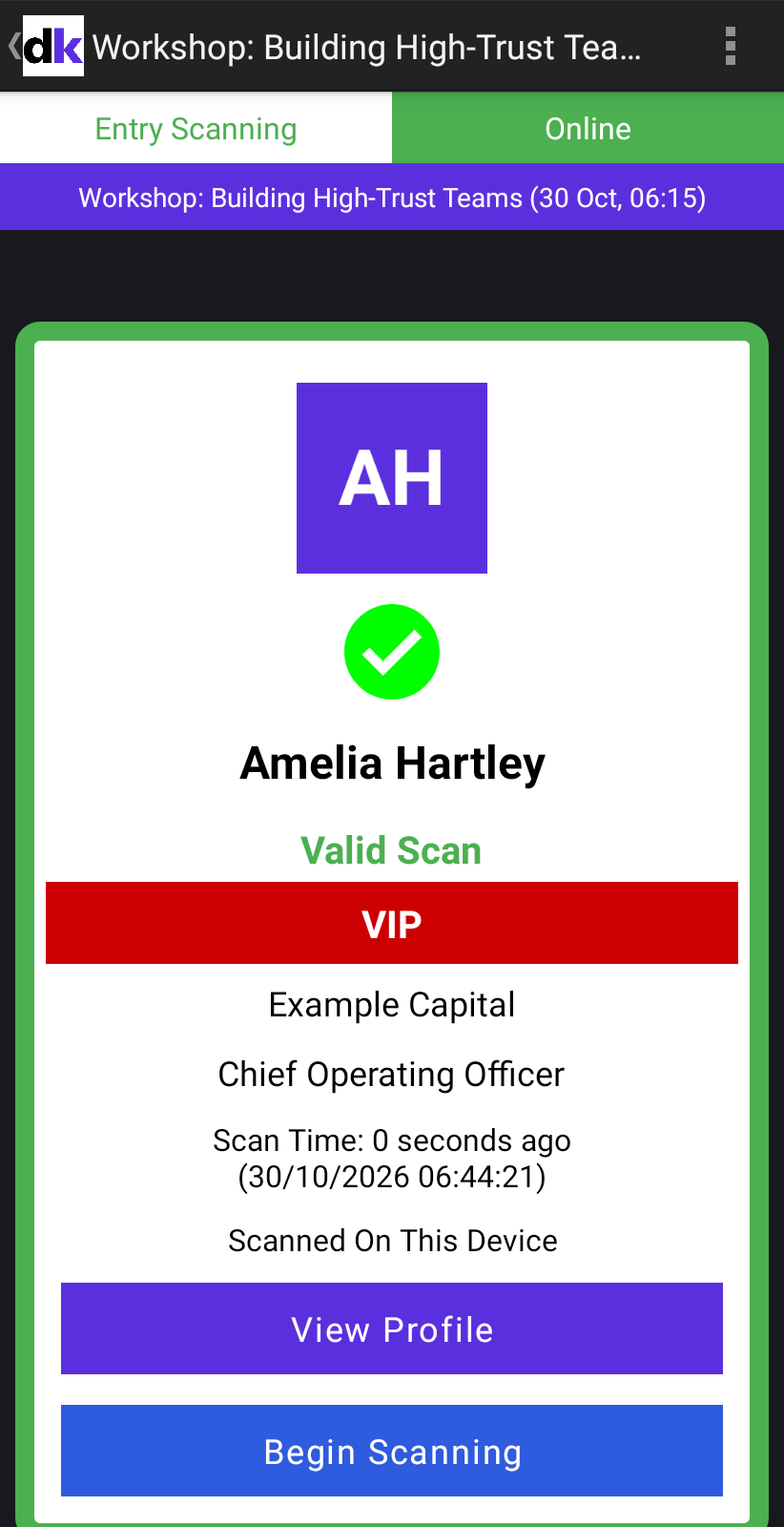
Check the result. Valid Scan means the attendee is checked in. VIP attendees are marked VIP.
Hold the next wristband against the device.
What happens next
- Each scan plays a sound: one for a valid scan, another for a problem. The app sets the media volume to 75% so you can hear it at the door.
- Already Scanned shows the time of the first scan, and whether it was made on this device or another one.
- Begin Scanning only clears the last result from the screen.
If something isn't right
- Nothing happens when you hold a wristband to the device: check NFC is on, and move the wristband slowly across the back of the device to find the reader.
- Ticket not found: the app refreshes its data straight away. Wait a few seconds and scan again.
- You need to record people leaving: in the menu, select Exit Scan NFC instead. The screen shows Exit Scanning.
Related articles
Still stuck? Contact Delekit support.
Was this article helpful?
That’s Great!
Thank you for your feedback
Sorry! We couldn't be helpful
Thank you for your feedback
Feedback sent
We appreciate your effort and will try to fix the article