Audience: event administrators and client administrators. Applies to: plans that include the registration form builder.
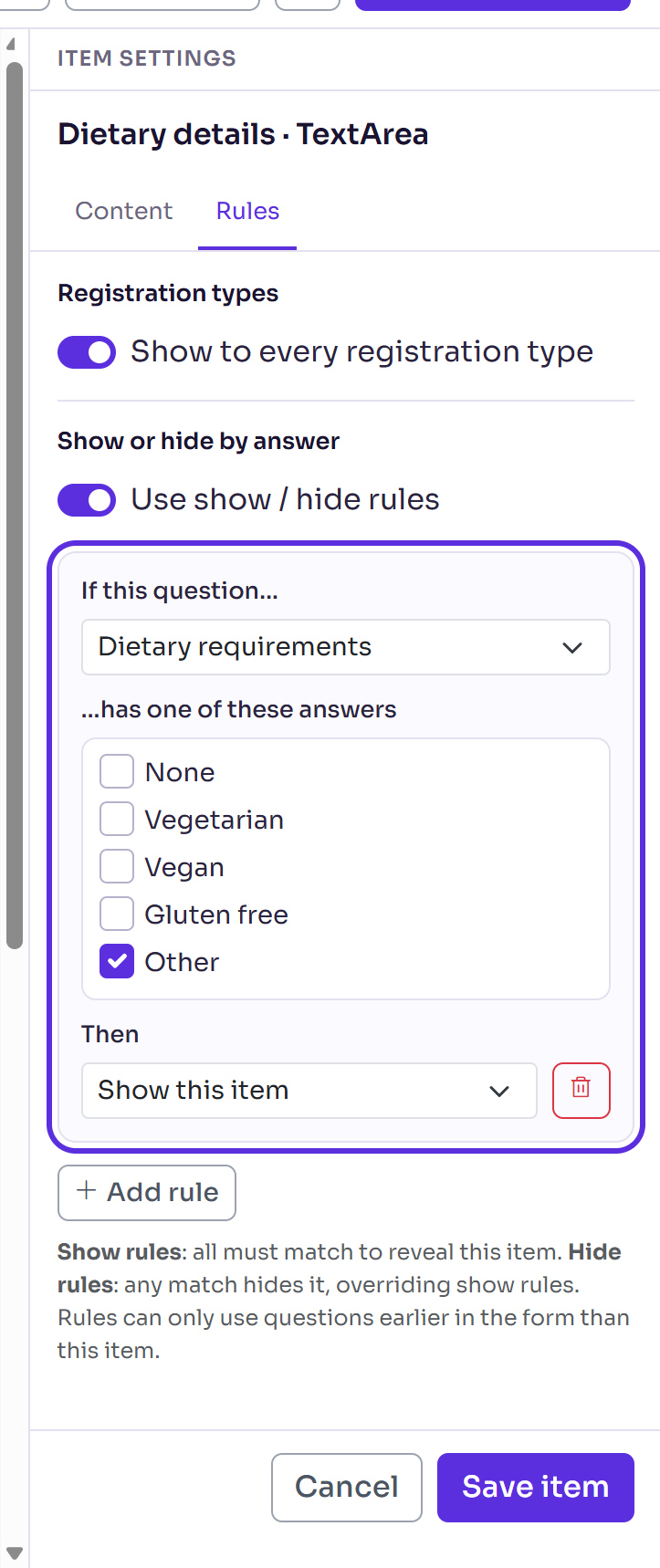
Every item on your registration form has Rules. Use them to show a question only when an earlier question has a particular answer, such as asking for Dietary details only when someone chooses Other for Dietary requirements. You can also show an item to some registration types only.
Before you start
- The question that decides must be a Dropdown, Radio or Checkbox list field on the same form. Only those that come earlier in the form than the item are offered as a rule's question, so put it before the item it shows or hides.
- Rules are part of the draft. They work on the live form once you publish it.
- You'll need a form to work on: see Build your registration form.
Show a question for one answer
In the form builder, select the item to show or hide, such as Dietary details.
In Item settings, select the Rules tab.
Under Show or hide by answer, turn on Use show / hide rules. A rule appears.
In If this question…, choose the question that decides, such as Dietary requirements.
Under …has one of these answers, tick the answers that show it, such as Other. Tick more than one to match any of them.
Leave Then on Show this item, or choose Hide this item.
Select Save item.
The item's card on the form now shows Conditional.
Use more than one rule
Select Add rule for another, and Remove rule (the bin) to take one away.
- Show rules: all must match to reveal the item.
- Hide rules: any match hides it, overriding show rules.
- A Checkbox list question matches when any of the boxes ticked is one of your answers.
Show an item to some registration types only
- Select the item, then the Rules tab.
- Under Registration types, turn off Show to every registration type.
- In Rule, choose Show only for selected types or Hide for selected types.
- Tick the registration types.
- Select Save item.
The card shows Restricted (show only) or Excluded (hide). An item hidden for someone's registration type stays hidden, whatever they answer.
Check it works
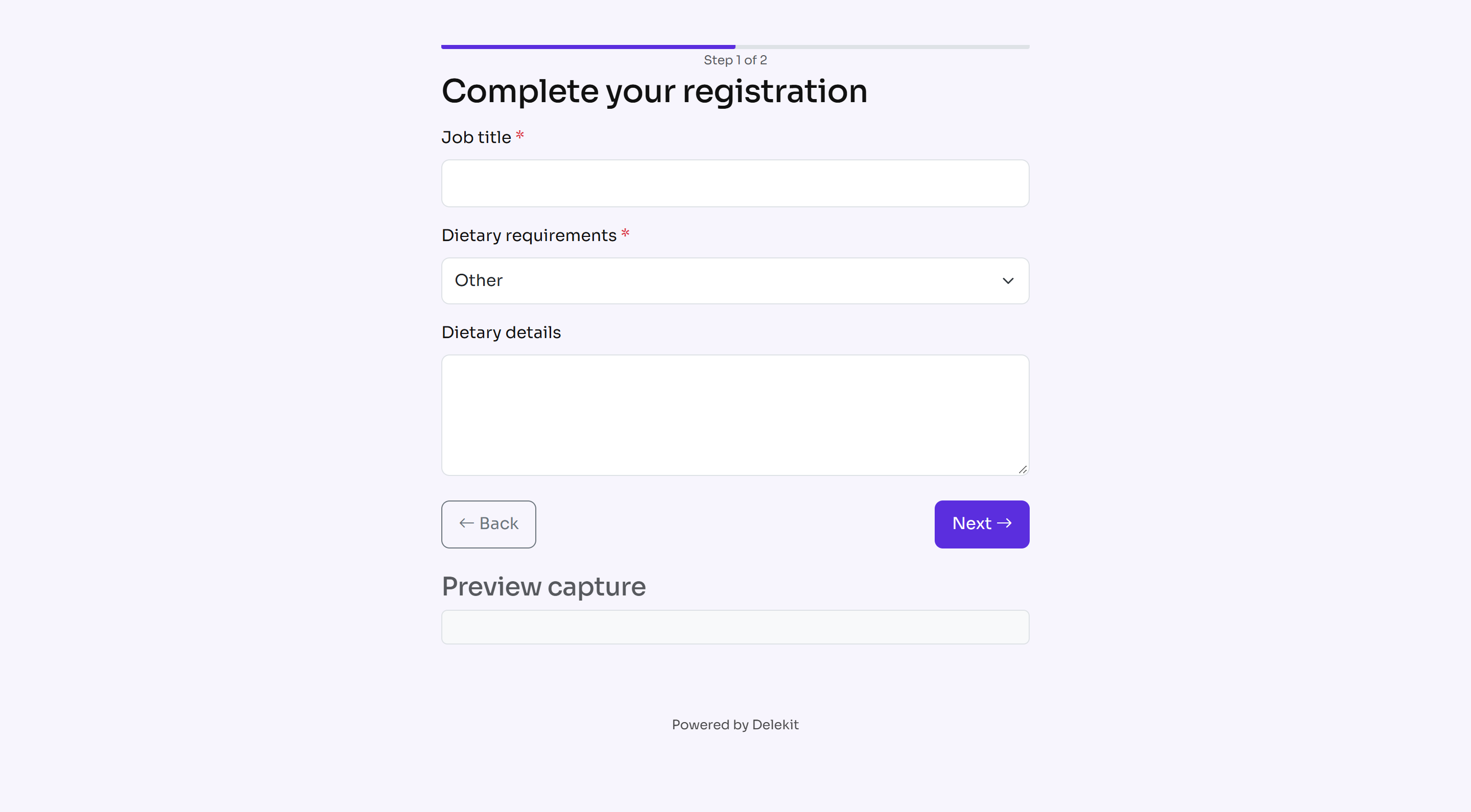
In the builder's bar, select Preview, choose a registration type in Preview as, and select Open preview.
In the new tab, choose an answer that should show the question, then one that shouldn't.
What happens next
Nothing changes for attendees until you publish the form. Publishing makes the rules live for everyone who opens the form from then on: see Publish your form and share registration links.
If something isn't right
- The question isn't offered in If this question…: it isn't a Dropdown, Radio or Checkbox list field, it isn't on this form yet, or it comes after this item. Add it to the form, or drag it before the item.
- "…which comes later in the form" when you save the item or publish: the rule uses a question that is now after the item it shows or hides. Move the question before it, or change the rule.
- "…which isn't on the form": the rule uses a question that has been taken off the form. Change the rule, or add the question back earlier in the form.
- "No options available for this question": the question has no options. Add them on its Content tab and select Save item.
- The rule disappeared after saving: a rule is only kept with a question and at least one answer ticked.
- A field can't be deleted in Edit event › Custom fields because a rule uses it: change or remove the rule here first.
Related articles
- Build your registration form
- Add custom fields to your event
- Publish your form and share registration links
Still stuck? Contact Delekit support.
Was this article helpful?
That’s Great!
Thank you for your feedback
Sorry! We couldn't be helpful
Thank you for your feedback
Feedback sent
We appreciate your effort and will try to fix the article