Audience: event organisers and client administrators. Applies to: all plans. Some menu items depend on your plan and your role.
Everything in Delekit is reached from the menu. It shows which organisation (client) and event you're working in, groups the event's pages, and has a search that jumps straight to any page or event. This article explains each part of it.
Before you start
- What you see depends on your role. Client administrators also see the Admin menu. See Roles and permissions: client admins and event admins.
- On a phone the menu folds away. Select the menu button in the bar to open it; the same bar shows the current event and has the search.
The menu
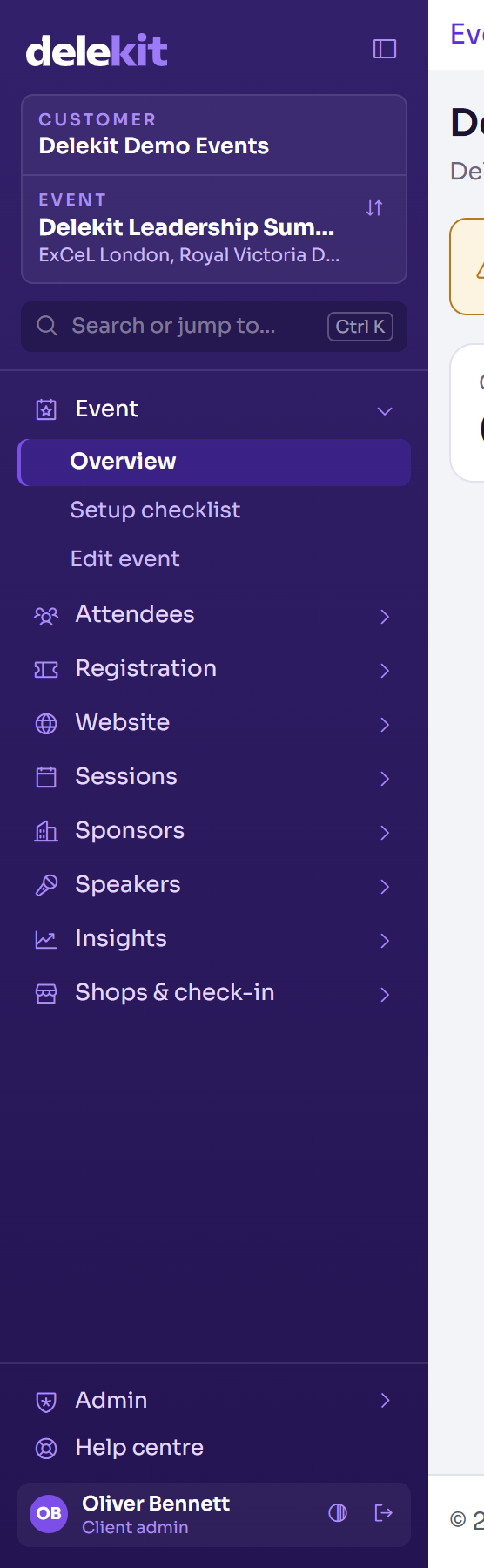
- Delekit logo: your events list (All events).
- Customer: the organisation you're working for. If you work for several, select it to switch: see Switch between organisations (clients).
- Event: the event you're in, with its venue and dates. Select Switch event to change it.
- Search or jump to…: finds any page in the menu, or an event.
- The event's groups: Event, Attendees, Registration, Website, Sessions, Sponsors, Speakers and Insights, plus Shops & check-in when the event has a shop. Select a group to open or close it. The group holding the page you're on is open.
- Admin (client administrators): Client settings (it opens in a new tab), Client defaults, the Terms library, Field library and Report library, and Data retention; in an event, also Shop management and Audit.
- Help centre: this help centre and the ways to reach support. See Get help from Delekit support.
- Your name: opens My account. See Change your profile, email or password.
- Appearance: choose Light, Dark or Match system. Delekit remembers it for you.
- Sign out: signs you out of Delekit.
With no event chosen (on your events list), the menu shows All events and, for client administrators, Client integrations.
To make the menu narrower, select Collapse sidebar: it shows only icons, and a group opens as a pop-out list when you select its icon. Select the same button again to widen the menu.
Jump to a page
Select Search or jump to…, or press Ctrl K (⌘K on a Mac).
Type part of the page's or event's name, such as "invite".
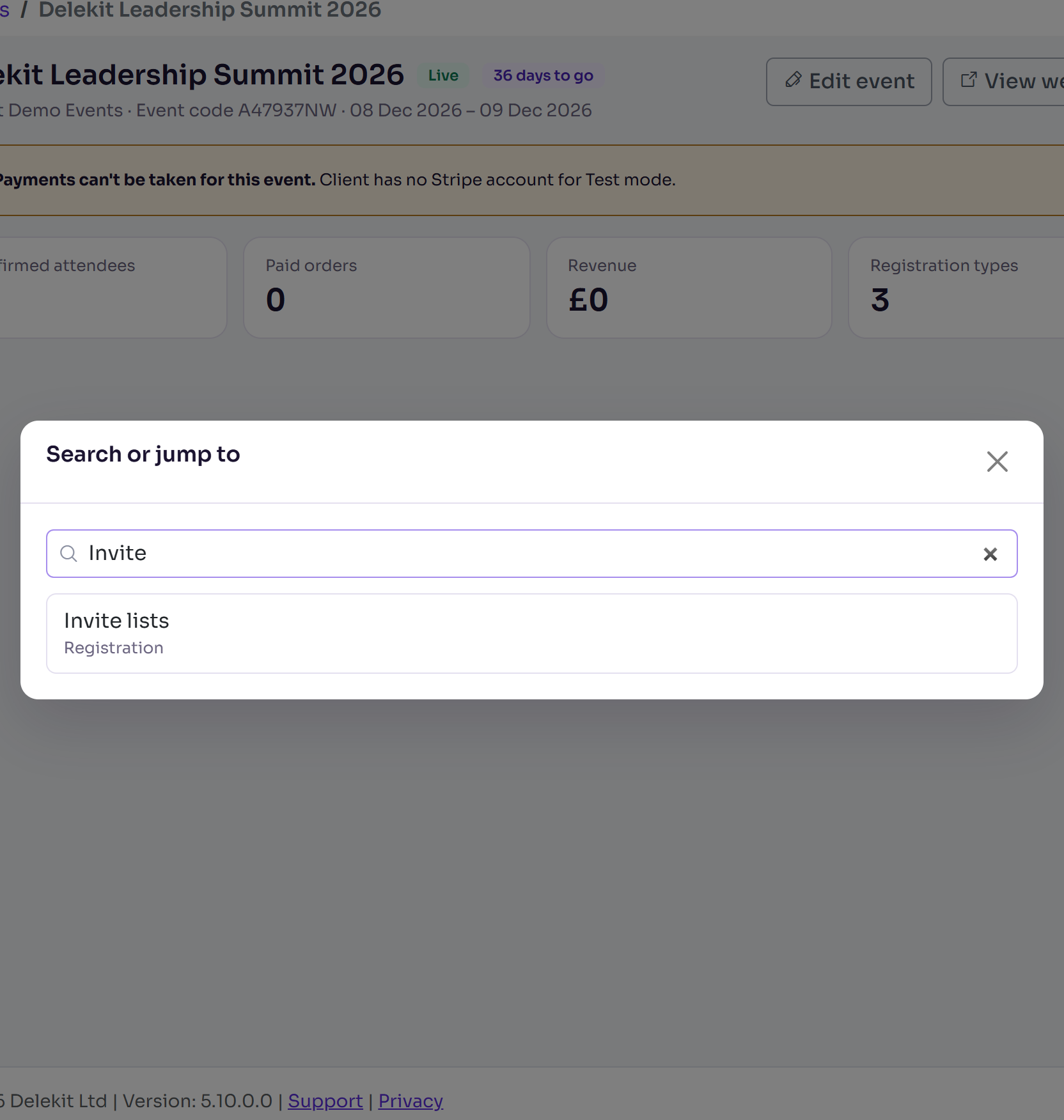
Select the page or event, or press Enter for the first one.
Switch event
In Event, select Switch event.
Select the event, or type part of its name first.
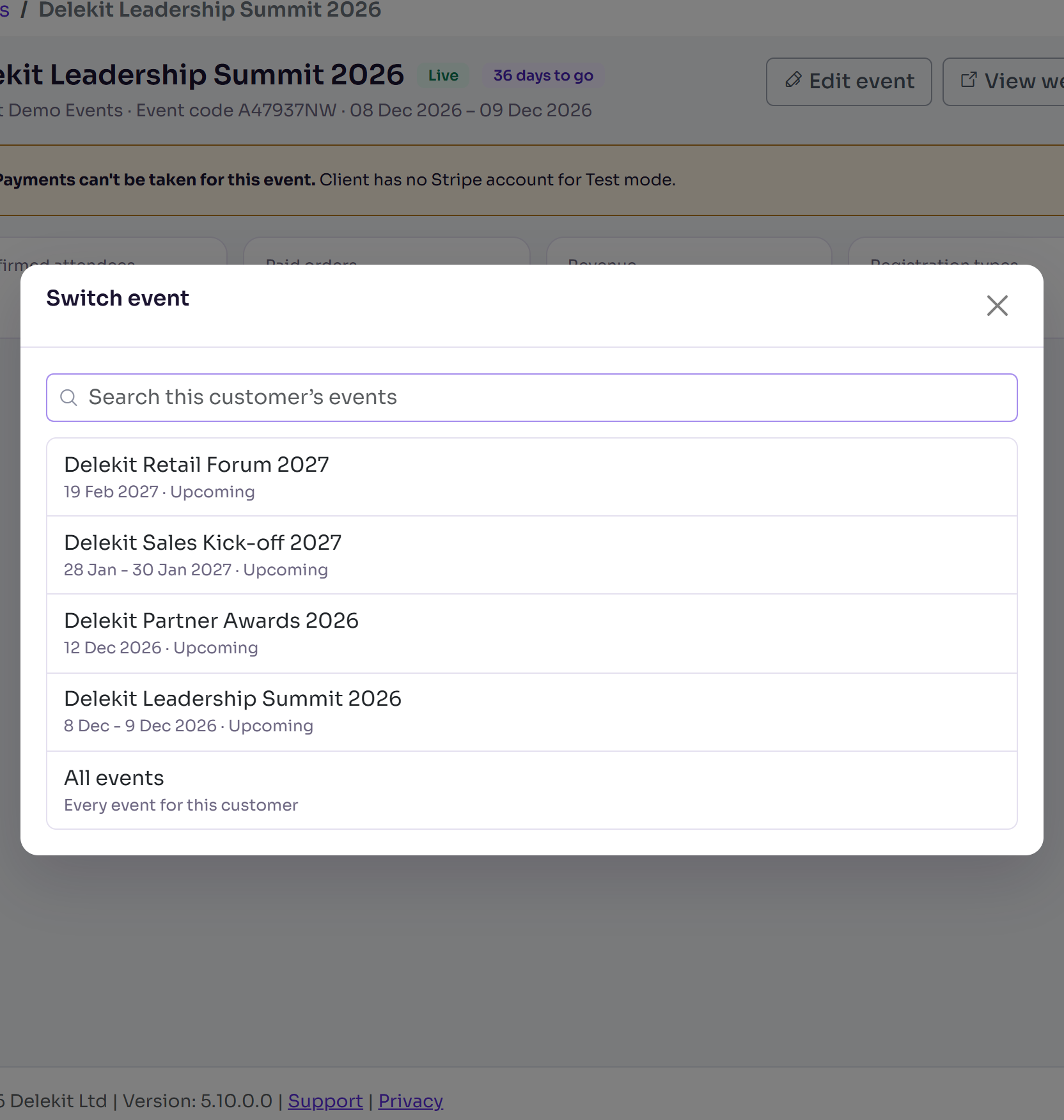
The event opens on its Overview. All events opens your events list.
A padlock on a menu item
A padlock means the feature isn't included in your plan. Selecting it explains the feature, with a Contact your account manager button. See Your plan, usage and upgrading.
Common questions
- Can I have two events open at once? Yes. Each event and client has its own web address, so open them in separate tabs.
- A menu item I expected isn't there. Your role or the event doesn't include it, such as Shops & check-in for an event with no shop. Ask your client administrator.
Related articles
Still stuck? Contact Delekit support.
Was this article helpful?
That’s Great!
Thank you for your feedback
Sorry! We couldn't be helpful
Thank you for your feedback
Feedback sent
We appreciate your effort and will try to fix the article