Audience: client administrators. Applies to: all plans.
Your organisation's plan decides which Delekit features you can use and how many events and attendees it covers each period. Client settings shows your plan and how much of it you've used; a feature your plan doesn't include shows a padlock in the menu.
Before you start
- You need to be a client administrator to open Client settings. Event administrators see the padlocks in the menu, but not the plan.
- You can't change your plan in Delekit. Your account manager does that: see Get help from Delekit support.
Check your plan and usage
In the menu, select Admin, then Client settings. It opens in a new tab.
Read Plan and usage.
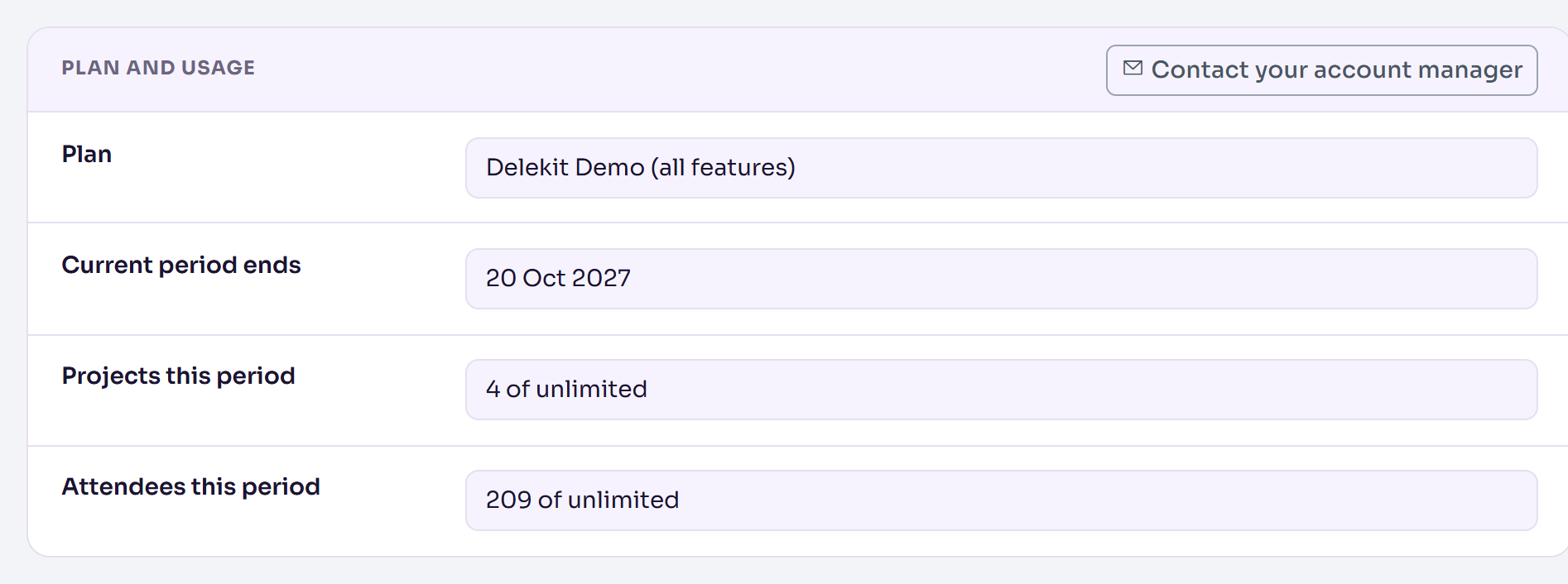
Plan and usage shows:
- Plan: the plan you're on. No active subscription means your organisation has no plan in force; speak to your account manager.
- Current period ends: when this period of your subscription ends. After that date it shows Period ended, and a Renewal due badge shows with your organisation's name. Your plan's features still apply until it's renewed.
- Projects this period: events created this period and not deleted, out of your plan's allowance (or "unlimited").
- Attendees this period: attendees added this period, out of your plan's allowance. Test attendees, deleted attendees and unfinished (Draft) registrations don't count.
To ask about your plan, select Contact your account manager in Plan and usage. An email to your account manager opens, with your organisation's name in its subject.
Features that depend on your plan
When your plan doesn't include the registration form builder, these menu items show a padlock:
- In Registration: Registration types, Discount codes, Invite lists, Registration form, Calculated fields, Communication, Translations (in an event with more than one language) and Email templates.
- All of Website.
- In Admin: Client defaults and the Terms library.
Hiding the "Powered by Delekit" credit from your event website's footer needs custom branding in your plan. Without it, the theme keeps the credit on.
Upgrade your plan
Select the item with the padlock. A page explains the feature.
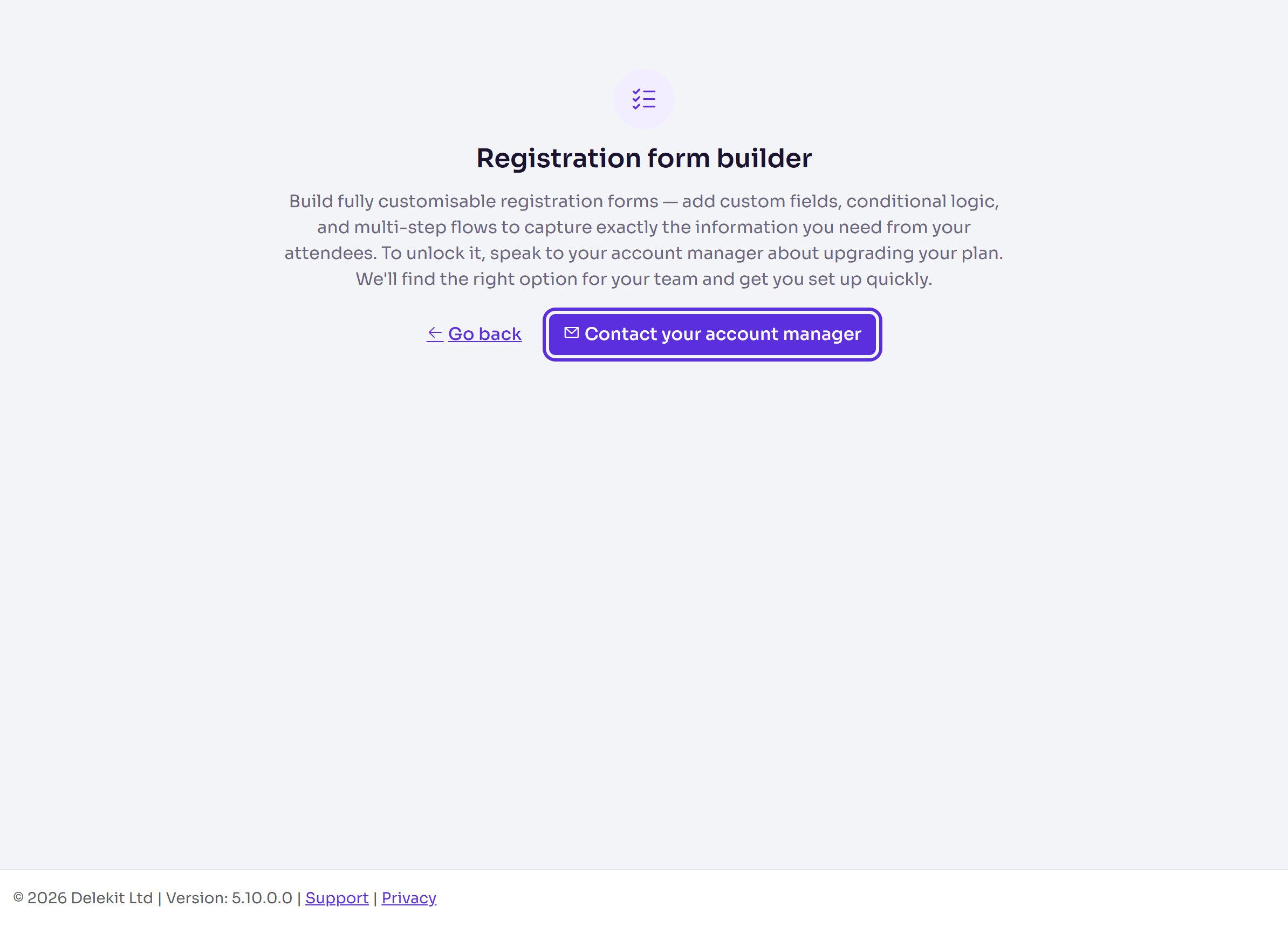
Select Contact your account manager. An email to your account manager opens, with the feature in its subject.
Send it. Your account manager finds the right option and sets it up.
To go back without asking, select Go back.
What happens next
Once your plan includes the feature, its padlock goes and its pages open. Until then, a locked page opened by its web address shows the same page as the padlock. The one exception is Email templates, which stays open because your sponsor and speaker portal emails are set up there.
If something isn't right
- A feature still shows a padlock after you upgraded. Reload the page. If it's still there, raise a ticket.
- The usage figures look high. Usage counts every event of your organisation, not only the ones you work on.
Related articles
Still stuck? Contact Delekit support.
Was this article helpful?
That’s Great!
Thank you for your feedback
Sorry! We couldn't be helpful
Thank you for your feedback
Feedback sent
We appreciate your effort and will try to fix the article